
Blitzz supports screen sharing from desktop browsers; however, macOS includes enhanced privacy controls, which may require you to update your System Settings to allow your browser to share your screen with Blitzz.
How to Enable Screen Sharing on macOS
- Click the Apple menu in the top-left and open System Settings (or System Preferences on older macOS versions).
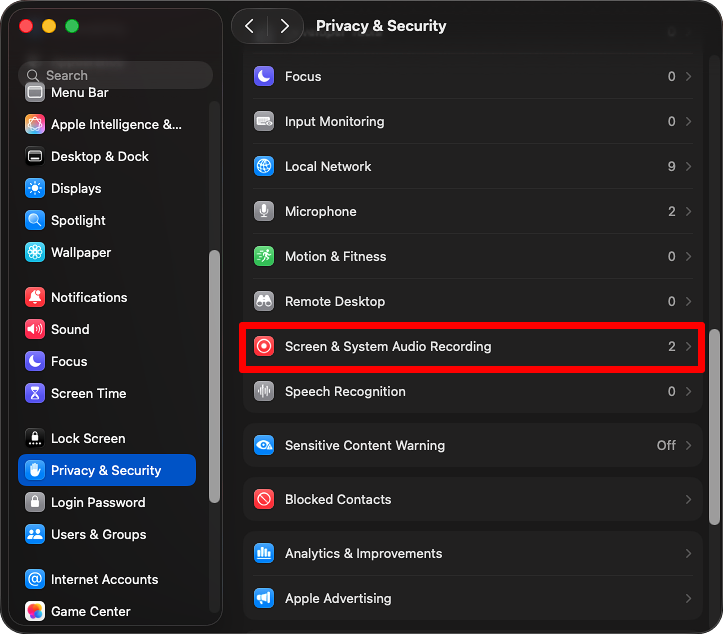
- In the left sidebar, scroll down and click Privacy & Security.
Scroll down and click on Screen & System Audio Recording in the right sidebar.
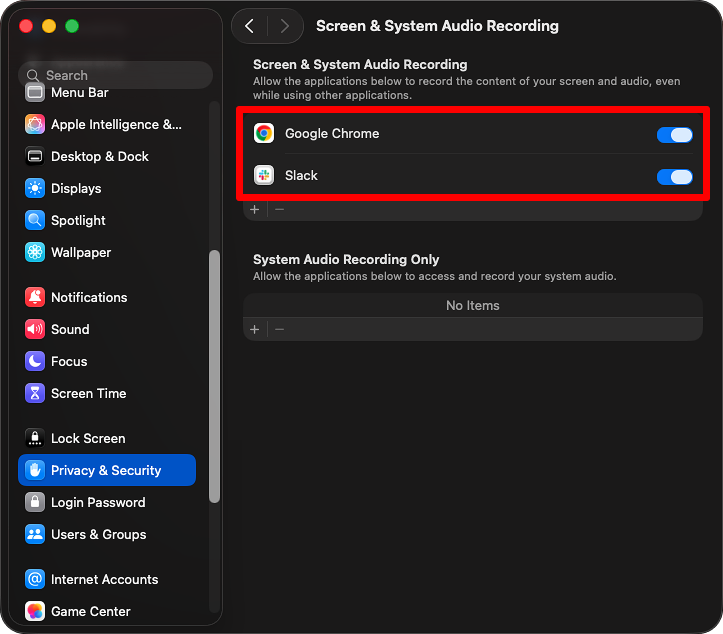
Toggle ON the switch for the browser (e.g. Google Chrome) you want to allow screen sharing.
- Close Settings and restart your browser.
Once the permission is granted and the browser is restarted, You will be able to start a screen sharing within Blitzz. The browser may prompt you to choose which screen, window, or tab you want to share when you begin sharing.