
If you denied camera or microphone access in Microsoft Edge, Blitzz can't use them. Reset the site permissions to get the prompt back.
How to reset permissions in Microsoft Edge
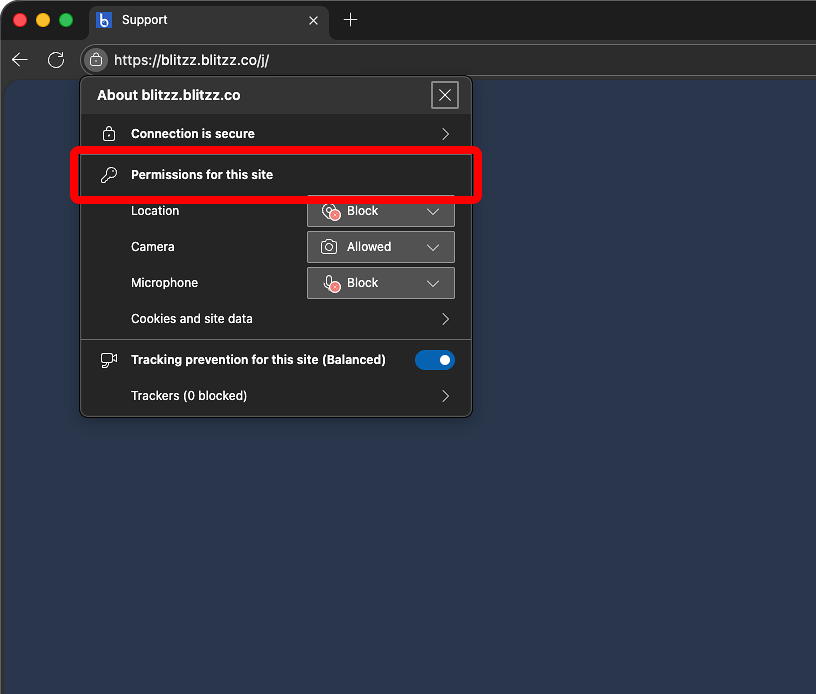
- Click the lock icon on the left side of the address bar.
- Click Permissions for this site.
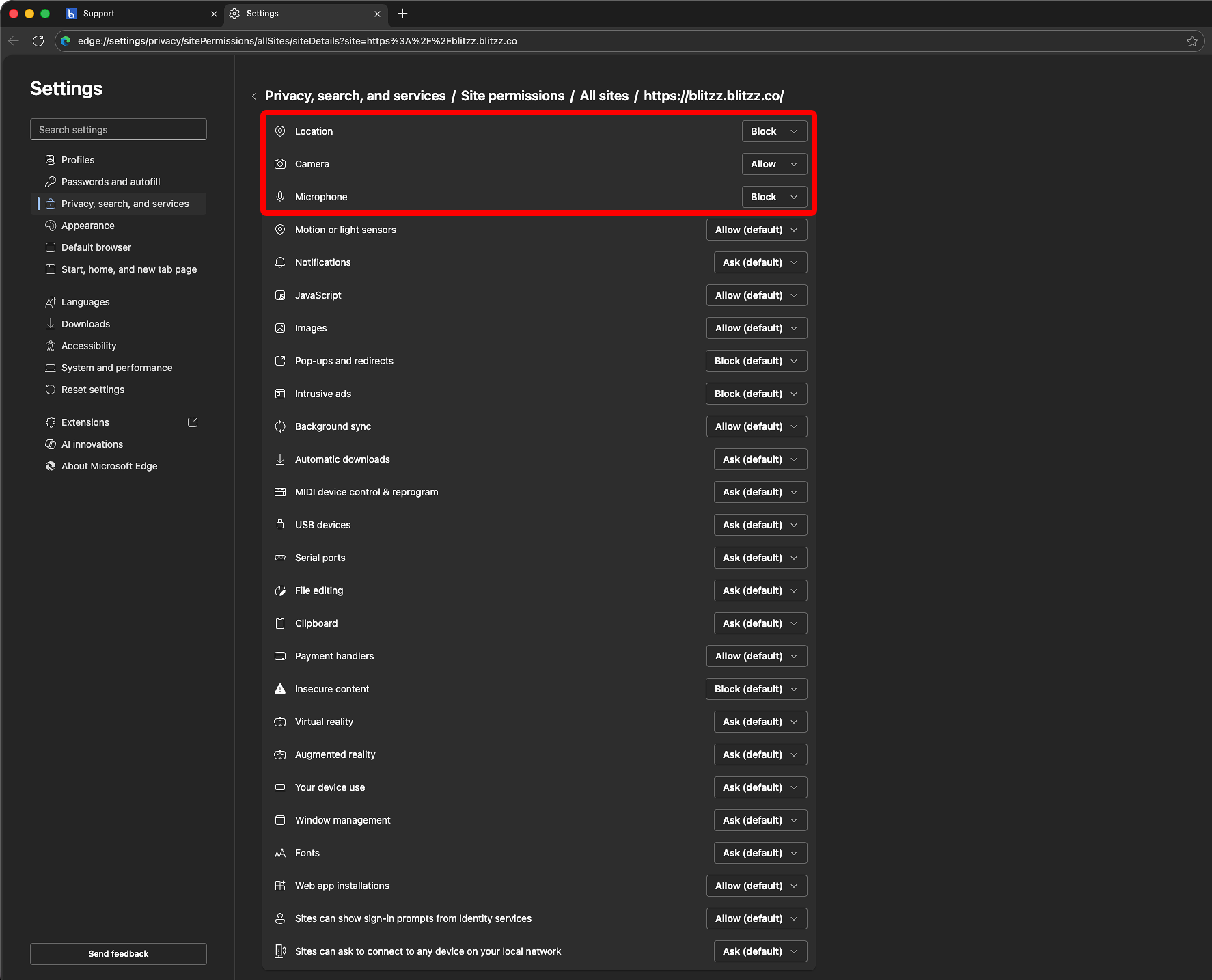
- For each permission (Camera, Microphone, Location), change the setting to Ask (default).
- Close the panel, go back to your Blitzz call page and refresh it.
- When asked for camera and microphone access, click Allow.
Frequently asked questions
How do I get Edge to ask for camera permission again?
Set the camera and microphone permissions for the site back to Ask (default), then refresh the page.