
macOS Catalina includes enhanced security settings that require explicit permission for screen sharing in your browser. If screen sharing isn’t working during your Blitzz session, follow the steps below to grant the necessary permissions.
How to enable screen sharing for browser
- Open System Preferences
(you can use Spotlight search: CMD + SPACE → type “System Preferences”). - Go to Security & Privacy.
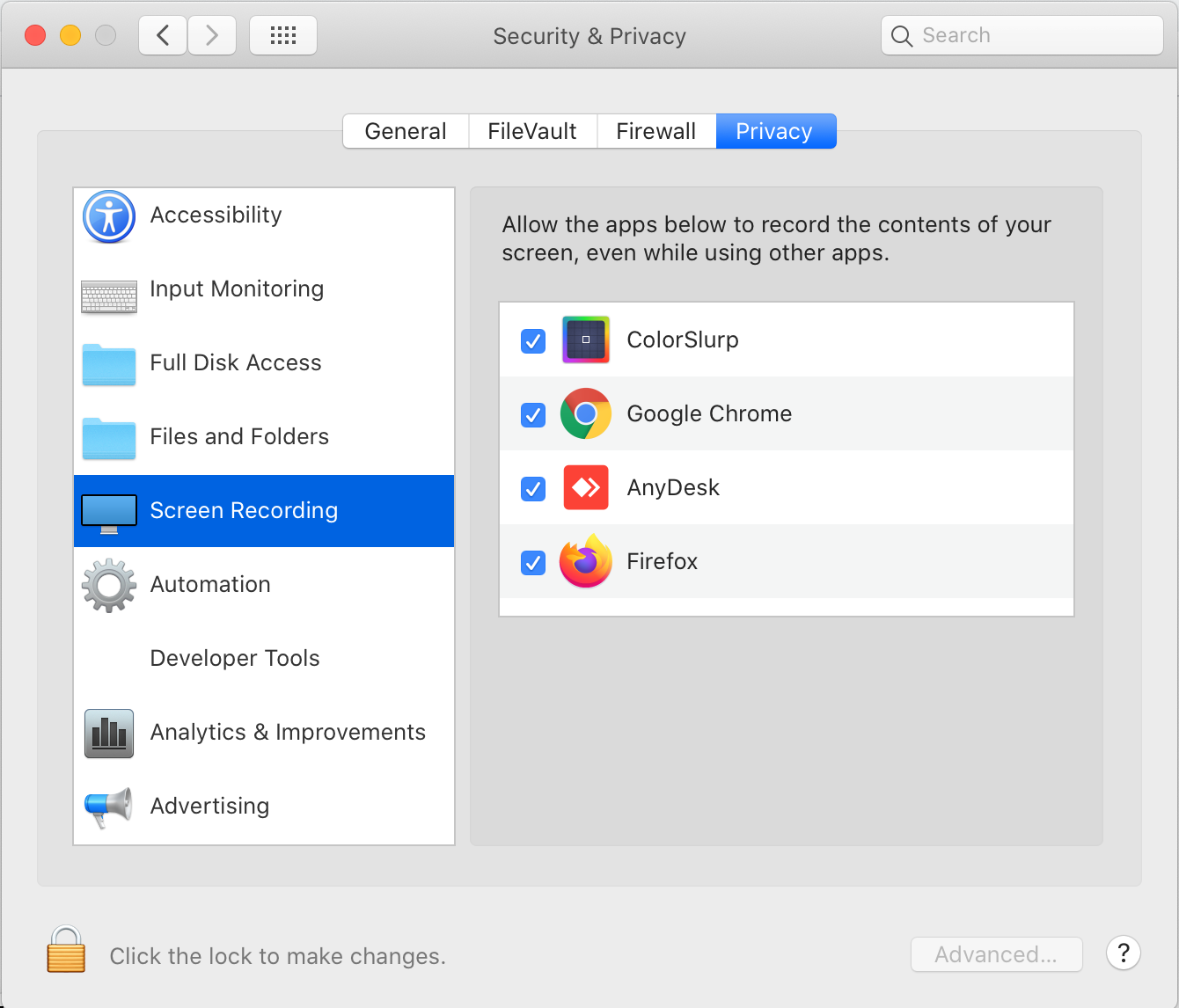
- Click the Privacy tab. On the left-hand menu, scroll down and select Screen Recording.
- In the list of apps, Make sure your preferred browser is checked (for example, Google Chrome, Safari, or whichever browser you're using).
- You will be prompted to restart the browser.
Once these permissions are granted, you should be able to share your screen successfully during a Blitzz session.