
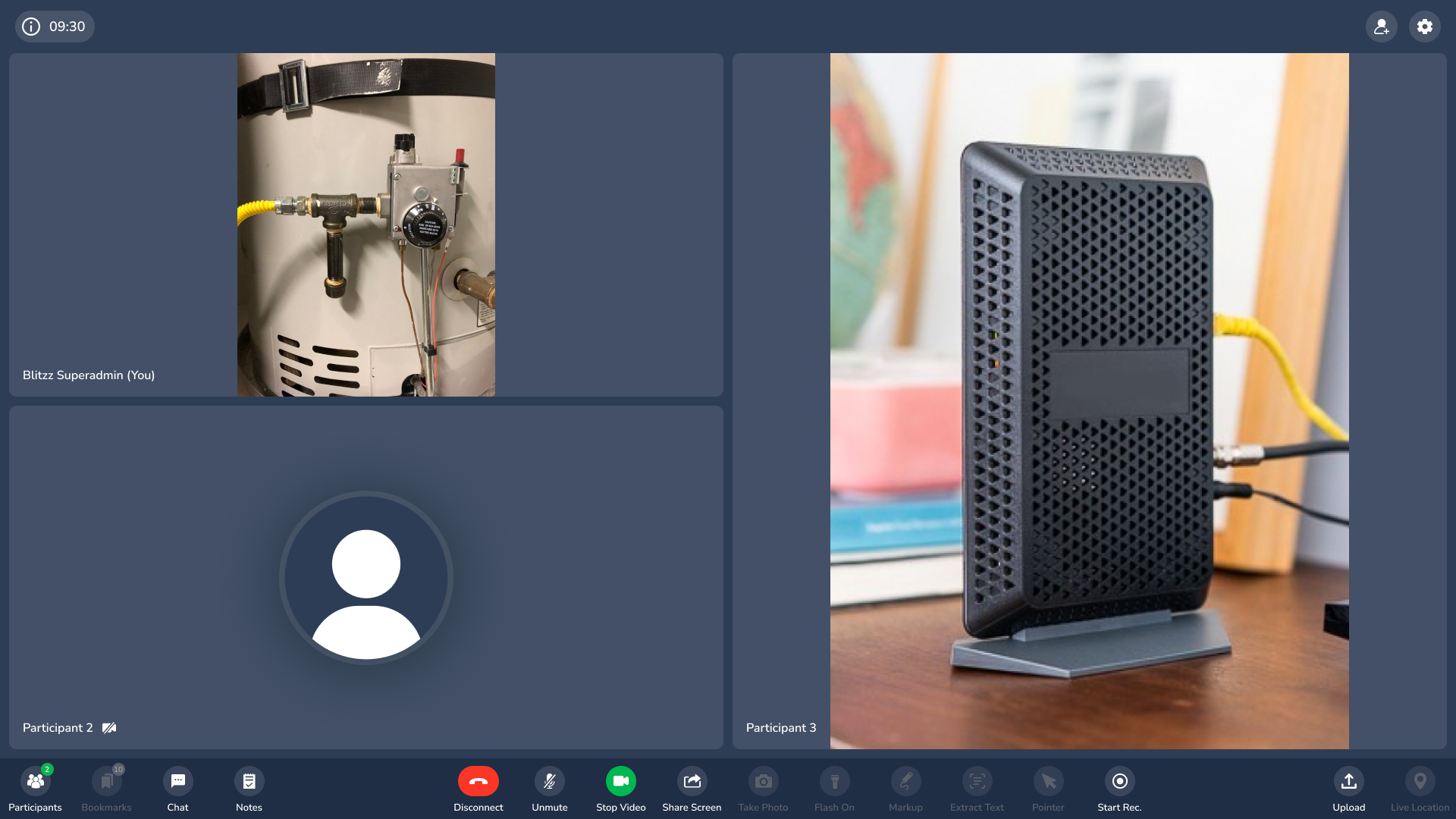
Gallery View shows all participants' video in a responsive grid during a Blitzz session. The grid grows or shrinks as people join or leave. With Gallery View off, only one participant's video shows at a time.
Note: When you pin a participant, all enabled Blitzz tools keep working. If recording is on, a recording indicator appears in the upper right corner on desktop.
How to turn on Gallery View
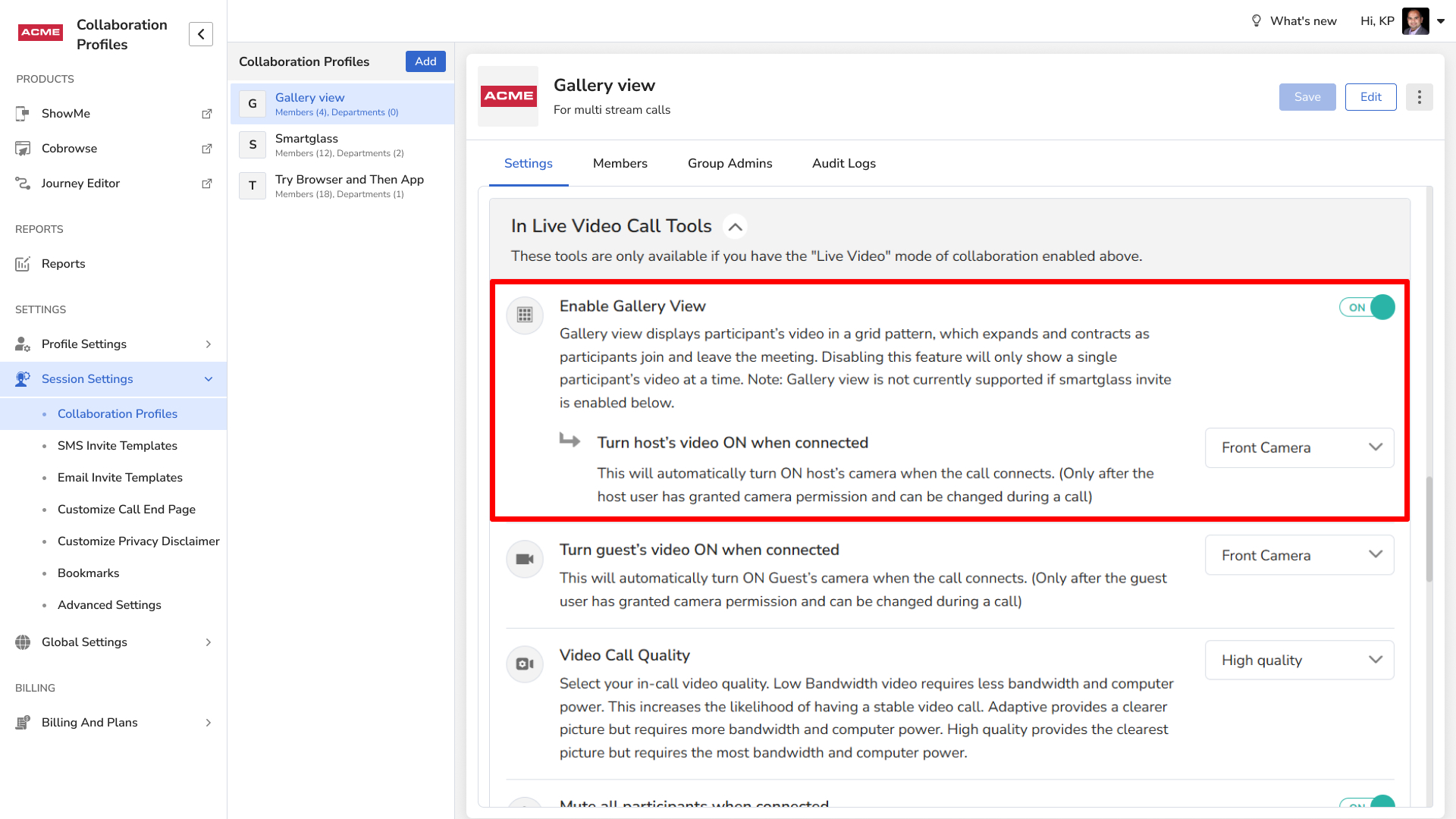
- Log in as an Admin and click Session Settings in the left sidebar.
- Click Collaboration Profiles.
- Select the Collaboration Profile. On the Settings tab, scroll to Gallery View and turn it on.
- Choose which camera the host uses when joining:
- Off: The agent starts their video manually.
- Front Camera: Uses the device's front camera automatically.
- Back Camera: Uses the device's back camera automatically.
- Click Save.
Use Blitzz tools like Markup in Gallery View
Click a participant's video to pin it for everyone. It moves to the center of the screen, and you can use Take Photo, Markup, Extract Text and other tools as usual. When you're done, click Return to Gallery View in the lower right corner.
What Gallery View looks like
Agent desktop view
All participants appear in a grid. Agents can pin a participant or return to Gallery View at any time.
Guest mobile view
All participants appear in a layout that adjusts to the screen size.

Frequently asked questions
Can I use Markup while in Gallery View?
Yes. Pin the participant's video first, then use Markup or any other tool.