
Use Notes to capture details about the images and information you collect during a Blitzz session. After the call, you can download your notes or view them in the Word report.
How to turn on Notes
- Log in as an Admin and click Session Settings in the left sidebar.
- Click Collaboration Profiles.
- Select the Collaboration Profile. On the Settings tab, scroll to Notes and turn it on.
- Click Save.

Open Notes during a session
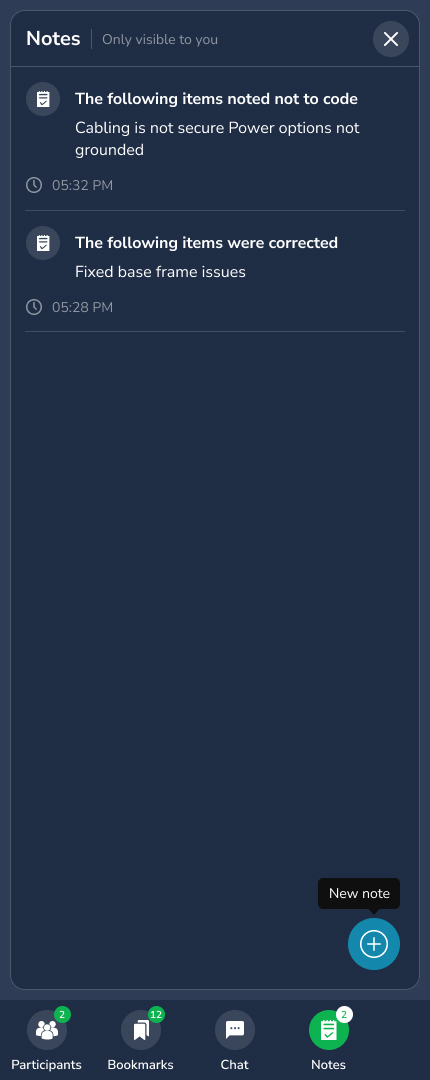
Click the Notes button in the bottom menu bar.
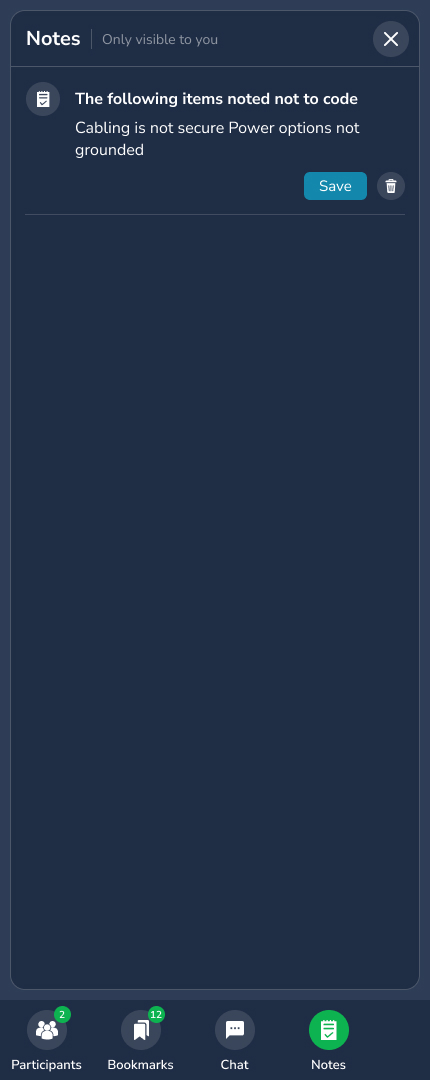
Add a note
Click + (New Note), enter a title, then type your note. A title makes notes easier to find later.
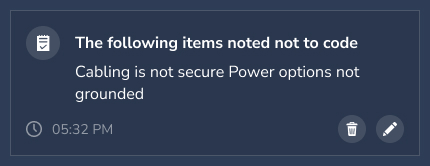
Edit or delete a note
Hover over a note to show the Edit and Trash buttons. Click Edit to change it or Trash to delete it.
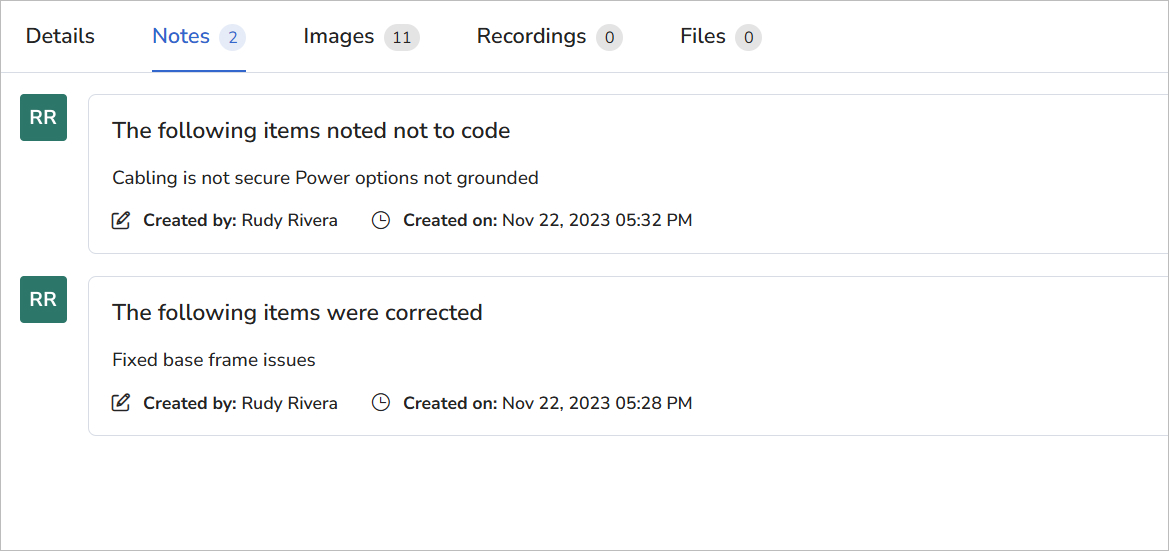
View notes after the session
Open Session Details and go to the Notes tab.
Frequently asked questions
Are notes included in the inspection report?
Yes. Notes appear in the Word document generated after the session.