
Blitzz provides flexible role-based access control so you can manage permissions and ensure users have the appropriate level of access. Only Super Admins and users with the Add/Edit Users permission can modify another user’s role. Whenever a user’s role is updated, they must logout and login to their account for the updated permissions to take effect.
How to Edit Domain Role
- Login as a Super Admin and click Global Settings in the left sidebar.
- Click User Management from the expanded submenu.
- Click the Edit icon in the Action column for that user.
- Click the Domain Role tab.
- Select the New Role from the list and Save your changes.
Available Role Types
| Role | Administrative Features | View all Sessions | Billing | REST API | Add/Edit Users | Reports | Create Sessions | Join Sessions |
| Super Admin |  |  (Configurable) (Configurable) |  |  |  |  |  |  |
| Admin |  |  (Configurable) (Configurable) |  |  |  |  |  | |
| User Manager |  * * |  |  |  | ||||
| Developer |  |  ** ** |  |  |  | |||
| Billing |  |  |  |  | ||||
| Data Analyst |  |  |  | |||||
| User (Internal) |  |  | ||||||
| Guest |  |
* Add/Edit User feature can be disabled for User Manager Roles upon request. Contact our Suppor Team to make this change.
** Add/Edit Feature for Developers is only available through the REST API on Enterprise Edition
Collaboration Profiles Admins and Department Admins
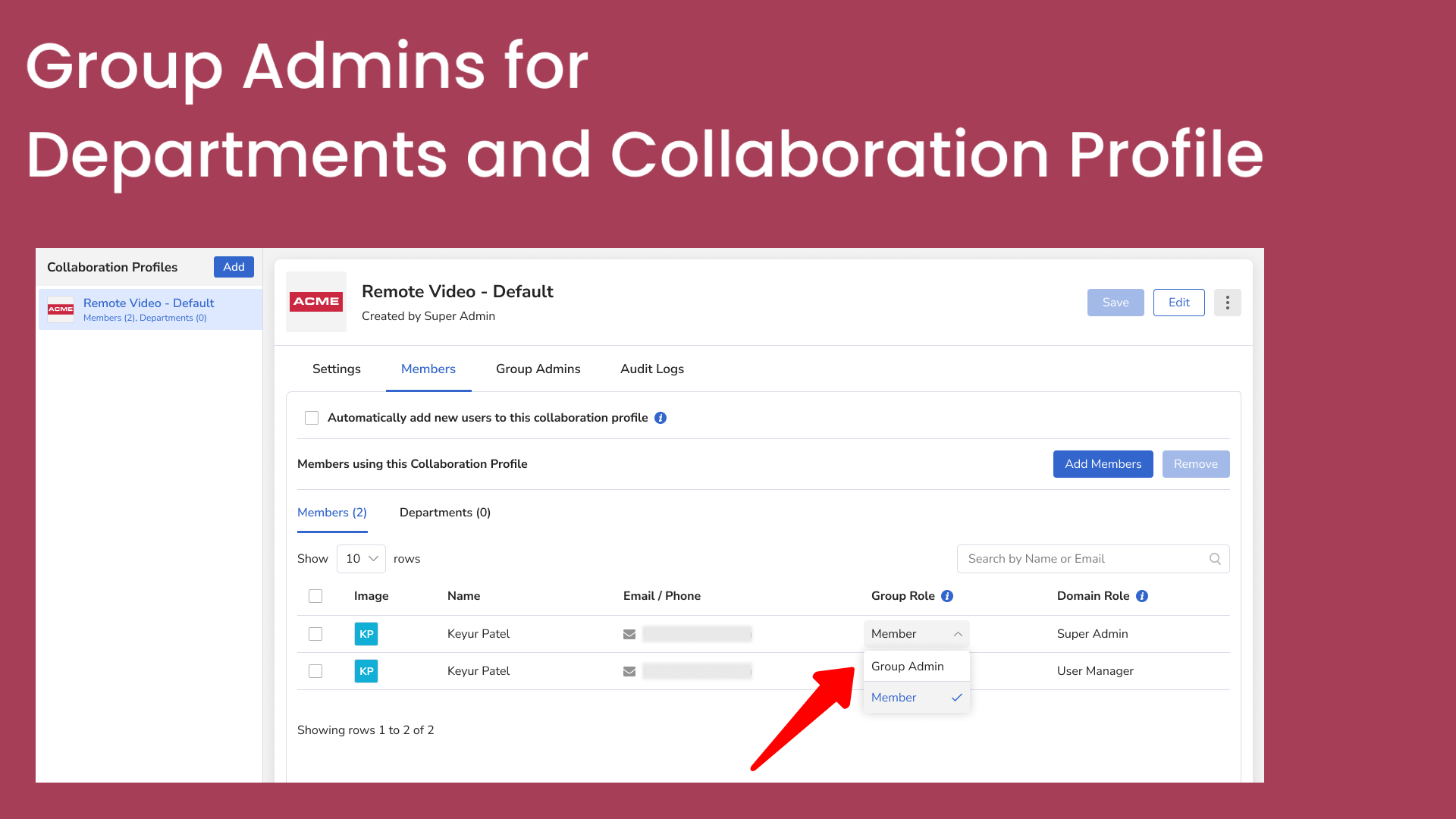
- Any user (data analyst/billing/etc) can be assigned as a Collaboration Profiles Admin or Department Admin if they are a member of that Collaboration Profiles or Department. This allows them to view that collaboration profiles and make changes, including adding and removing users to and from that collaboration profiles/Department.
- Group-Specific Admins cannot modify other Groups (Collaboration Profiles or Departments) unless they made Admins to that Group.
- Any user with Super Admin and Admin roles can manage all Collaboration Profiles and Departments.
- You can add more than one Admin for Group (Department or Collaboration Profiles)
Steps:
Department Admin:
To assign admin role to a user in a Departments, follow the steps below.- Login as an Admin and click Global Settings in the left sidebar.
- Click Departments from the expanded submenu.
- Select the Department from the list that you would like to configure.
- In the Members tab, click the drop-down arrow under the Group Role column and set the user as Group Admin.
Click Save to apply the changes to the Department.
Collaboration Profiles Admin:
To assign admin role to a user in a Collaboration Profile, follow the steps below.- Login as an Admin and click Session Settings in the left sidebar.
- Click Collaboration Profiles from the expanded submenu.
- Select the Collaboration Profile from the list that you would like to configure.
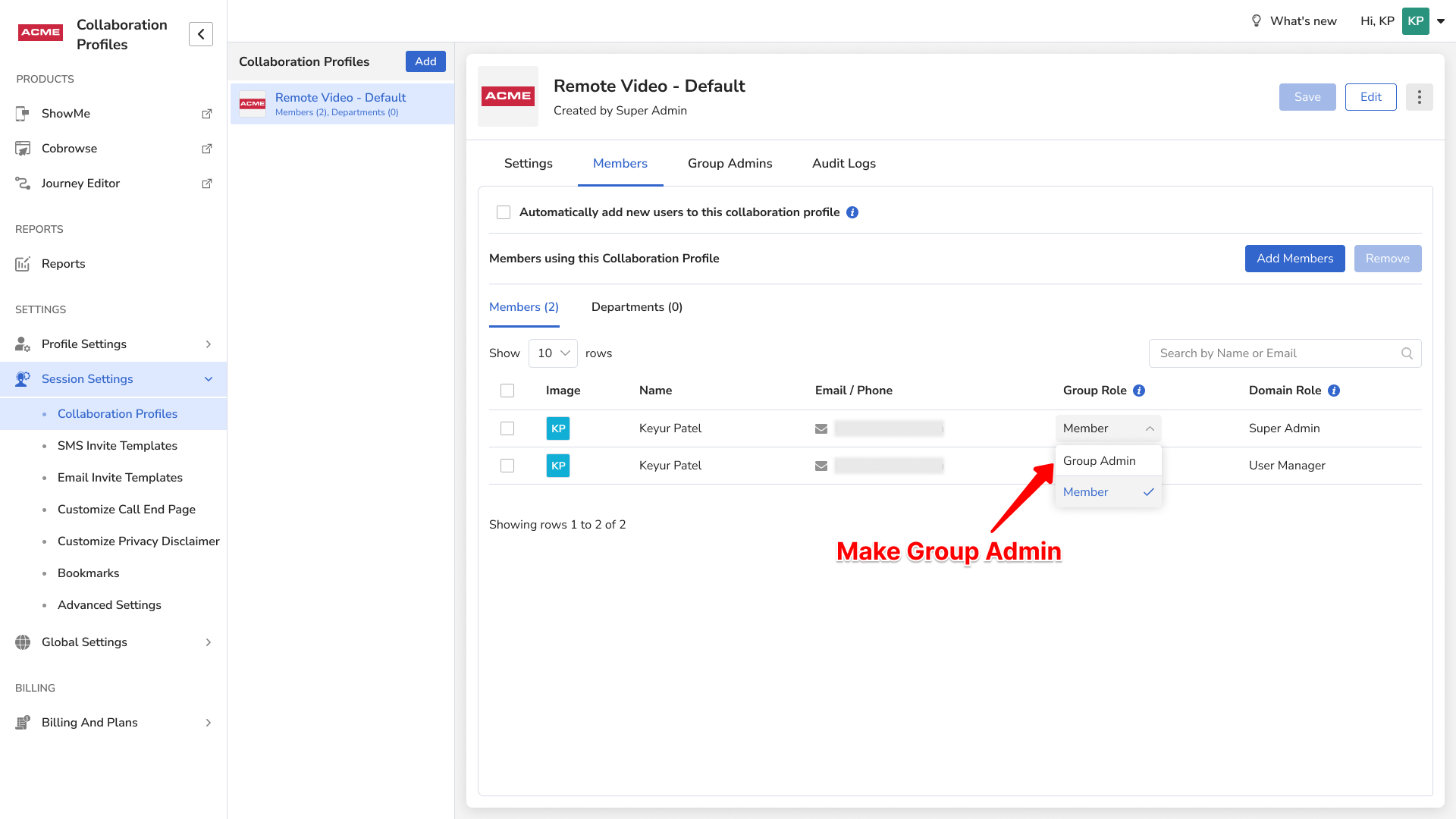
- In the Members tab, click the drop-down arrow under the Group Role column and set the user as Group Admin.
- Click Save to apply the changes to the Collaboration Profile.
- Login as an Admin and click Session Settings in the left sidebar.
| Group-Specific Role | Manage Departments | Manage Collaboration Profiles |
| Department Admin |  | |
| Collaboration Profiles Admin |  |