
If other participants can’t hear your audio during a Blitzz session, there may be a few possible reasons:
- Your microphone may not be functioning properly
- Their speakers may not be working
- Your microphone permission is disabled
- There may be network issues
To begin troubleshooting, run a pre-call test on your device to ensure your microphone is correctly set up and working.
Here are a few things to try:
Refresh your browsers
Sometimes your browser doesn't connect to your microphone or their speakers properly. Have both you and your participants both restart your browsers to give them another chance to connect properly.
Are their speakers turned on?
Make sure your participants can hear sound from their speakers. If they have headphones or other speakers connected, make sure the sound isn't playing there. To confirm that sound is working, have them play this video.
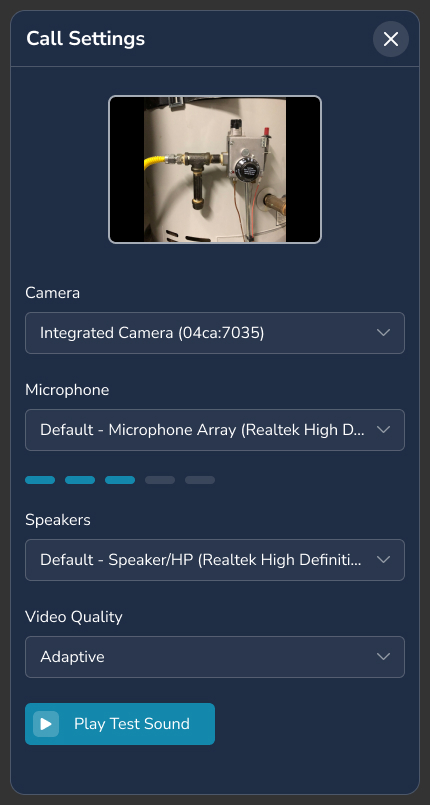
Are the correct microphone and speakers selected?
Open the Call Settings before or during a call to verify which speakers and microphone are being used. If you have multiple audio devices (built-in mic, external mic, headset), choose the mic you are actively using. Both you and your participant should check these settings.
Do you have a microphone?
Your computer may not have a built-in microphone, or it may be unplugged or turned off. Please verify that you have a working microphone connected and enabled.
Is your microphone muted?
If you have a microphone with a press-to-mute button, make sure it isn't muted. Also, Blitzz has its own mute button, make sure you don't have it on.
Have you granted microphone access at the browser level?
In your browser: If you are joining a Blitzz session for the first time, your browser will ask for permission to access your microphone. If you deny this request, others will not be able to hear you. In this case, you will need to reset your microphone permissions.
Restart both your computers <-- THIS SOLVES MOST ISSUES
Sometimes other video conference software (e.g. Skype, Teams, Facetime) can block access to your microphone or speakers. Restart both of your computers, then try again.
Check if your browser is up to date
Running an outdated browser may result in audio performance issues. Ensure that you are using the latest version of your browser to maintain optimal compatibility and functionality.
Check your computer settings
Your system settings may be blocking microphone access. Check your microphone permissions and sound settings on your Windows or Mac device to ensure access is enabled.
Switch to a different browser
Your current browser may be experiencing an issue. Try using an alternative browser to determine if the problem persists. Blitzz is compatible with Chrome, Firefox, Edge, and Safari.
Check your antivirus, firewall, or parental control settings
Your antivirus software, firewall, or parental control settings may be restricting access to your microphone. Review these settings to ensure microphone permissions are not being blocked.
Update your Camera and Microphone drivers
Use Device Manager, Lenovo Vantage, or Logi Capture (for Logitech devices) to ensure your webcam and microphone drivers are up to date.