
Follow these steps to set up your Blitzz for Zendesk Integration.
Table of Contents
- Step 1: Install the Blitzz Package
- Step 2: Enter the API Key
- Step 3: Test your Blitzz integration in Zendesk
- Step 4: Enable Zendesk Integration in Blitzz
- Enable Popup blocker
Step 1: Install the Blitzz Package
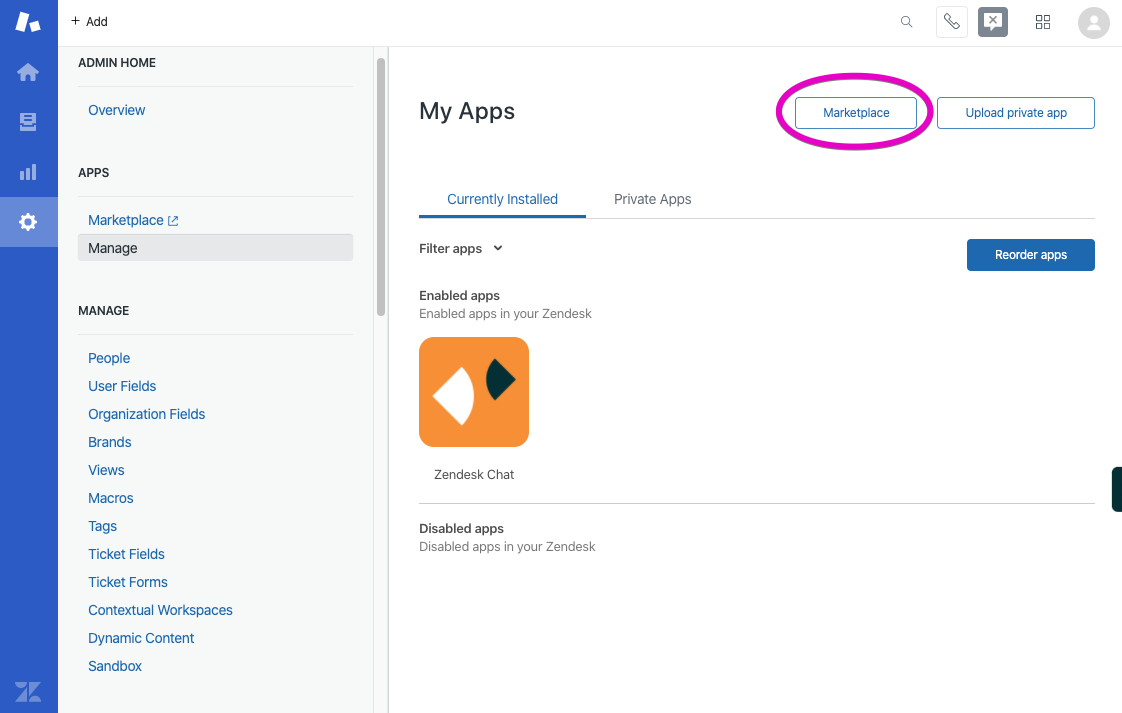
- Login as Zendesk Admin Portal > Manage > Marketplace
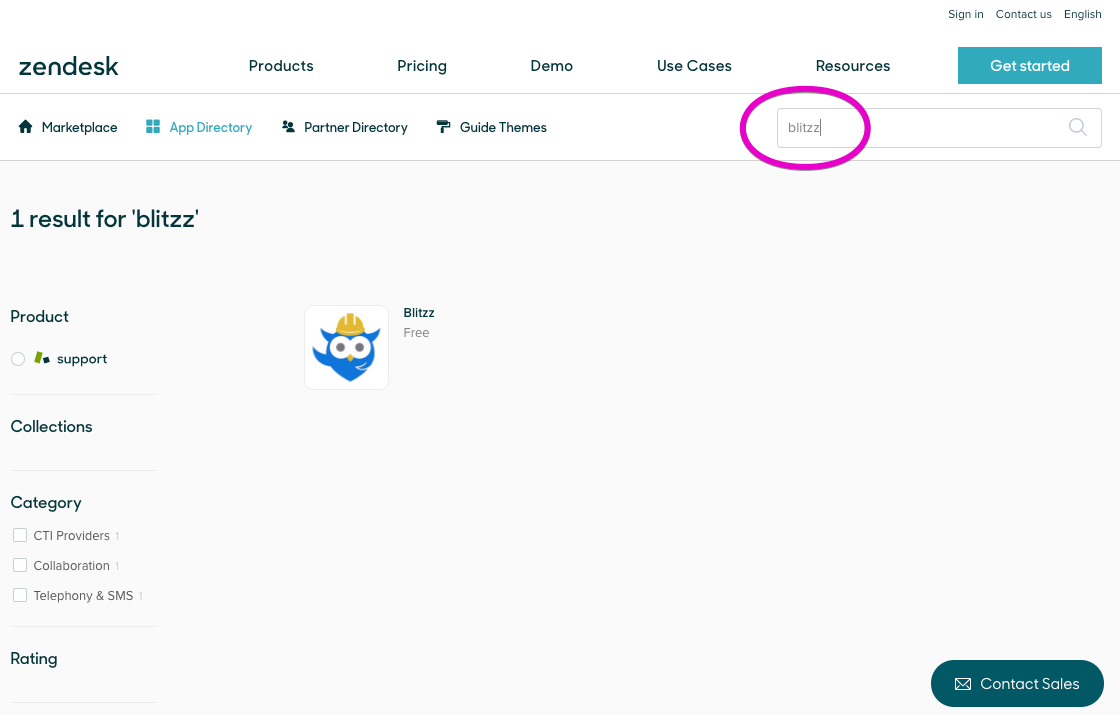
- Search and Install Blitzz from the Marketplace
Step 2: Enter the API Key
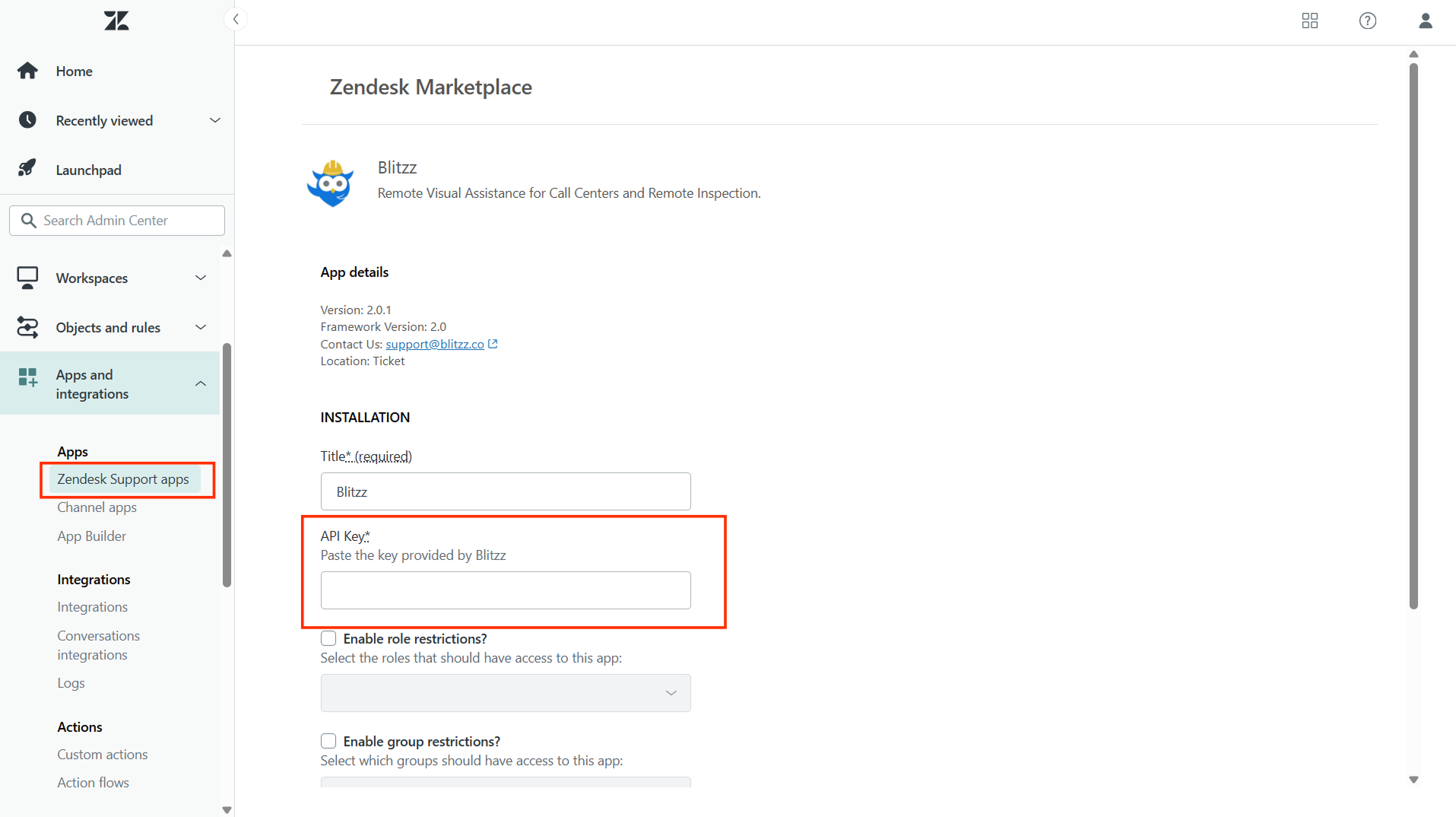
- Enter the API Key in the text field on the App Details screen and click Install.
Note- Please contact our Support Team to provide you with an API Key for your Domain.
Step 3: Test your Blitzz integration in Zendesk
- Navigate back to your Zendesk domain.
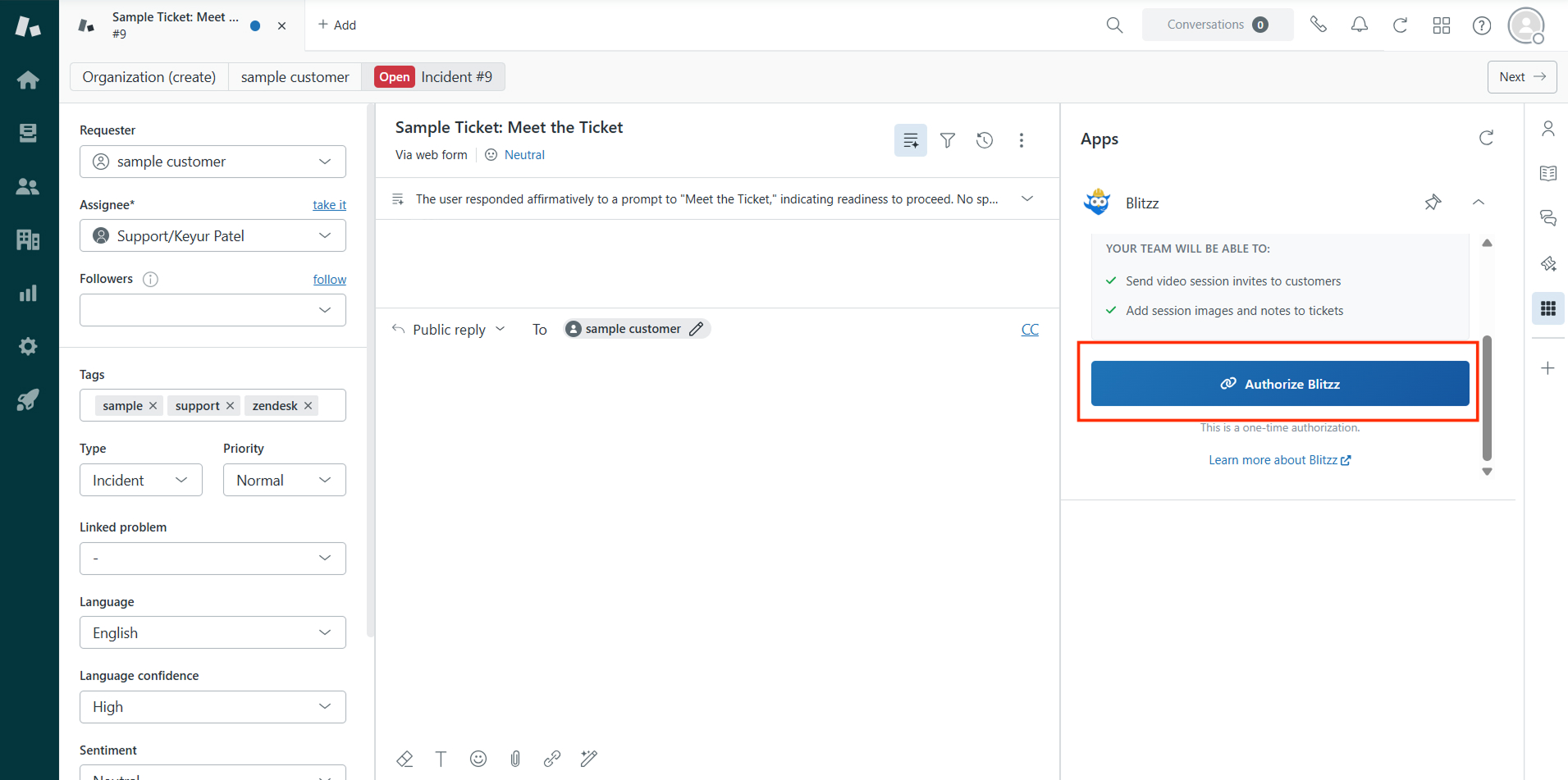
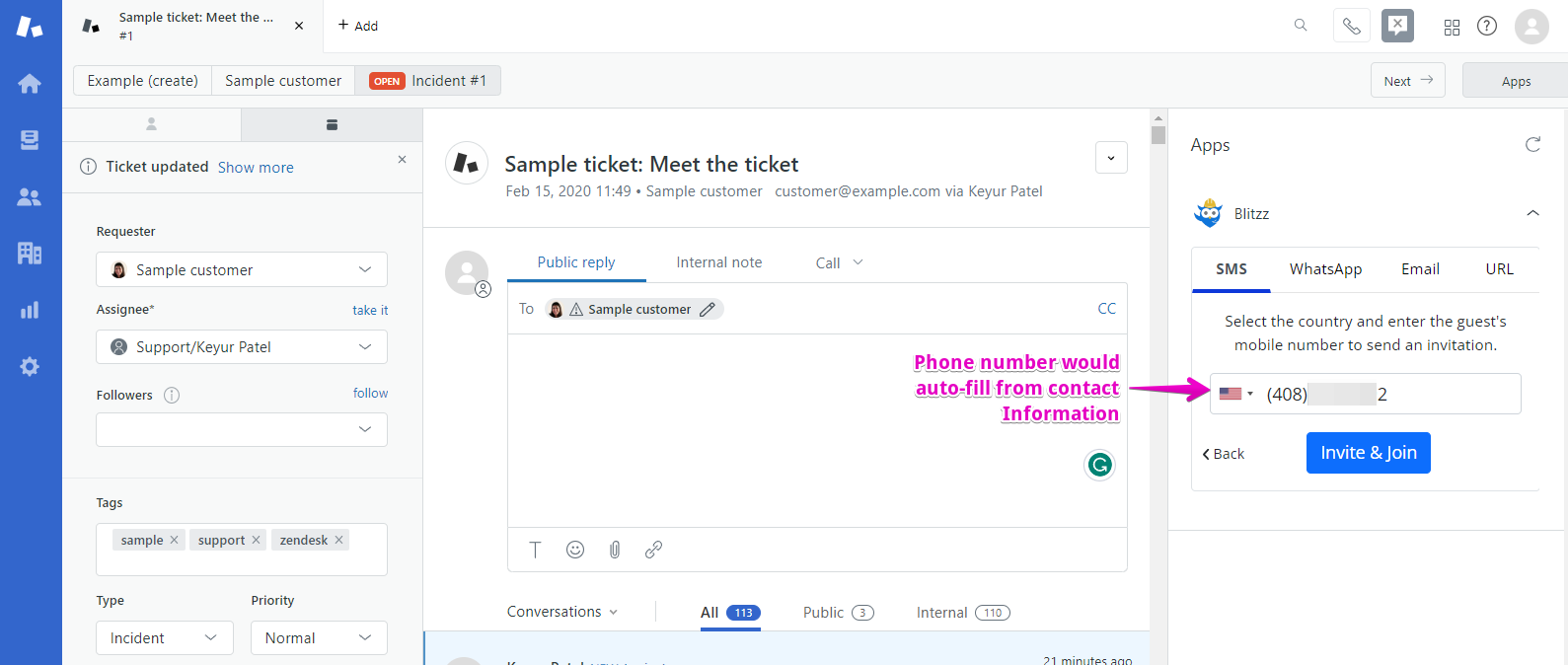
- Open any ticket and, under Apps, select Blitzz to initiate a video session.
If you are logged in as an Admin user in Zendesk, an Authorize Blitzz button will be displayed.
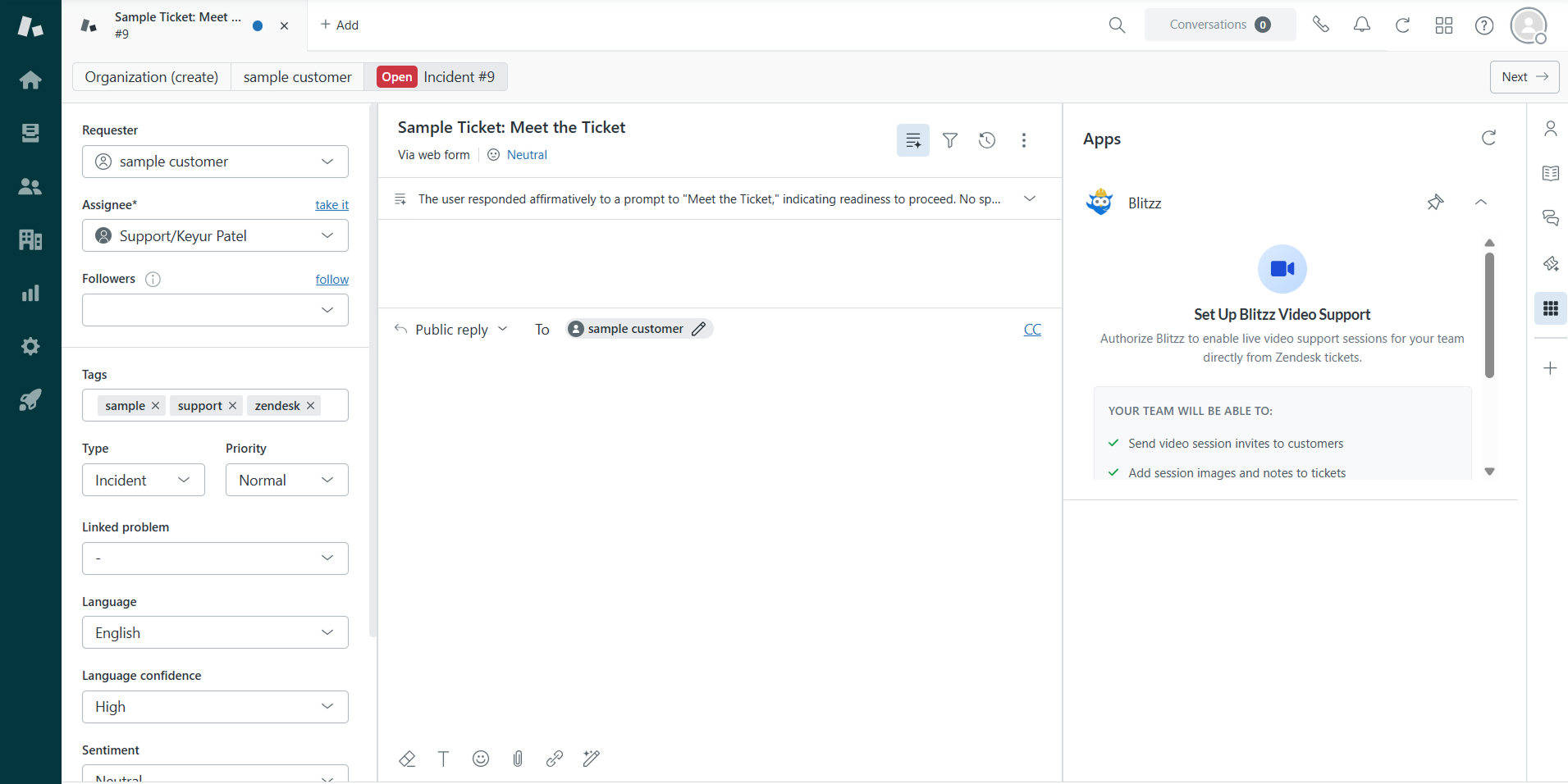
Click Authorize Blitzz.
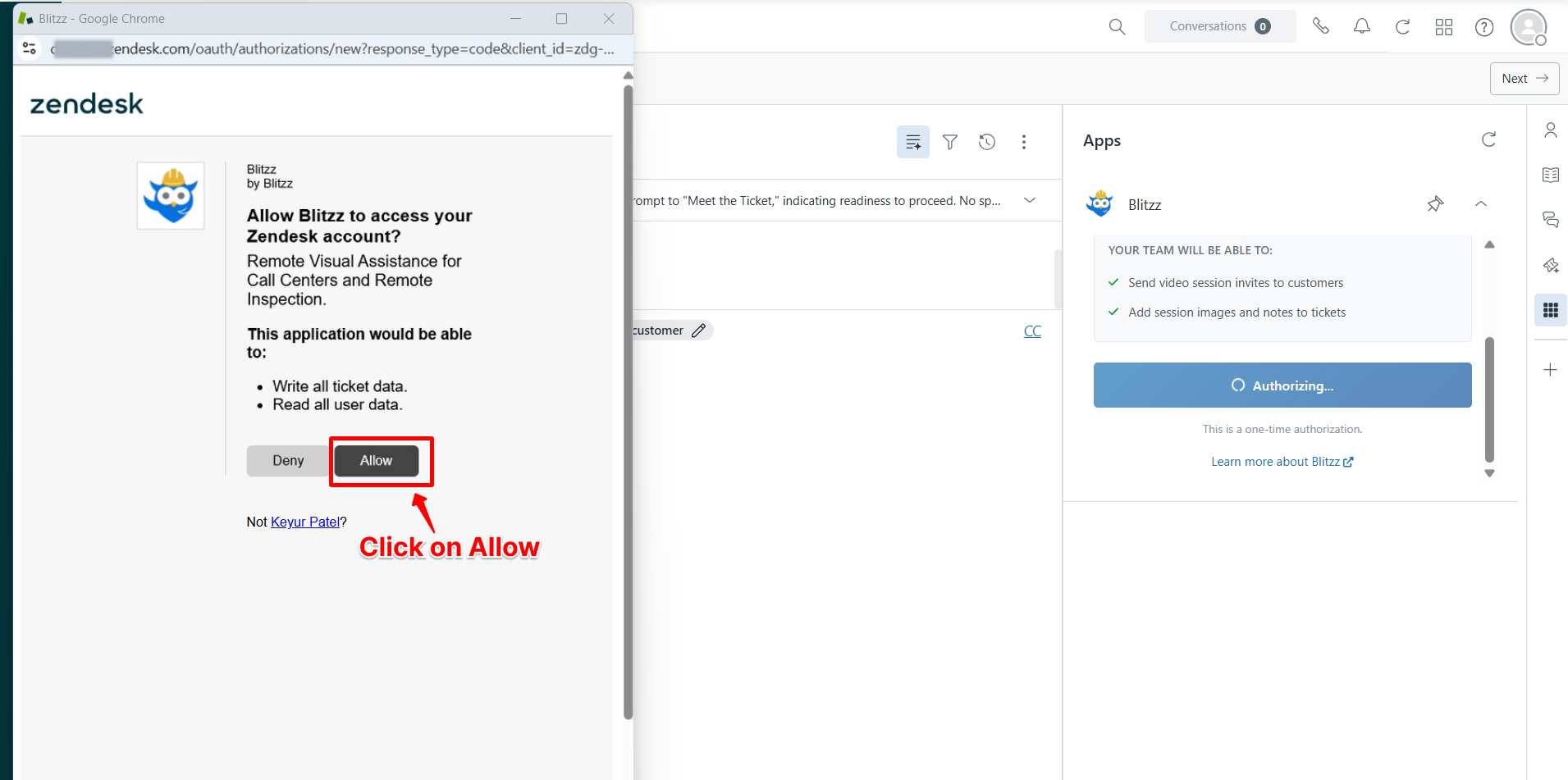
You will be redirected to the authorization screen. Click Allow to grant access.
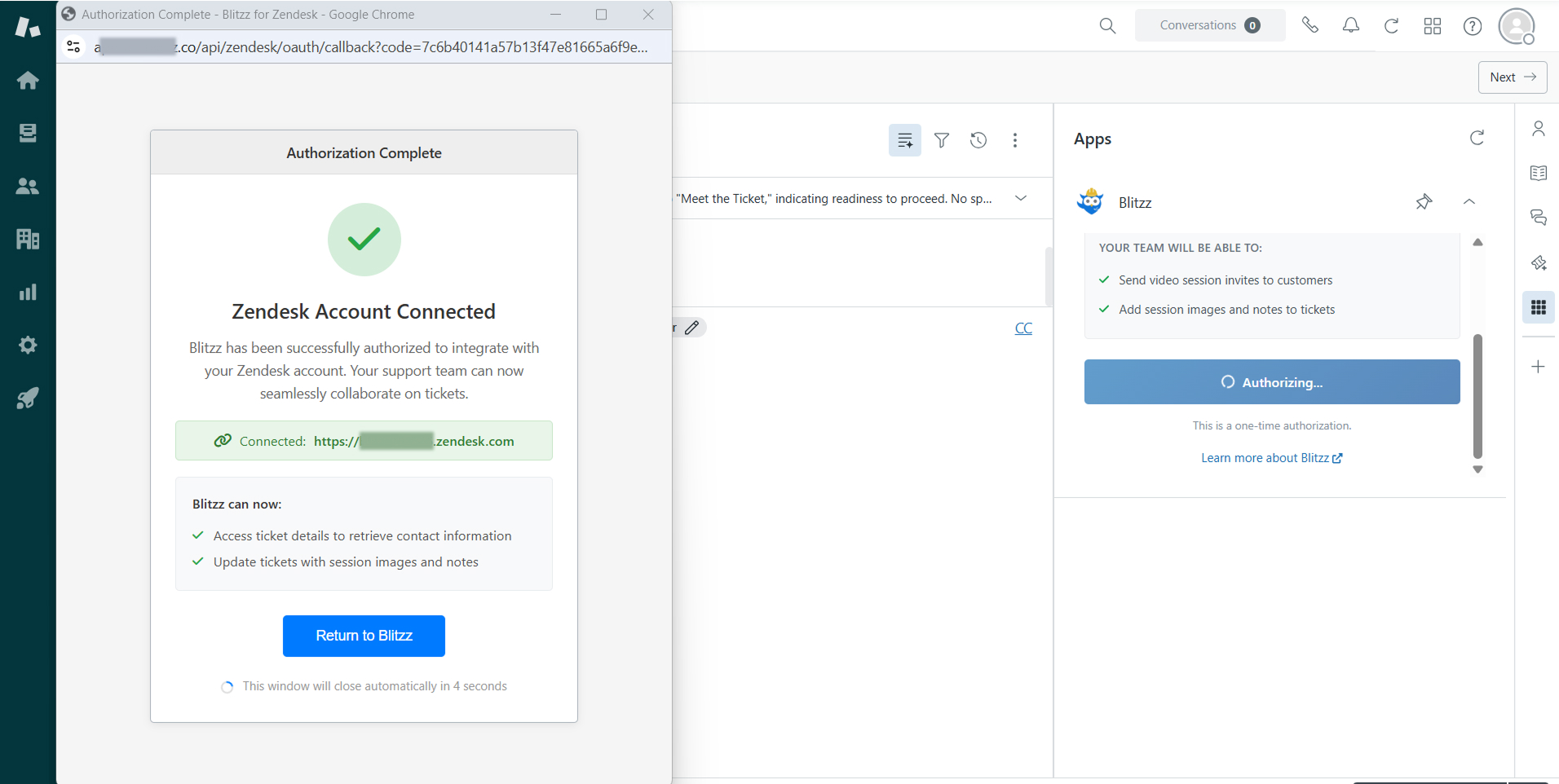
A success confirmation screen will appear. You can now start your video session!
Step 4: Enable Zendesk Integration in Blitzz
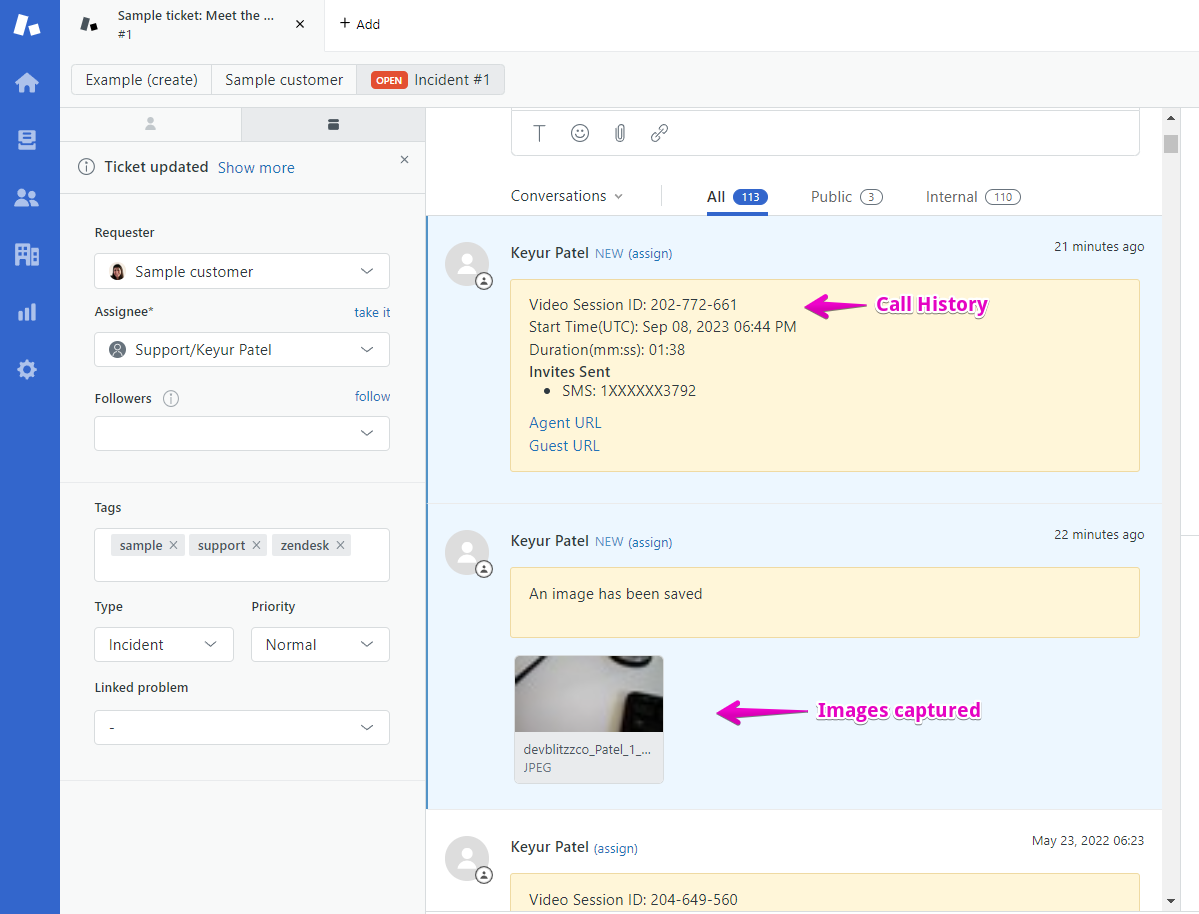
If you'd like to resend the images captured during your ongoing Blitzz Session to Zendesk, just follow the steps below.
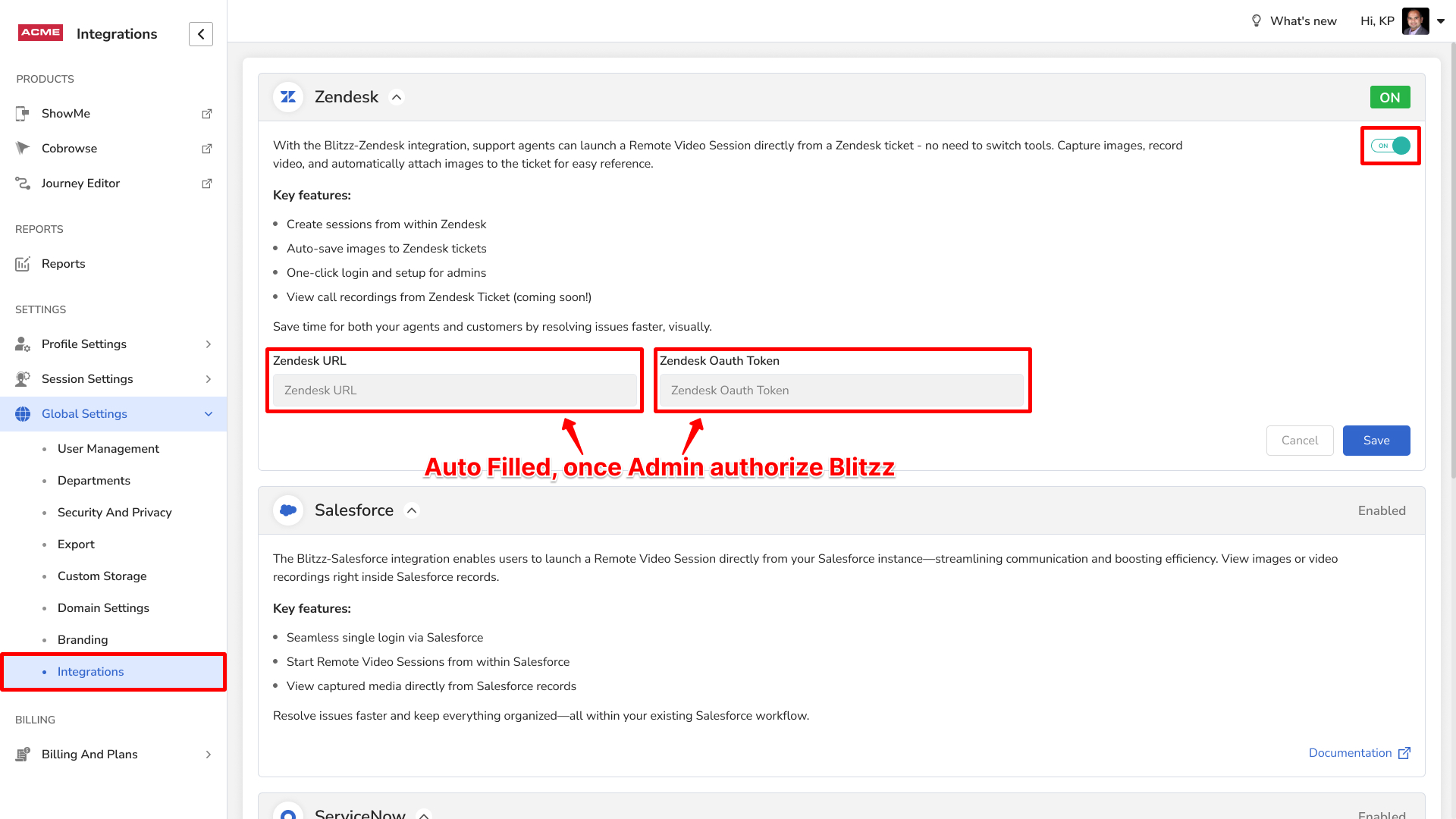
- Navigate to your Blitzz Admin Portal. From the left sidebar, click Global Settings, then select Integrations from the expanded submenu. Enable the Zendesk integration.
- Once an Admin user authorizes Blitzz from Zendesk, the Zendesk URL and Zendesk OAuth token will be automatically populated.
- Click Save.
Enable Popup blocker
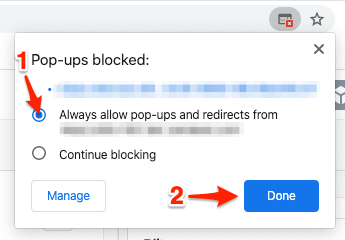
If you have popups blocked or (incognito mode) please ensure that you have enabled popups to launch the Blitzz Video Call screen.
If you run into trouble, or just need a little help, please contact us and we will be happy to help.