
Integrate Blitzz Visual Remote Assistance into your NICE CXone environment to give agents instant access to app-free video support, AR-powered annotations, and photo capture.
Table of Contents
- Step 1: Overview
- Step 2: Prerequisites
- Step 3: Find Blitzz on the NICE CXexchange Marketplace
- Step 4: How to Add Actions in Studio
- Step 5: Voice Channel Integration
- Step 6: Digital Chat Channel Integration
- Step 7: Agent Display Settings
- Step 8: Key Differences - Voice vs Digital Chat
- Step 9: Quick Reference
- Step 10: How to Test Blitzz on NICE CXone
Step 1: Overview
Blitzz integrates into NICE CXone through Studio script modifications. Your existing skills, routing, POC (Point of Contact), and channel setup stay completely untouched.
The integration adds actions to your existing Studio scripts that launch the Blitzz application inside the agent’s Screen Pop panel when a call is answered or a chat is assigned. A Launch button is also added to the agent’s sidebar for quick access in a new browser tab.
PopURL action (to open Blitzz in Screen Pop), an Indicate ON action (to show a Launch button), and an Indicate OFF action (to remove the Launch button when the interaction ends).Step 2: Prerequisites
- Access to CXone Studio — You need permission to edit scripts in the CXone Studio script editor.
- Working Voice and/or Digital Chat skills — Your skills should already be set up with agents assigned.
- Existing Studio scripts — You should already have Studio scripts handling your voice and chat interactions.
- Blitzz App URL & Domain Key — Provided by Blitzz. Contact contact@blitzz.co to receive your unique URL and domain key.
Get Your Blitzz Integration URL
Before you begin, you’ll need your unique Blitzz App URL and Domain Key.
Our team will provide these and help you get set up.
Step 3: Find Blitzz on the NICE CXexchange Marketplace
Blitzz Visual Remote Assistance is available on the NICE CXexchange Marketplace — the official app marketplace for NICE CXone integrations.
- Go to the NICE CXexchange Marketplace and log in with your CXone account.
- In the search bar, type “Blitzz Visual Remote Assistance” and press Enter.
- You can also browse by category or use the filter options (All Products, NiCE Solutions, Strategic, Certified Solutions) to find the app.
- Click on Blitzz Visual Remote Assistance in the search results to view the app details, overview, and pricing.
- On the app listing page, click the Contact Us button to get in touch with the Blitzz team.
- Our team will guide you through the complete setup — including providing your unique Blitzz App URL, Domain Key, and helping configure the Studio scripts.
Screenshot: Blitzz Visual Remote Assistance on the NICE CXexchange Marketplace — Click “Contact Us” to get started.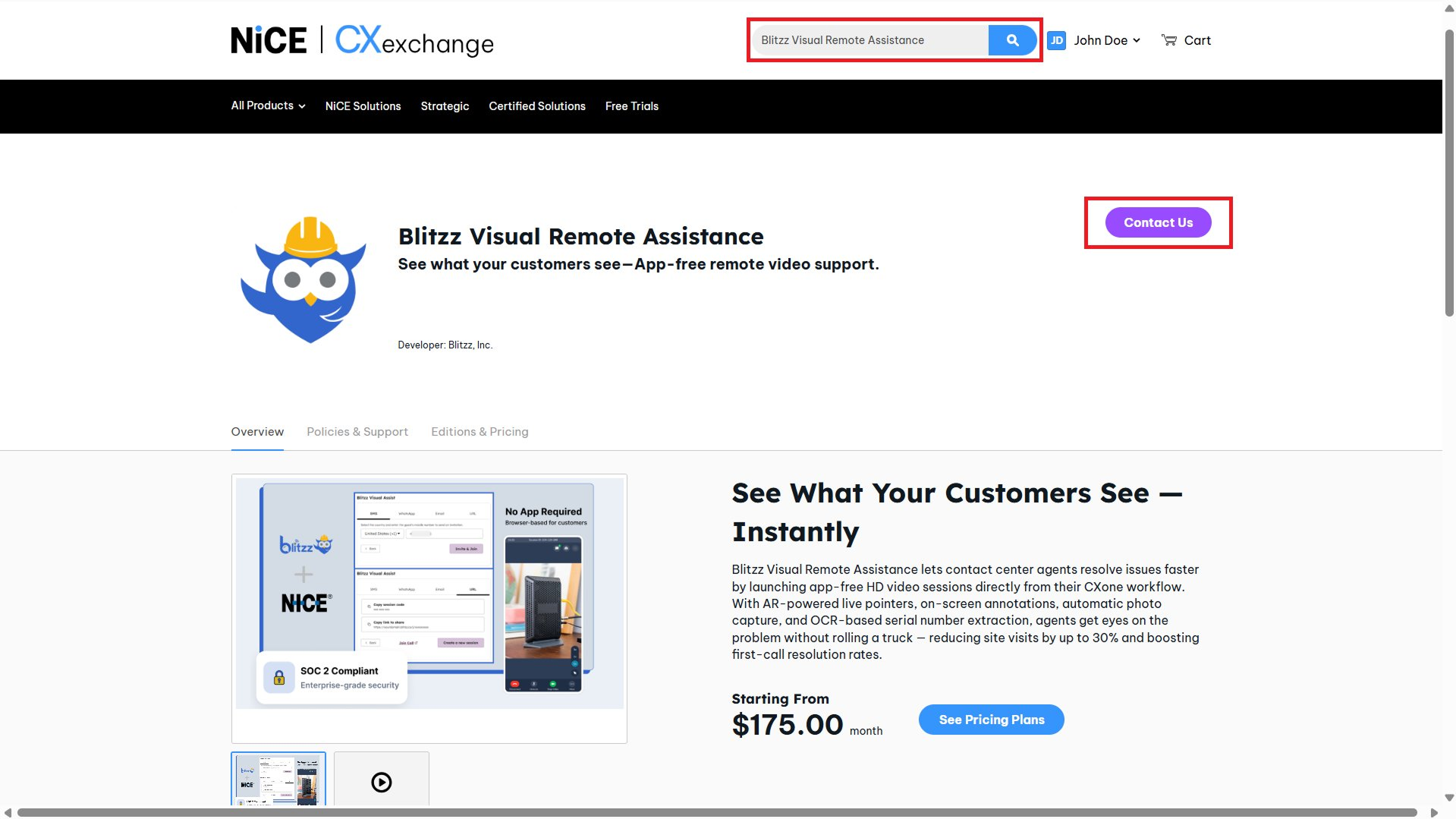
Step 4: How to Add Actions in Studio
Before configuring the specific actions, here’s how to add any action to a Studio script:
- Open CXone Studio. You’ll see all your scripts listed. Find the script you want to edit and double-click it to open.
- Click the Actions panel icon on the left sidebar (the puzzle piece icon).
- In the search box, type the action name — for example,
PopURLorIndicate. - The matching action appears under the AGENT category.
- Drag and drop the action onto the canvas.
- Connect it by drawing a line from the previous action’s output to the new action’s input.
Screenshot: CXone Studio — Scripts list. Double-click your script to open it.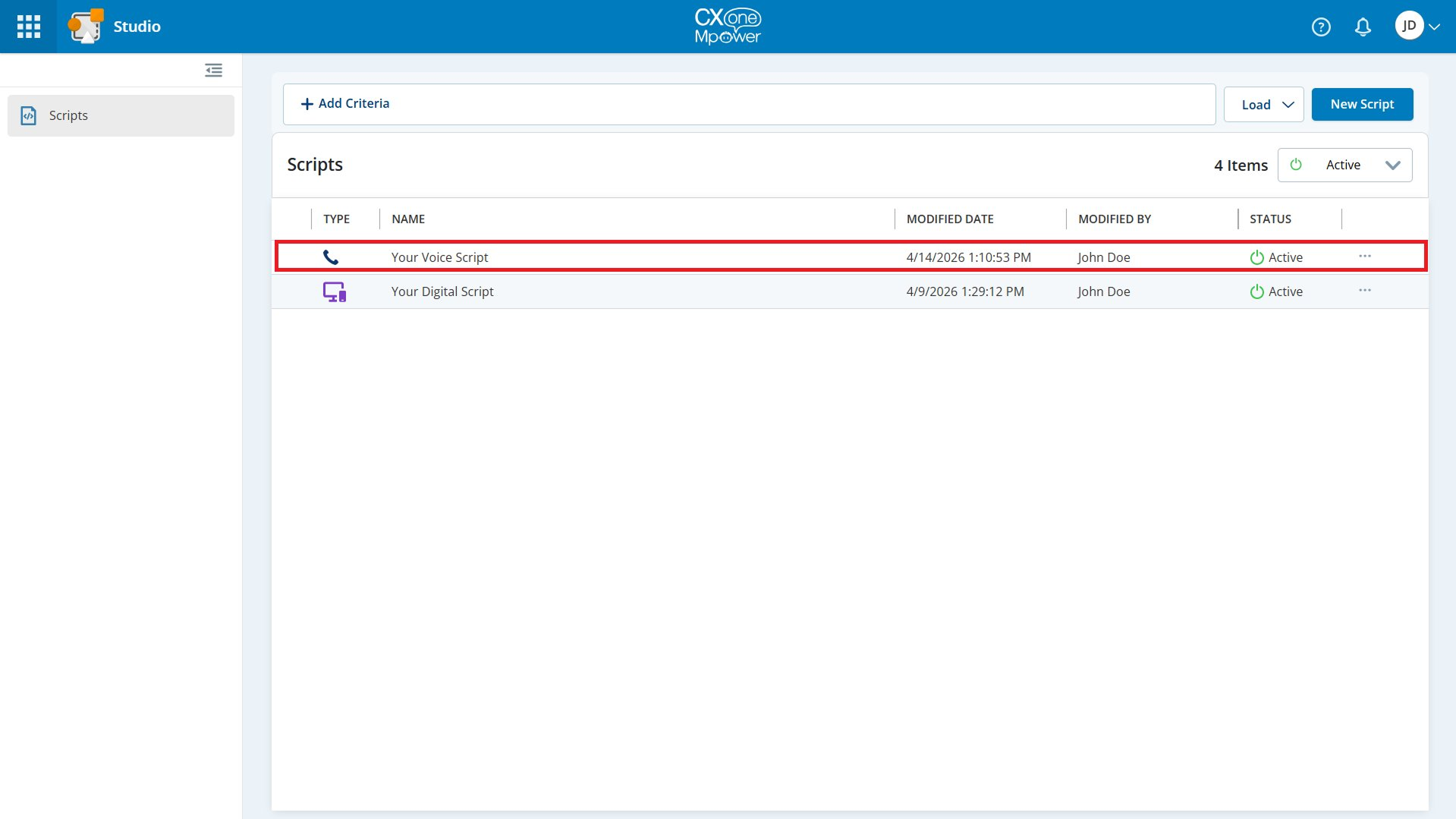
Screenshot: Actions panel — Search for “PopURL” and drag it onto the canvas.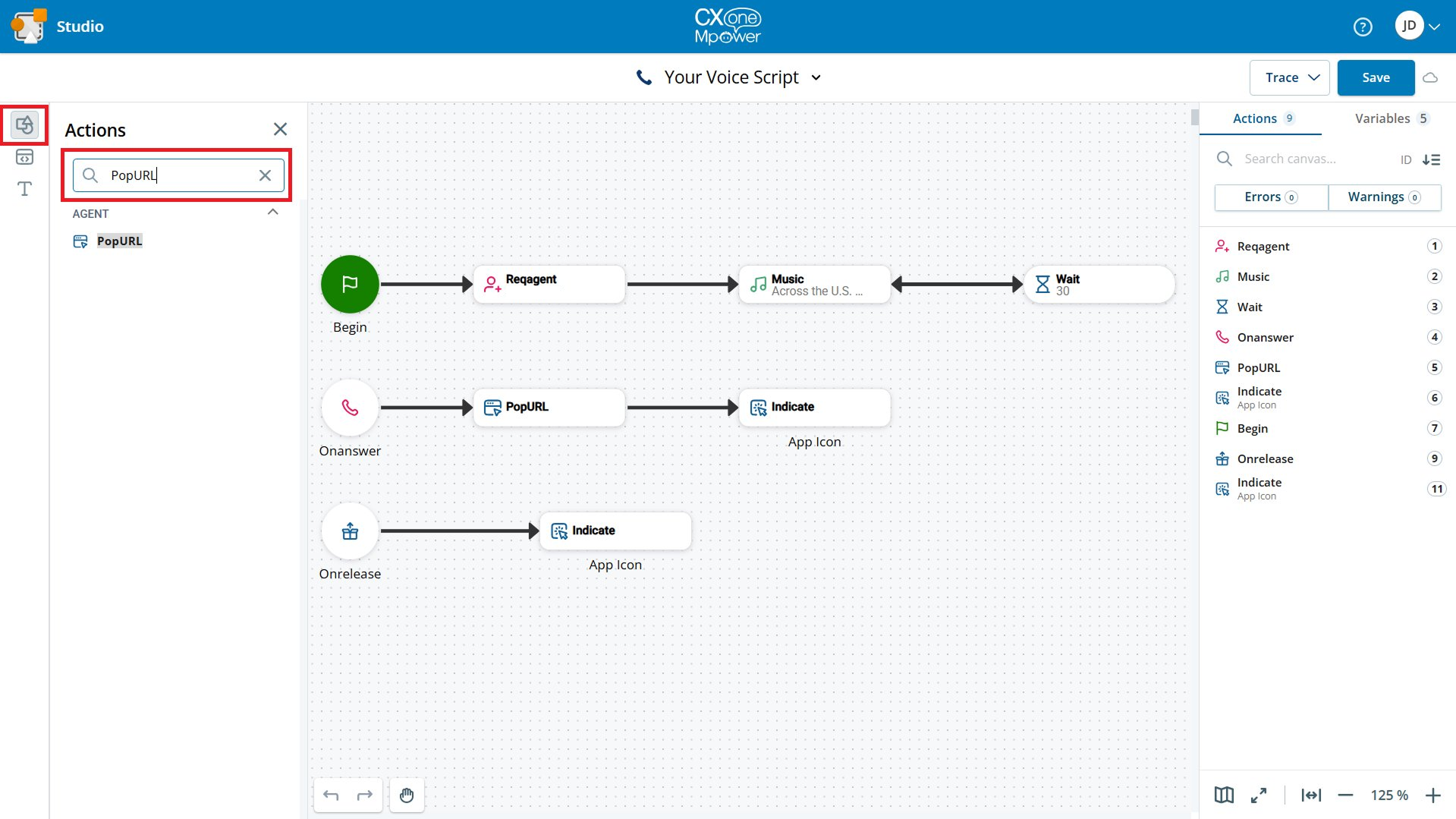
PopURL and Indicate actions.
Step 5: Voice Channel Integration
Voice Script Flow
You’ll add 3 actions (marked with ✨) to your existing voice script:
Screenshot: Blitzz Voice Studio Script — Complete flow with added actions highlighted.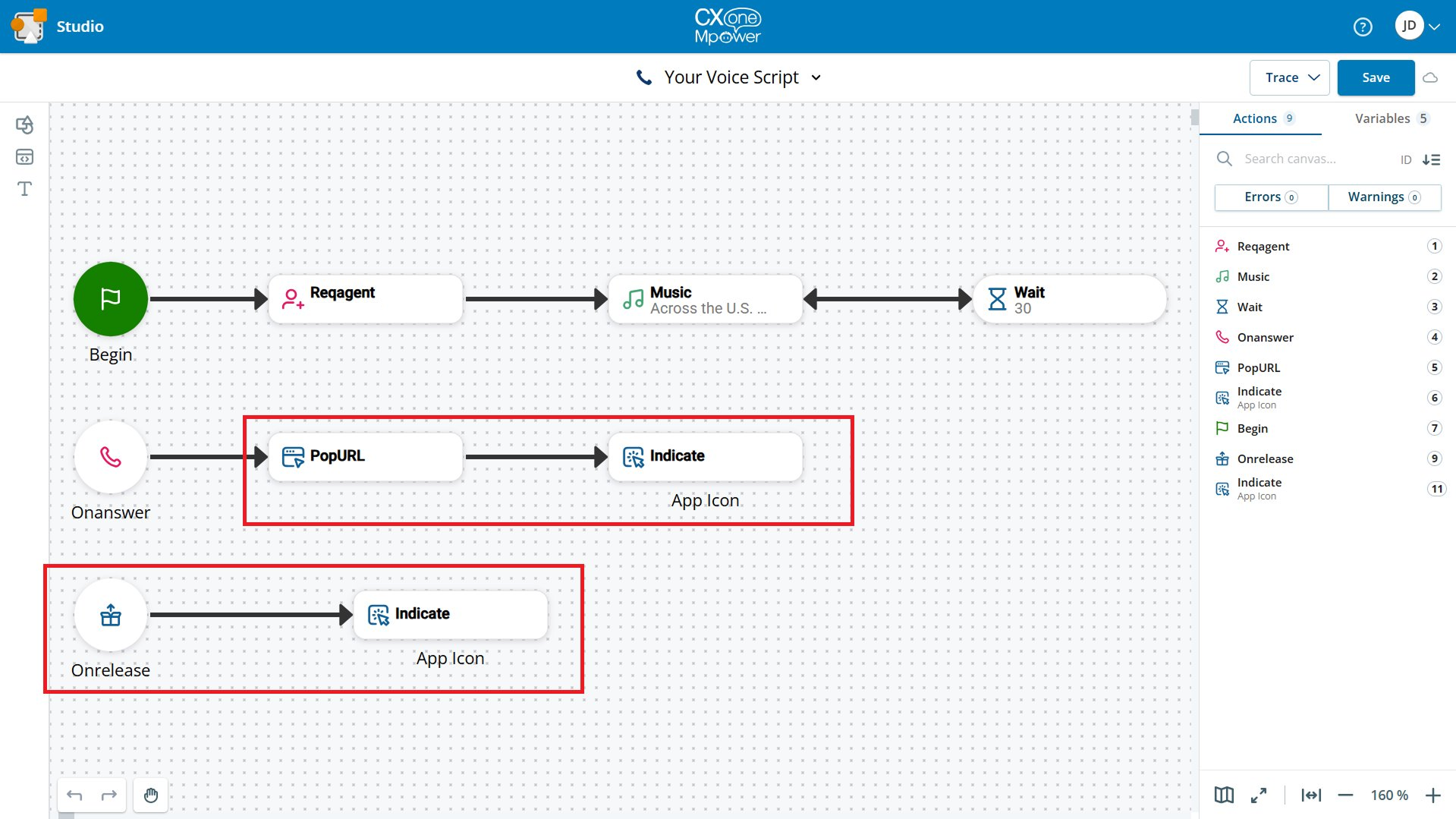
| Event | Action | Purpose |
|---|---|---|
| Begin | Reqagent → Music → Wait | Routes the call and plays hold music (already in your script) |
| Onanswer | PopURL ✨ | Opens Blitzz in Screen Pop when agent answers |
| Onanswer | Indicate ✨ | Shows the Blitzz Launch button (State: ON) |
| Onrelease | Indicate ✨ | Removes the Launch button (State: OFF) |
1 Configure PopURL for Voice
Add PopURL after the Onanswer event and configure its properties:
Screenshot: Voice PopURL — Properties panel.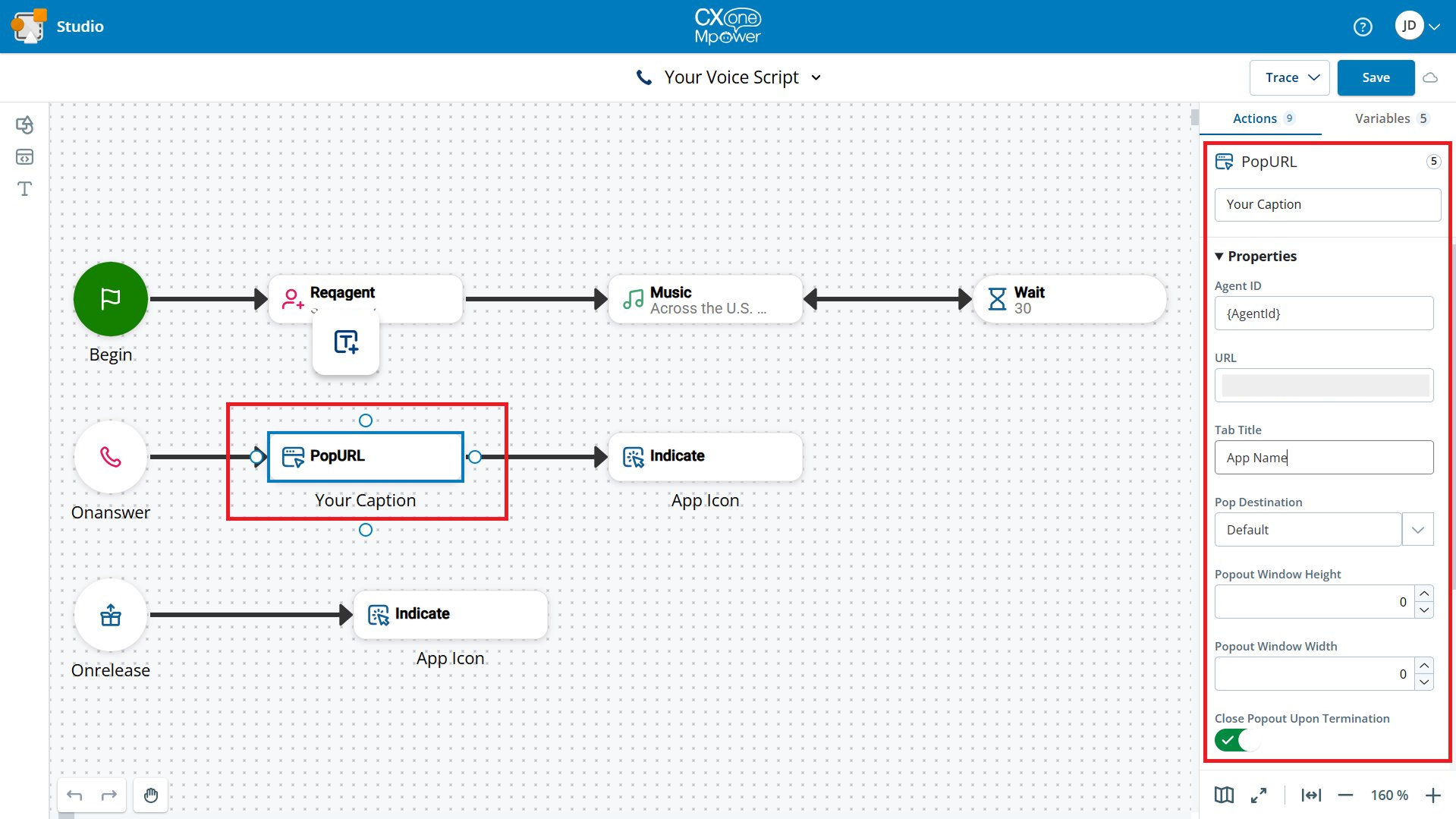
| Property | Value & Explanation |
|---|---|
| Caption | Descriptive label — e.g., Blitzz Video. Only visible on the Studio canvas. |
| Agent ID | {AgentId} — CXone system variable that identifies the current agent. |
| URL | Paste the Blitzz App URL provided by the Blitzz team. |
| Tab Title | Your app name — e.g., Blitzz. Appears as the tab name in Screen Pop. |
| Pop Destination | Default — For voice scripts, use “Default”. |
| Popout Window Height | 0 — Leave at 0 for Default destination. |
| Popout Window Width | 0 — Leave at 0 for Default destination. |
| Close Popout Upon Termination | ON — Closes the Blitzz panel when the call ends. |
| CachePopURL | ON — Caches the URL to avoid reloading. |
2 Configure Indicate (ON) for Voice
Add Indicate after PopURL to show a Launch button on the agent’s sidebar.
| Property | Value |
|---|---|
| Target | Skill — Shows the button to agents on the selected skill. |
| Skill | Select your Voice skill from the dropdown. |
| Name | Label — e.g., Blitzz. Appears next to the Launch button. |
| Image File | Leave empty — not supported in CXone Mpower Agent. |
| Tooltip | Hover text — e.g., Blitzz. |
| State | On — Activates the Launch button. |
| Action Type | Open URL — Opens URL in a new browser tab. |
| URL | Paste the Blitzz App URL provided by the Blitzz team. |
3 Configure Indicate (OFF) for Voice — Onrelease
Add Onrelease event if it doesn’t exist, then add Indicate connected to it.
| Property | Value |
|---|---|
| State | Off — Removes the Launch button when the call ends. |
| All other properties | Must exactly match the ON Indicate — same Name, Target, Skill, URL. |
Name must match exactly between ON and OFF Indicate actions.
Step 6: Digital Chat Channel Integration
Digital Chat Script Flow
Add the same 3 actions to your digital chat script. Key difference: uses OnAssignment instead of Onanswer.
Screenshot: Blitzz Digital Chat Studio Script — Complete flow with added actions highlighted.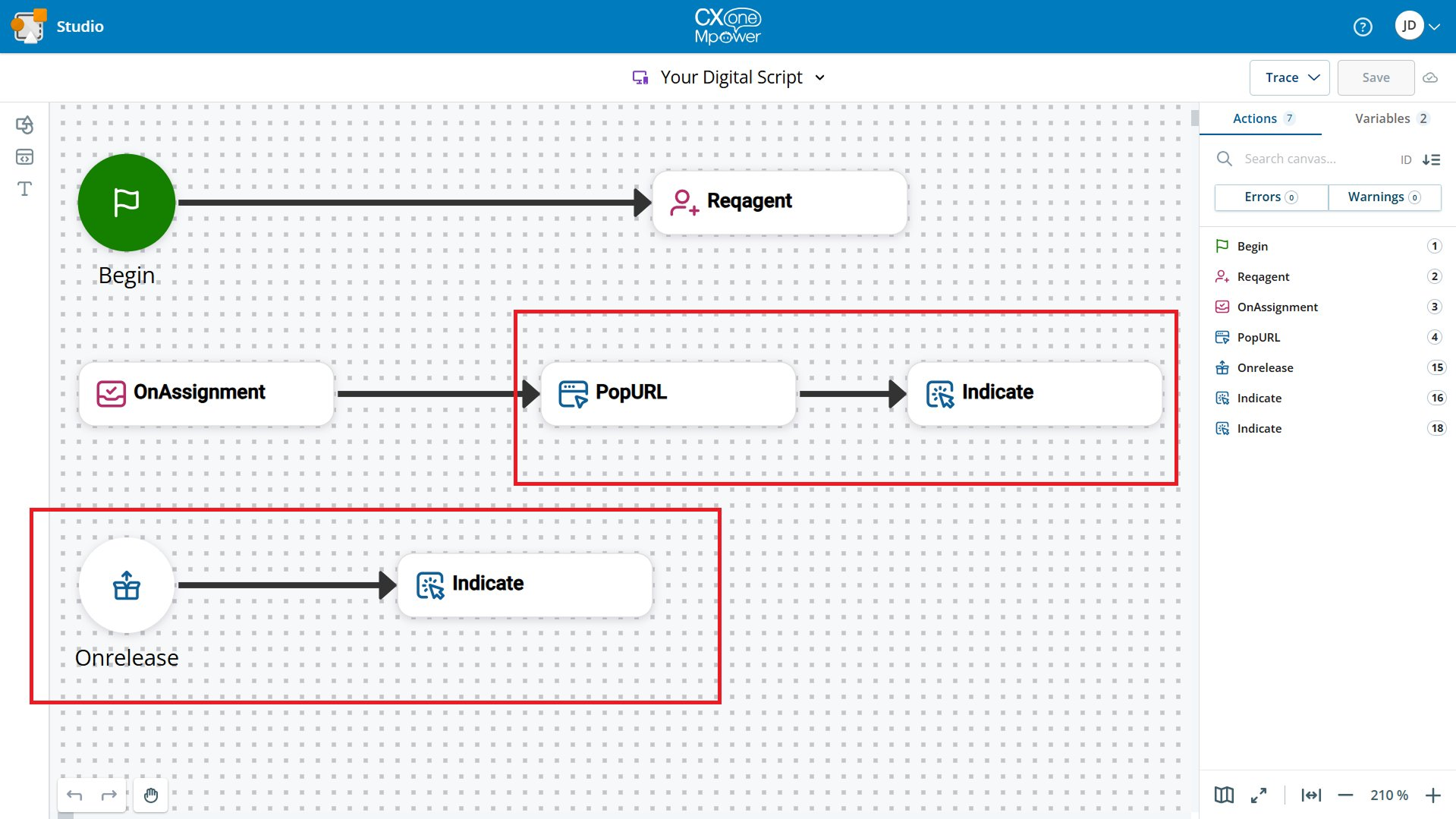
| Event | Action | Purpose |
|---|---|---|
| Begin | Reqagent | Routes the chat to an agent (already in your script) |
| OnAssignment | PopURL ✨ | Opens Blitzz in Screen Pop when chat is assigned |
| OnAssignment | Indicate ✨ | Shows the Blitzz Launch button (State: ON) |
| Onrelease | Indicate ✨ | Removes the Launch button (State: OFF) |
1 Configure PopURL for Digital Chat
Find the OnAssignment event, then add and connect PopURL.
Screenshot: Digital Chat PopURL — Note Pop Destination is “Contact panel”.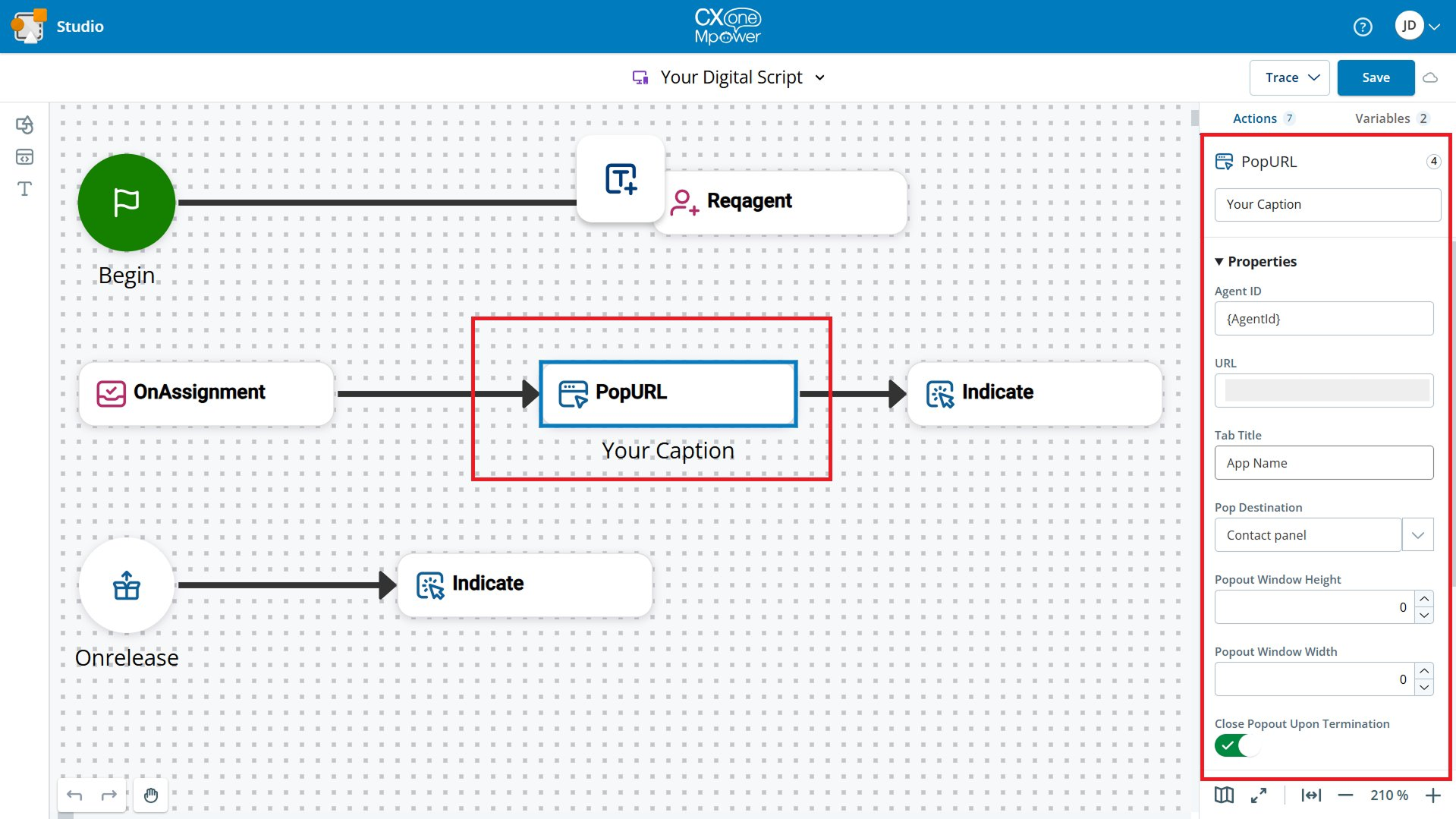
| Property | Value & Explanation |
|---|---|
| Agent ID | {AgentId} — auto-populates with the current agent’s ID. |
| URL | Paste the Blitzz App URL provided by the Blitzz team. |
| Tab Title | Your app name — e.g., Blitzz. |
| Pop Destination | Contact panel — For digital chat, use “Contact panel”. |
| Close Popout Upon Termination | ON |
| CachePopURL | ON |
Default, Digital Chat uses Contact panel.2 Configure Indicate (ON) for Digital Chat
Add Indicate after PopURL.
Screenshot: Indicate (ON) — Target: Skill, State: On.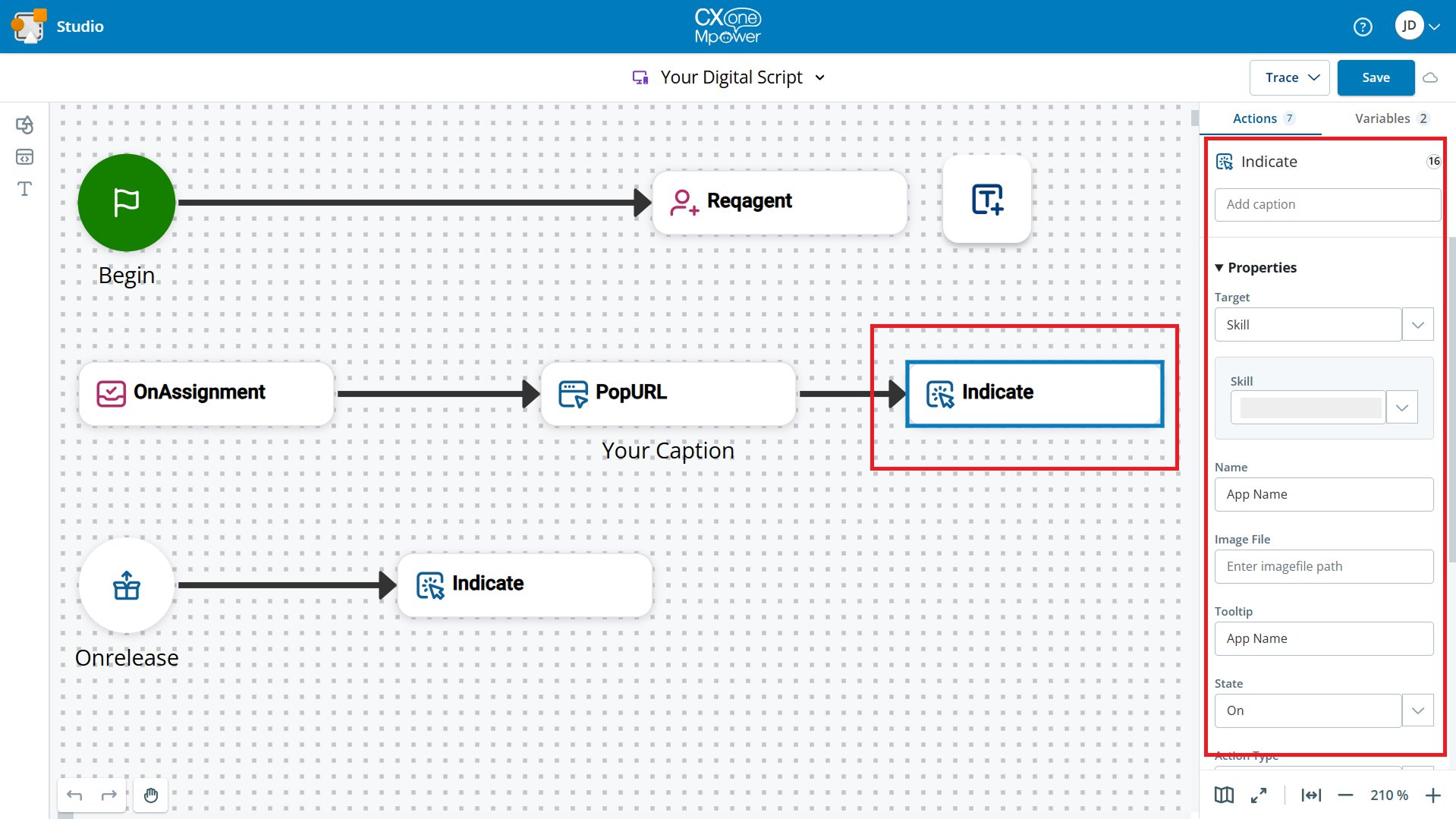
| Property | Value |
|---|---|
| Target | Skill — Recommended for Blitzz. |
| Skill | Select your Digital Chat skill. |
| Name | Label — e.g., Blitzz. |
| Image File | Leave empty. |
| Tooltip | Hover text — e.g., Blitzz. |
| State | On |
| Action Type | Open URL |
| URL | Paste the Blitzz Launch URL. |
3 Configure Indicate (OFF) — Onrelease
Add Onrelease event, then Indicate with State: Off. All other properties must match ON exactly.
Name must match exactly between ON and OFF Indicate actions.
Step 7: Agent Display Settings
Each agent needs to configure one display setting to ensure Blitzz opens inside the Screen Pop panel.
- In the CXone Agent app, click Settings (gear icon).
- Go to the Display & Keyboard tab.
- Turn OFF both toggles:
- Panel Open in Browser: General
- Panel Open in Browser: Page Action Only
Screenshot: Both “Panel Open in Browser” toggles must be OFF.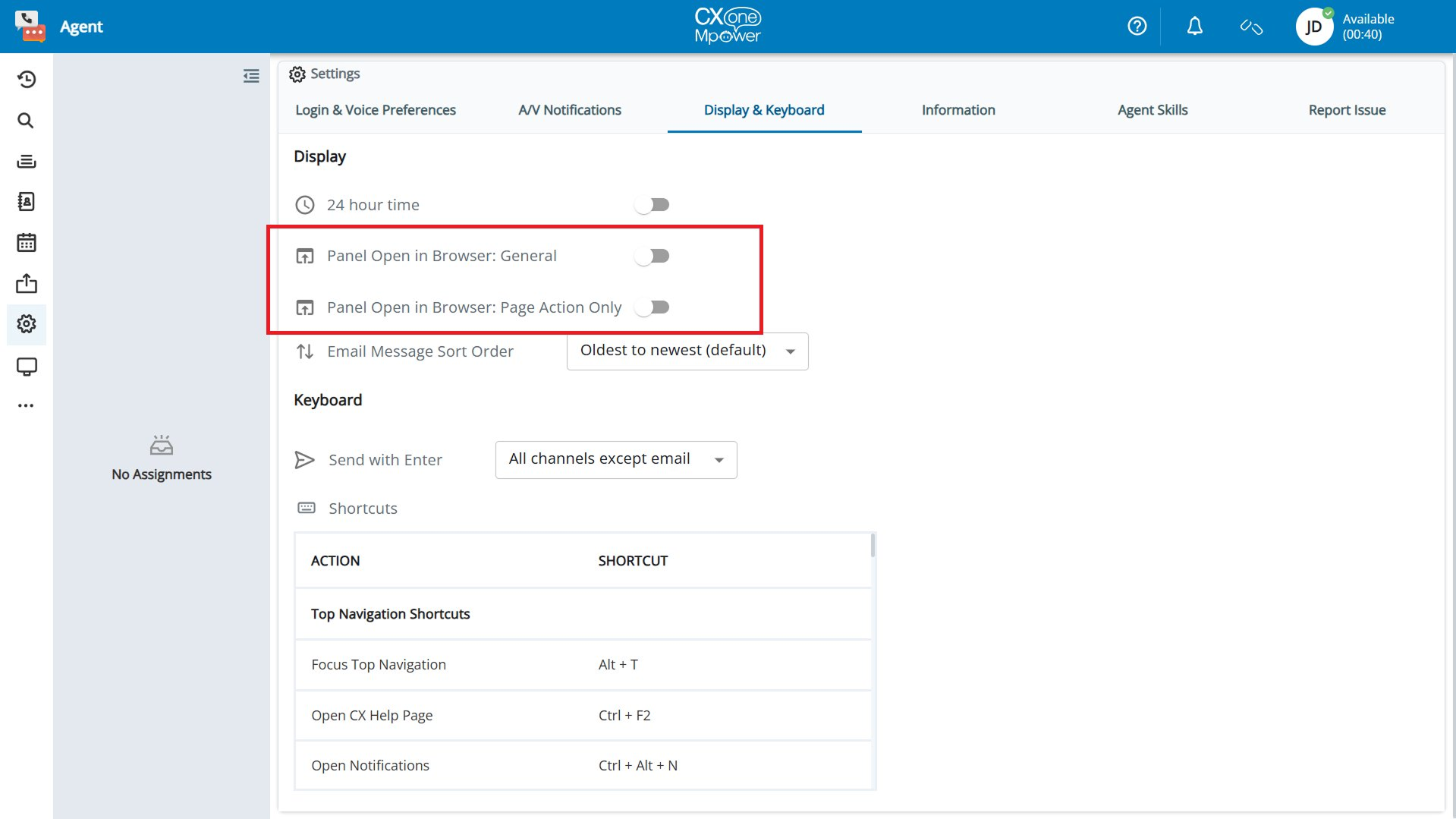
Step 8: Key Differences — Voice vs Digital Chat
| Setting | Voice | Digital Chat |
|---|---|---|
| Trigger Event | Onanswer | OnAssignment |
| Pop Destination | Default | Contact panel |
Step 9: Quick Reference
Voice — Actions Summary
Digital Chat — Actions Summary
URL Parameters Reference
| Parameter | Source | Description |
|---|---|---|
| {contactId} | CXone system variable | Unique reference name/ID for the current call or chat. |
| {ANI} | CXone system variable | The customer’s phone number. |
| {AgentId} | CXone system variable | The current agent’s unique ID. |
Step 10: How to Test Blitzz on NICE CXone
Once the Studio scripts are configured, follow these steps to verify that Blitzz is working correctly.
1 Log In to the Agent Platform
Open the CXone Mpower Agent platform. After logging in, select Integrated Softphone and click Launch.
Screenshot: Voice Connection — Select “Integrated Softphone” and click Launch.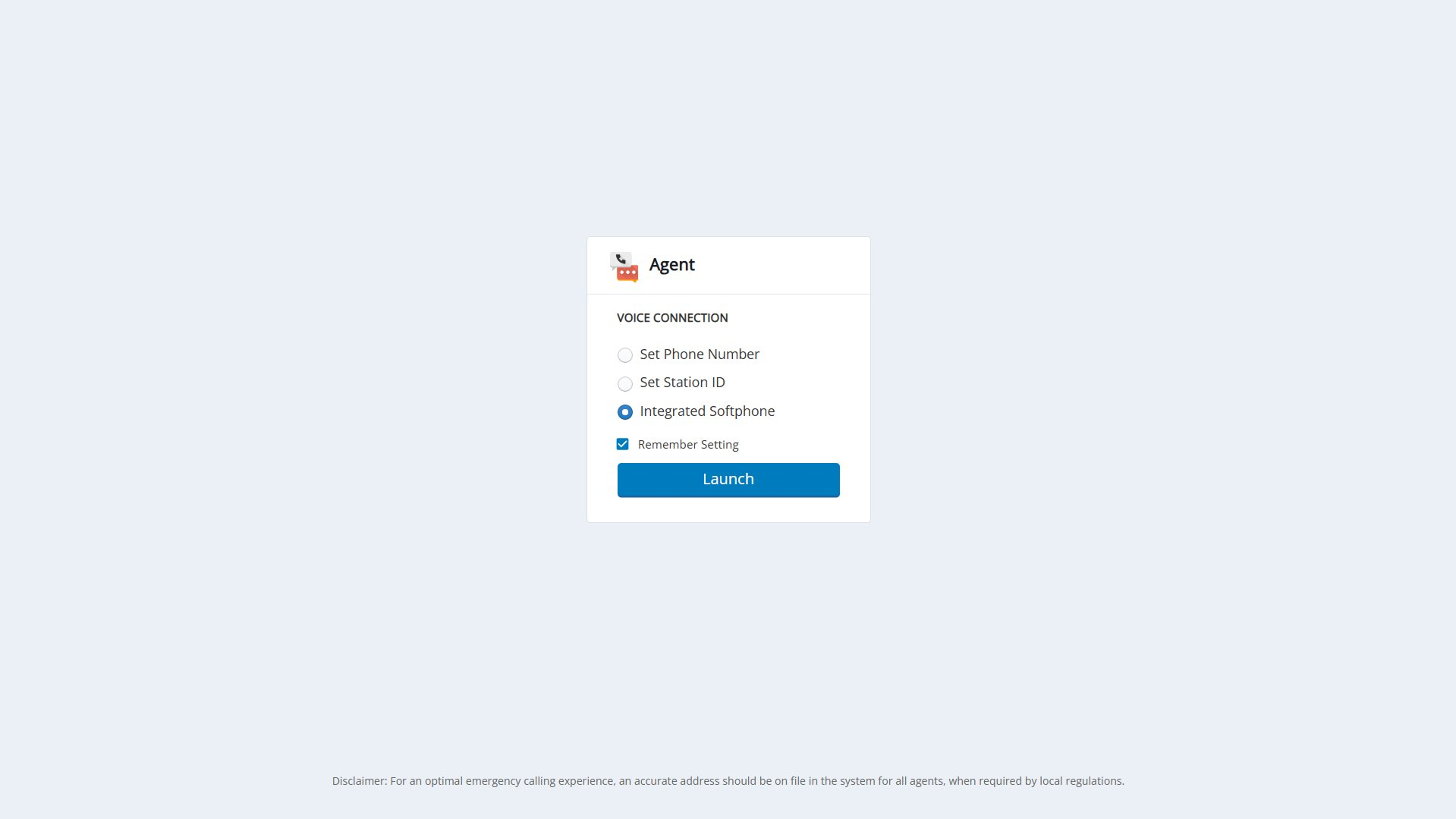
2 Set Your Status to Available
Click the status dropdown (top-right) and select Available.
Screenshot: Agent status dropdown — Select “Available”.
Testing Voice
3 Receive an Incoming Call
Call your Voice POC number from any phone. The incoming call widget appears with Accept and Reject buttons.
Screenshot: Incoming call notification with Accept / Reject.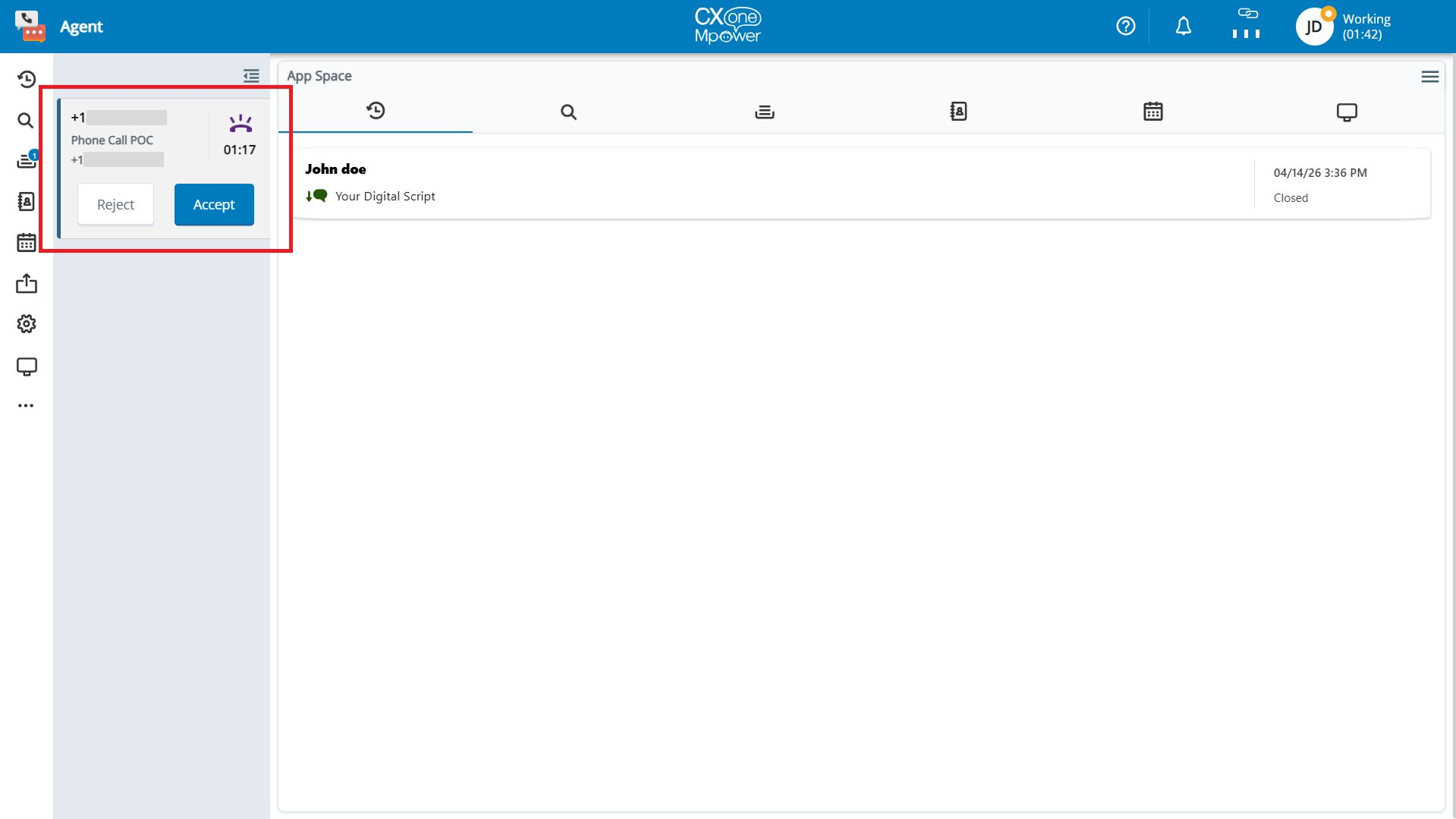
4 Blitzz Loads in Screen Pop
Click Accept. The Screen Pop panel loads Blitzz in the App Space area. Select a Collaboration Profile and click Next to start a session.
Screenshot: Blitzz loaded in Screen Pop — Select Collaboration Profile and click Next.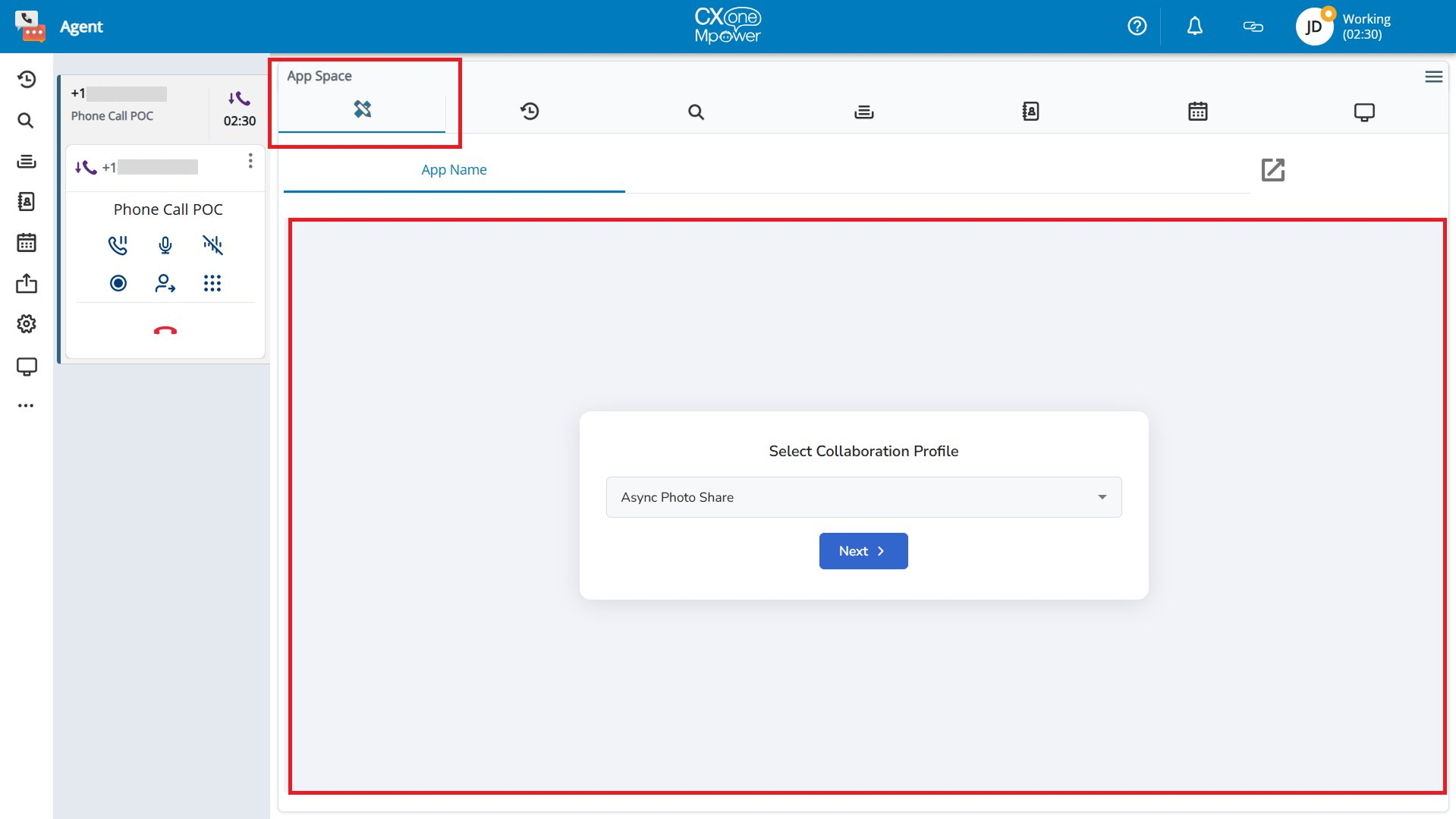
5 Launch Button & Invite Customer
The Launch button on the left sidebar opens Blitzz in a new tab. After selecting a profile, invite the customer via SMS, WhatsApp, Email, or URL and click Invite & Join.
Screenshot: Launch button on sidebar & customer invitation screen (SMS, WhatsApp, Email, URL).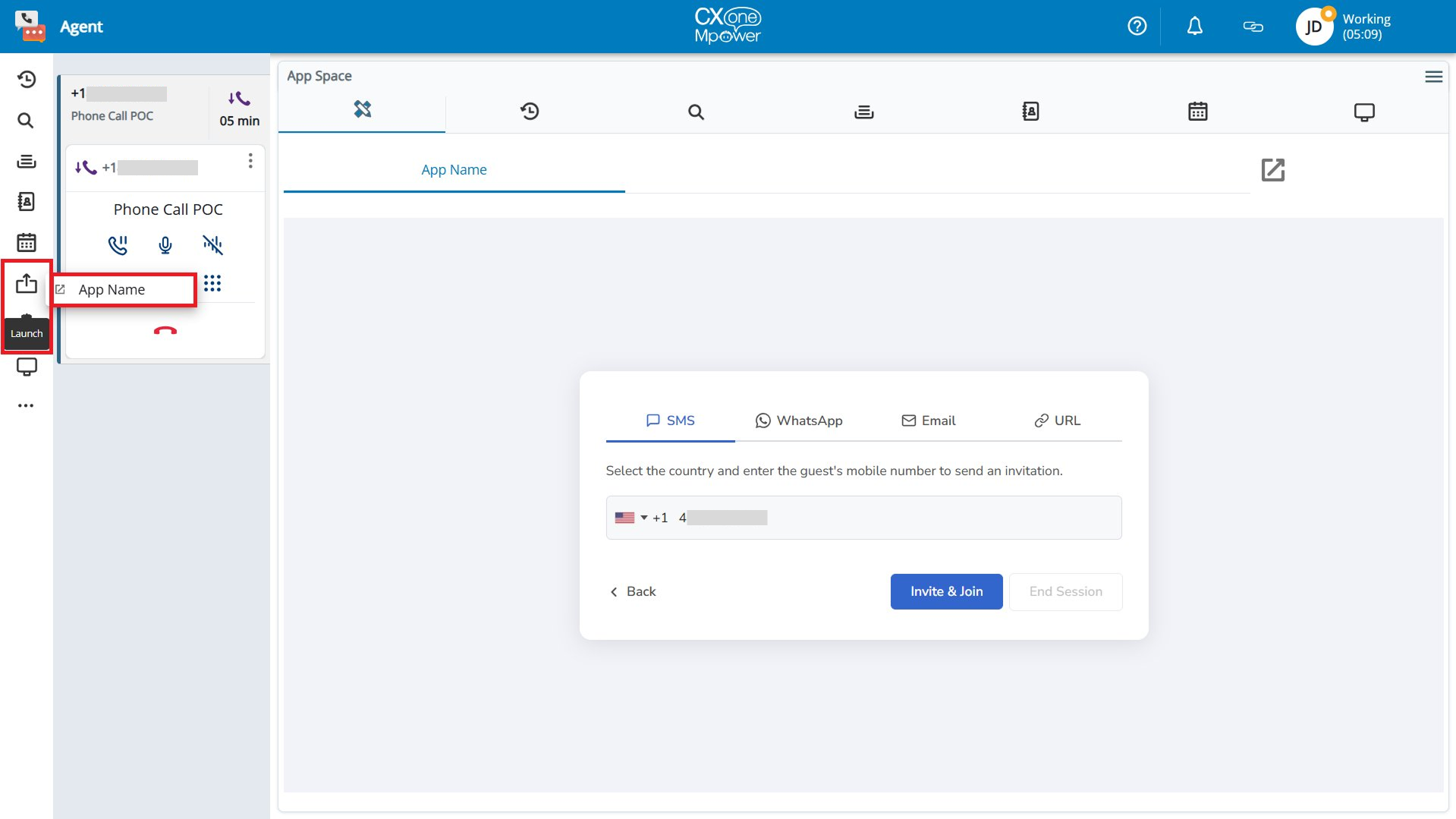
Testing Digital Chat
6 Start a Chat as a Customer
Open your Digital Chat channel’s test page. A chat widget appears in the bottom-right corner. Enter a name (e.g., John Doe) and click Begin Conversation.
Screenshot: Chat widget — Enter a name and click “Begin Conversation”.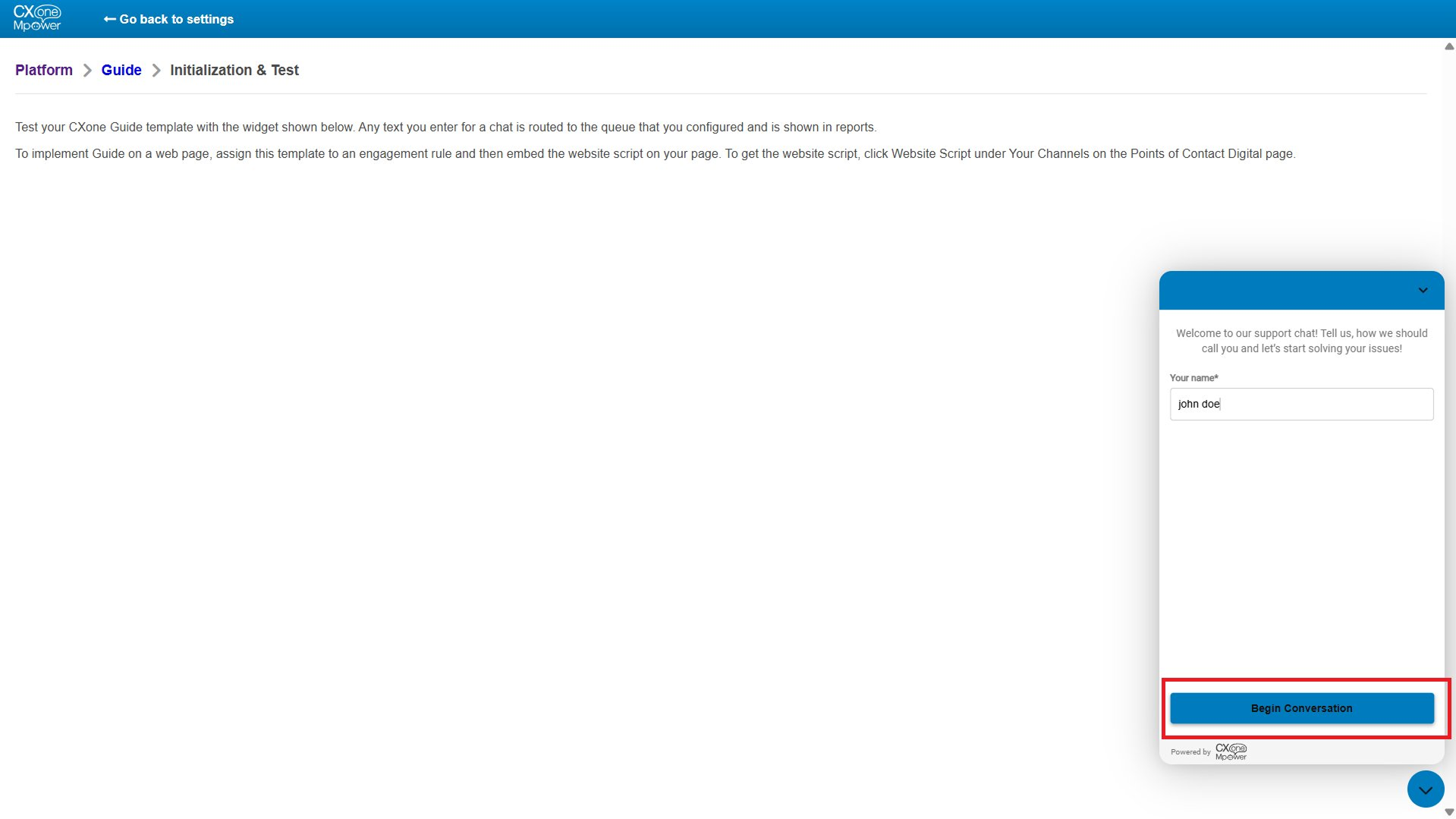
7 Blitzz Loads in App Space
Once the chat is assigned, Blitzz automatically loads in the App Space panel. Invite the customer via SMS, WhatsApp, Email, or URL to start the virtual inspection session.
Screenshot: Blitzz loaded in App Space for Digital Chat — with Launch button on sidebar.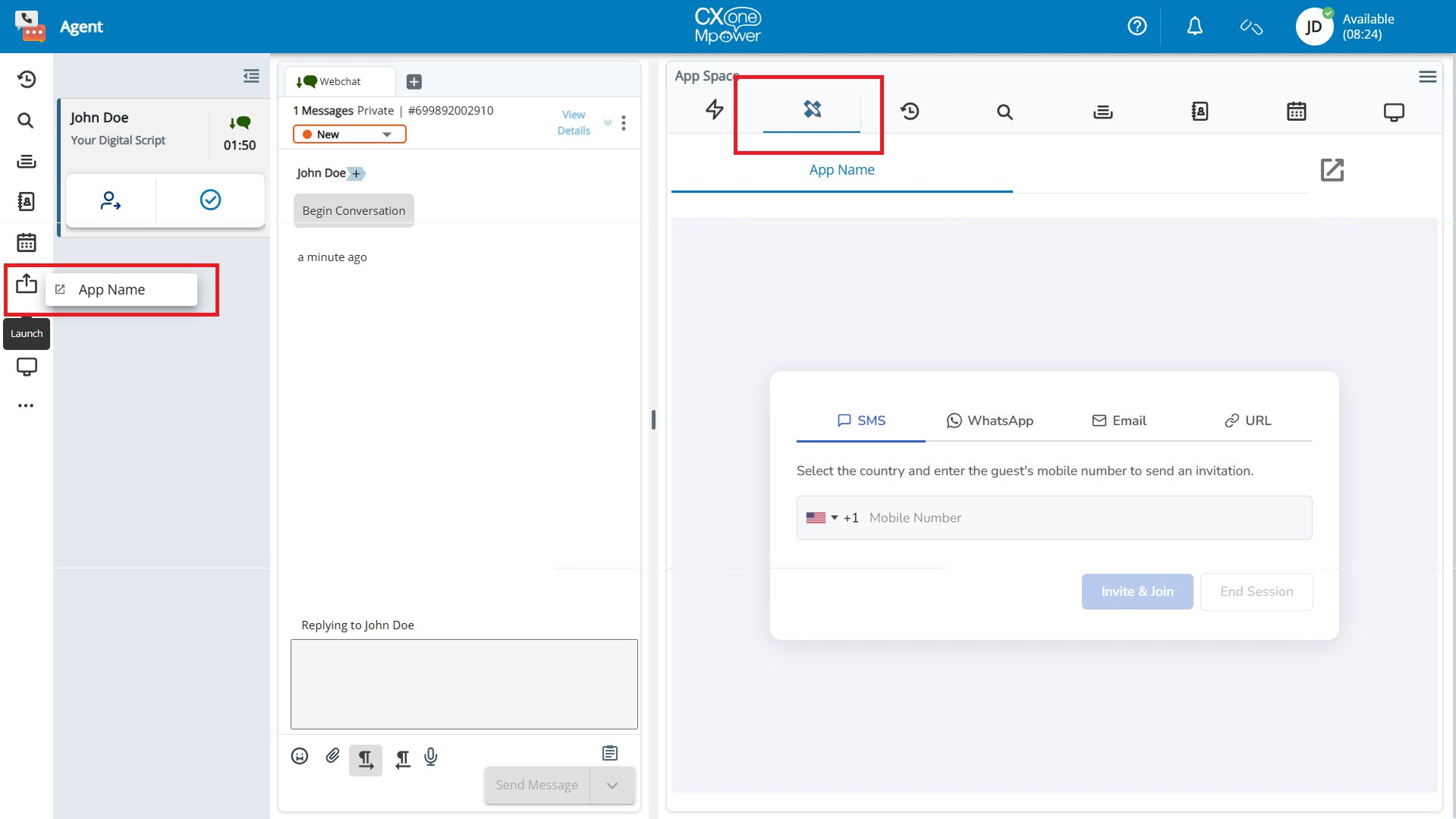
If you run into trouble, or just need a little help, please contact us and we will be happy to help.