
By default, Blitzz sends system emails (session invites, notifications, reports) from a Blitzz address. With custom email sender configuration, you can send these emails from your own domain instead, so recipients see emails coming from something like support@yourcompany.com or noreply@yourcompany.com.
This builds trust with your customers, improves deliverability, and keeps your branding consistent across every touchpoint.
Before You Start
You will need:
- Access to your domain's DNS settings (or someone on your team who has it, typically IT or whoever manages your website).
- An admin account in Blitzz.
- About 10 minutes to add the records, plus up to 72 hours for DNS propagation.
Step 1: Open Email Configuration
Log in to your Blitzz portal and navigate to Global Settings → Branding.
At the top of the Branding page, click the Email configuration tab.
You will see the Custom email sender configuration screen with a 3 step setup:
- Select a domain
- Verify your domain
- Add Sender Email
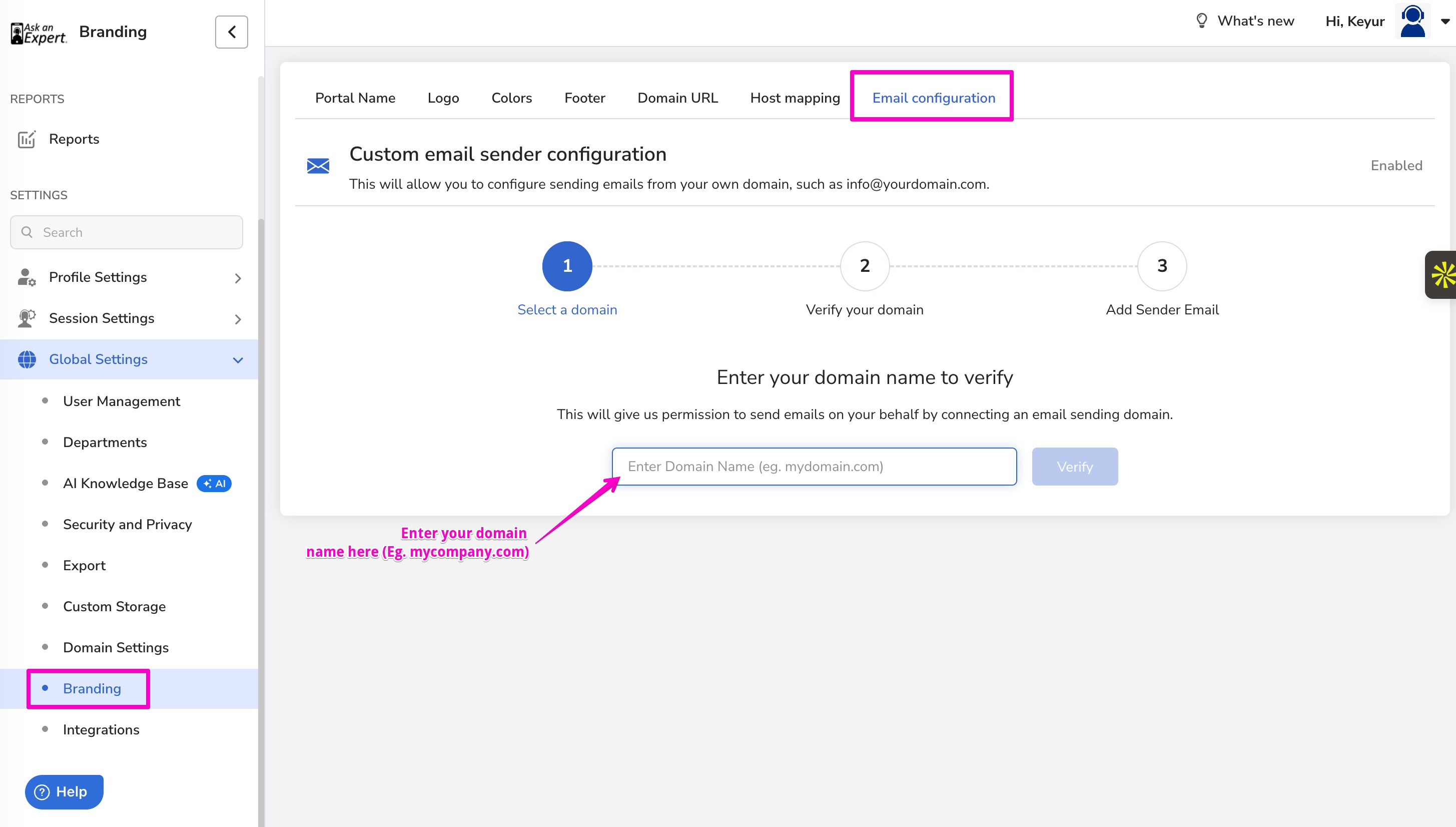
Step 2: Enter Your Domain
In the field labeled Enter your domain name to verify, type the domain you want to send emails from (for example, yourcompany.com).
Click Verify.
Note: Use the root domain only, no
wwworhttps://. Justyourcompany.com.
Step 3: Add DNS Records
After clicking Verify, Blitzz will show you an Authentication Details popup with three CNAME records. Each record has a Name and a Value, with a Copy button next to each one.
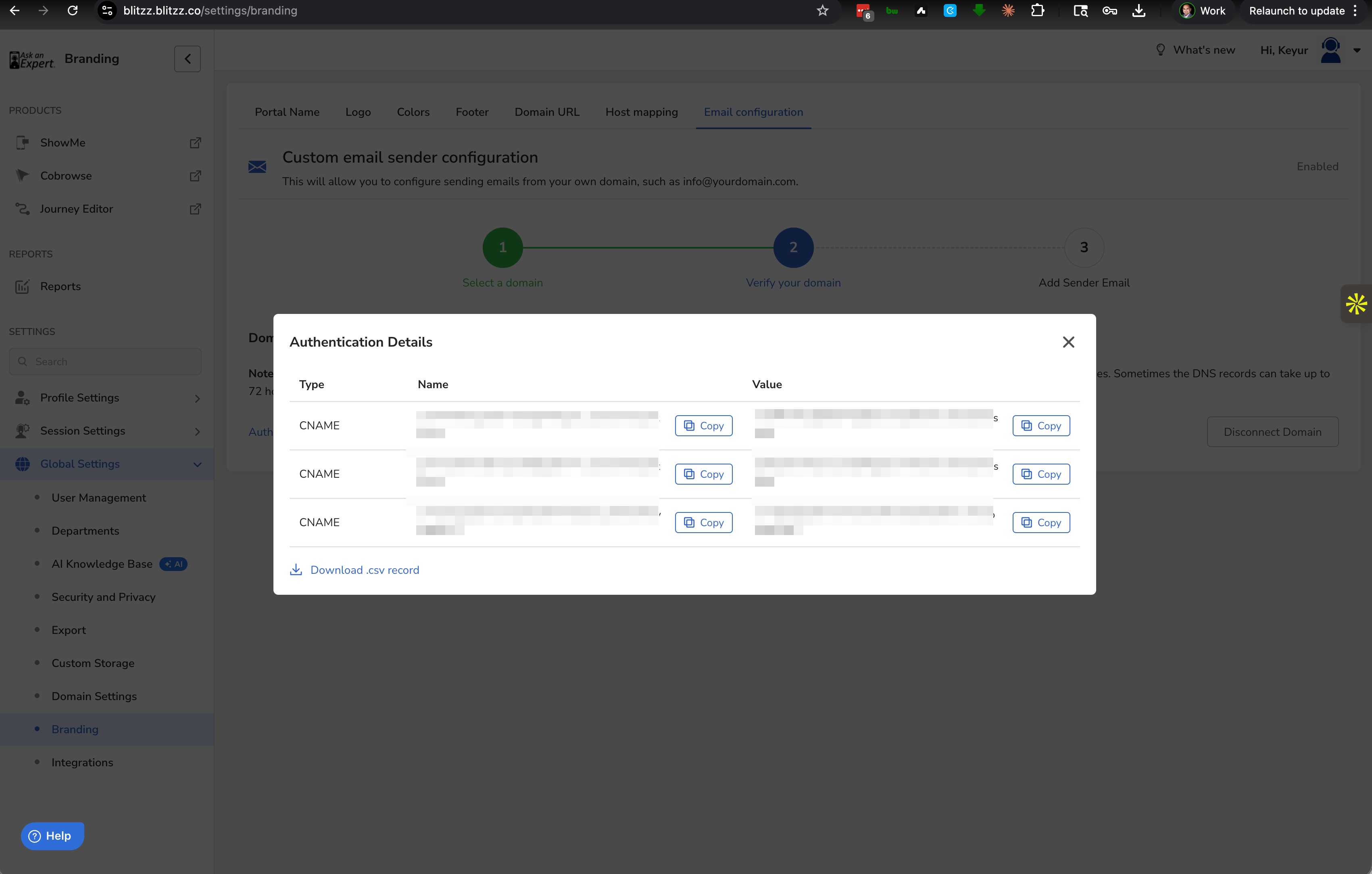
You have two options to grab these:
- Click Copy next to each Name and Value individually, or
- Click Download .csv record at the bottom to export all three records at once.
Now log in to your DNS provider (GoDaddy, Cloudflare, Namecheap, Route 53, or whoever hosts your domain) and add all three CNAME records exactly as shown.
Important: Copy the values exactly. DNS records are case sensitive in some providers, and even an extra space can cause verification to fail. If your DNS provider automatically appends your domain to the Name field, paste only the subdomain portion (everything before your root domain).
Save the records in your DNS provider.
Step 4: Wait for Verification
DNS changes typically propagate within a few minutes, but in some cases it can take up to 72 hours.
Once the records are live, Blitzz will automatically detect them and mark Step 2 as verified. You will see the Verify your domain checkpoint turn green.
If verification has not completed after a few hours, double check that all three CNAME records were added correctly in your DNS provider.
Step 5: Add Your Sender Email
Once your domain is verified, you can move to Step 3 and add the sender email address you want emails to come from (for example, support@yourcompany.com or noreply@yourcompany.com).
This is the address your customers will see in the "From" field of any email Blitzz sends on your behalf.
Disconnecting a Domain
If you ever need to remove the custom sender configuration, open the Authentication Details and click Disconnect Domain. After disconnecting, Blitzz will revert to sending emails from the default Blitzz address.
Troubleshooting
Verification is taking too long.
Confirm the CNAME records are saved in your DNS provider and that there are no typos. Use a tool like dnschecker.org to confirm the records are visible publicly.
My DNS provider does not accept the Name as is.
Some providers (like GoDaddy) auto append your root domain. In that case, paste only the part before your domain. For example, if the Name is mail._domainkey.yourcompany.com, paste just mail._domainkey.
I added the records but verification still fails.
Make sure you copied the Value exactly, including any trailing characters. Also confirm you added all three CNAME records, not just one or two.
Need Help?
If you run into issues, reach out to support@blitzz.co with your domain name and a screenshot of the DNS records you added. We will help you sort it out.