Overview
Blitzz delivers seamless video, audio, and screen-sharing for remote assistance across multiple platforms. This guide covers the Agent Portal features on Windows (Chrome) and Mac (Safari).
TABLE OF CONTENTS
- Overview
- Sign In
- Blitzz Desktop
- Inviting Guests to a Session
- Send an SMS Invite
- Alternative Ways to Invite
- Add Participant During a Meeting
- Disconnect Call
- Mute / Unmute
- Start / Stop Video
- Take Photo
- Markup
- Extract Text (OCR)
- Live Pointer
- Zoom
- Screen Share
- Pinch to Zoom
- Participant Information
- Device Video & Audio Settings
- Bookmarks
- Gallery View
- Live Chat
- Session History
- More Resources
Sign In
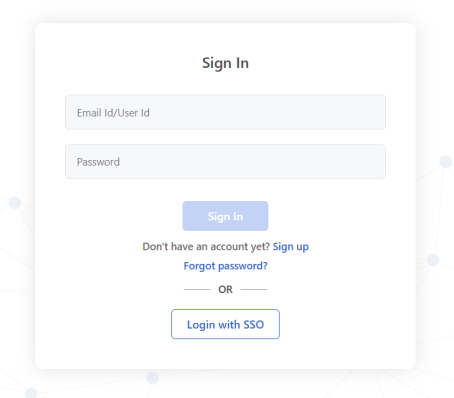
Go to https://domain.blitzz.co or your custom domain URL (e.g., company.blitzz.co)
Enter your email address and password
Click Sign In
Note: SSO login is available if your company has it configured. Forgot your password? Click Forgot Password or email support@blitzz.co.
Blitzz Desktop
After signing in, you'll see the Blitzz Desktop where you can start new sessions:
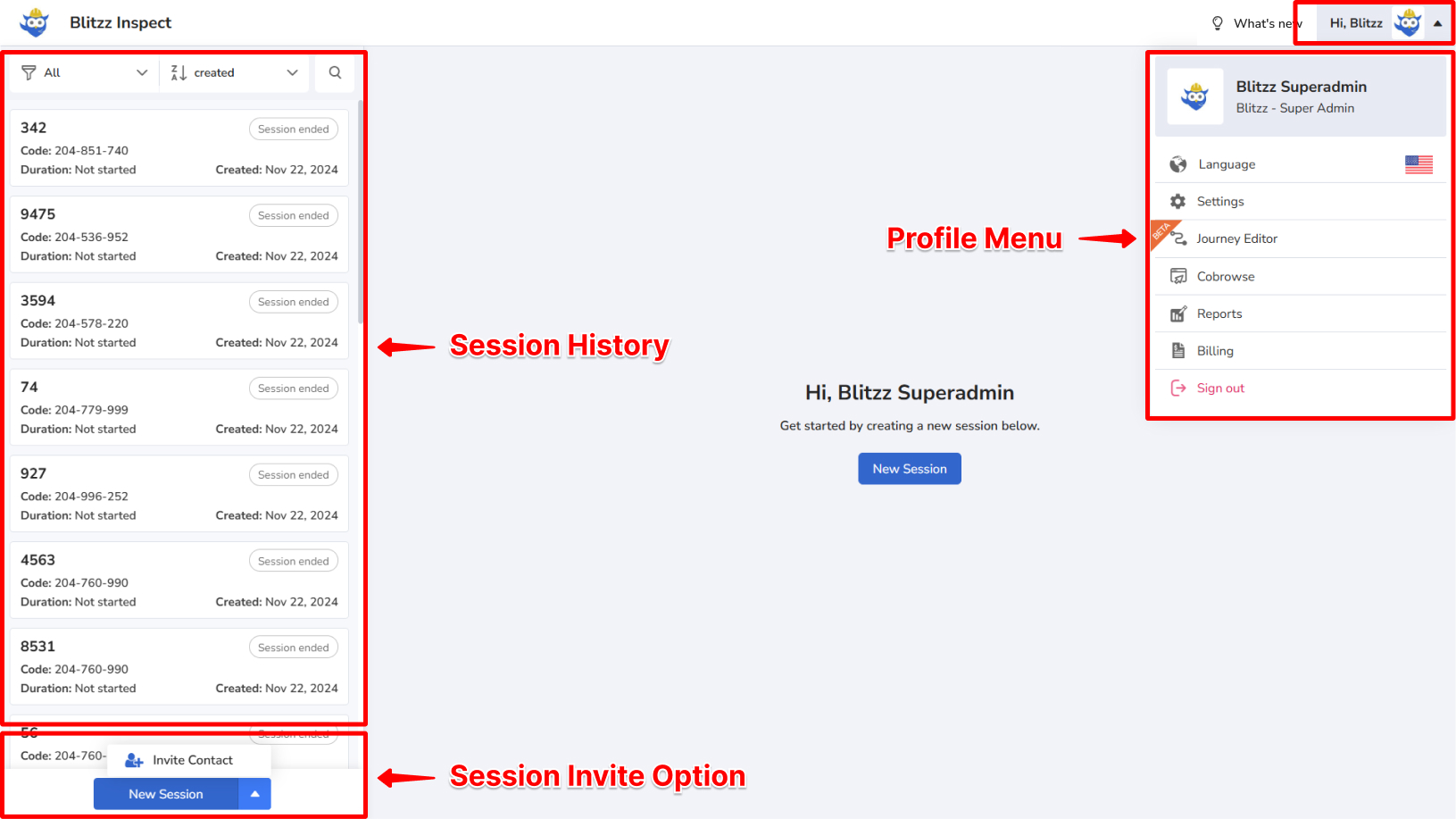
Profile Menu (top right): Access language settings, Blitzz settings, and reports (based on user type)
Session History (left panel): View past sessions—click any session for details
Invite Buttons (bottom left): Invite Guest (non-Blitzz user) or Invite Contact (Blitzz user from your domain)
Inviting Guests to a Session
Sessions support up to 4 participants. Guests don't need to download any app—everything runs in their browser. Their privacy is protected, and nothing is stored on their device.
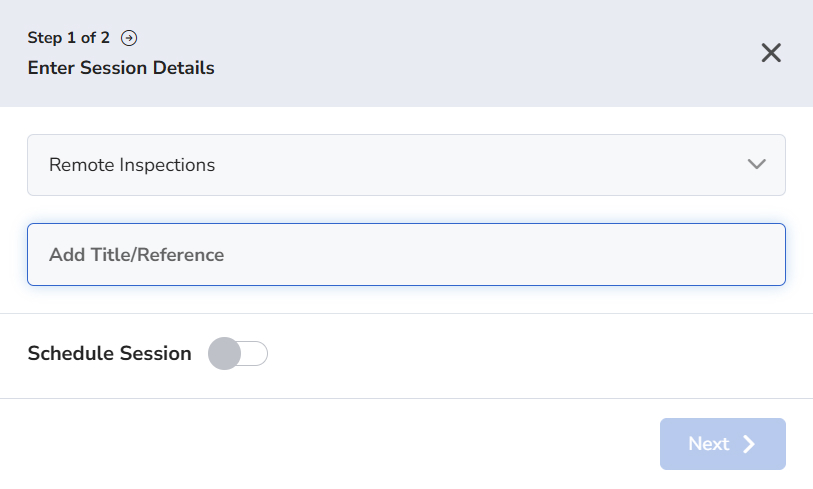
Step 1: Enter Session Details
Before inviting a guest, enter a Reference (address, permit number, inspection ID, service call number, etc.) to track the session. Click Next to proceed.
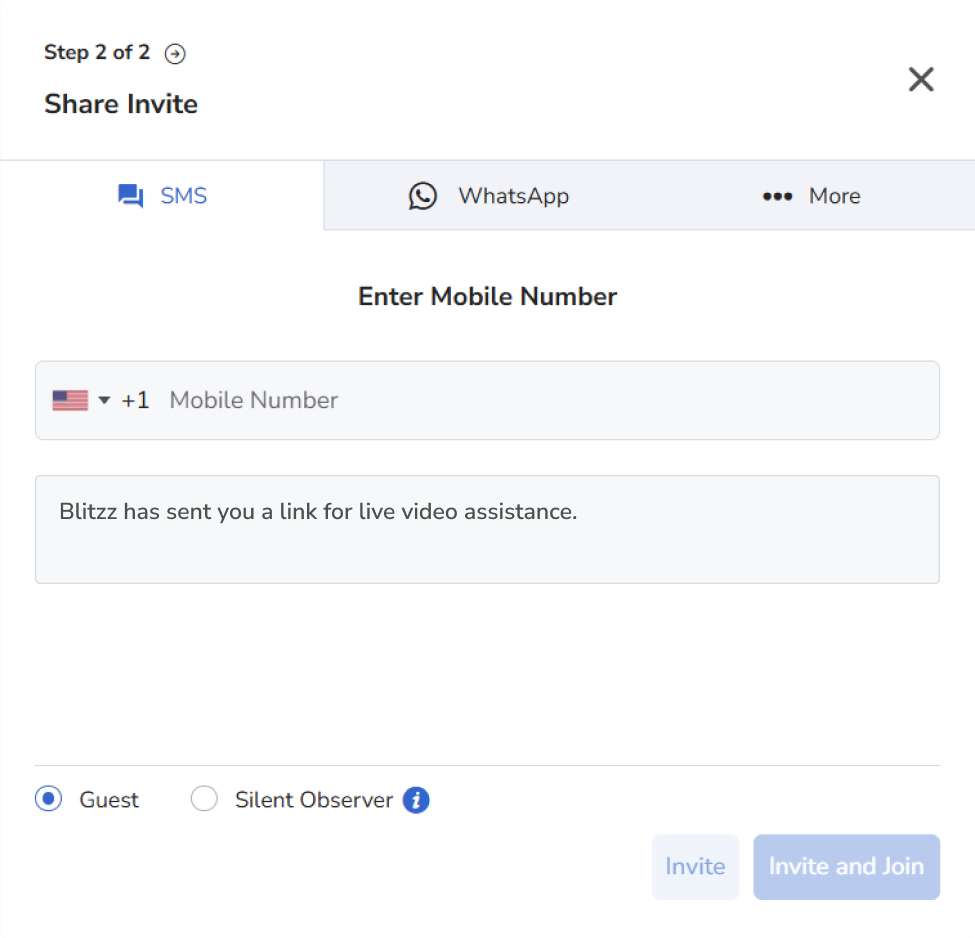
Send an SMS Invite
Enter the participant's mobile phone number
Click the "Invite and Join" button
The guest receives an SMS with a link. Remind them to click CONNECT and ALLOW access to their location, microphone, and camera. No app download required.
Alternative Ways to Invite
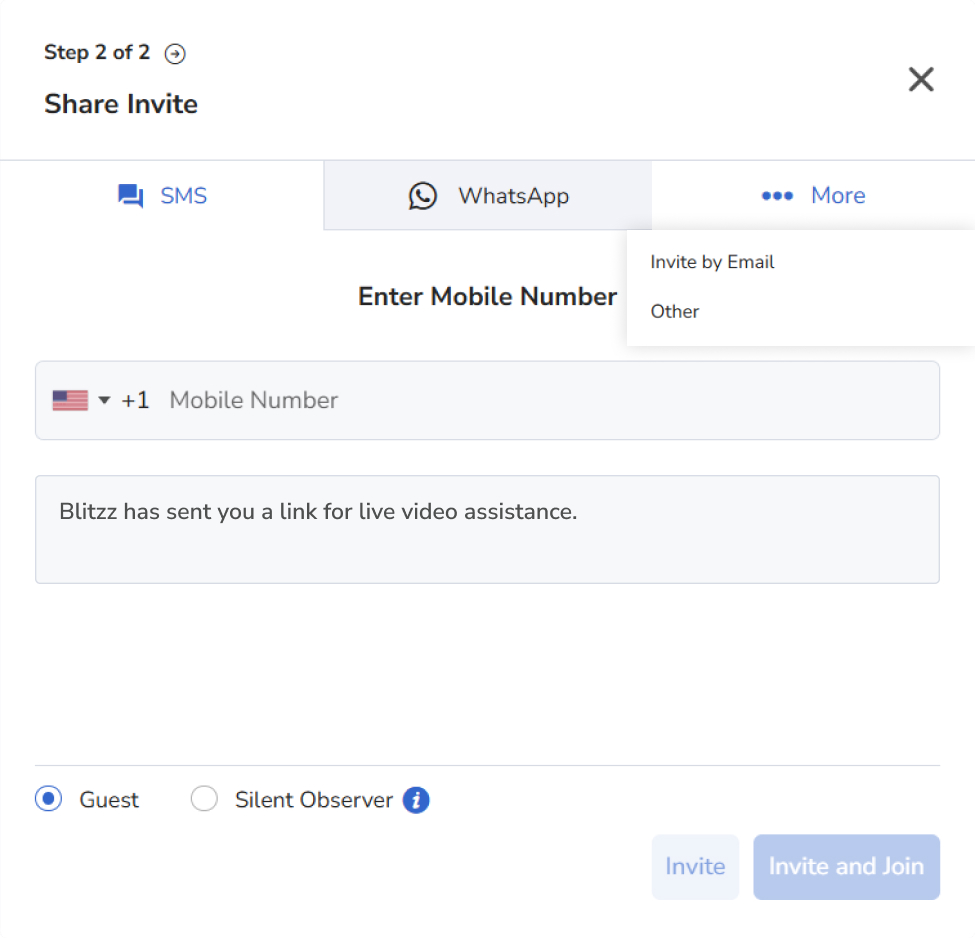
WhatsApp: Enter phone number and click Invite and Join (if enabled)
Email: Enter email address and click Invite and Join
Session Code: Copy the code; guest enters it at https://join.blitzz.co
Copy Link: Copy and share via any messaging platform (Chrome or Safari)
Add Participant During a Meeting
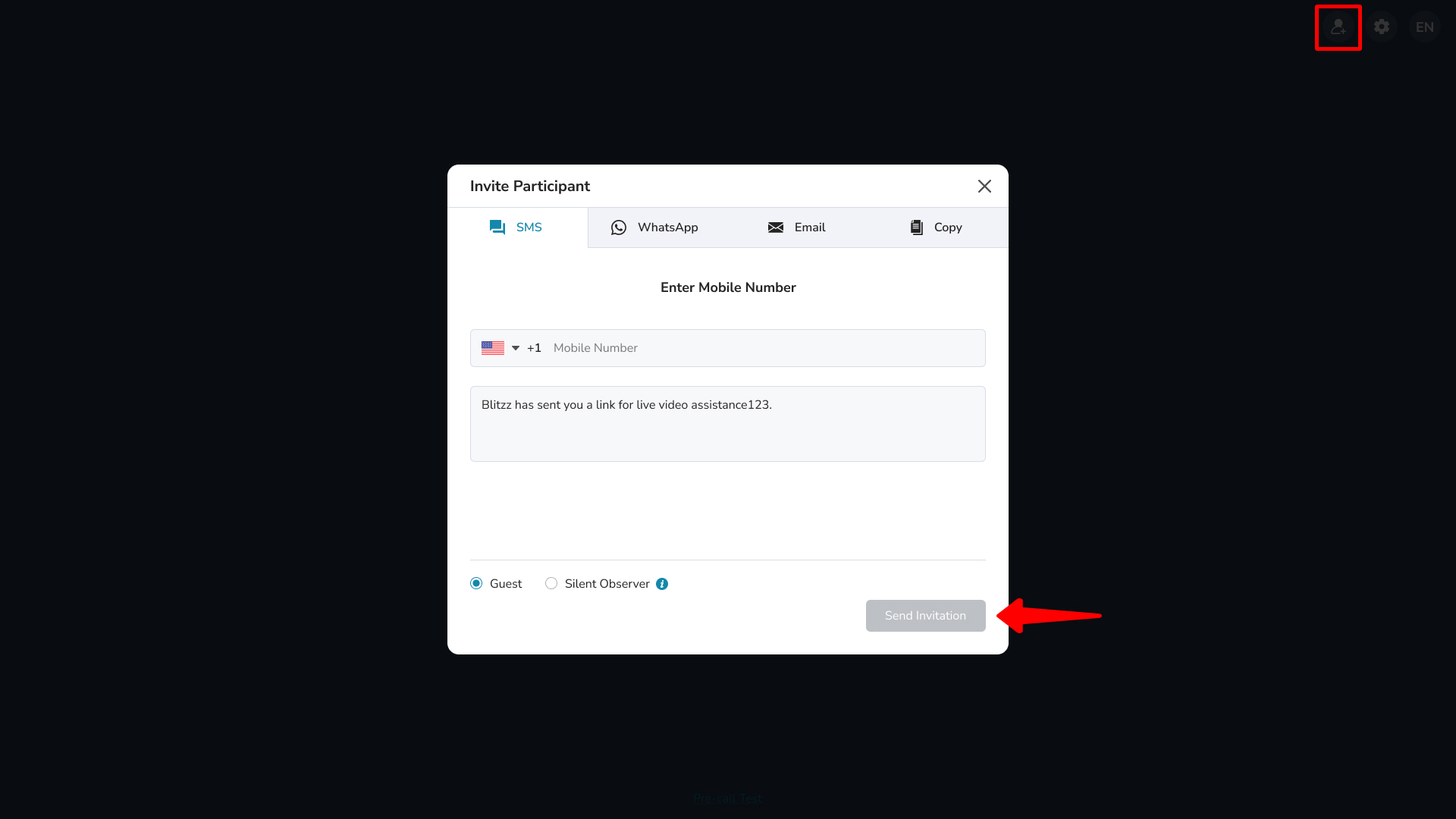
Need to bring in another technician or add a homeowner to a contractor call? Click the Add Participant icon during your session.

Choose how to invite:
Copy Link: Share via Slack, Teams, or other chat apps
Send an Email: Opens your default email app with the invite link
Disconnect Call
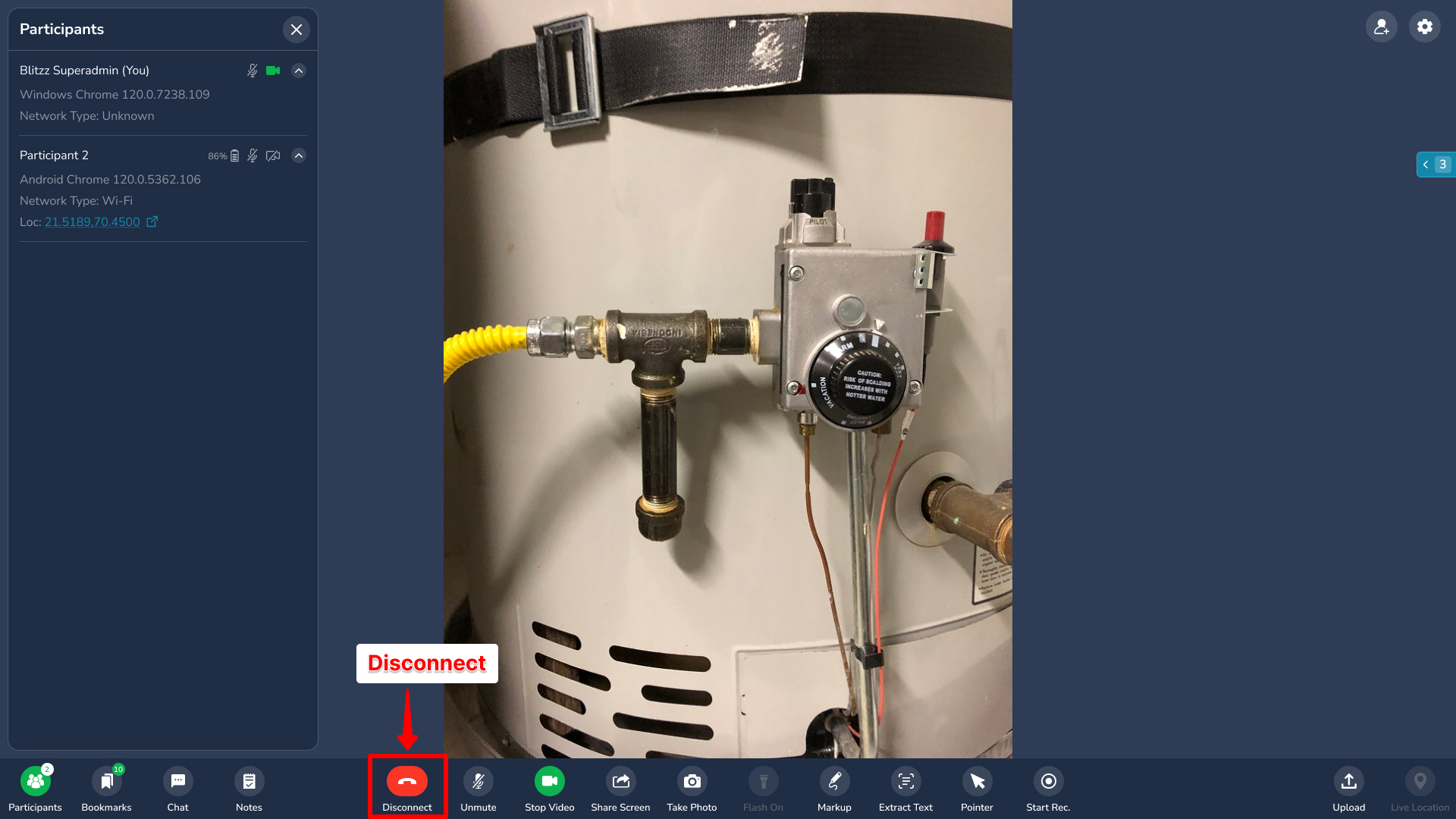
Click the Disconnect button (red phone icon) to end the call.
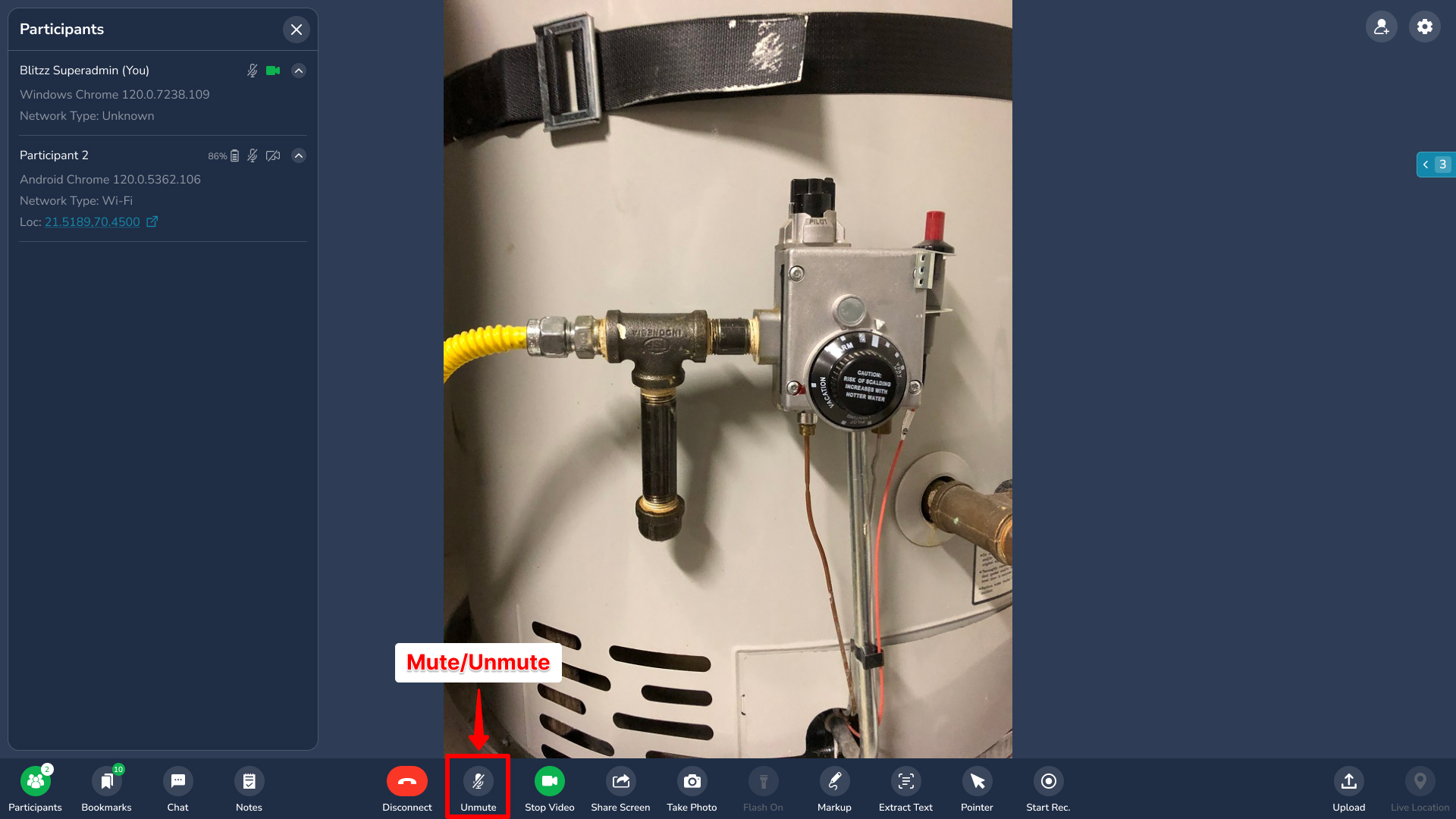
Mute / Unmute
Click the Unmute button to activate your microphone
Click again to Mute
When active, the microphone icon appears green
Note: If you're also on a phone call with the customer, keep your microphone muted to avoid feedback.
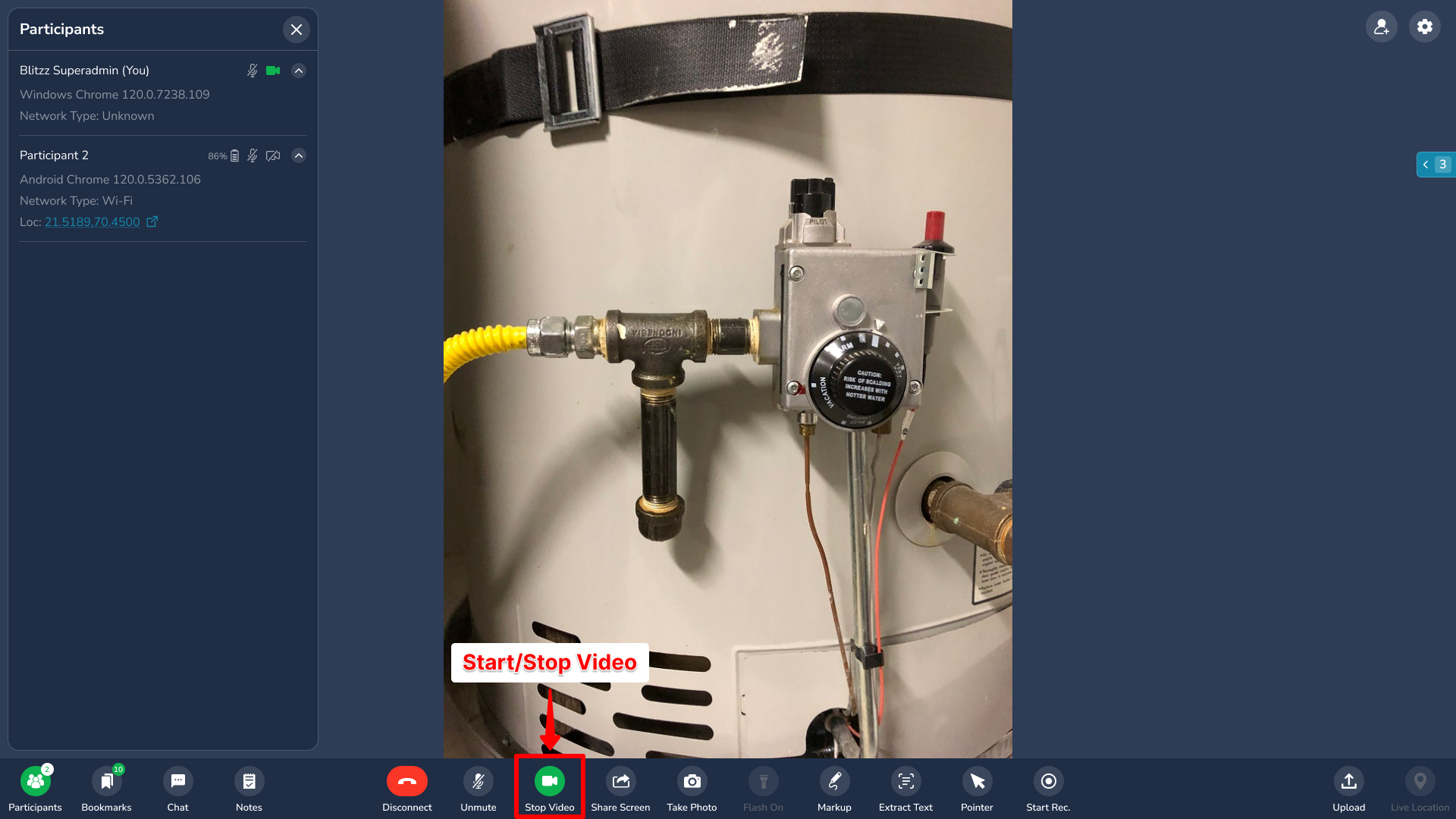
Start / Stop Video
Click Start Video to turn on your webcam—the guest will see you
Click again to stop the video
When active, the camera icon appears green
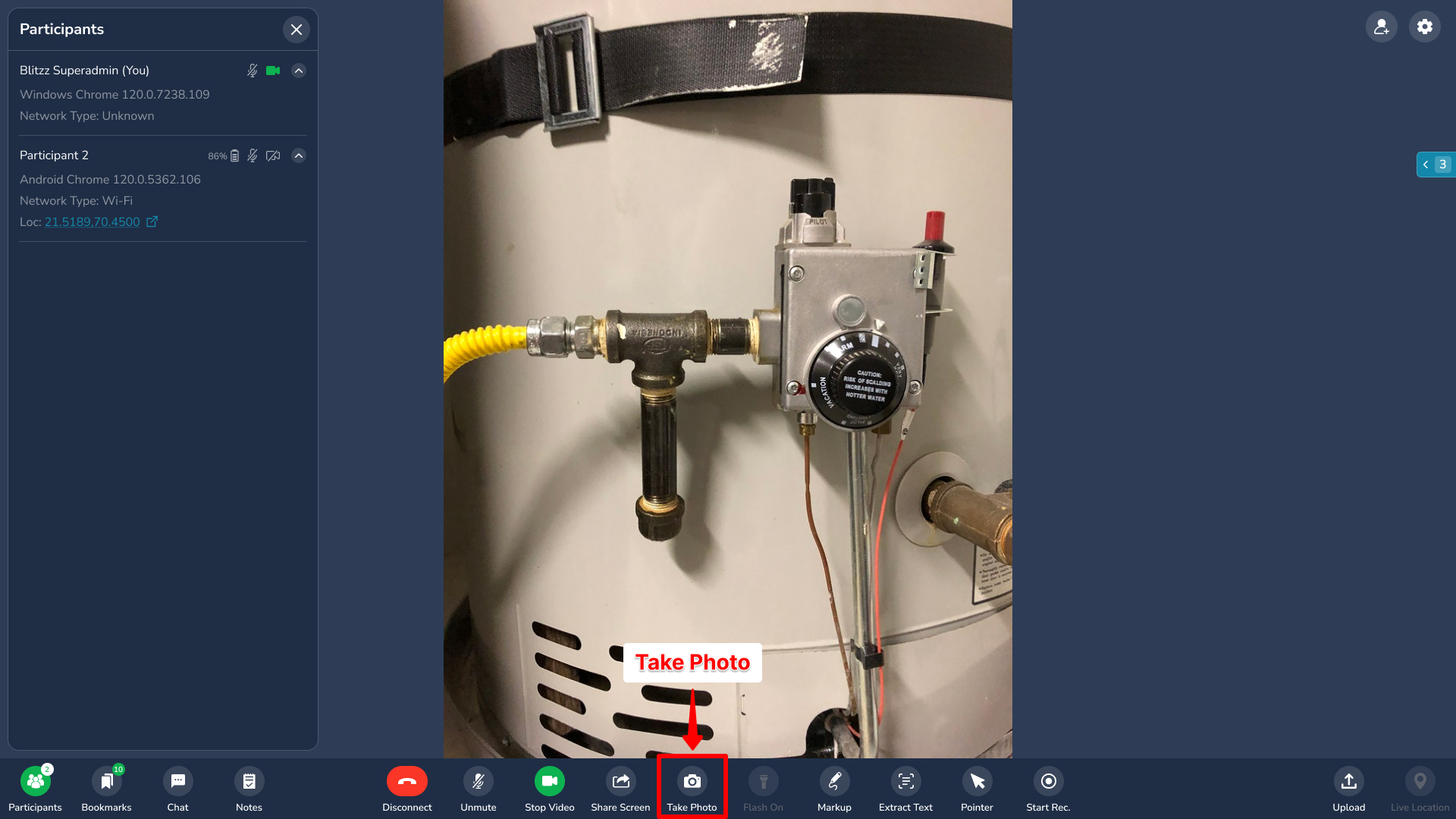
Take Photo
Click Take Photo in the toolbar to capture a high-quality image from the guest's camera
Photos are automatically saved to session history
You cannot use markup or other tools while a photo is being captured
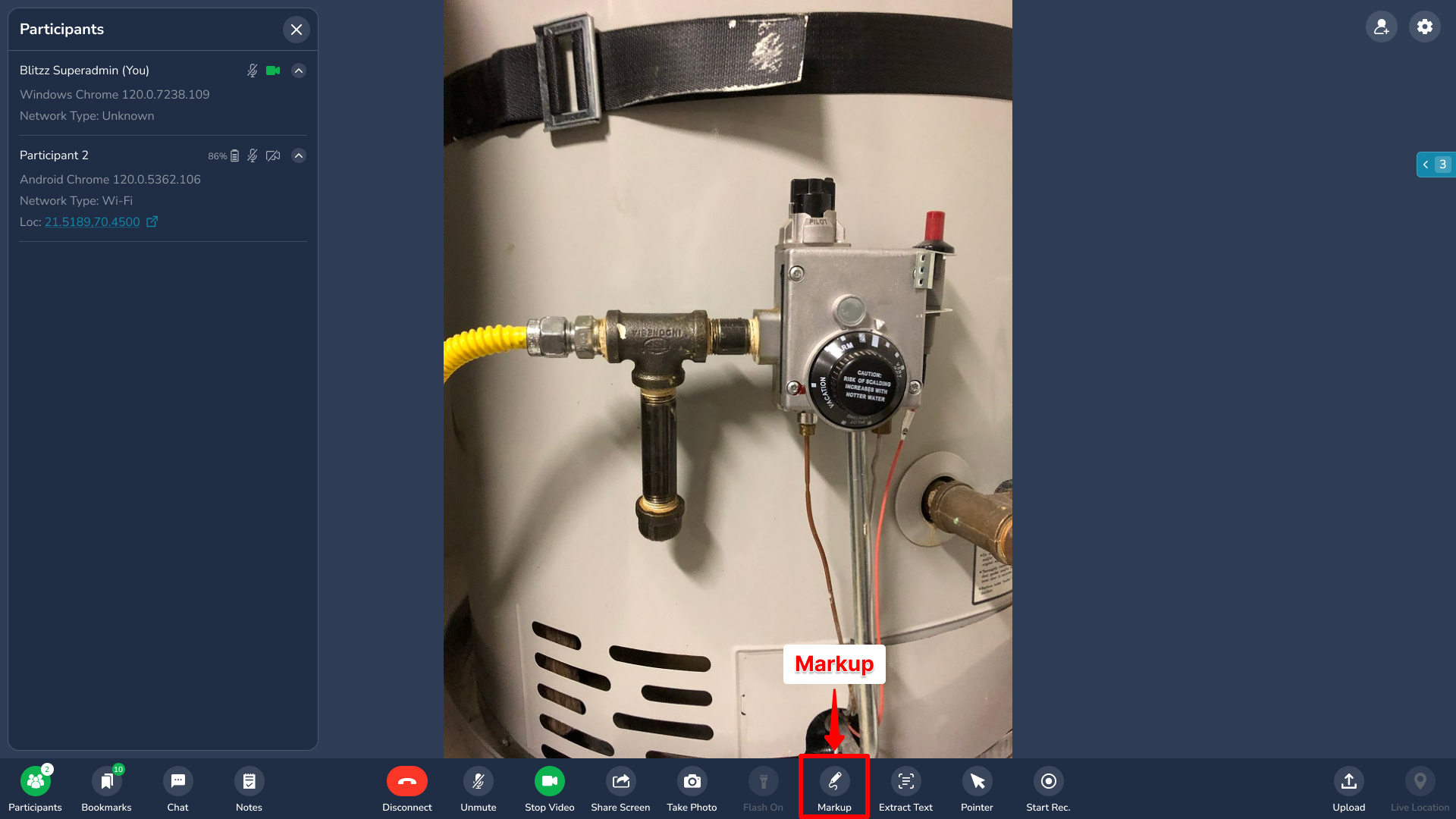
Markup
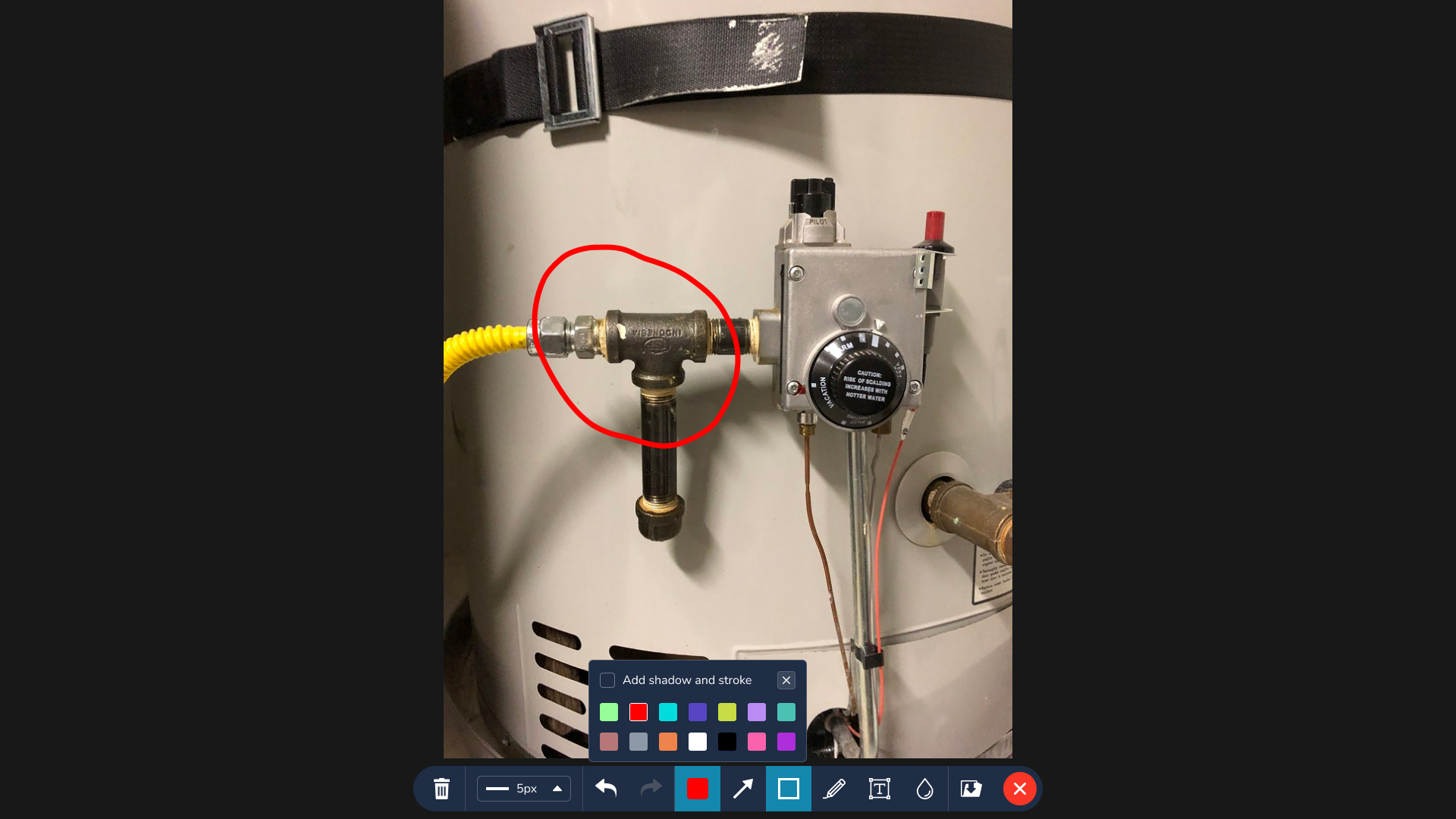
Click Markup to capture the current video frame for annotation
Both parties can draw on the image—each participant has a unique color
Use the toolbar on the right for drawing tools
Available tools: Clear All, Undo, Redo, Fill (color picker), Draw (freehand), Rect (boxes), Text, Mask (cover sensitive info), Arrow, Save, Exit
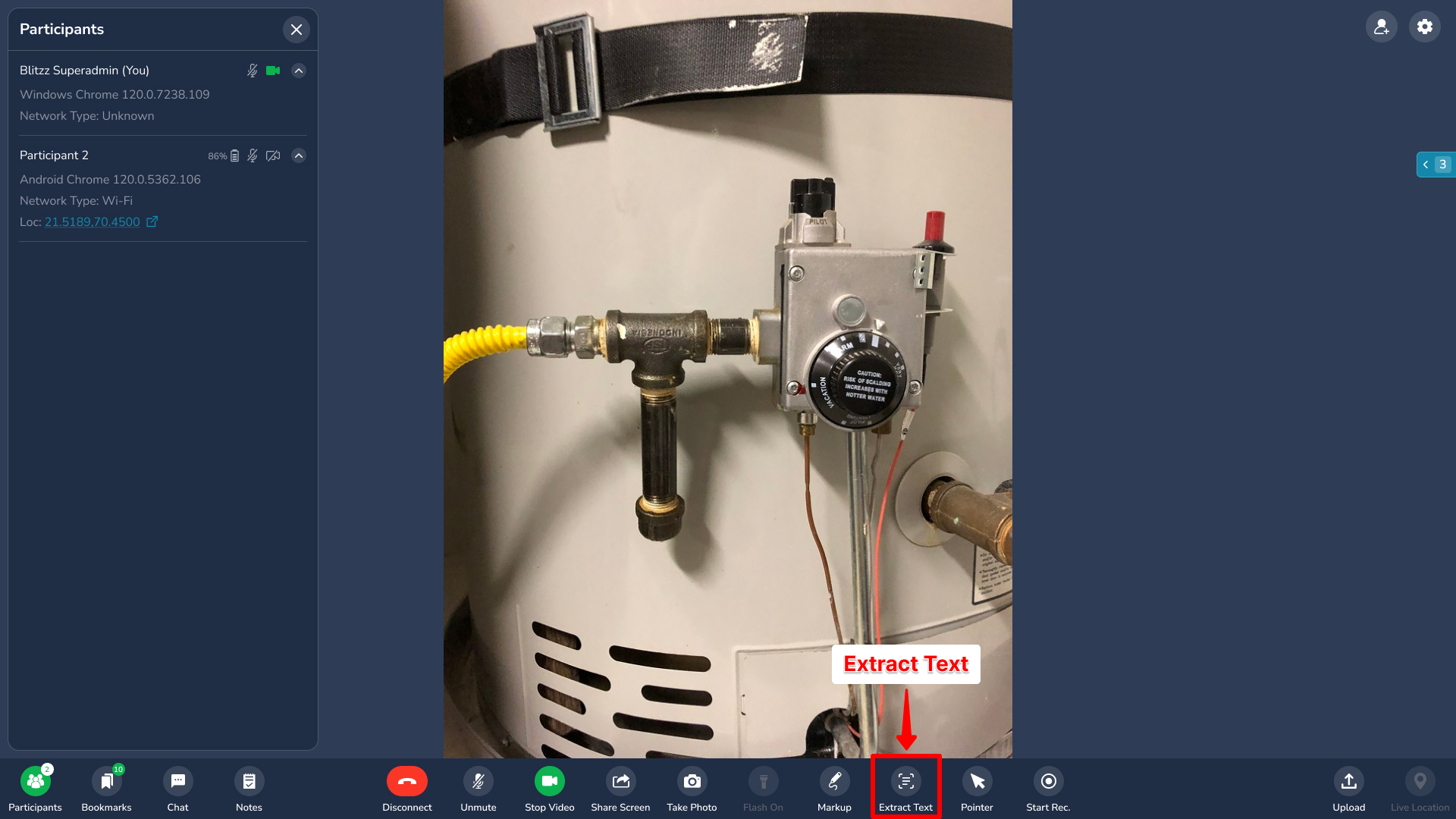
Extract Text (OCR)
Click Extract Text to capture the current video frame
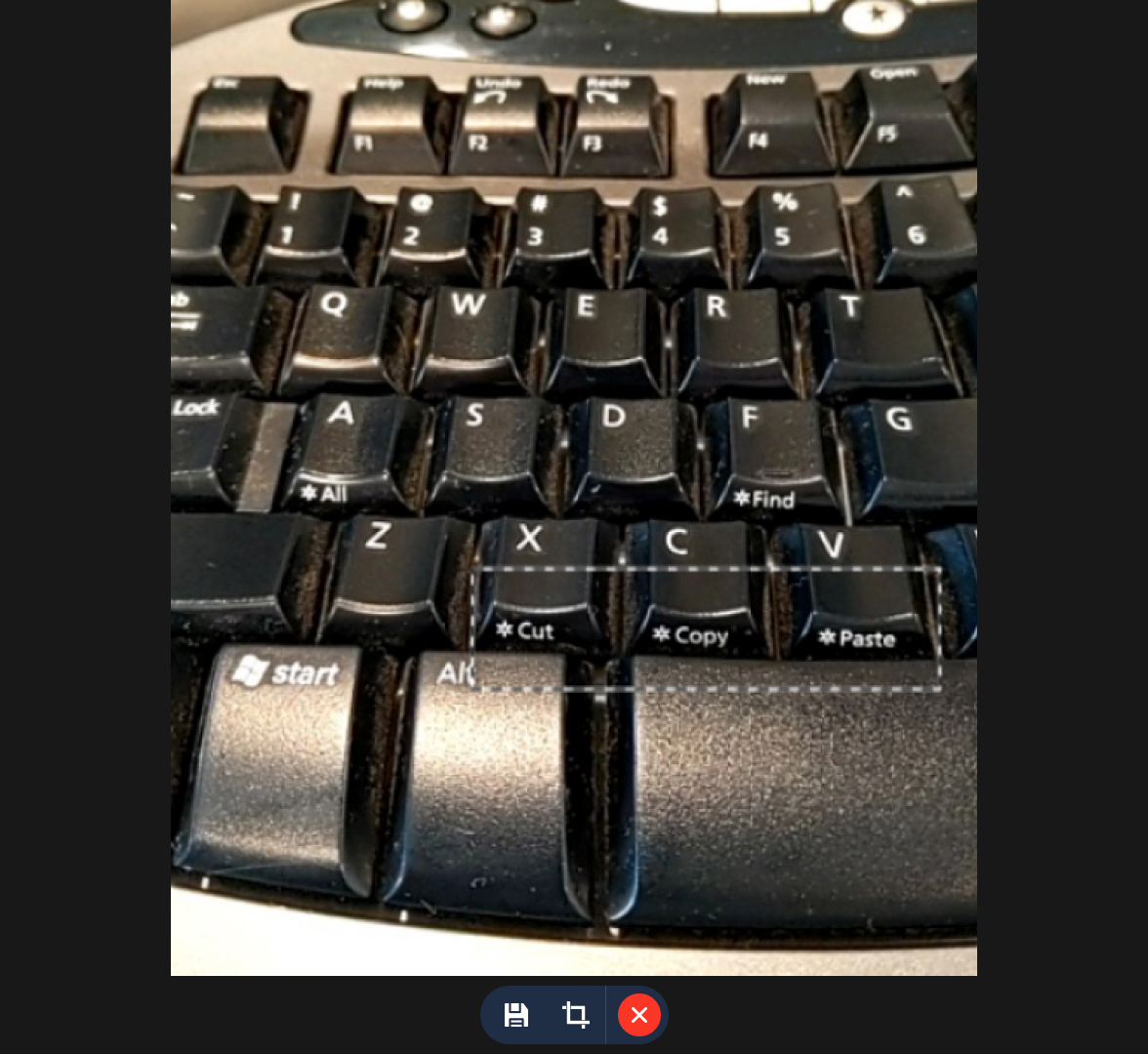
Draw a box around the text you want to extract
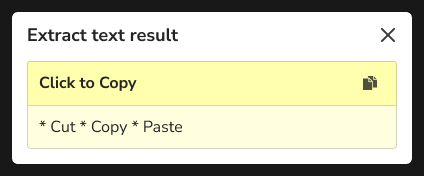
Wait for the extraction notification
Exit the tool
Save the full image or cropped selection to session history
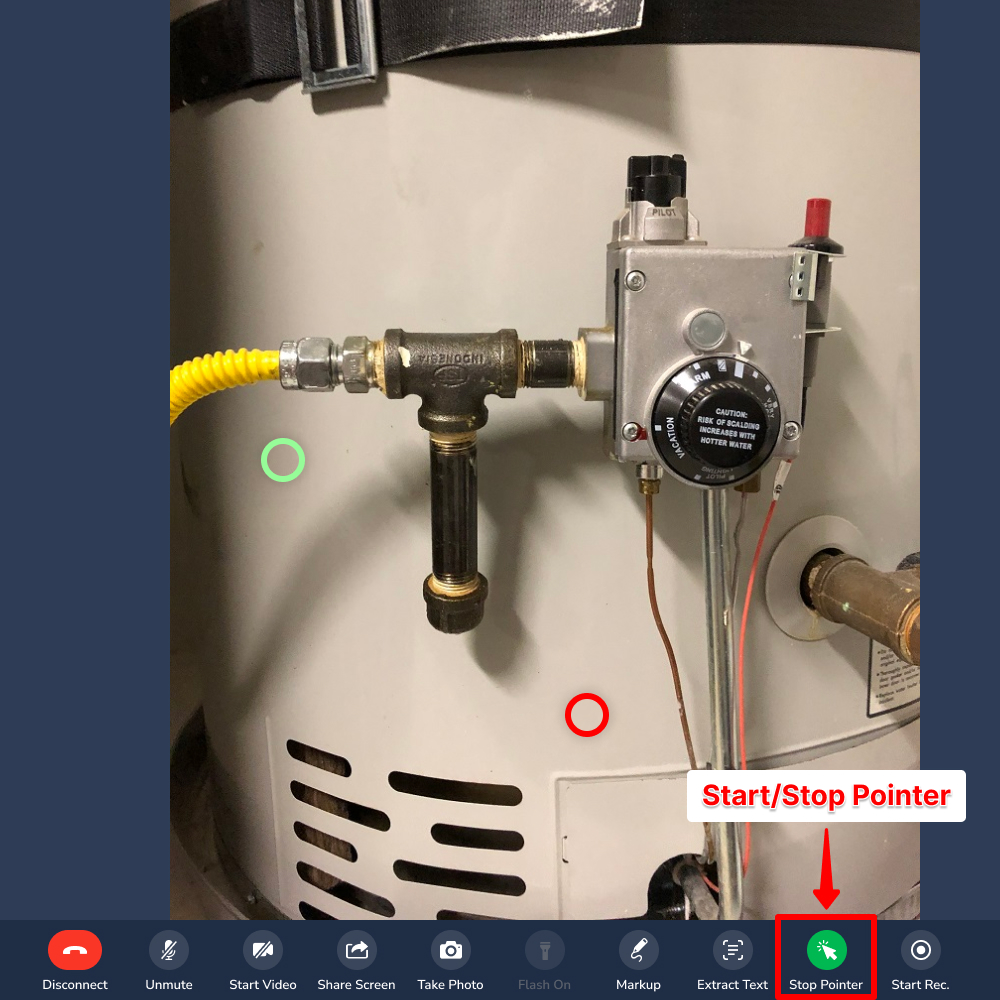
Live Pointer
Click Pointer to activate the Live Pointer
Move your mouse to point at areas of interest
Each participant sees a colored ring—different colors for each person
Click Pointer again to deactivate
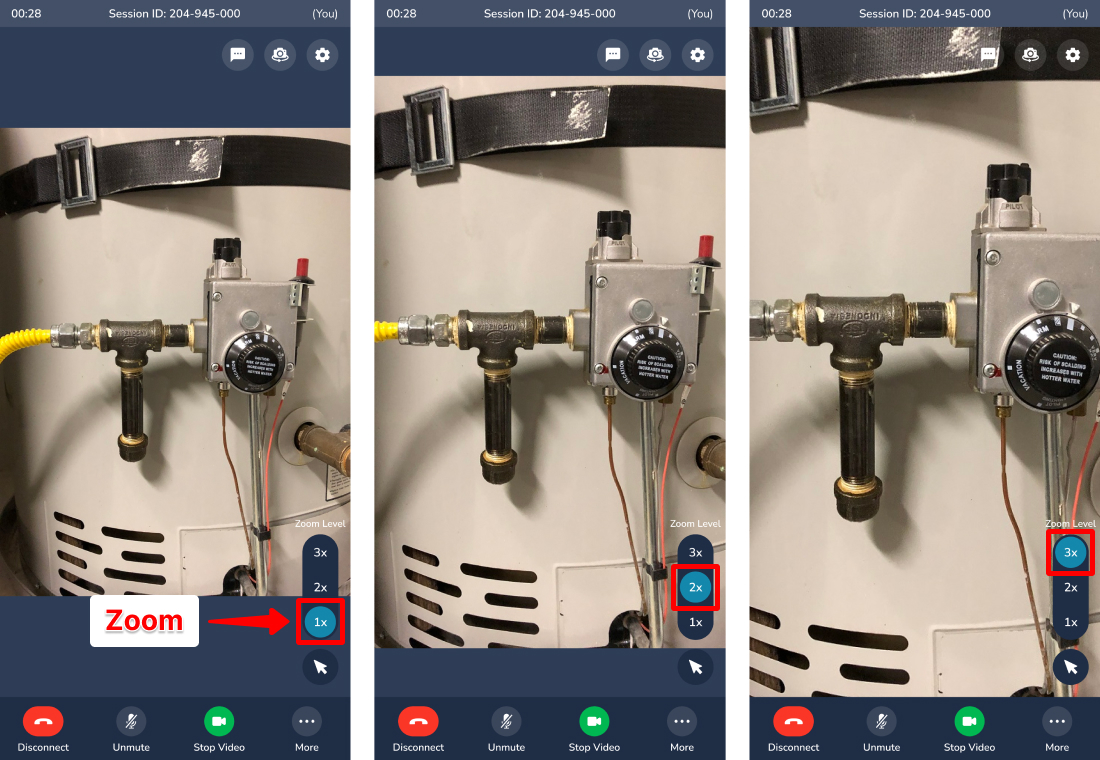
Zoom
Zoom the camera feed for all participants simultaneously. Either party can choose 2x or 3x zoom.
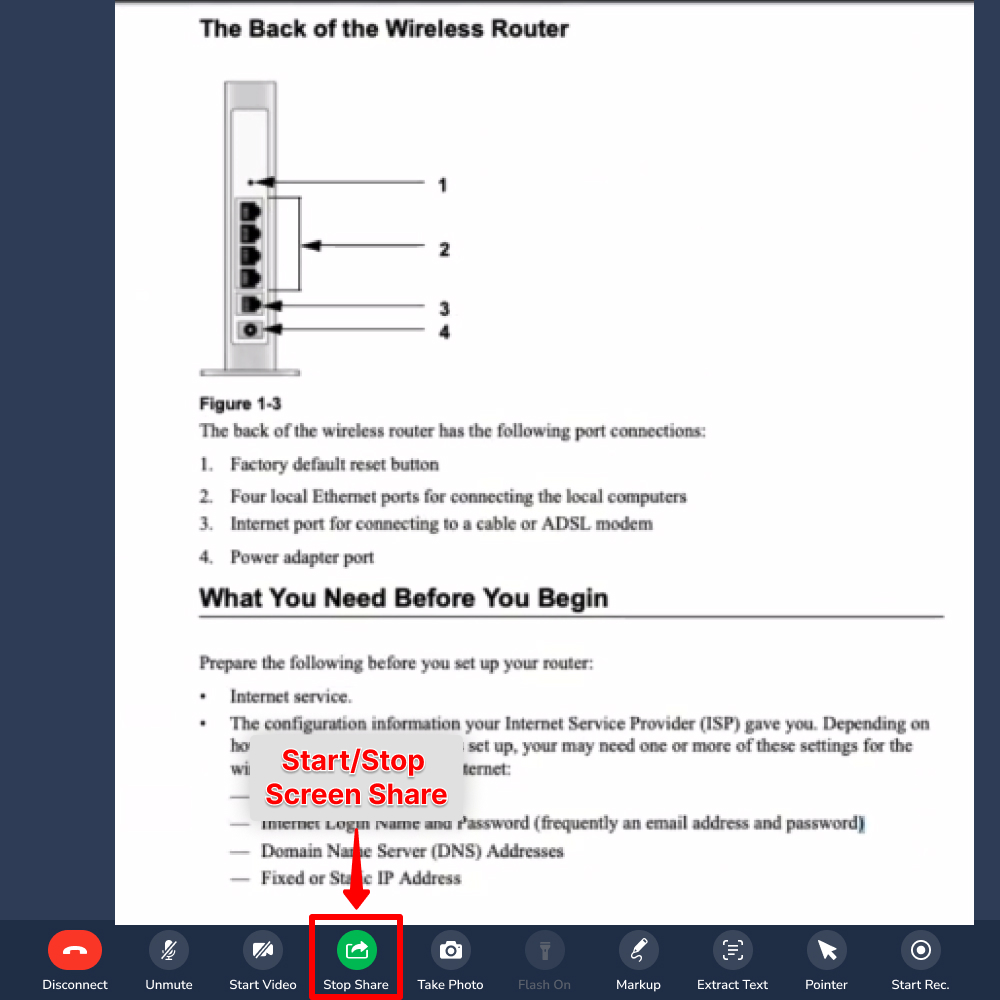
Screen Share
Click Share Screen in the toolbar
Select the window or application to share
Click Share to begin
Click Stop in the center of the screen to end sharing
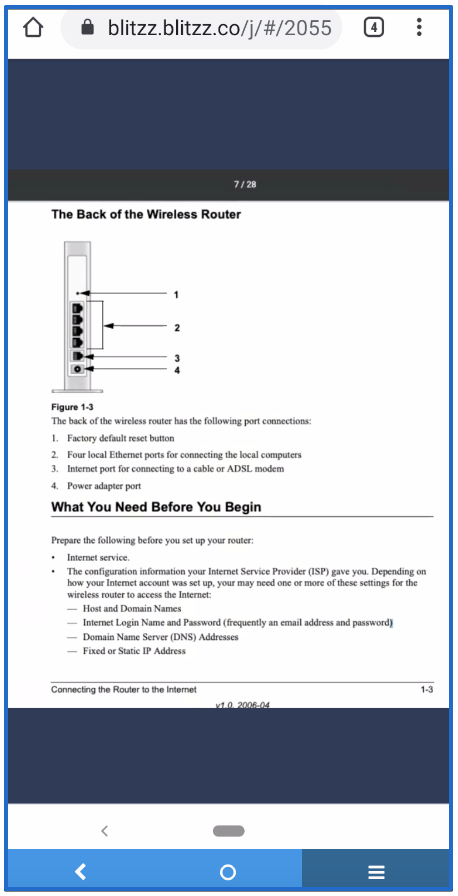
Pinch to Zoom
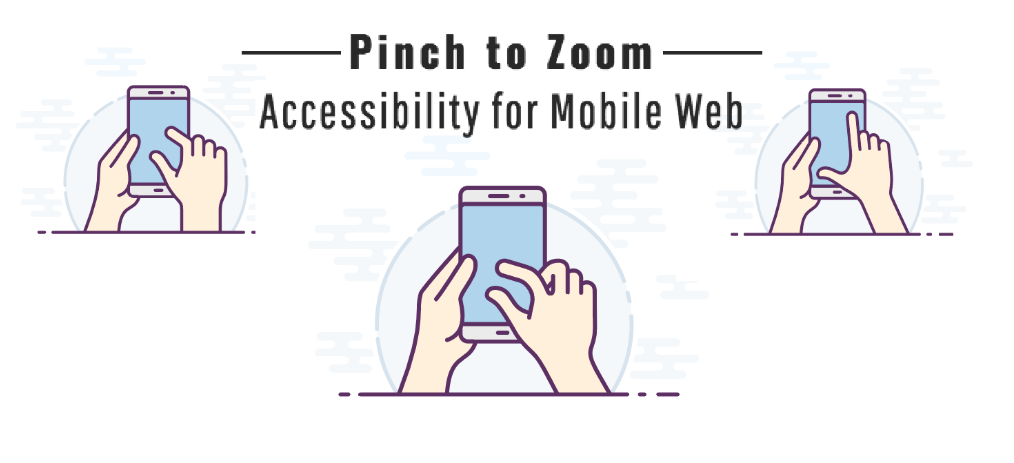
On mobile devices, use standard pinch gestures:
Pinch outward to zoom in
Pinch inward to zoom out
Drag to pan around the zoomed image
This is especially useful for viewing schematics, blueprints, or detailed documents.
Participant Information
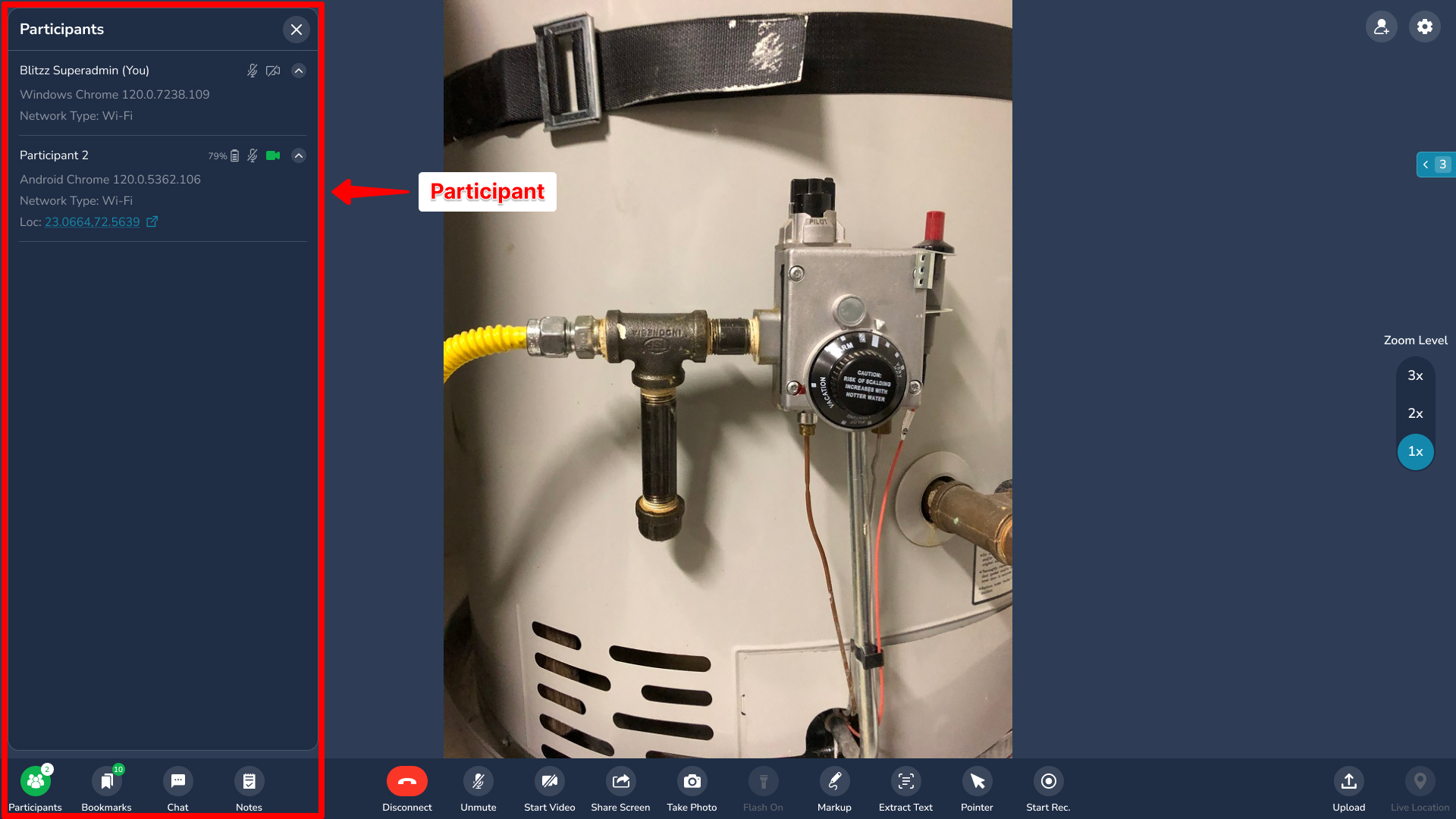
View detailed session info by clicking the Participants icon (bottom left):
Session code
Number of participants
Call duration
Network quality
Devices and browsers being used
Device Video & Audio Settings
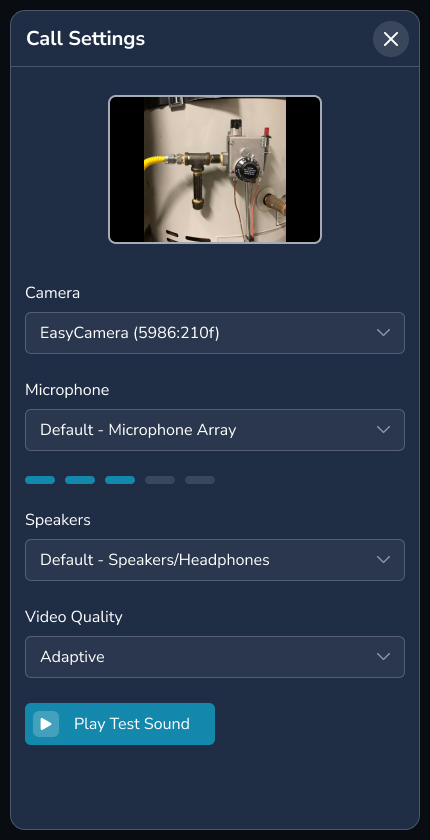
Adjust your camera and microphone during a call:
Click the Session Settings icon (top right)
Select your preferred camera and microphone from the dropdown

Bookmarks
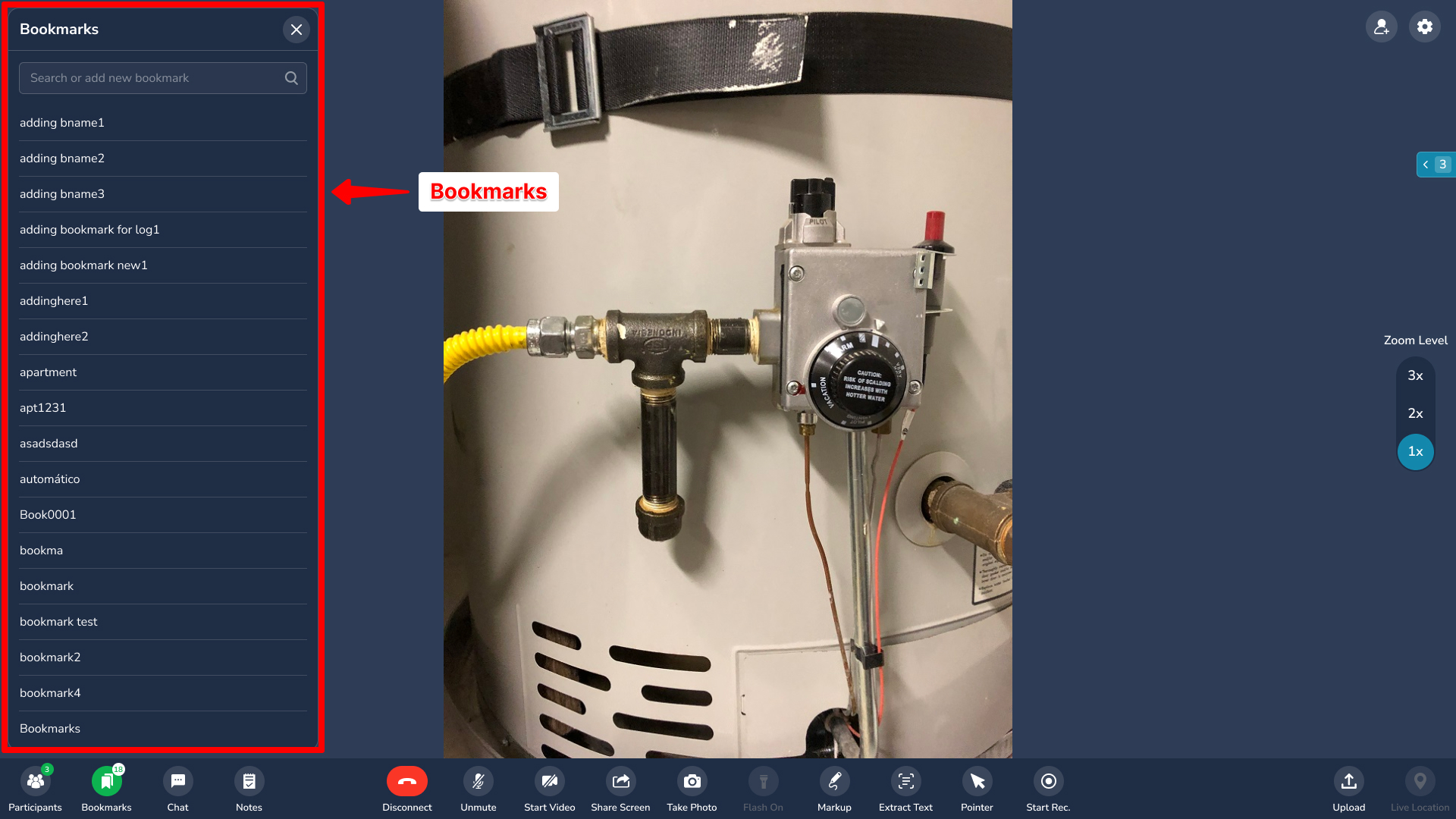
Create pre-defined labels for quick photo capture:
Click the Bookmarks icon (bottom left)
The bookmarks panel appears on the left
Click any bookmark label to instantly capture a labeled photo
The counter shows photos taken with each label
Photos are saved with the bookmark label, location (if enabled), and timestamp.
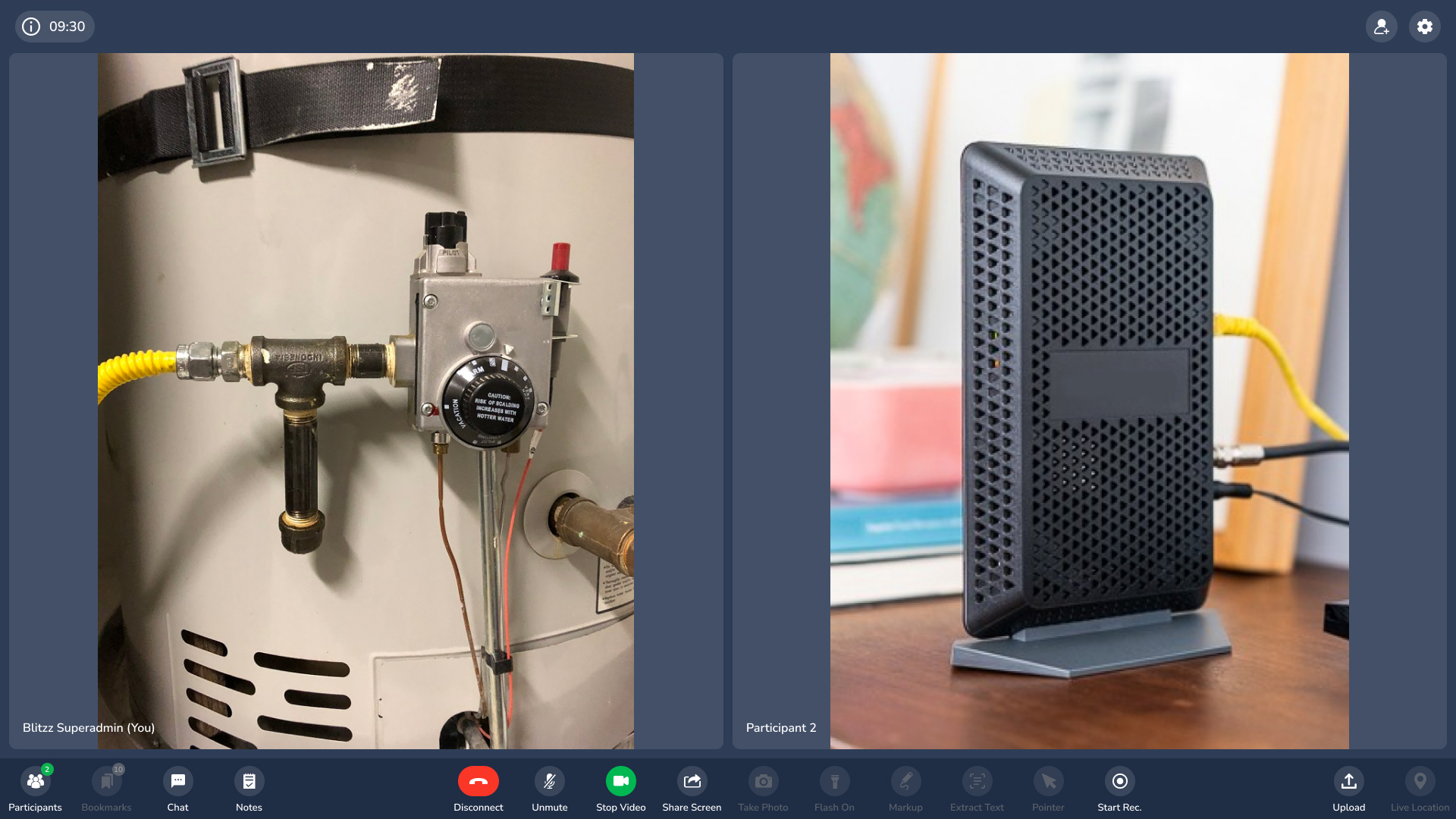
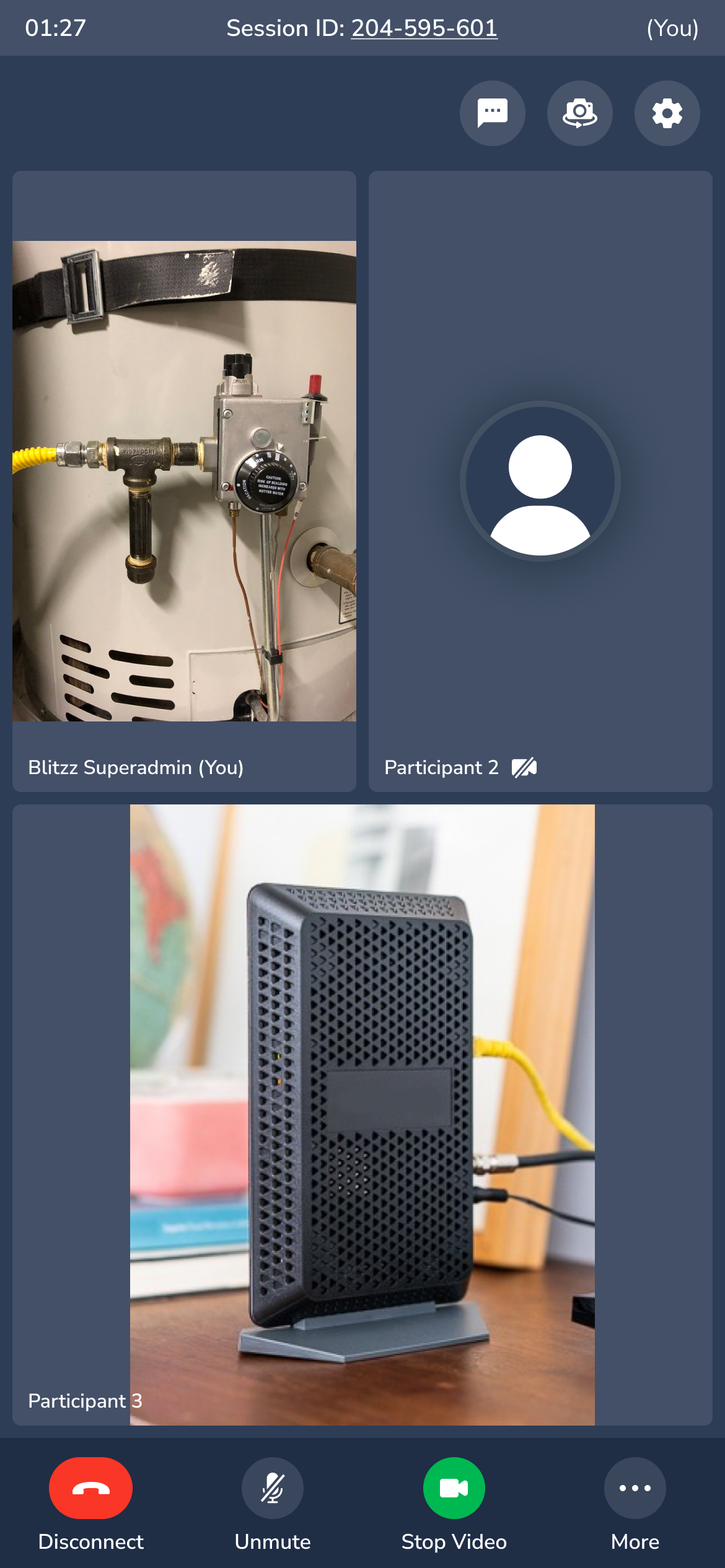
Gallery View
Gallery View lets both participants see each other during video calls, adding a personal touch to sessions. All standard Blitzz features remain available.
Live Chat
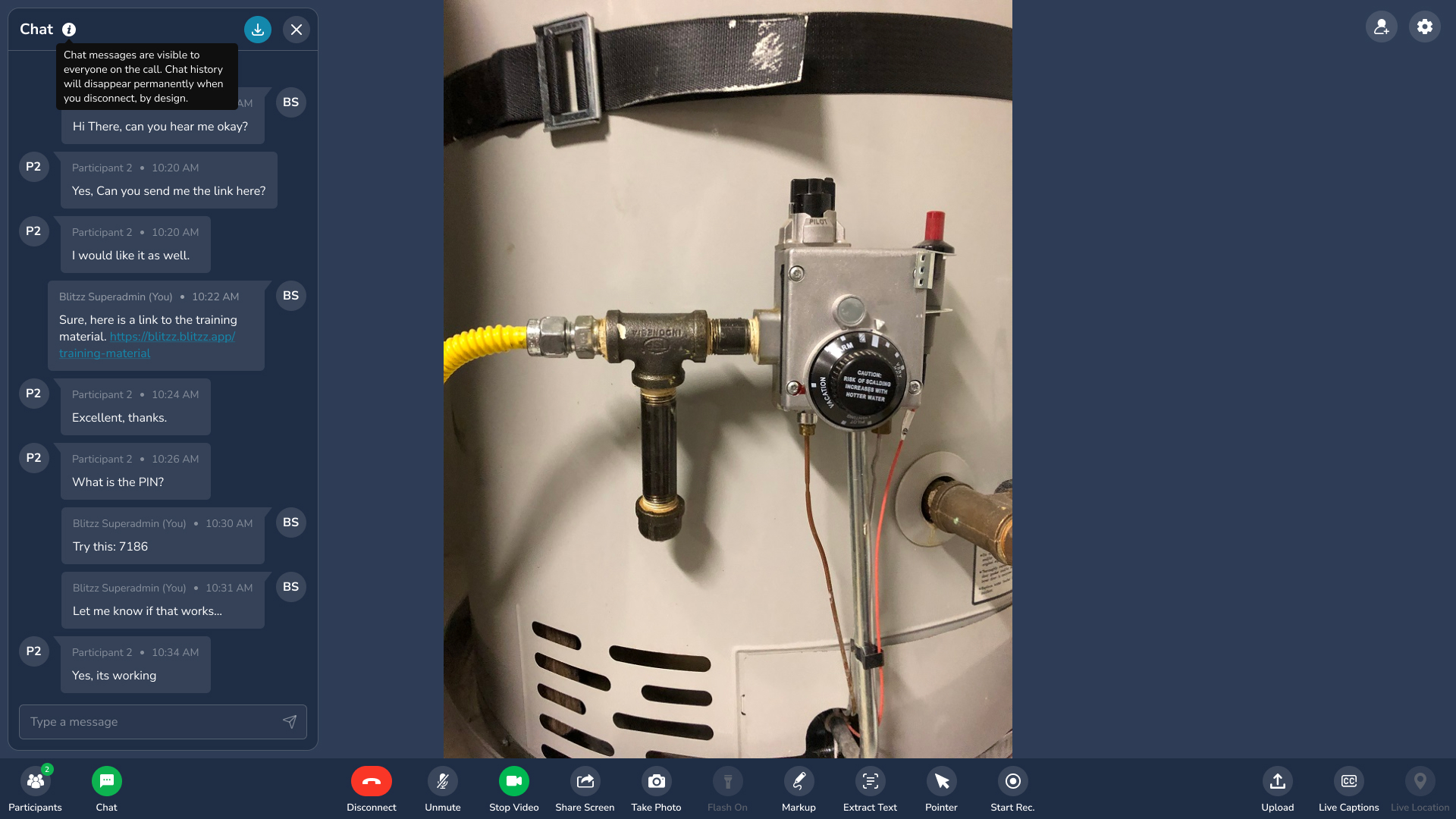
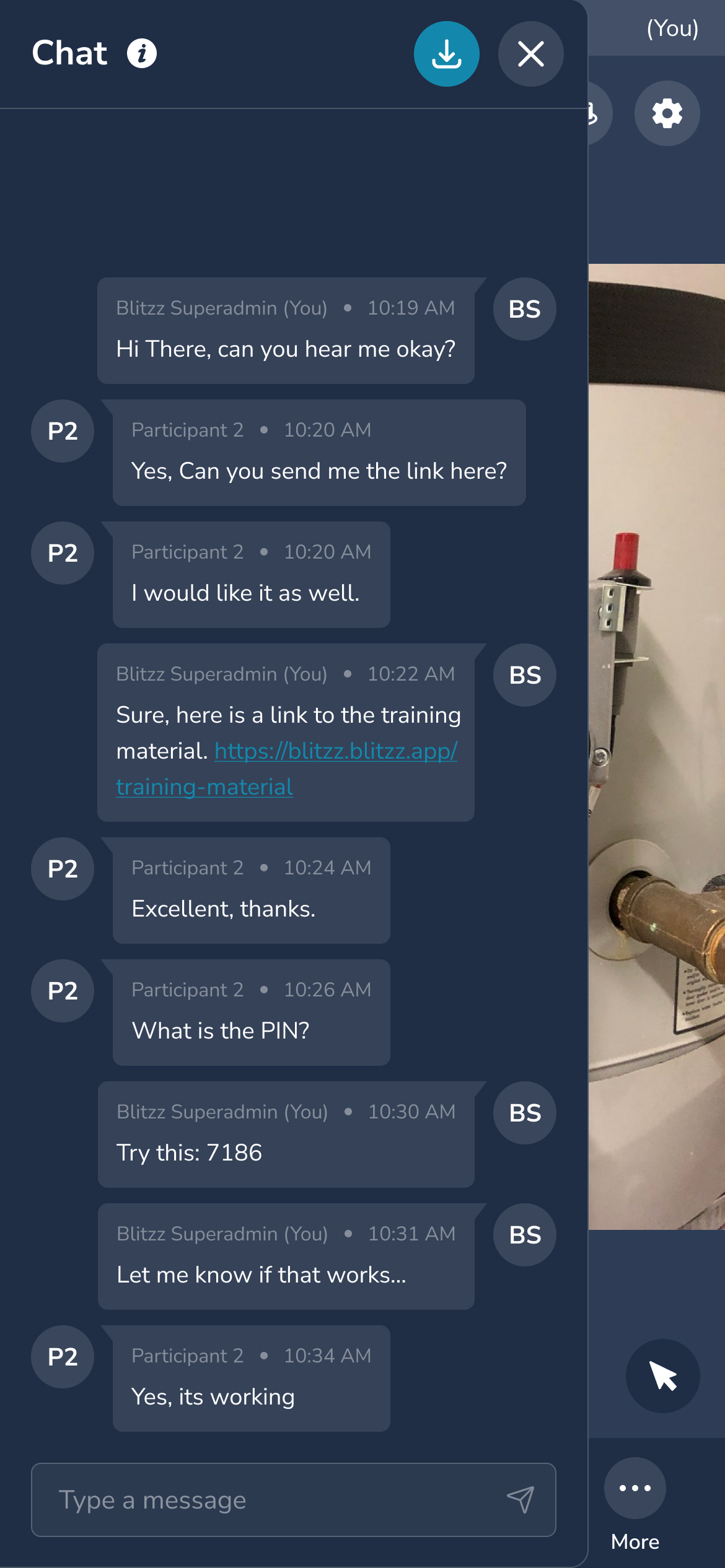
Use chat to communicate in noisy environments or share links:
Click the Chat icon (bottom left)
Type your message and send
Guests tap the Chat icon on the upper right of their screen
Note: Chat messages are not saved after the session ends.
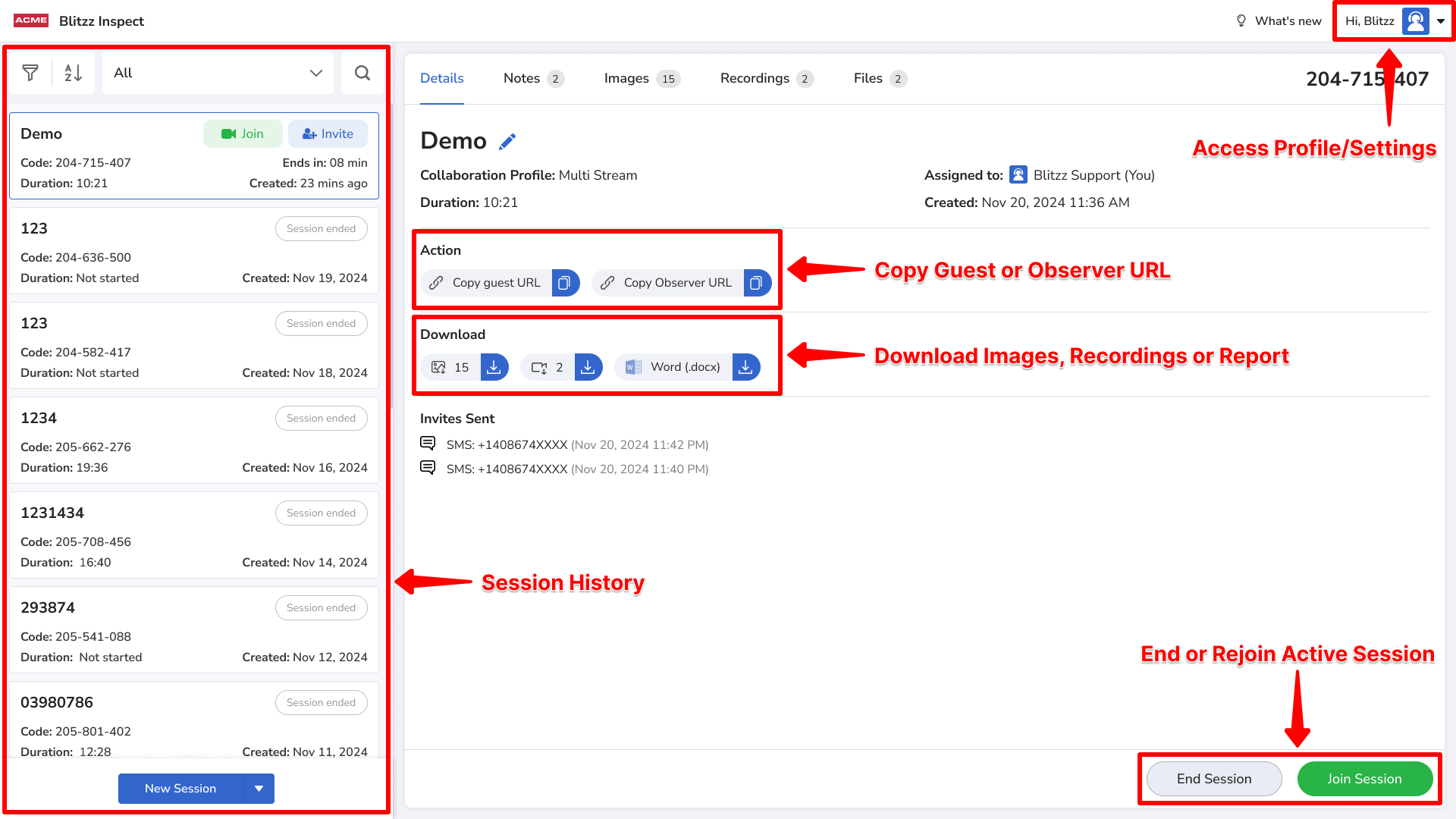
Session History
After disconnecting, you return to the Session History page where you can:
Access your profile, language, and settings
Re-invite participants to continue a session
Copy the session URL for sharing
Download captured images (click the image count)
Download recordings (if enabled)
End the session permanently to prevent rejoining