
The Blitzz Agent Portal is where agents run live video sessions with customers, field technicians and other remote participants. This guide covers signing in, inviting guests, using in-call tools and reviewing past sessions.
Quick answers
| Question | Answer |
|---|---|
| What browser should I use? | Chrome on Windows or Safari on Mac. |
| How many people can join a session? | 4 participants by default. Up to 50 on request. |
| Do guests need to install an app? | No. Guests join from their browser. |
| How can I invite a guest? | SMS, WhatsApp, email, session code or a shareable link. |
| Where are photos and recordings saved? | In Session History, where you can download them. |
What you can do in the Agent Portal
- Start and manage video sessions with 4 participants by default (up to 50 on request)
- Invite guests by SMS, WhatsApp, email or shareable link
- Capture photos and annotate them in real time
- Share your screen and use collaboration tools
- Extract text from images with OCR
- Review session history, recordings and reports
Table of contents
- Quick answers
- How to sign in
- The Agent Portal dashboard
- How to invite a guest to a video session
- In-call controls
- Collaboration tools
- Session management
- Frequently asked questions
- More resources
How to sign in
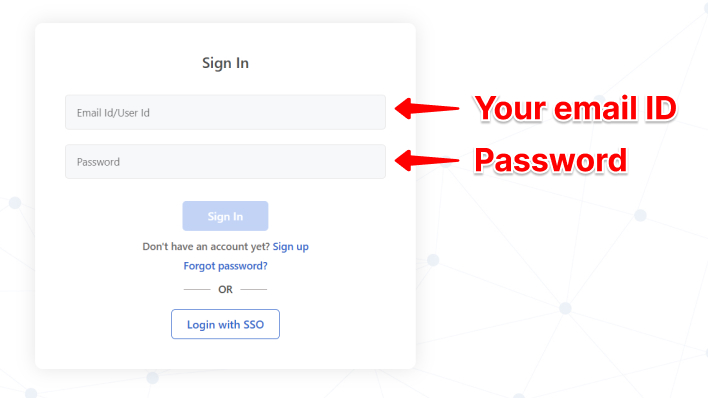
- Go to https://web.blitzz.co or your company's custom URL (for example, yourcompany.blitzz.co).
- Enter your email address and password.
- Click Sign In.
Using SSO? Click the SSO option to sign in with your corporate credentials.
Forgot your password? Click Forgot Password to reset it, or contact your administrator.
The Agent Portal dashboard
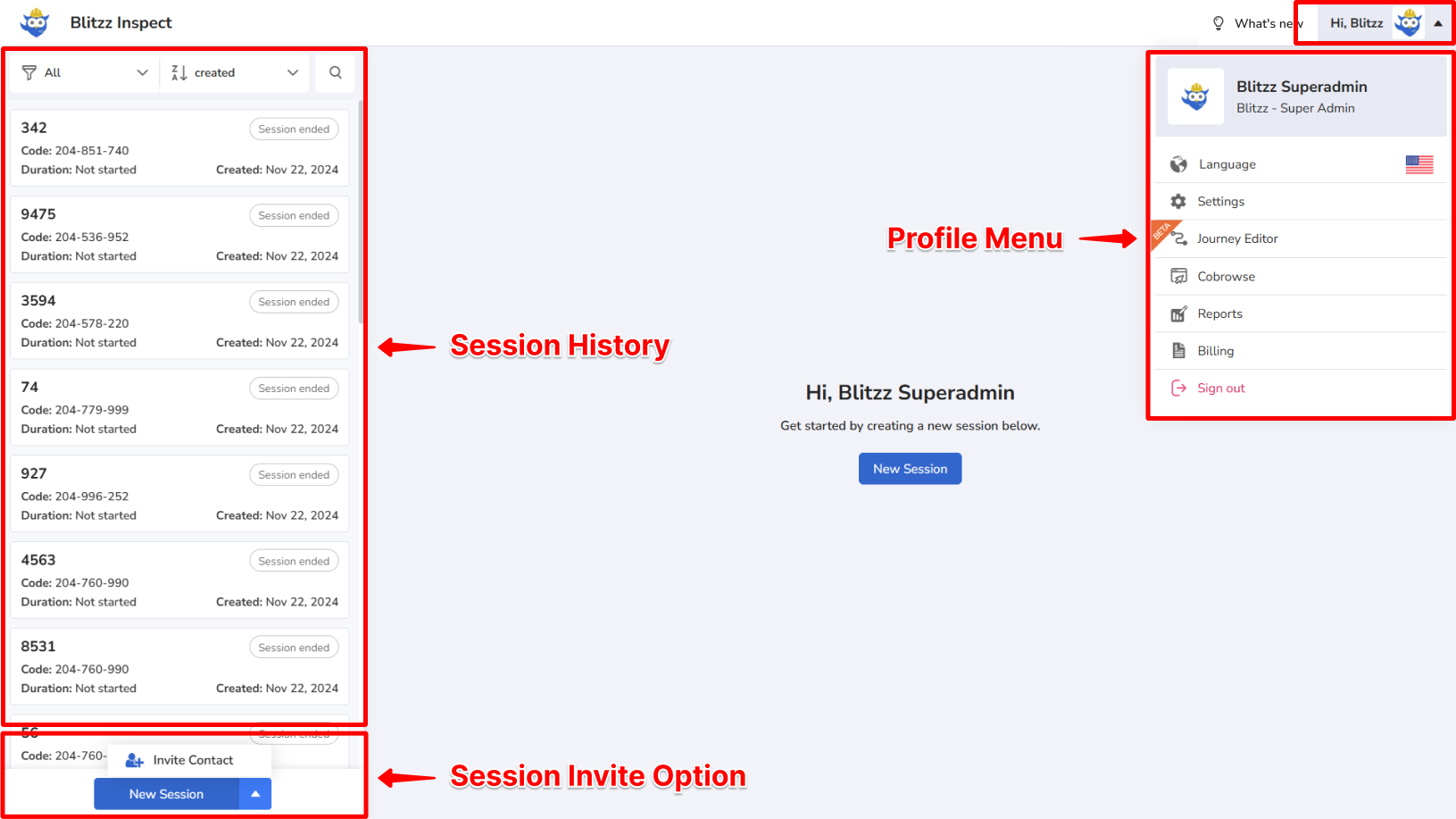
After you sign in, the dashboard has three main areas.
| Area | Location | What it does |
|---|---|---|
| Profile Menu | Top right | Language, account settings and reports (based on your permissions) |
| Session History | Left panel | Past sessions with details, photos and recordings |
| Invite Buttons | Bottom left | Start a new session by inviting a guest or a contact from your organization |
How to invite a guest to a video session
Sessions support 4 participants by default, and up to 50 on request. Guests join from their browser, so no app download is needed.
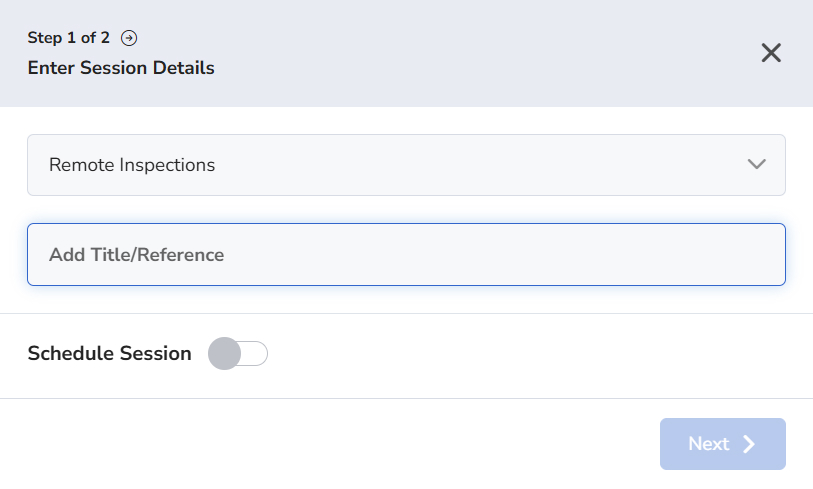
Step 1: Add a reference
Enter a Reference such as a ticket number, permit ID, address or case number. This makes the session easy to find later.
Step 2: Send the invite by SMS (most common)
- Enter the guest's mobile number.
- Click Invite and Join.
- The guest gets a text message with a link to join.
Tell your guest: tap CONNECT, then ALLOW camera, microphone and location access when prompted.

Other ways to invite
| Method | How to use it |
|---|---|
| Enter the phone number and click Invite and Join (if enabled for your account). | |
| Enter the guest's email address and click Invite and Join. | |
| Session Code | Copy the code. The guest enters it at join.blitzz.co. |
| Copy Link | Copy the session URL and send it through any messaging app. |
In-call controls
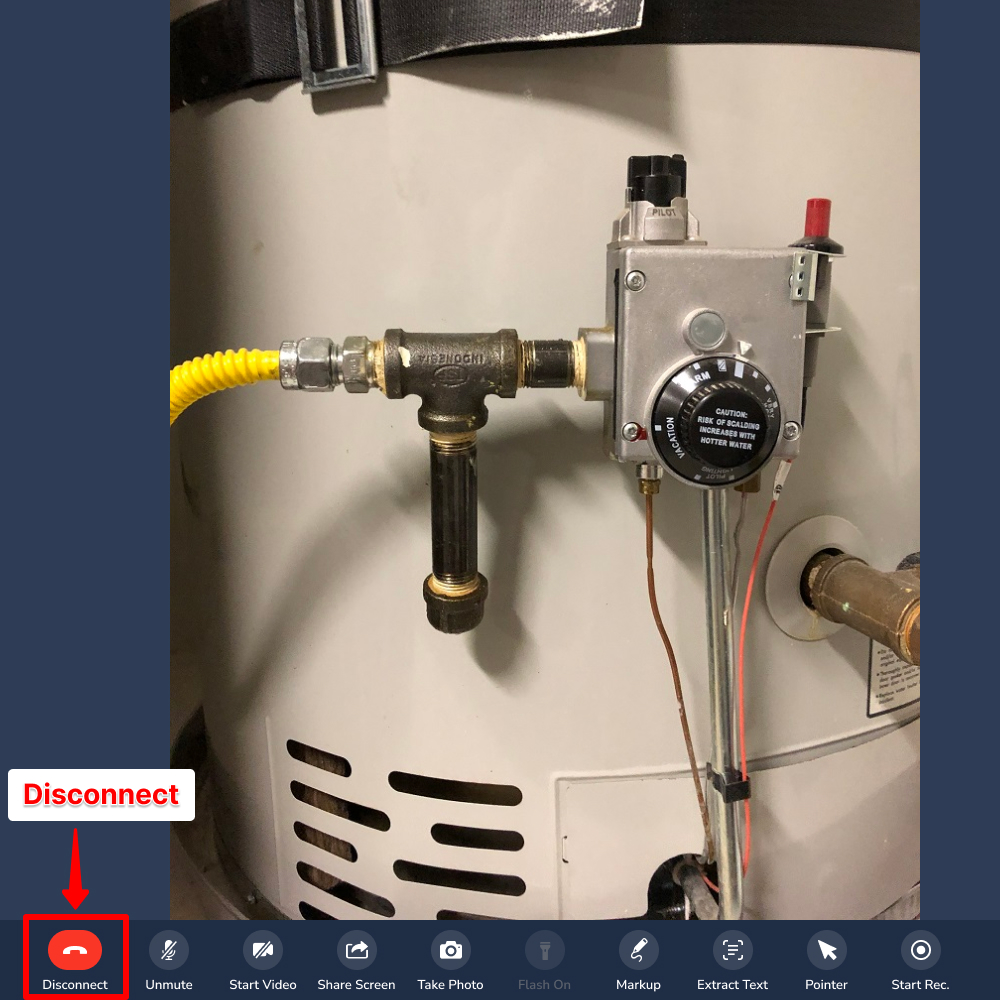
The toolbar at the bottom of the screen holds the main call controls.
Disconnect
Click the red phone icon to end the call.
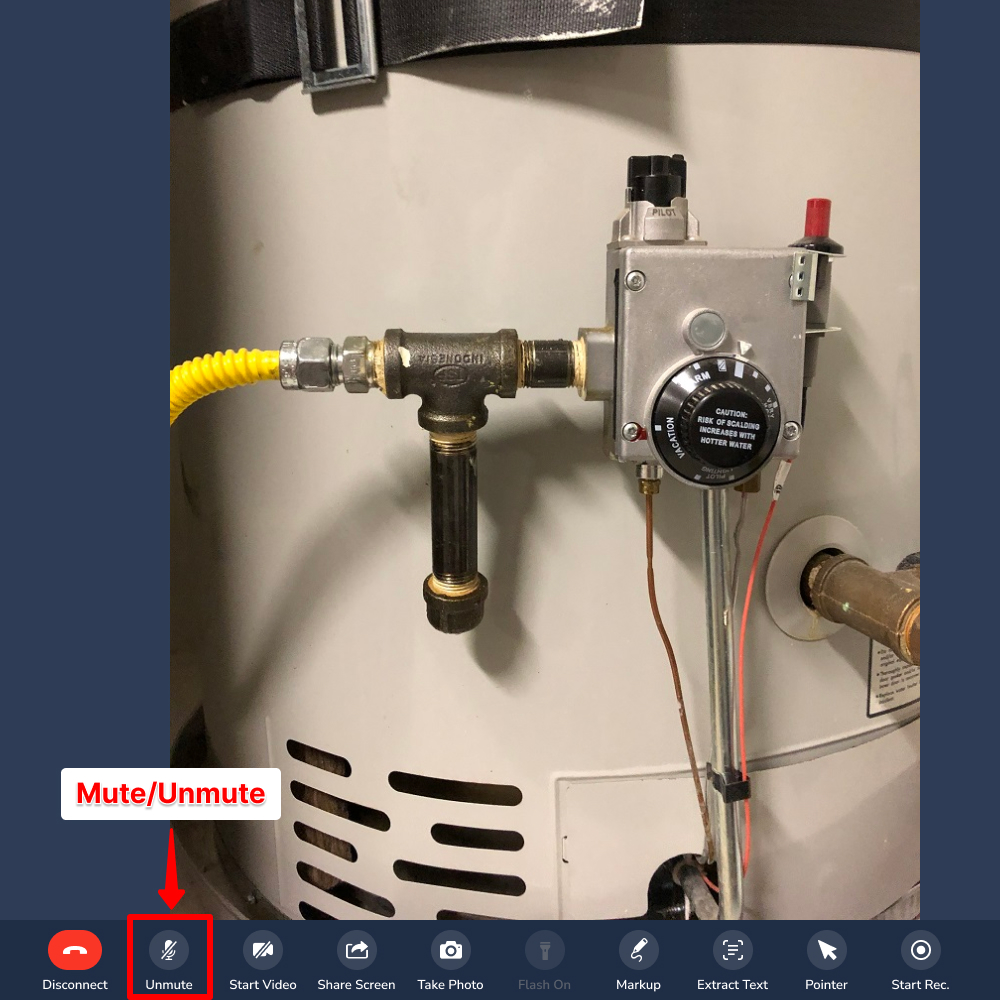
Mute / Unmute
Click Unmute to turn your microphone on and click again to mute. The icon is green when the mic is on.
On a phone call with the customer too? Keep your microphone muted to avoid echo and feedback.
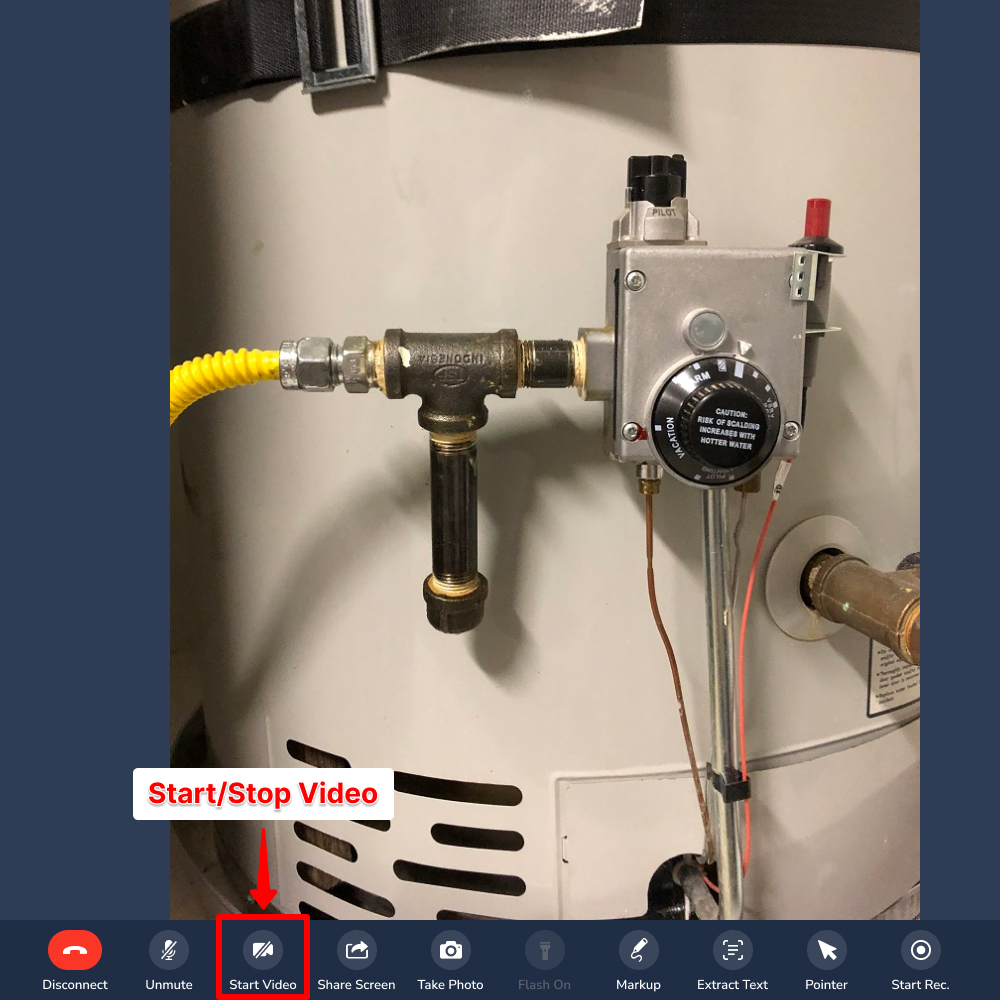
Start / Stop Video
Click Start Video to turn on your webcam so the guest can see you. Click again to stop. The icon is green when video is on.
Collaboration tools
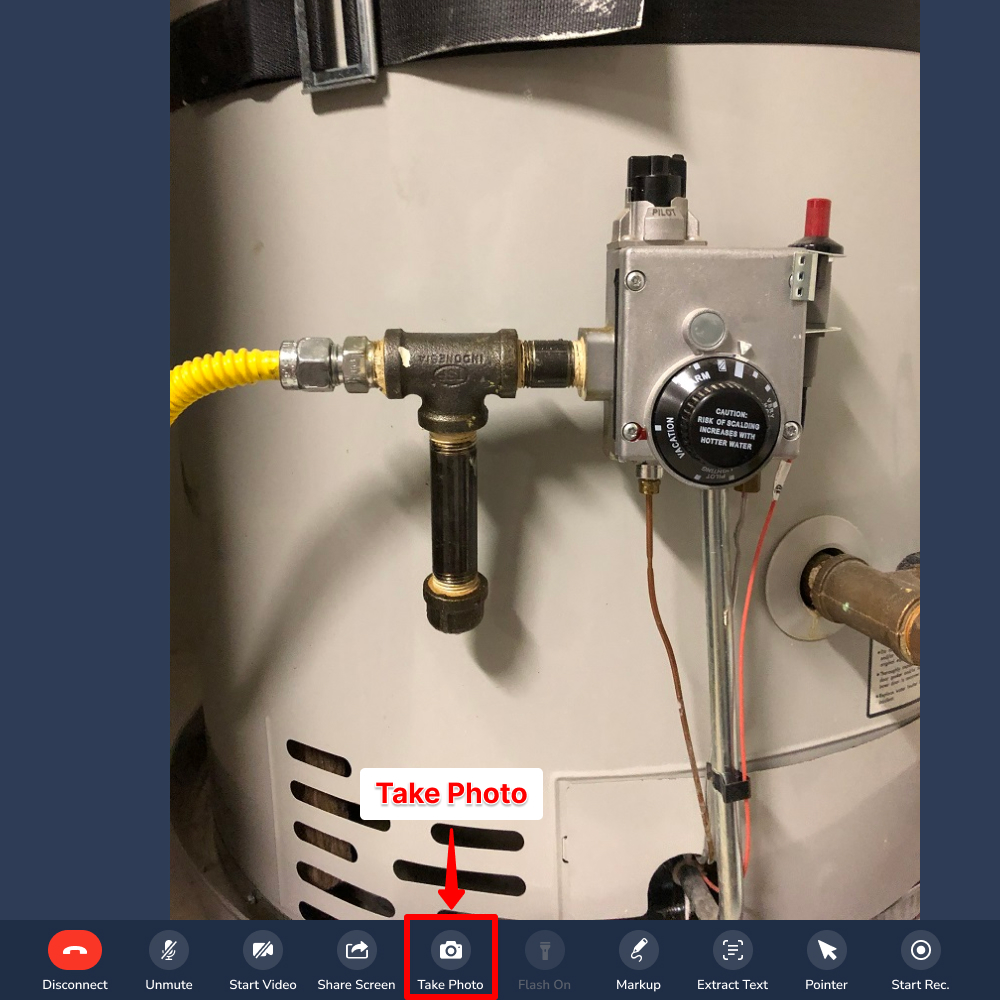
Take Photo
Click Take Photo to capture a high quality still from the guest's camera. Photos save to Session History automatically.
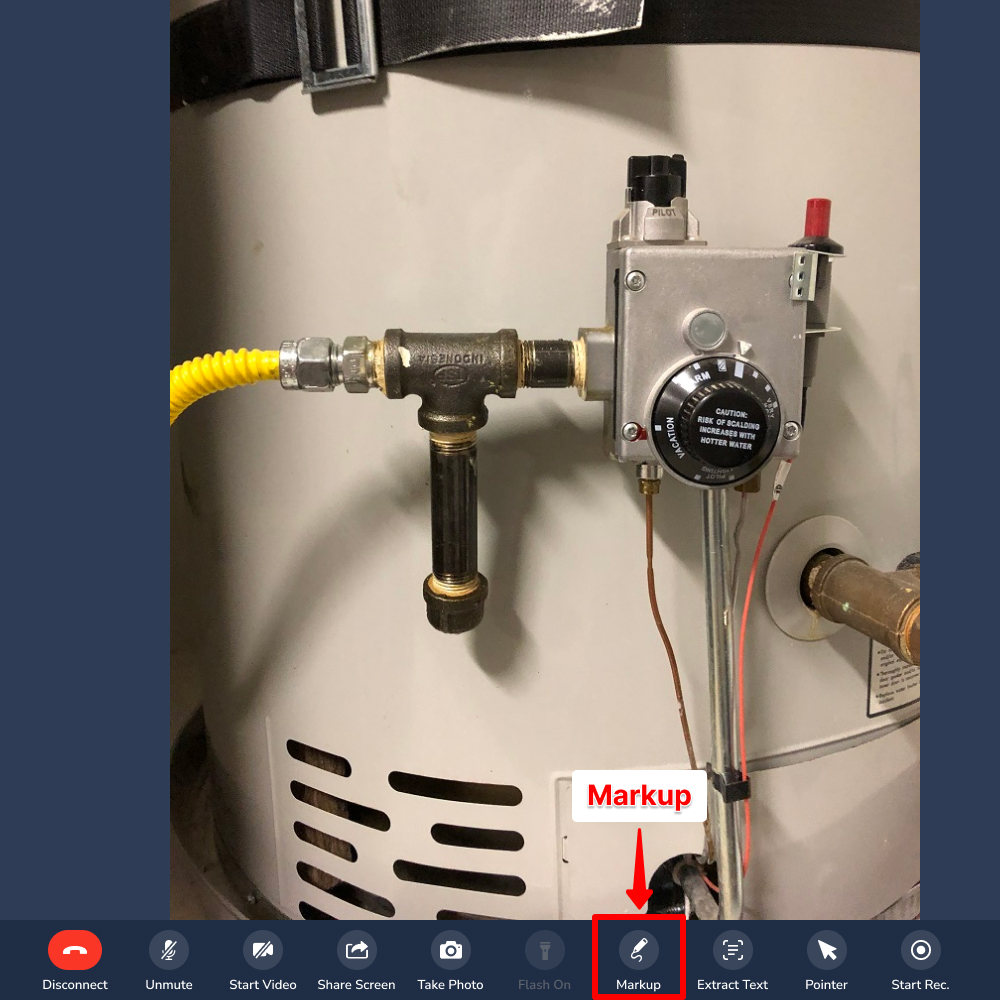
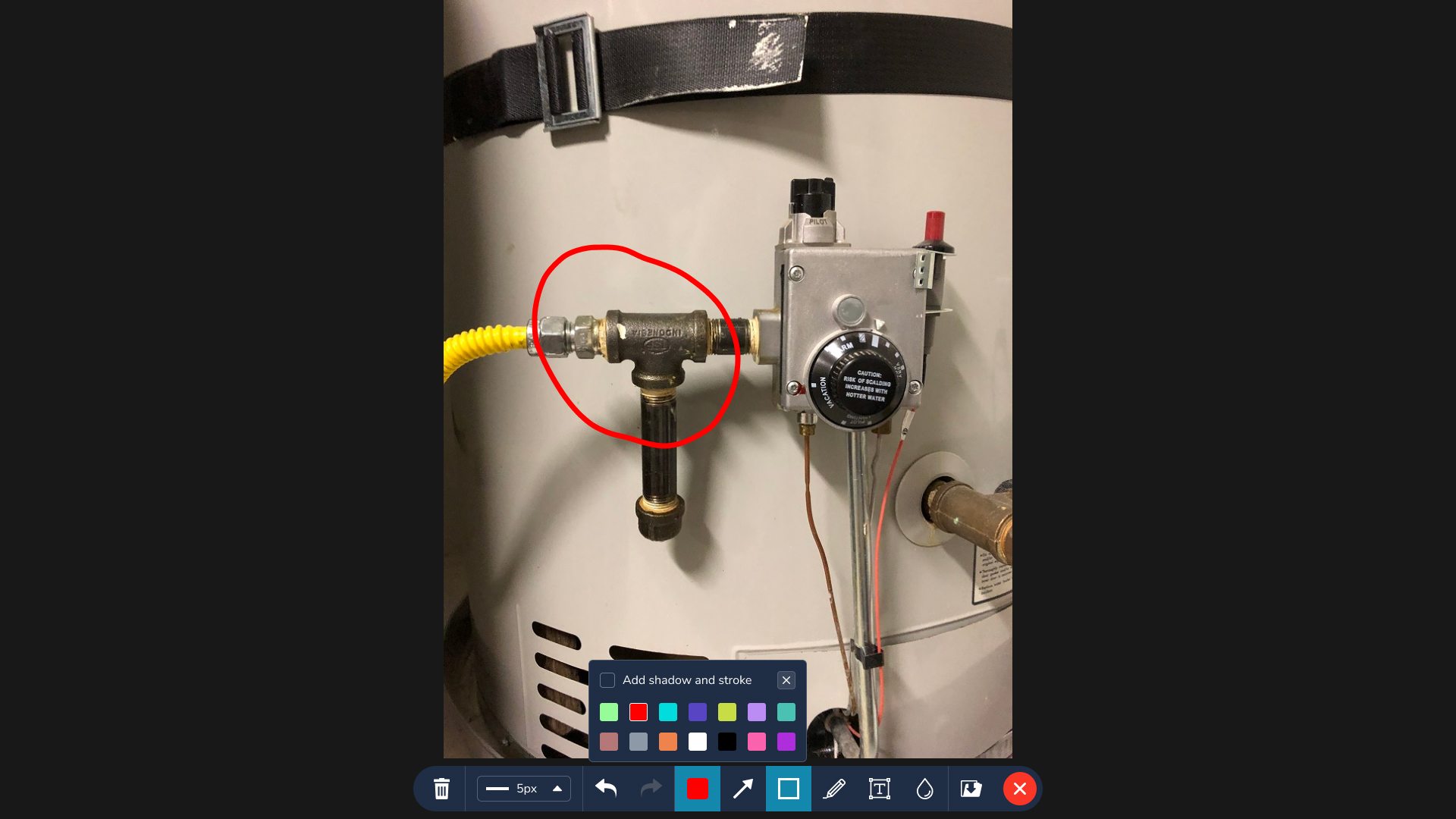
Markup (annotate images)
- Click Markup to capture the current video frame.
- Annotate the image. Each participant draws in a different color.
| Tool | Use |
|---|---|
| Draw | Freehand drawing |
| Rect | Draw boxes |
| Text | Add text notes |
| Clear All | Remove all drawings |
| Save | Save the annotated image |
| Exit | Return to live video |
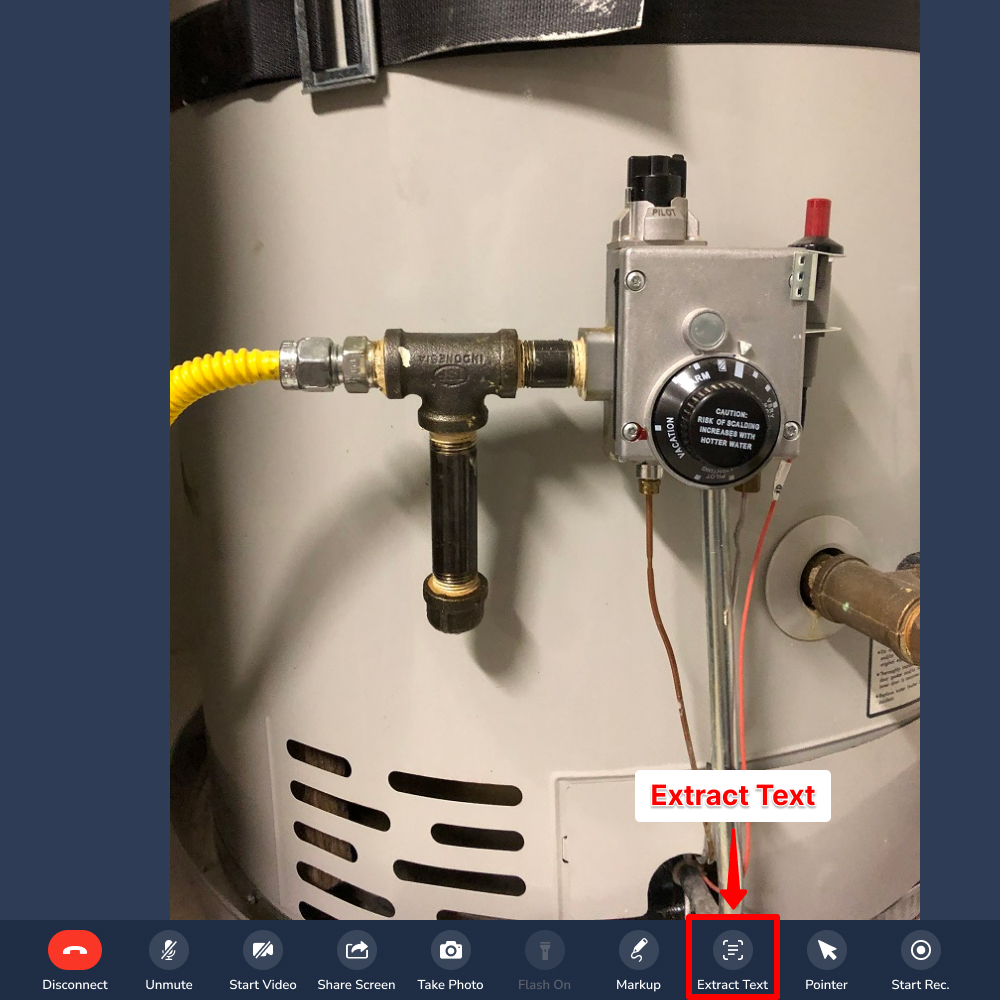
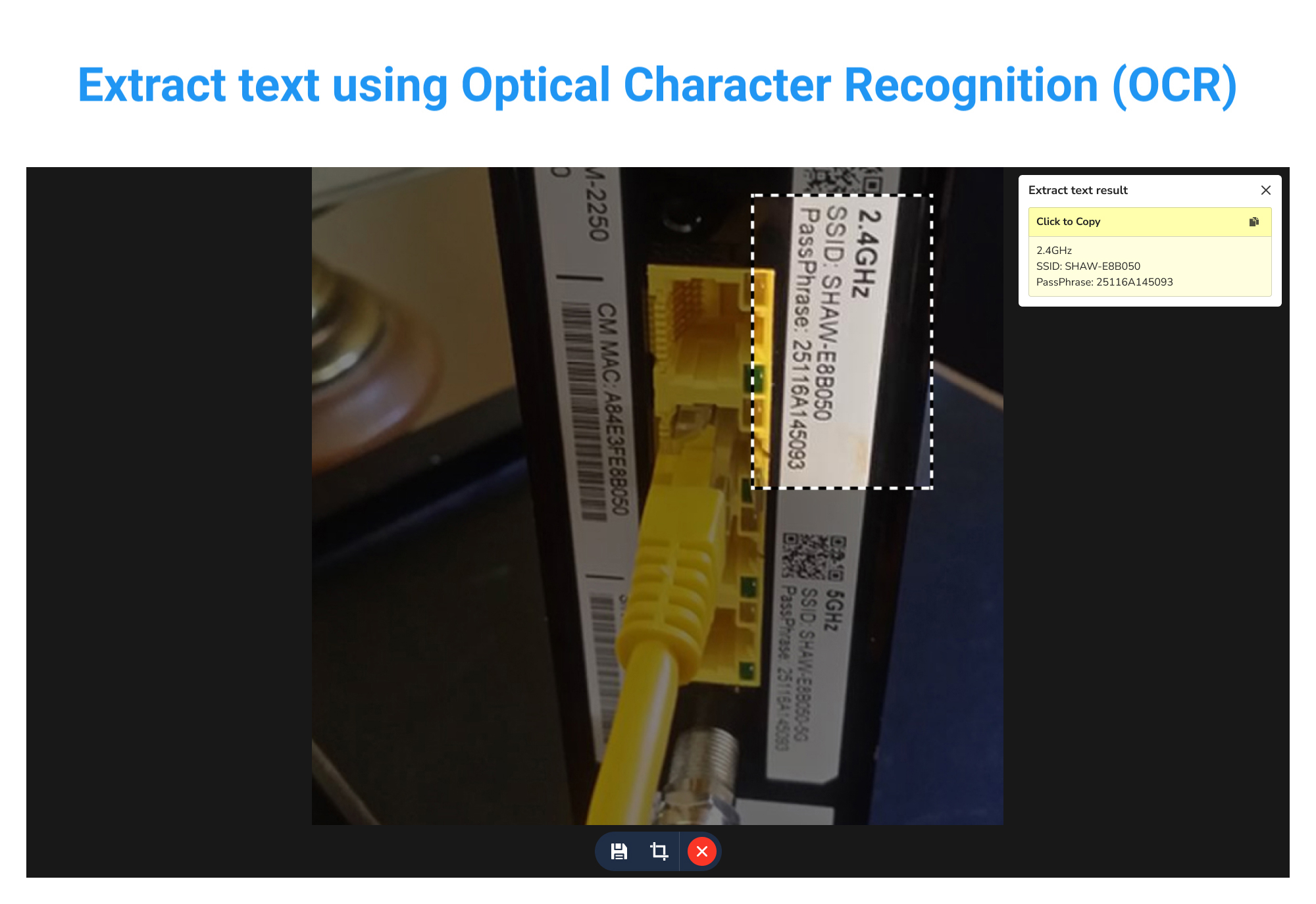
Extract Text (OCR)
- Click Extract Text to capture the current frame.
- Draw a box around the text you need.
- The text is extracted automatically.
- Save the full image or the cropped area to Session History.
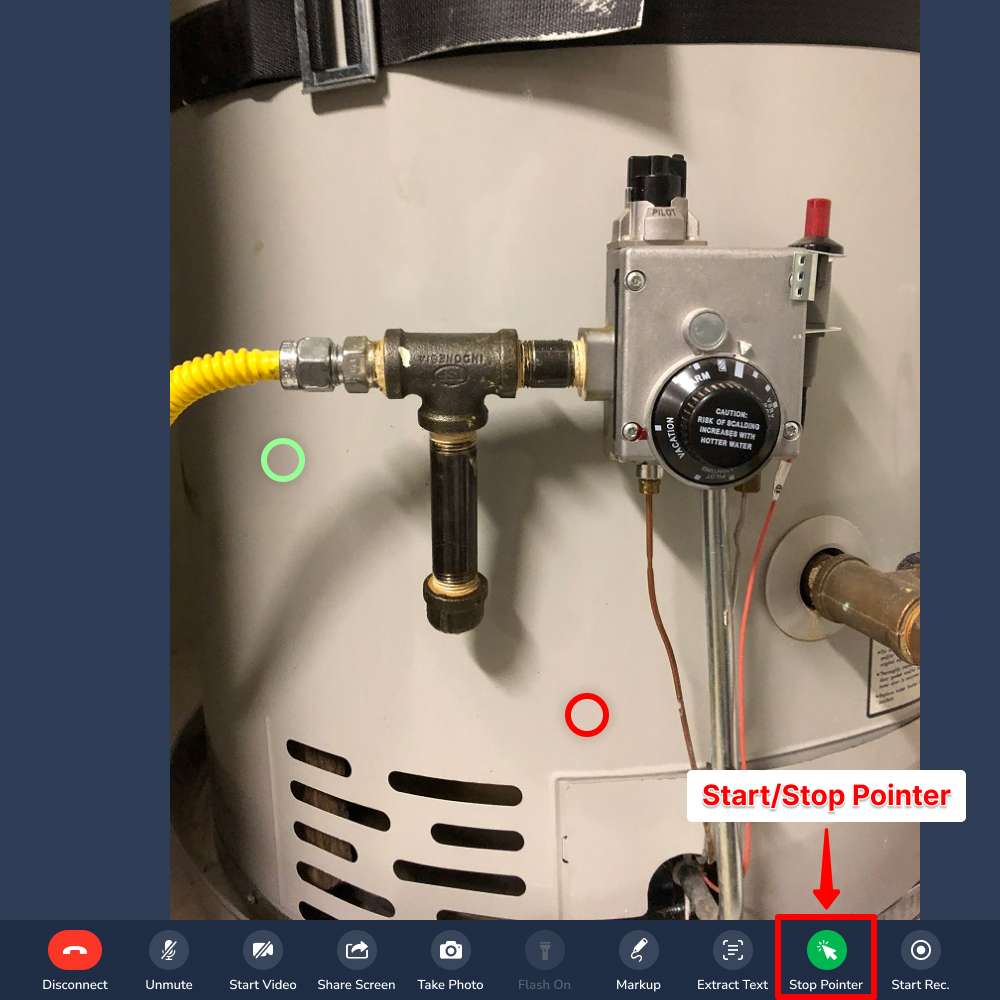
Live Pointer
- Click Pointer to turn it on.
- Move your mouse (or finger on mobile) to point at an area. Everyone sees a colored dot, one color per person.
- Click Pointer again to turn it off.
Remote Zoom
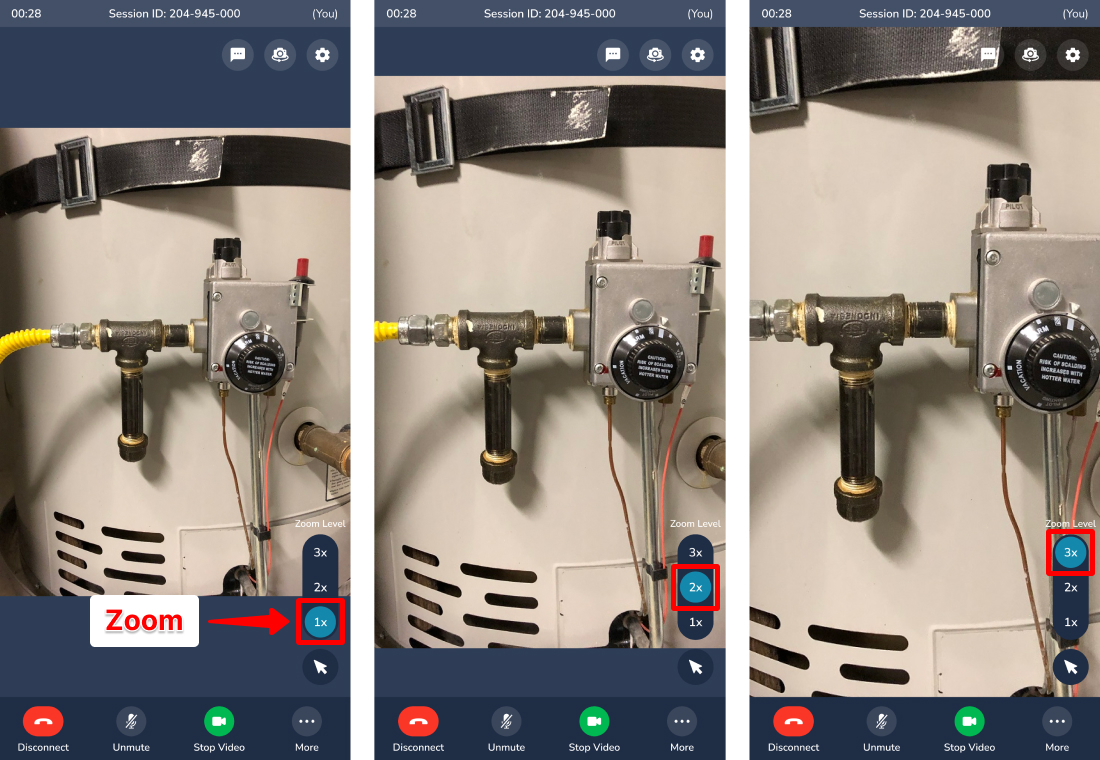
Select 2x or 3x to zoom the remote camera. All participants see the zoomed view, and either the agent or the guest can control it.
Screen Share
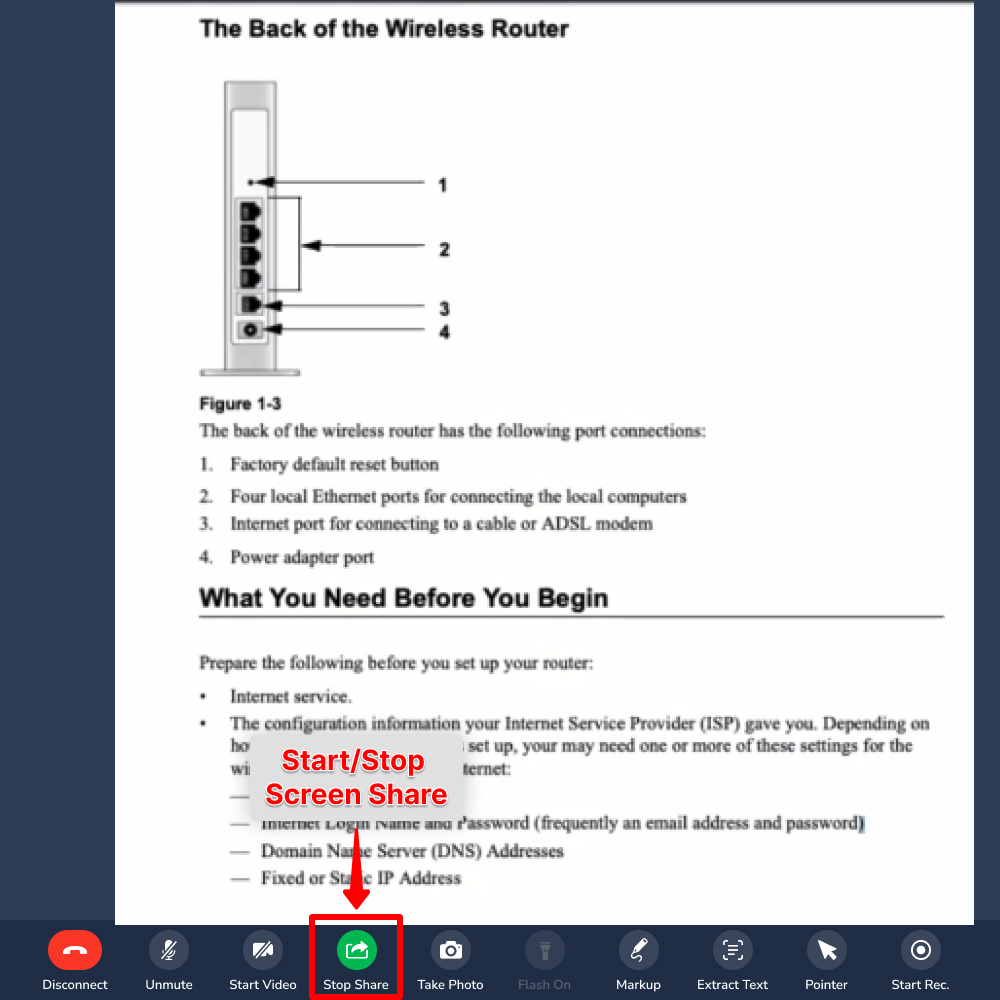
- Click Share Screen.
- Pick the window or app to share.
- Click Share. Click Stop when you're done.
Pinch to Zoom (mobile only)
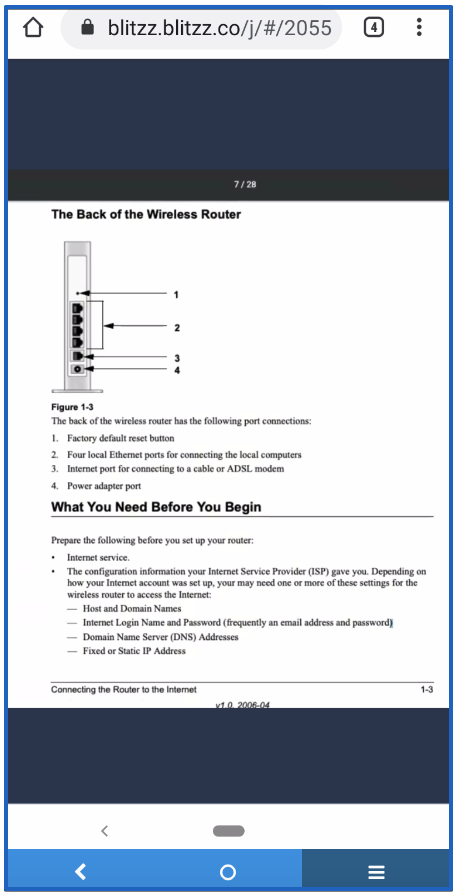
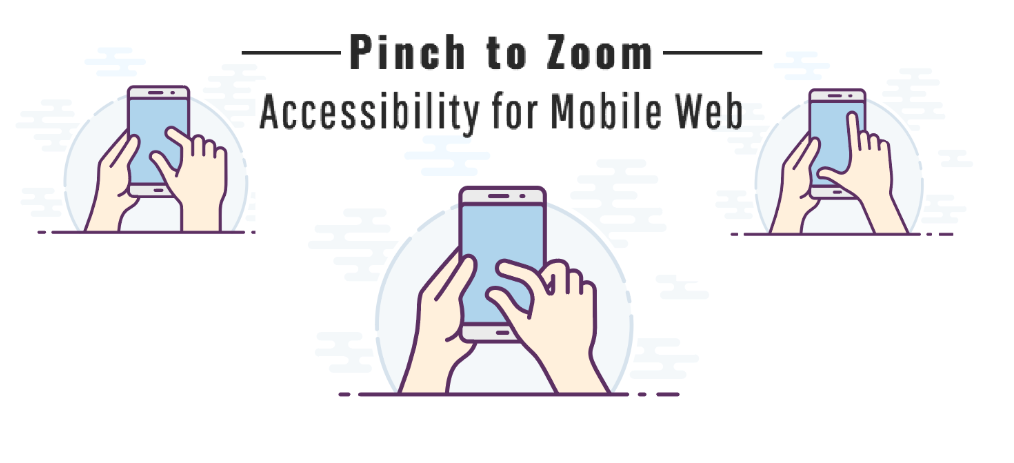
Pinch out to zoom in, pinch in to zoom out, and drag to move around. This helps with detailed content like schematics, blueprints and documents.
Session management
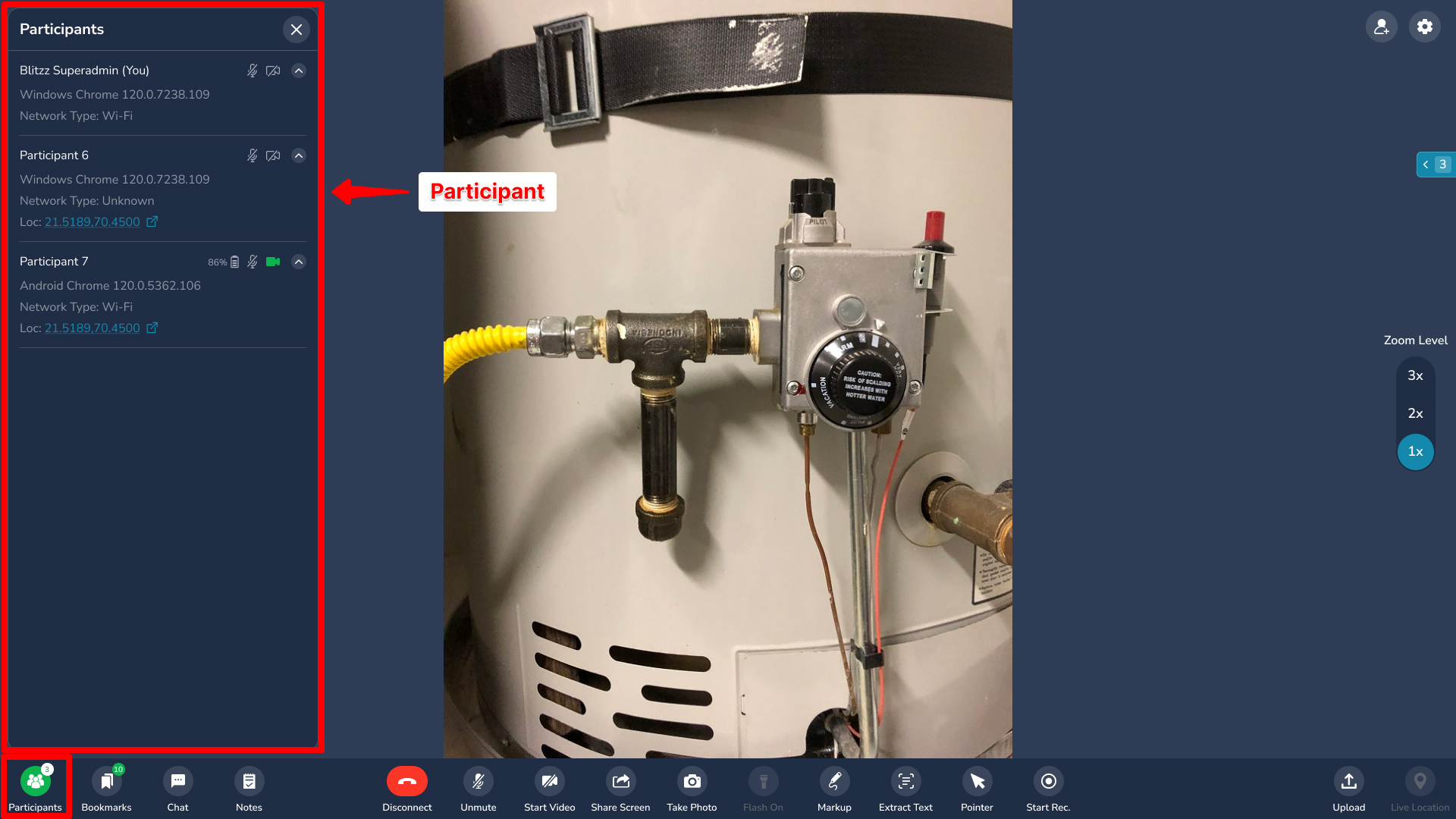
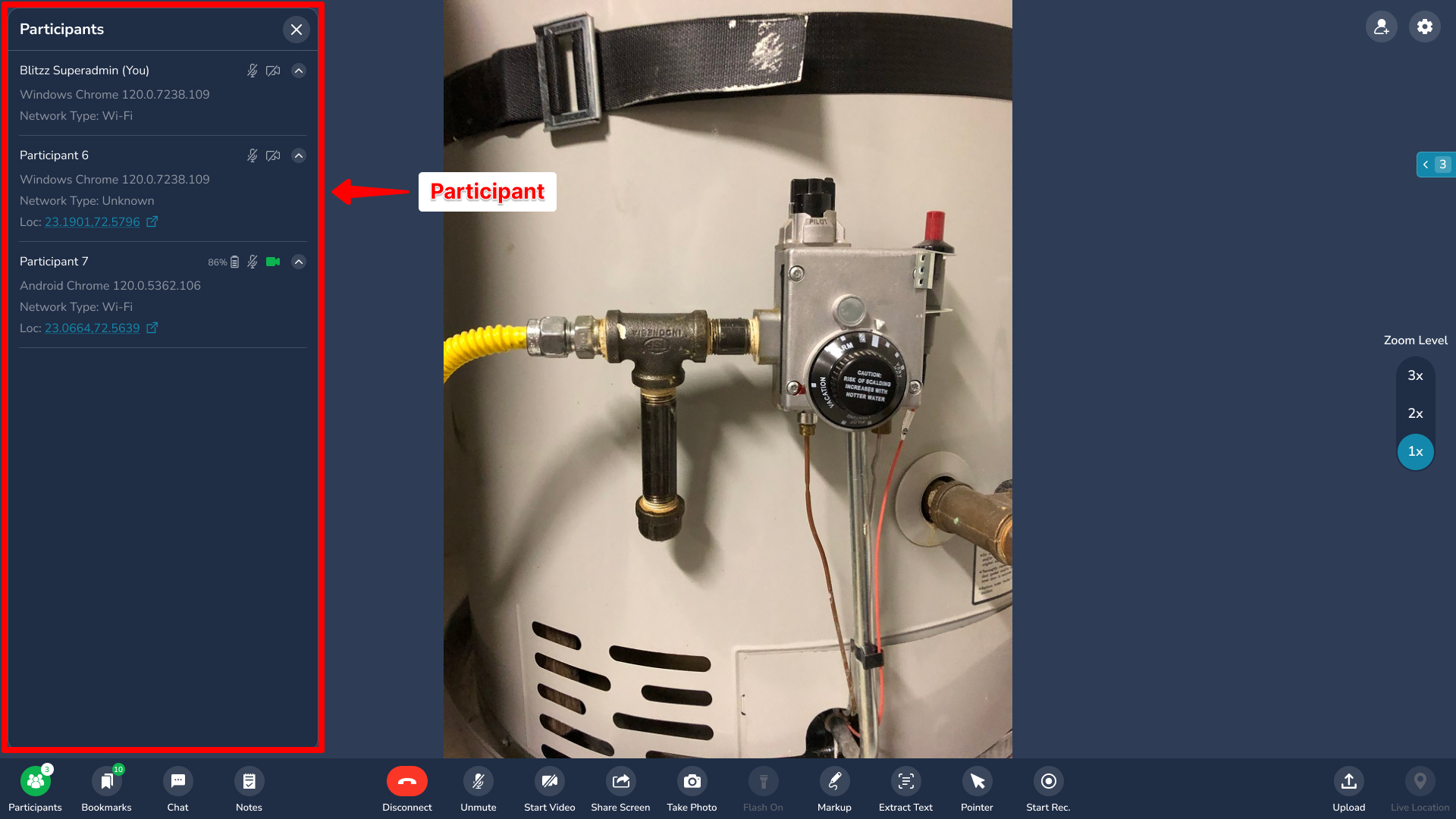
Participant information
Click the Participants icon (bottom left) to see:
- Session code
- Number of participants
- Call duration
- Network quality
- Device and browser details
Bookmarks
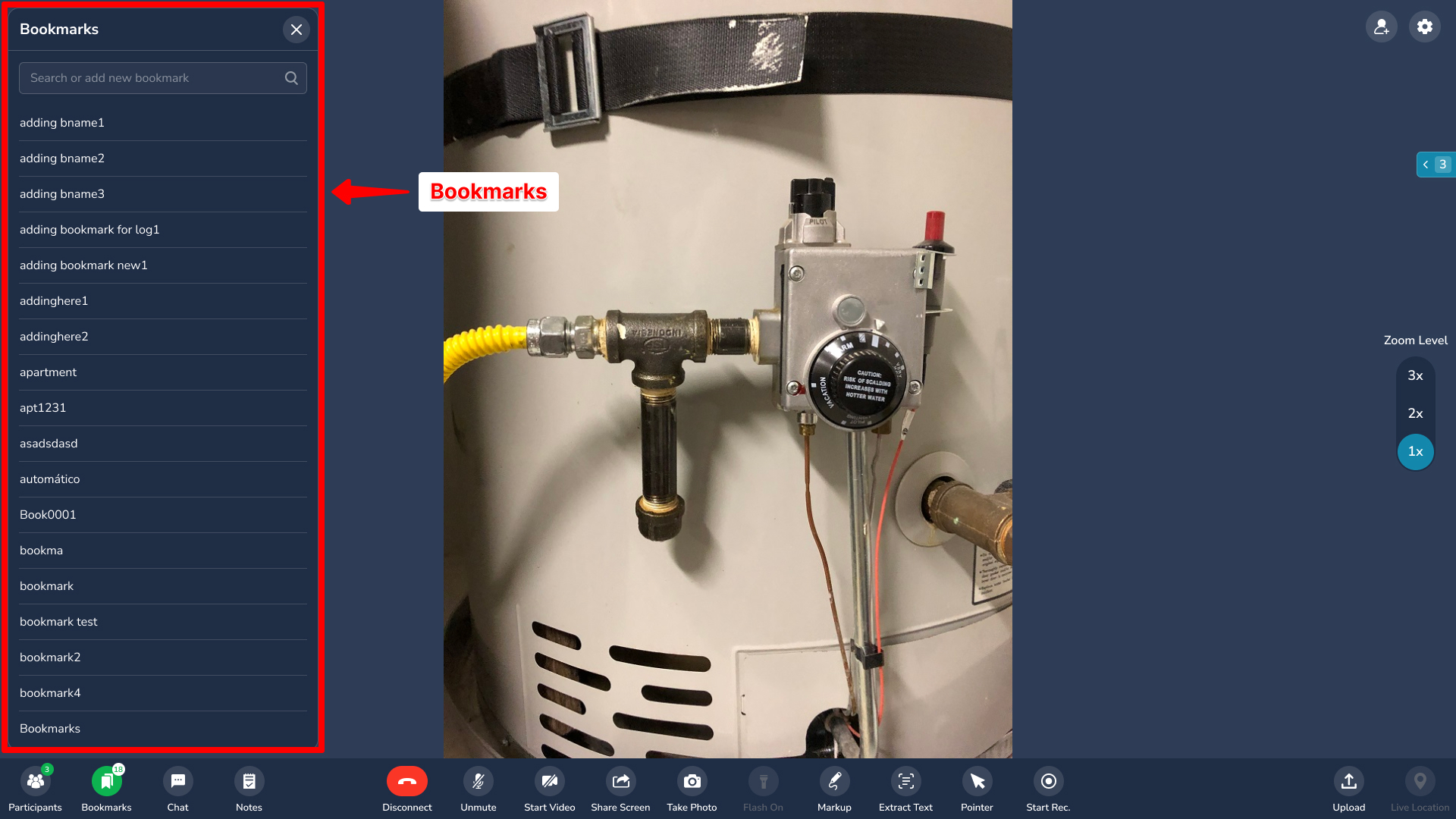
Bookmarks are preset labels for fast, consistent photo capture. They work well for standard inspection workflows.
- Click the Bookmarks icon to open the panel.
- Click a label to capture a photo with that label.
- The counter shows how many photos you've taken for each label.
Each photo is saved with its label, timestamp and location (if enabled).
Session History
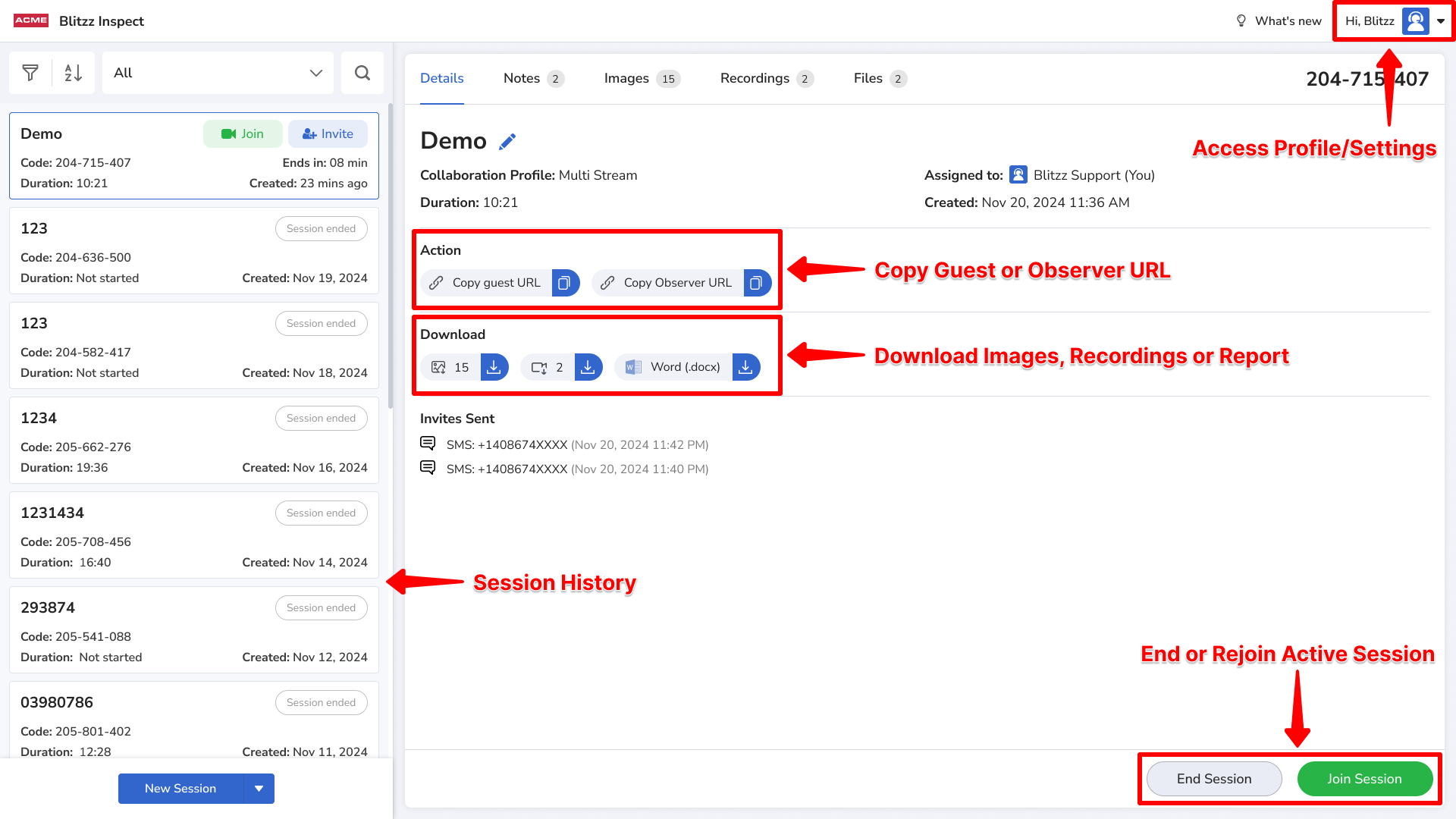
When you disconnect, you return to Session History. From here you can:
- Open your profile, language and settings
- Re-invite participants to continue the session
- Copy the session URL
- Download captured images (click the image count to download all)
- Download session recordings (if recording is enabled)
- End the session permanently so no one can rejoin
Frequently asked questions
Do guests need to download the Blitzz app?
No. Guests join the video session from their mobile or desktop browser using the link, code or invite you send.
How many people can be in one Blitzz session?
Each session supports 4 participants by default. Contact Blitzz support to raise the limit to as many as 50.
Why can't the guest see or hear anything after joining?
The guest most likely did not allow camera, microphone or location access. Ask them to tap CONNECT and then ALLOW when prompted.
Where do I find photos and recordings from a session?
Open Session History from the left panel. Click the image count to download all photos. Recordings are available if recording is enabled for your account.
Can I stop a guest from rejoining a finished session?
Yes. In Session History, end the session permanently.