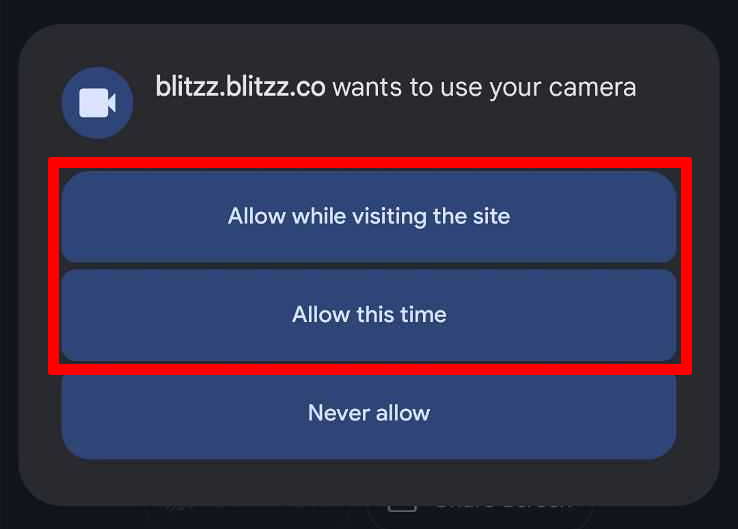
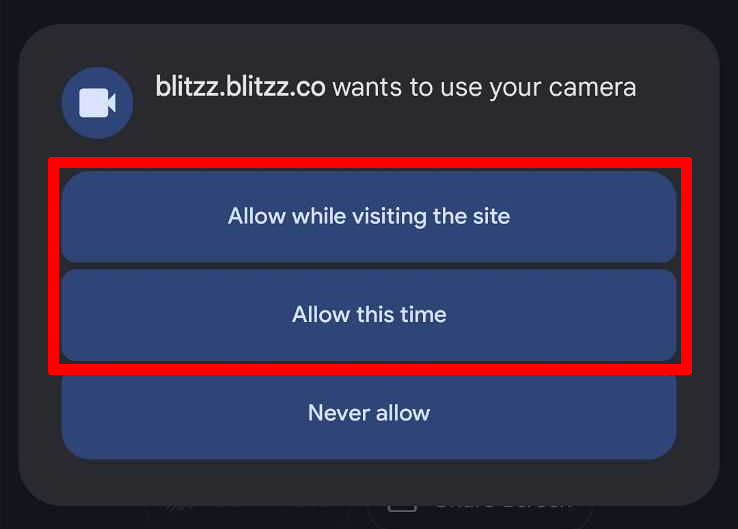
When you join a Blitzz call and click start video, you will be prompted to enable your camera (Allow while visiting the site/Allow this time) and mic (Allow while visiting the site/Allow this time)for use during a call. Please be sure to select Allow (Allow while visiting the site).
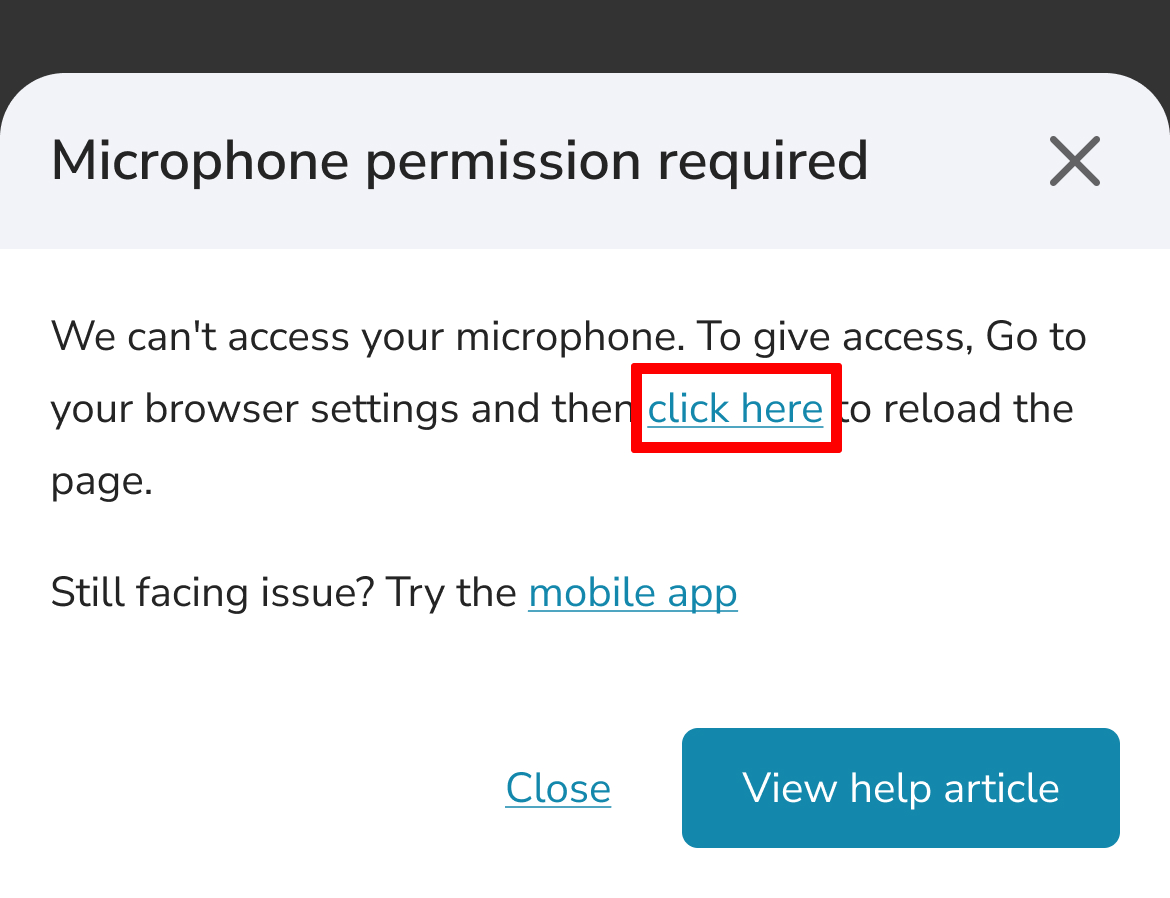
If you accidentally declined camera permissions, you will need to go through a few steps to re-enable a blocked camera or mic.
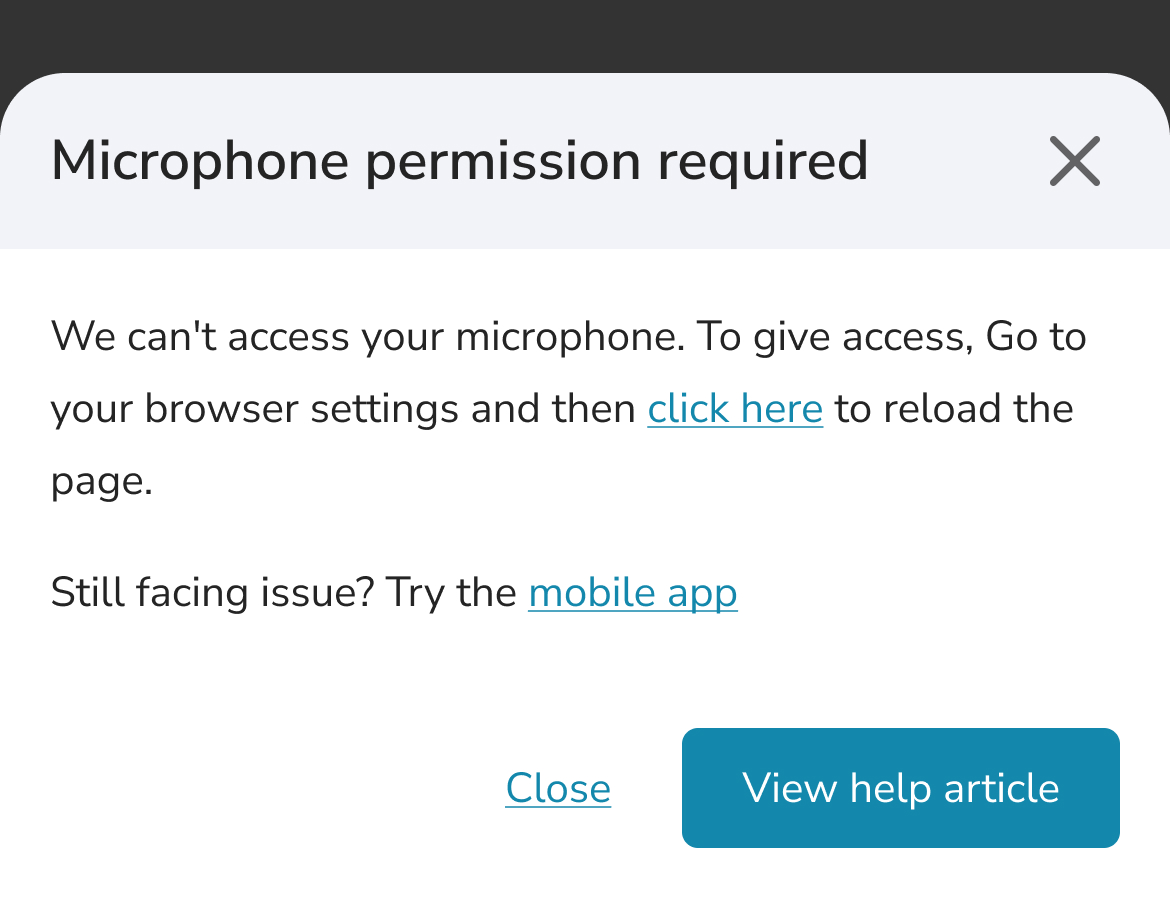
How to re-enable a blocked Camera or Mic
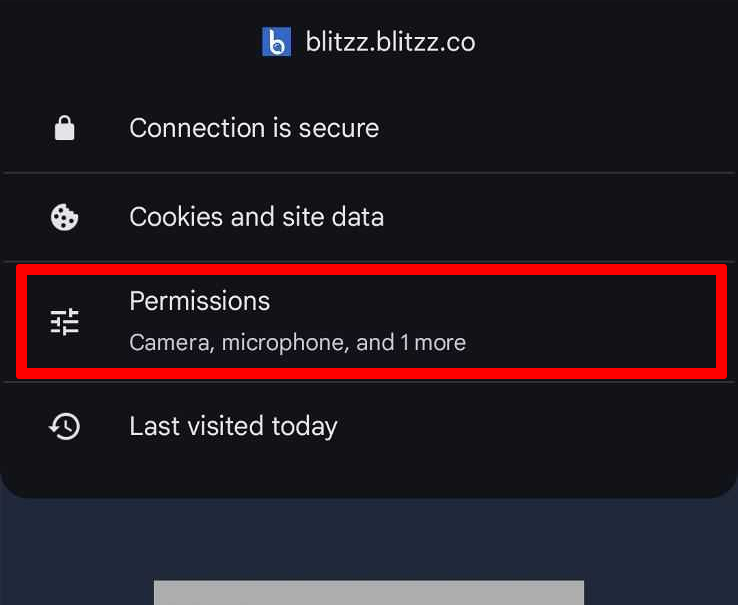
Step 1: Tap the Tune icon in the top left corner of the address bar.
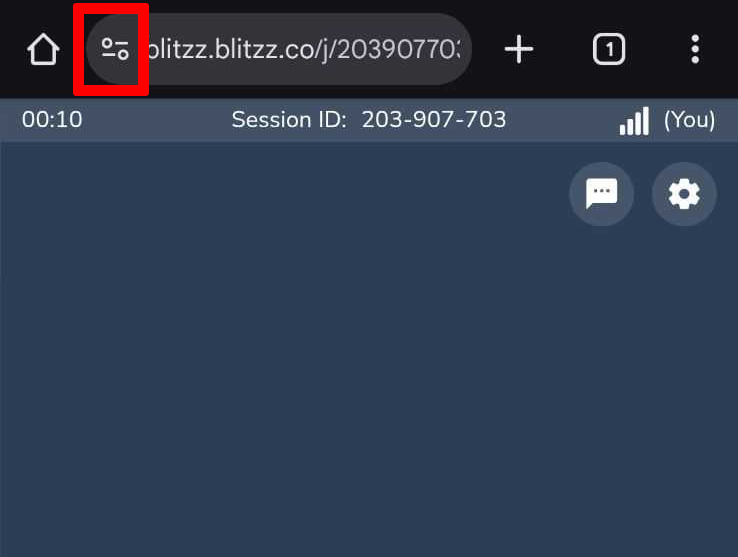
Step 2: Open Permissions
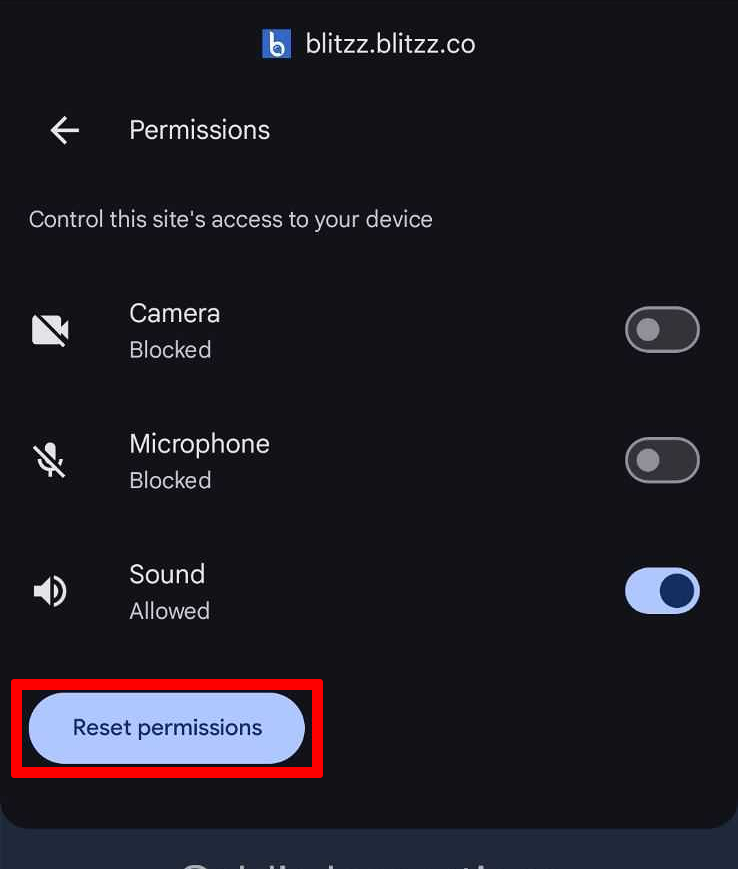
Step 3: Tap on Reset permission
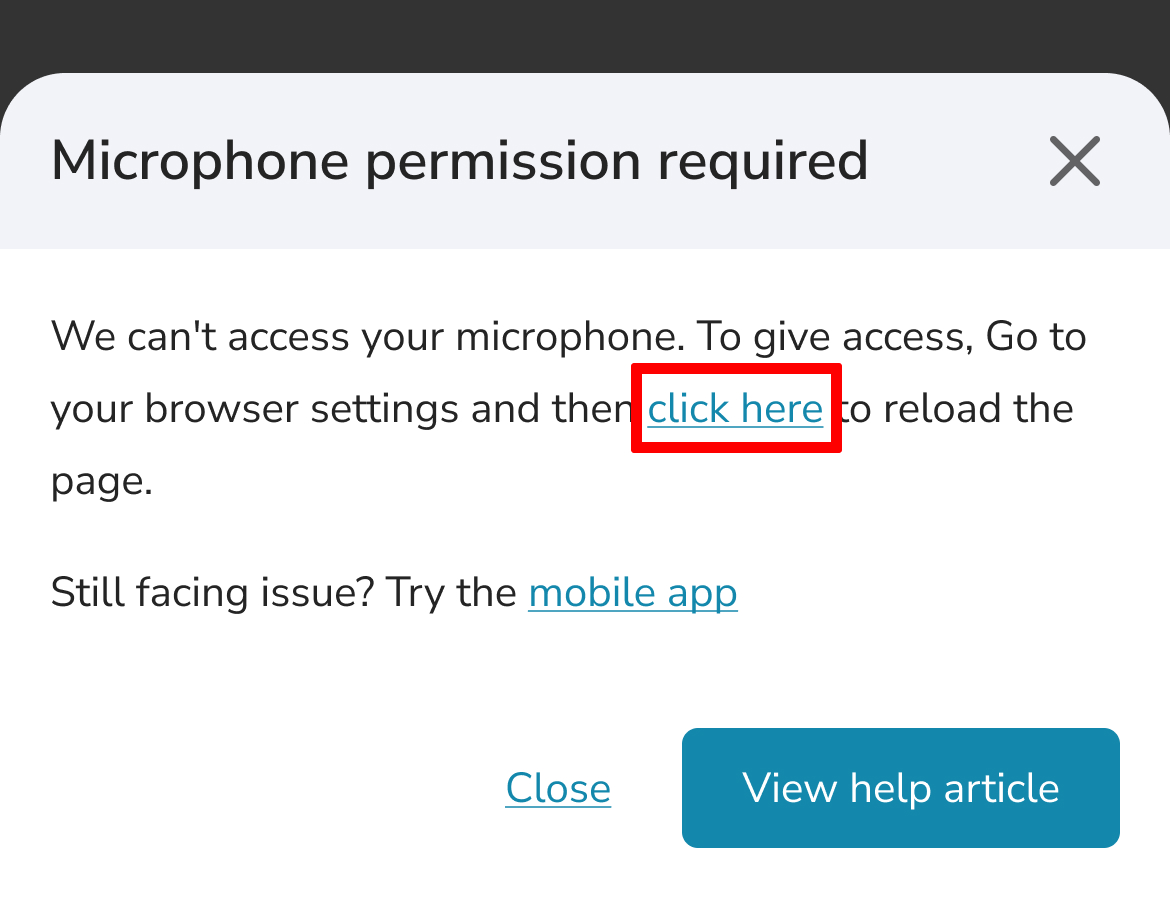
Step 4: Now reload the web page by clicking on the link in email or SMS and be sure to select Allow when prompted to enable camera (While using app/Only this time) and microphone (Allow while visiting the site/Allow this time).
Still running into issues? Reset Chrome App permissions
Step 1: Open the Settings app on your device.
Step 2: Scroll down and tap Apps.
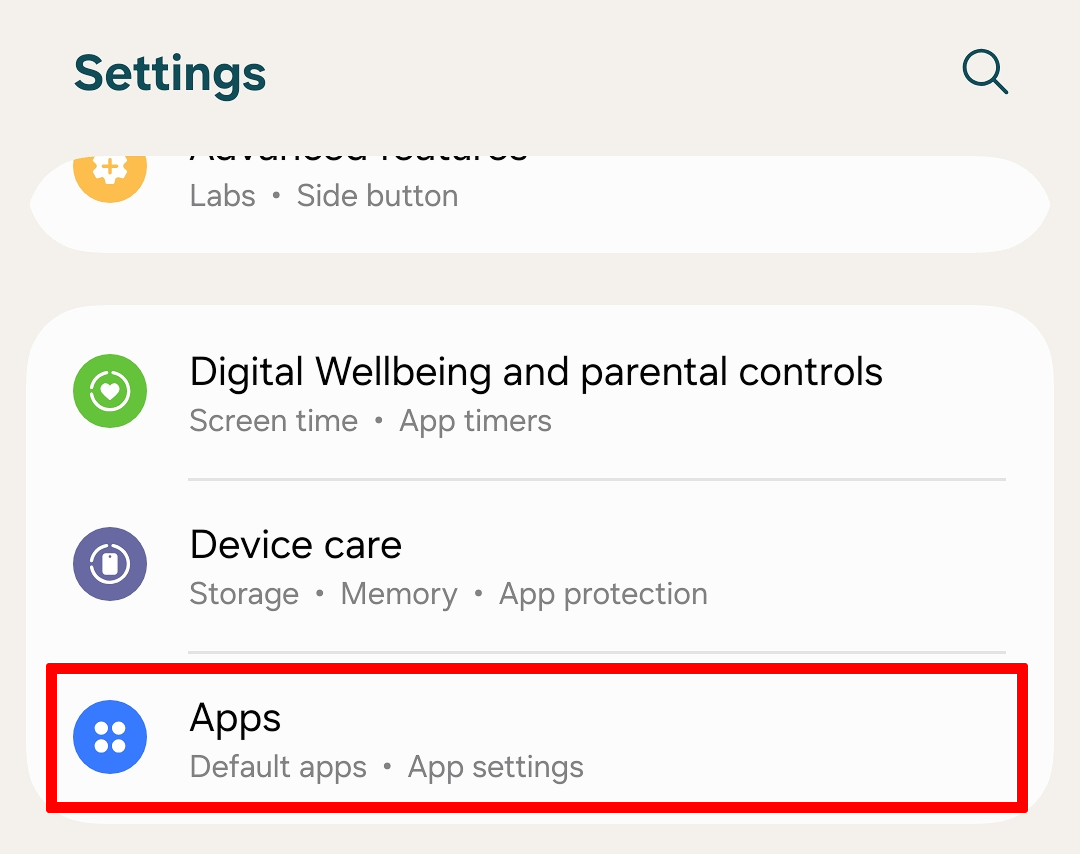
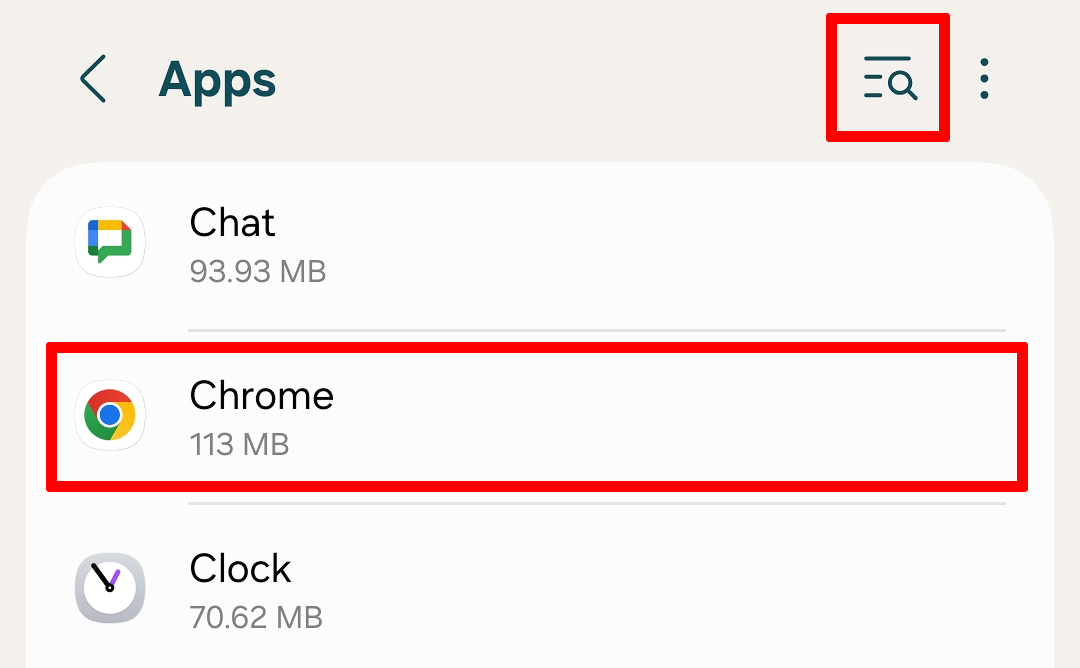
Step 3: Search and select Chrome App.
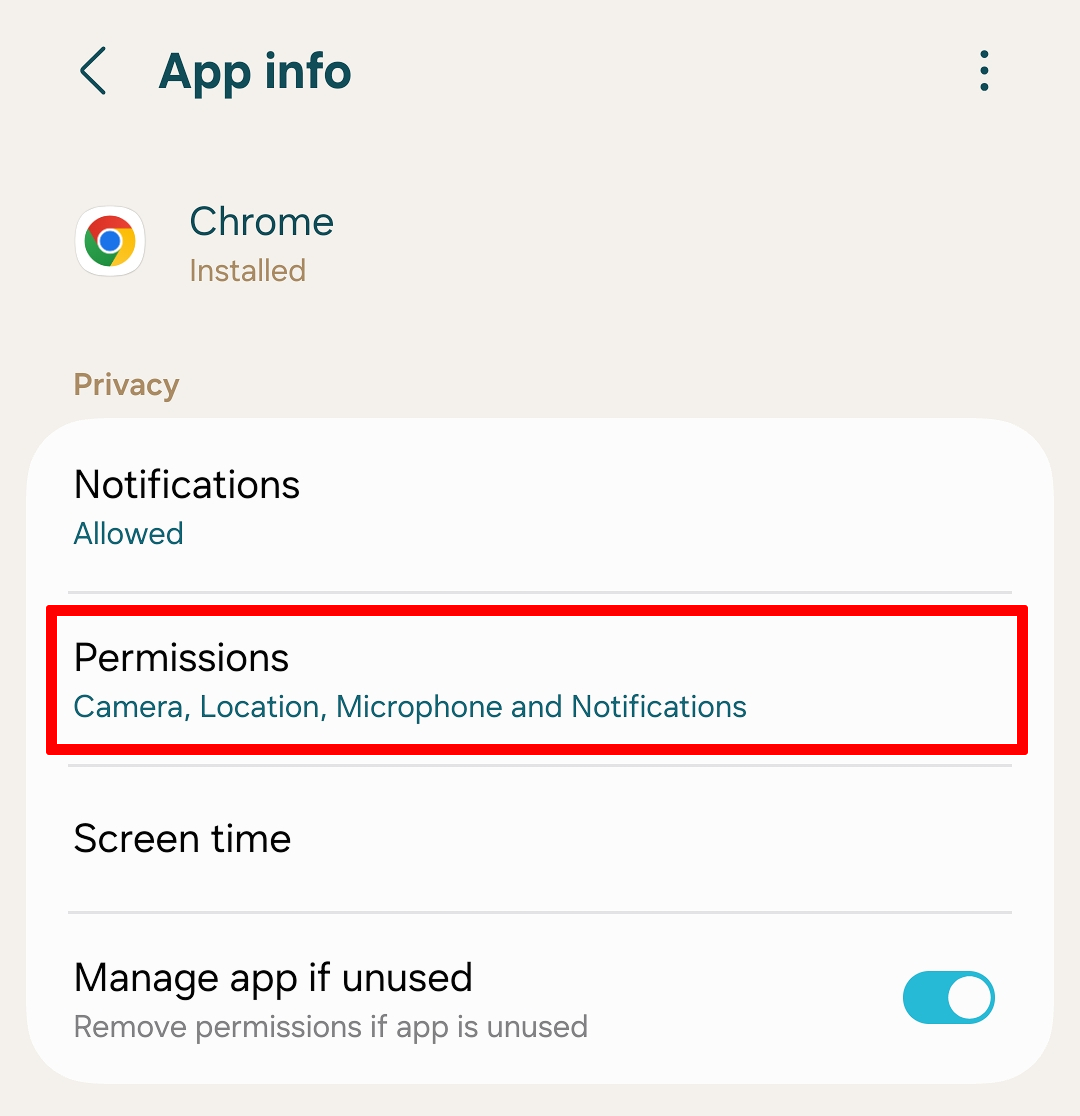
Step 4: Tap Permissions
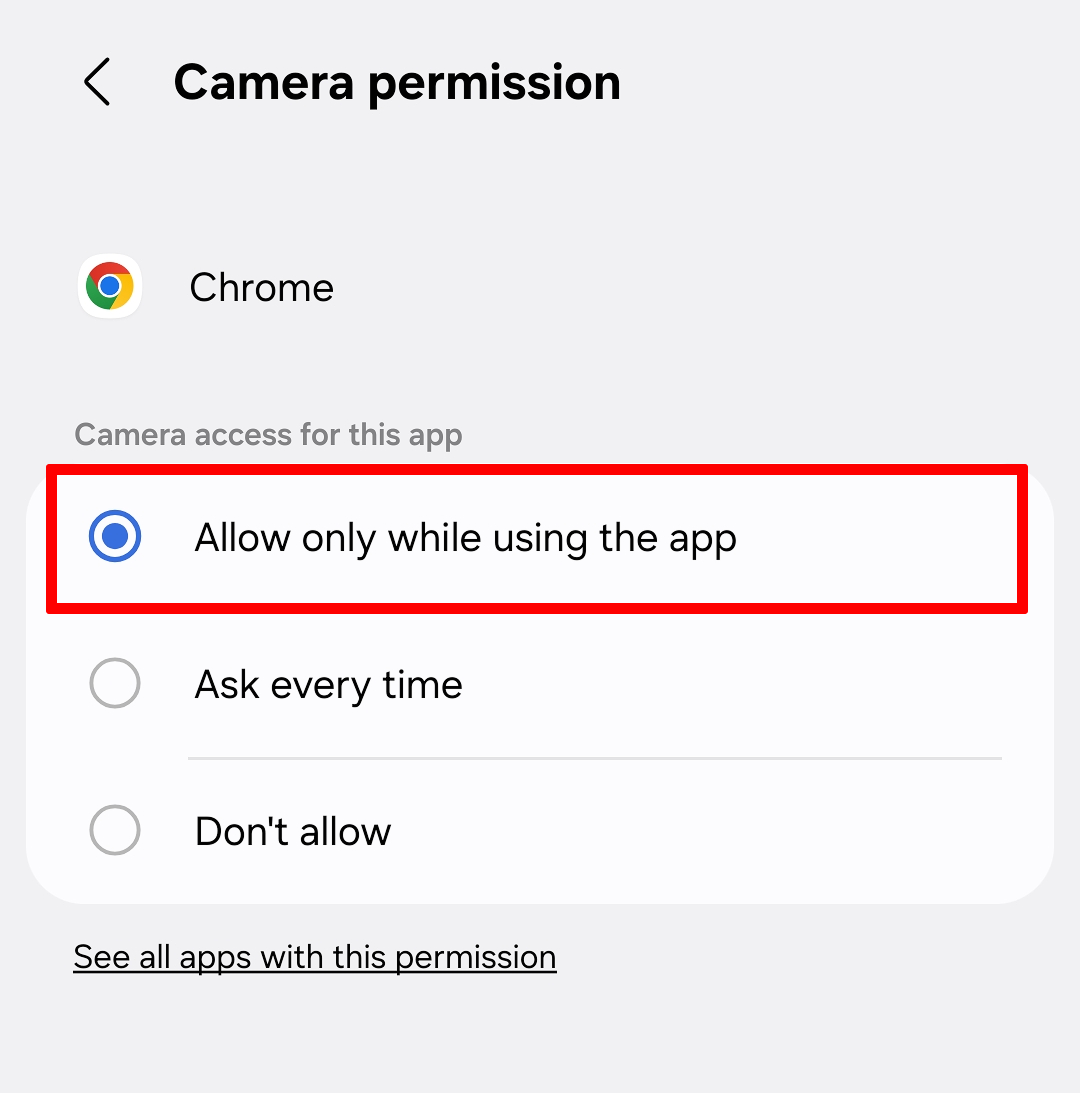
Step 5: Click on camera and set permission (Allow only while using the app) & also set microphone permission (Allow only while using the app).
Step 6: Restart your Chrome app before logging in or re-entering the waiting room.