
Blitzz Visual Remote Assistance enables Genesys Cloud agents to seamlessly initiate live video support sessions with customers directly from their workspace. This guide walks you through the complete installation and configuration process.
Prerequisites:
- Active Genesys Cloud organization
- Administrator access to Genesys Cloud
- Administrator access to Blitzz Admin Portal
- Genesys Cloud Organization ID
Installation Time: Approximately 15-20 minutes
Table of Contents
- Step 1: Install Blitzz from AppFoundry
- Step 2: Activate and Run the Blitzz Installer
- Step 3: Deactivate the Installer
- Step 4: Configure Genesys Integration in Blitzz
- Step 5: Grant User Access
- Step 6: Test the Widget Integration
- Step 7: Test the Standalone App
Step 1: Install Blitzz from AppFoundry
Option A: Search in AppFoundry
- Log in to your Genesys Cloud organization.
- Navigate to the Genesys AppFoundry.
- Search for "Blitzz Visual Remote Assistance".
Option B: Direct Link
Visit: Blitzz on Genesys AppFoundry
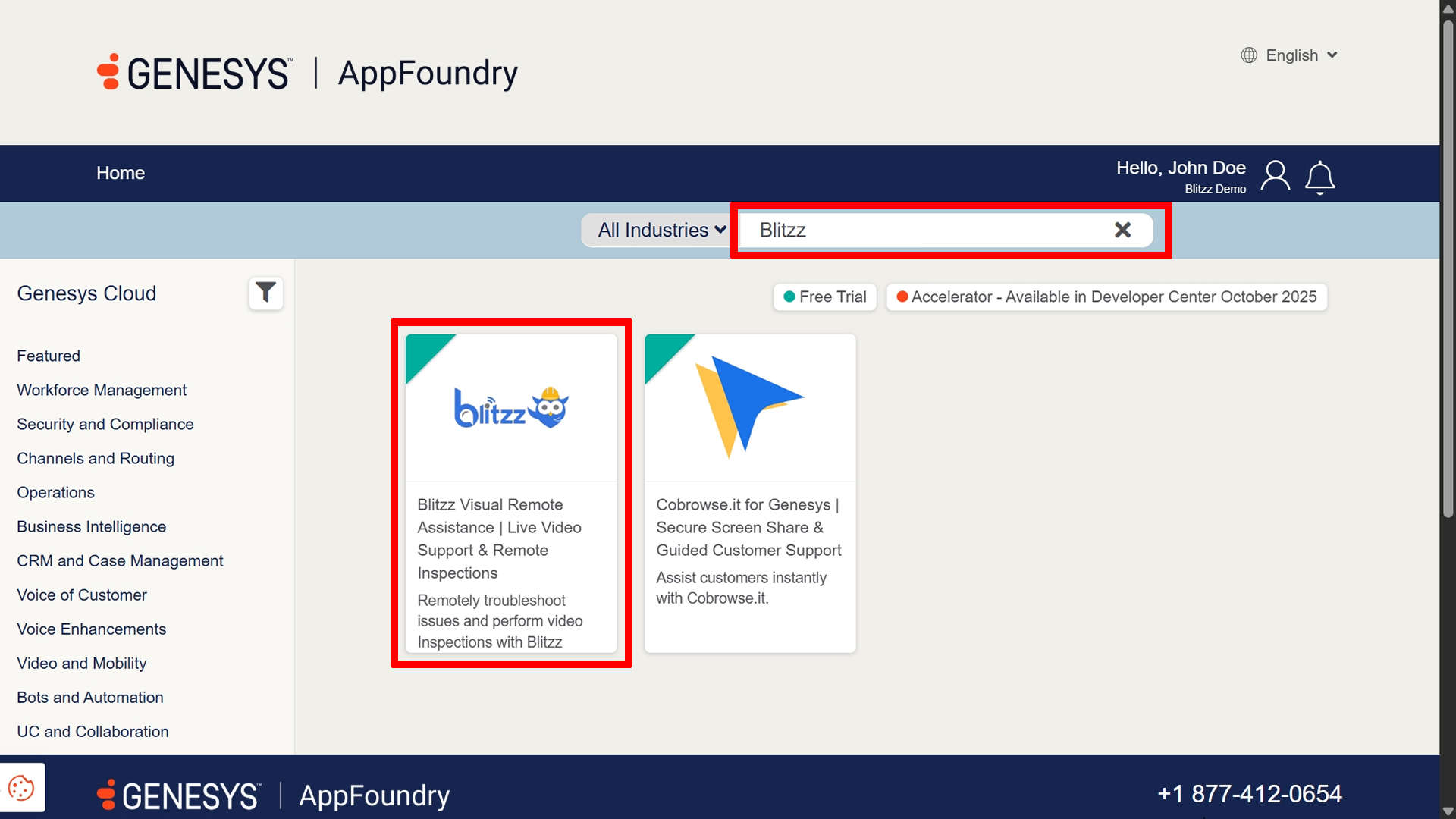
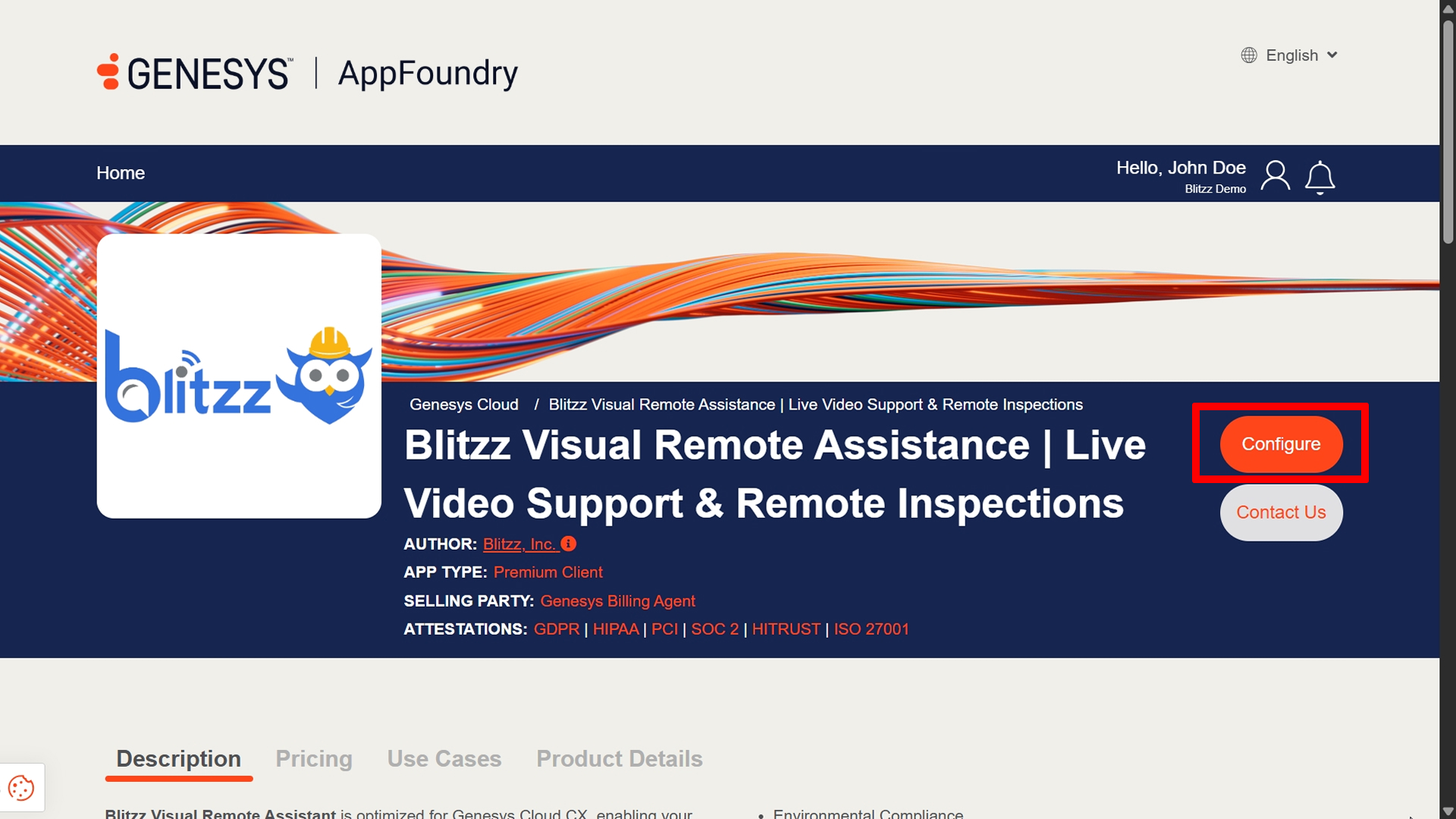
Click Configure.
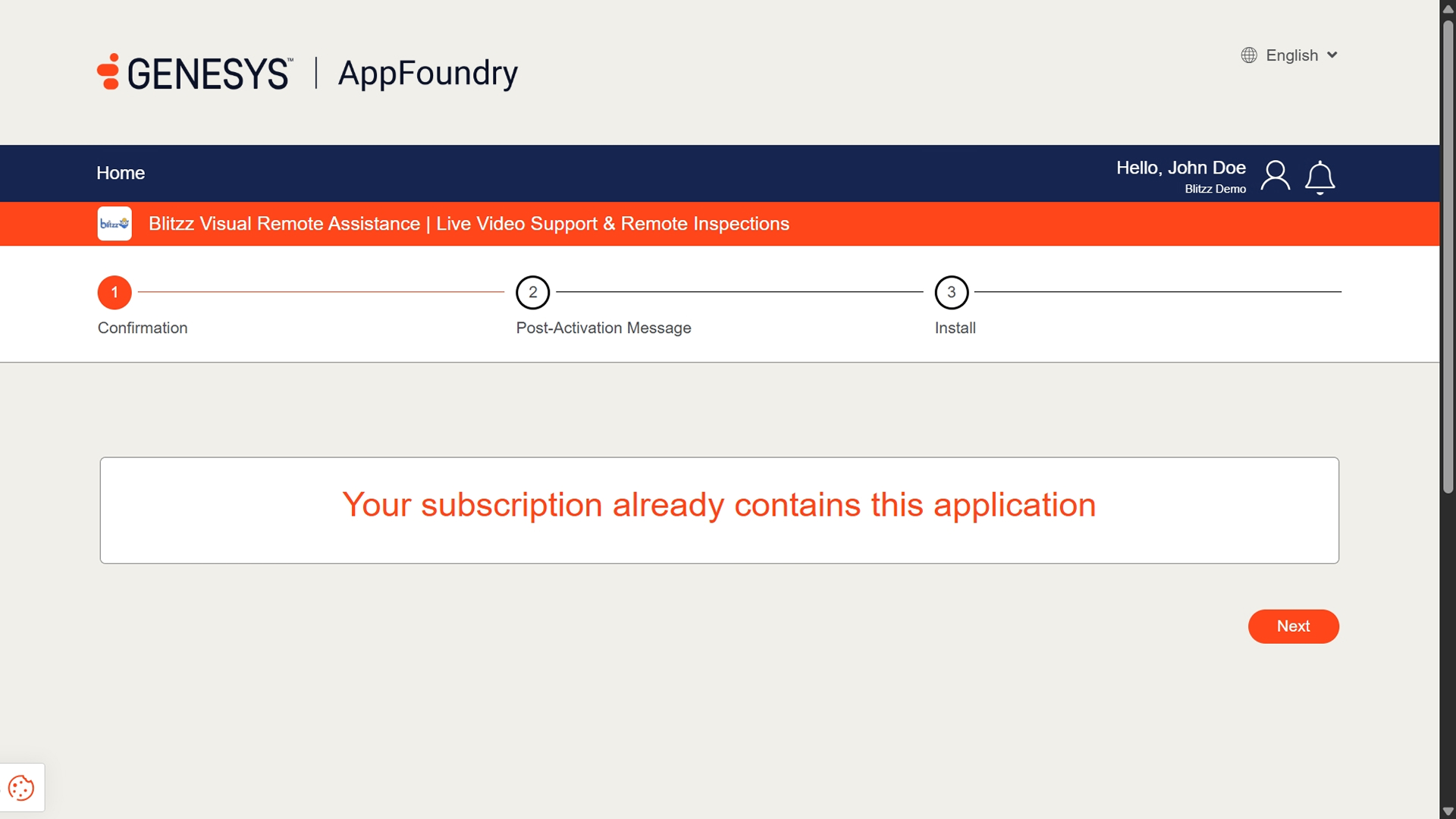
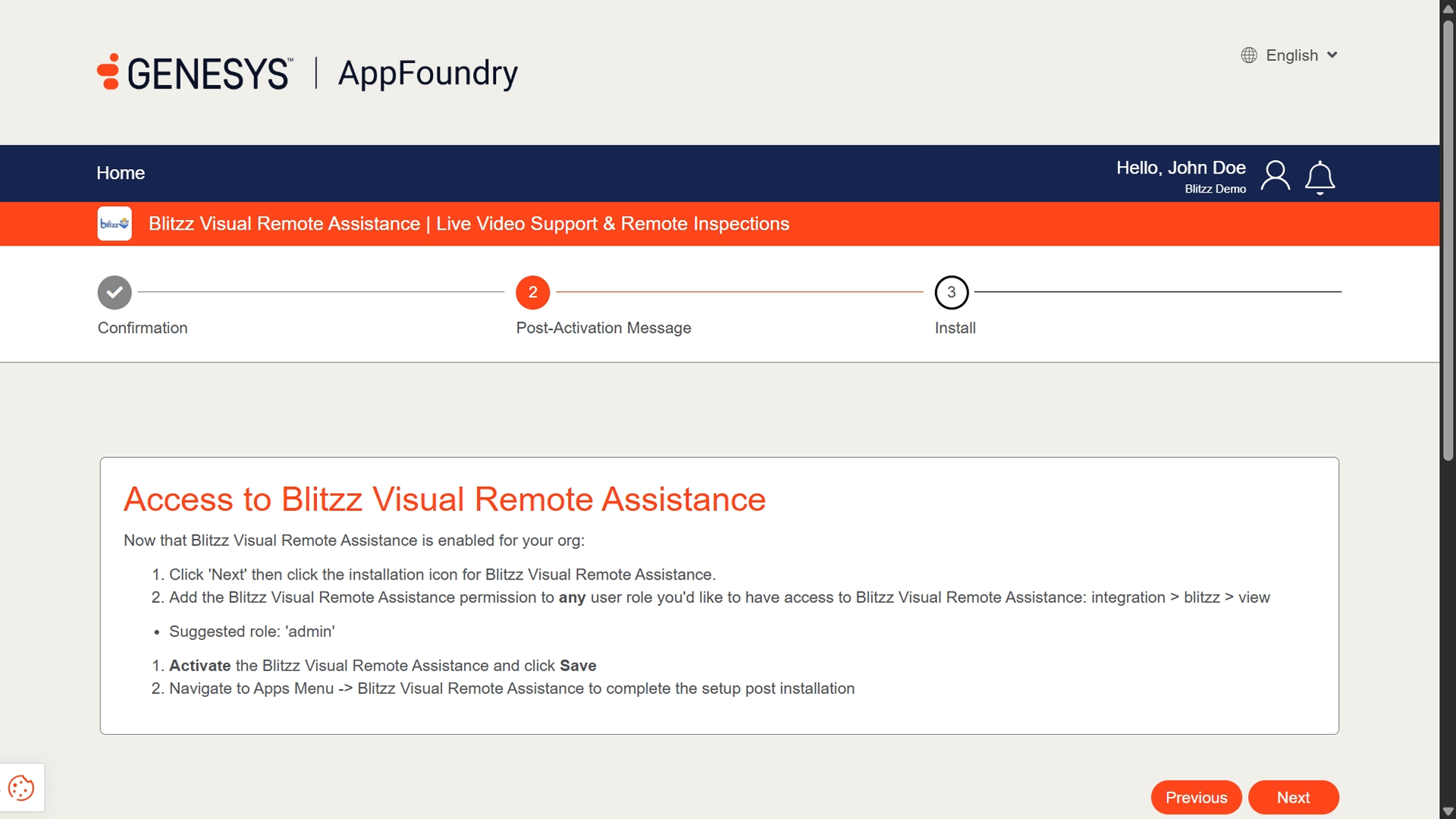
Follow the steps below to install the App.
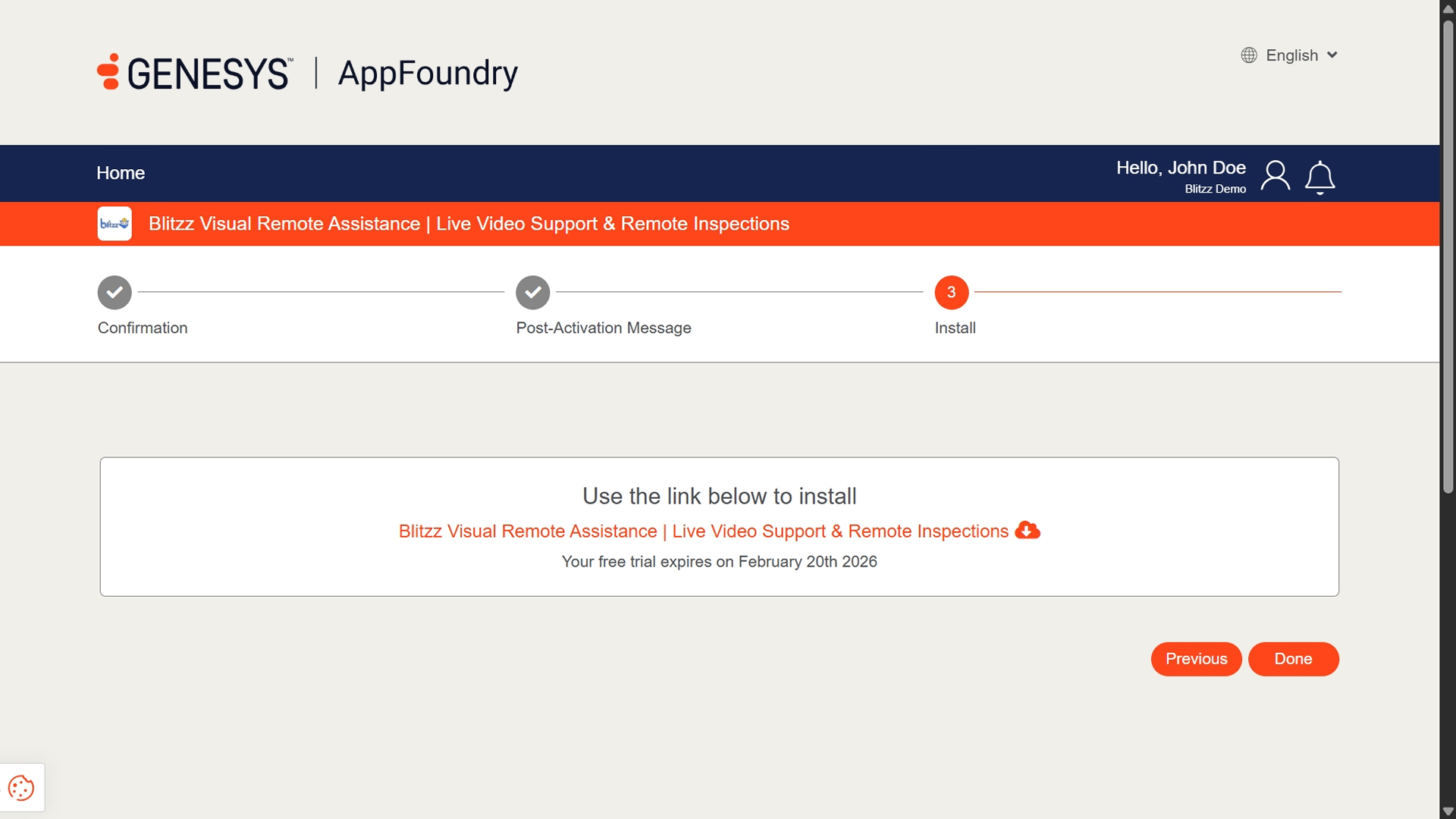
Step 2: Activate and Run the Blitzz Installer
The Blitzz Installer is a one-time setup wizard that configures the integration automatically.
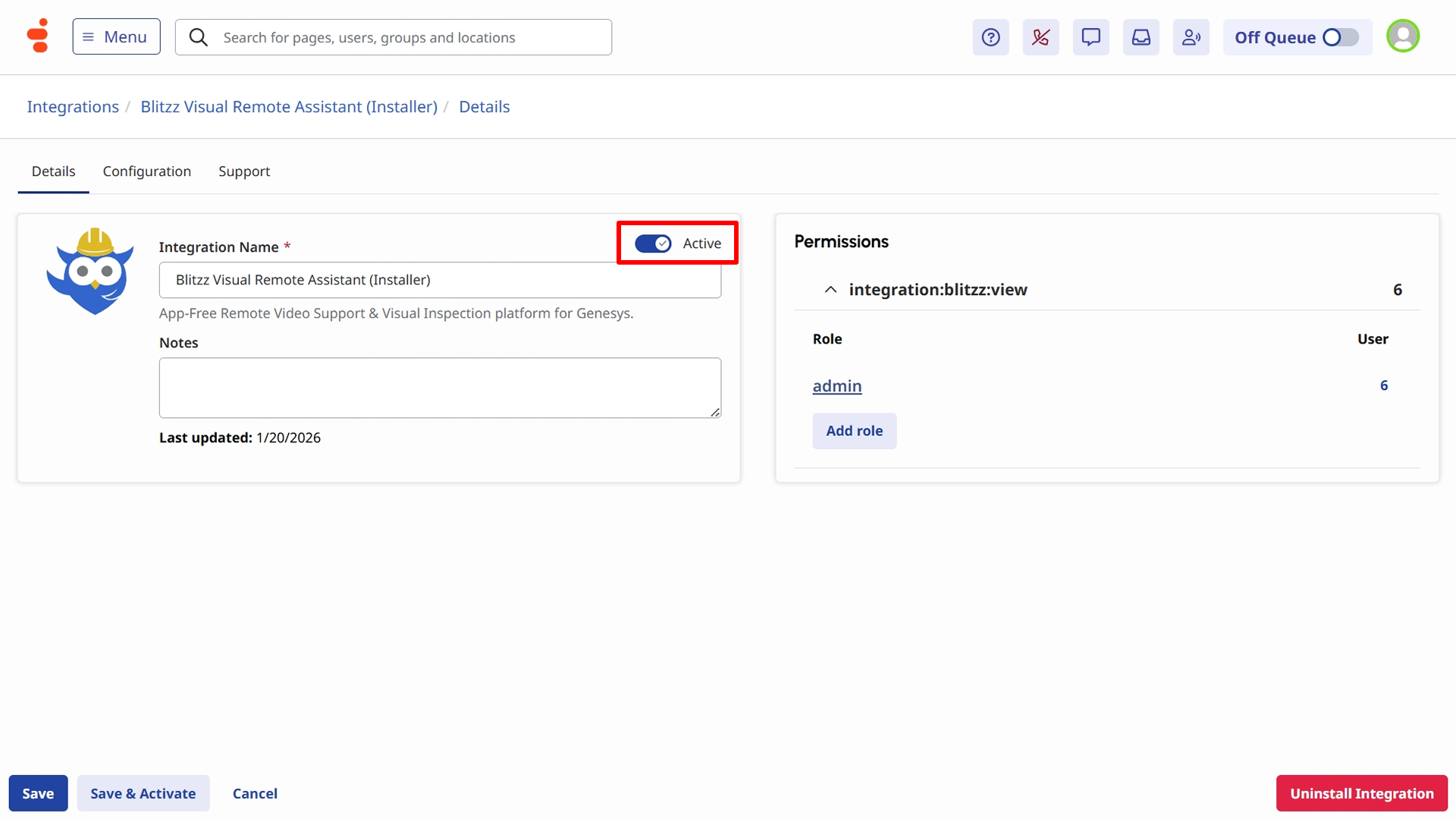
- In Genesys Cloud, navigate to Admin → Integrations.
- Select Blitzz Visual Remote Assistance Installer in the list.
- Toggle the status to Active.
Click Save to activate the installer.
Navigate to Apps in the top navigation bar and Click Blitzz Visual Remote Assistance Installer.
Note: If the installer doesn't appear immediately, log out and log back in to refresh your app list.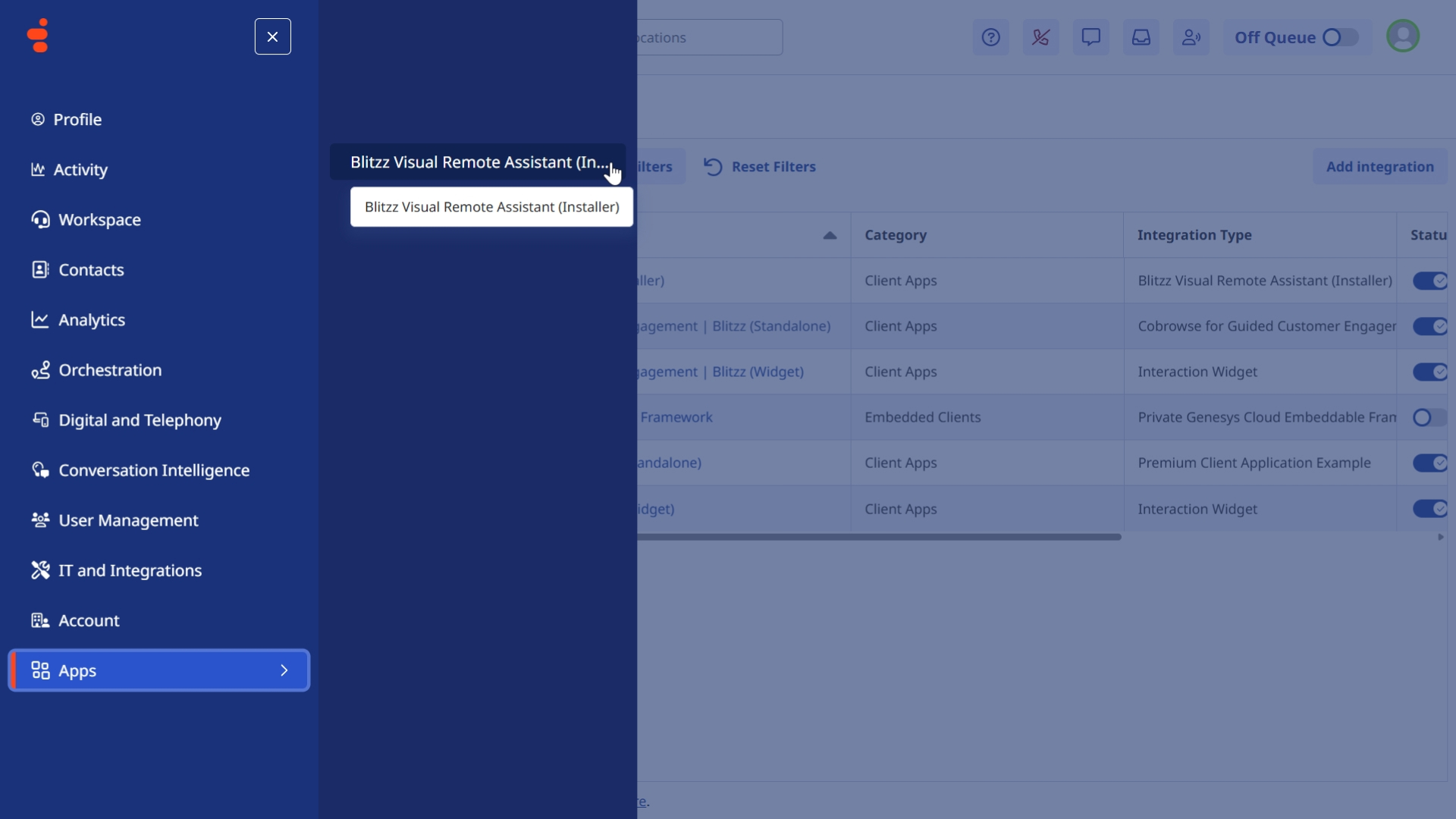
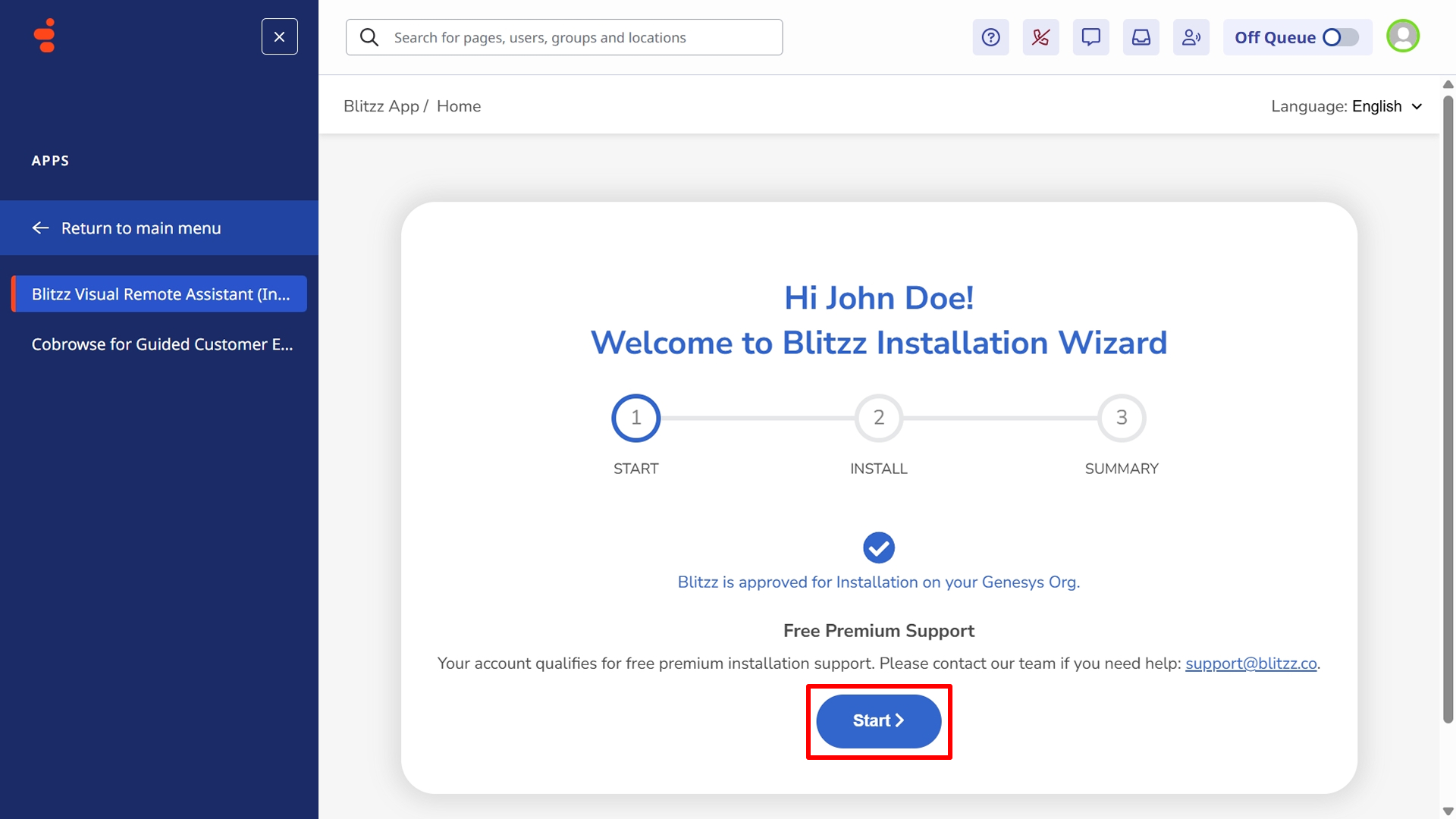
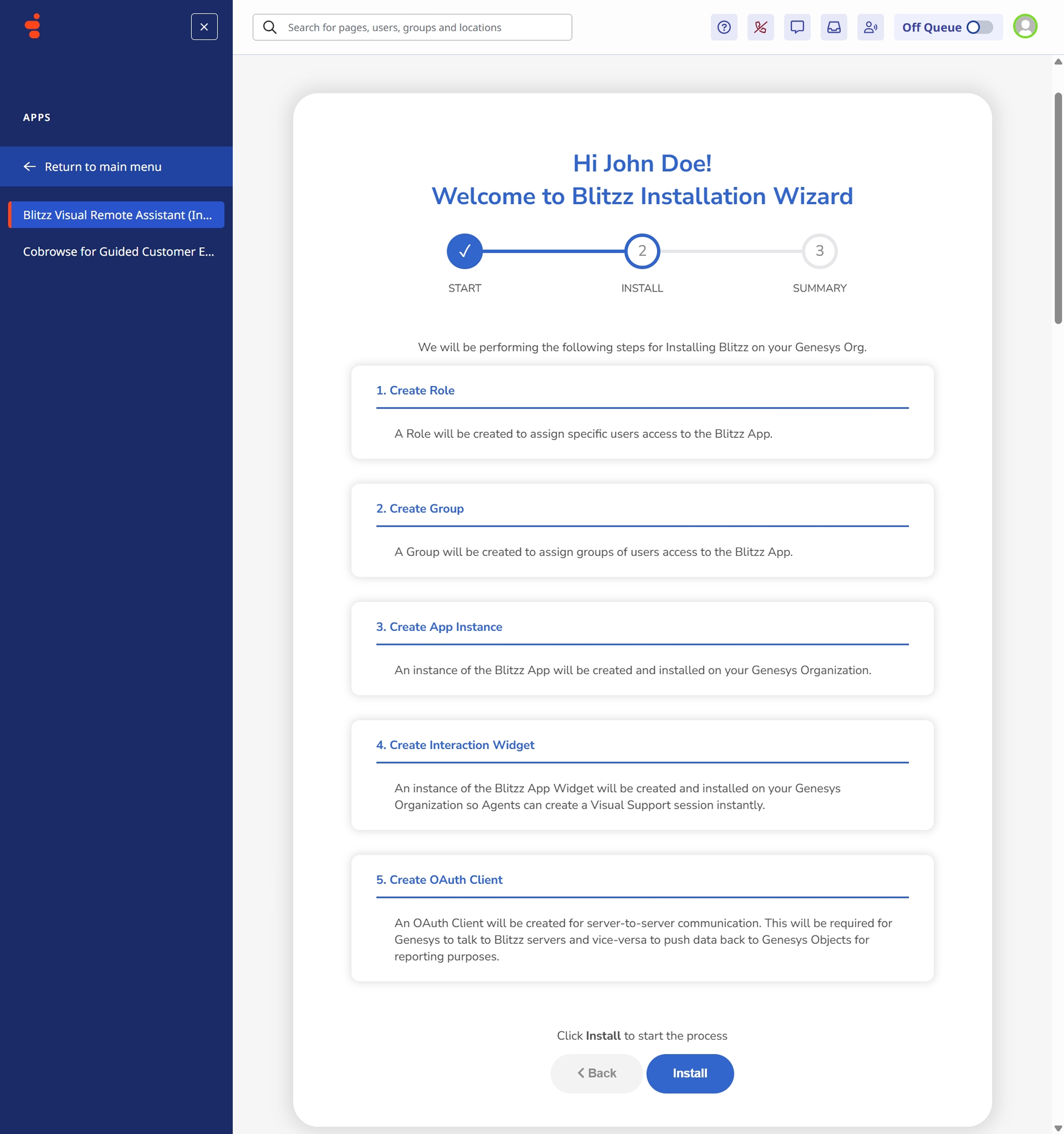
Run the Installation Wizard:
Click Start to begin the automated setup process.
- Review the configuration steps being performed:
- Creating integration credentials
- Setting up OAuth client
- Configuring webhooks
- Installing widget and standalone apps
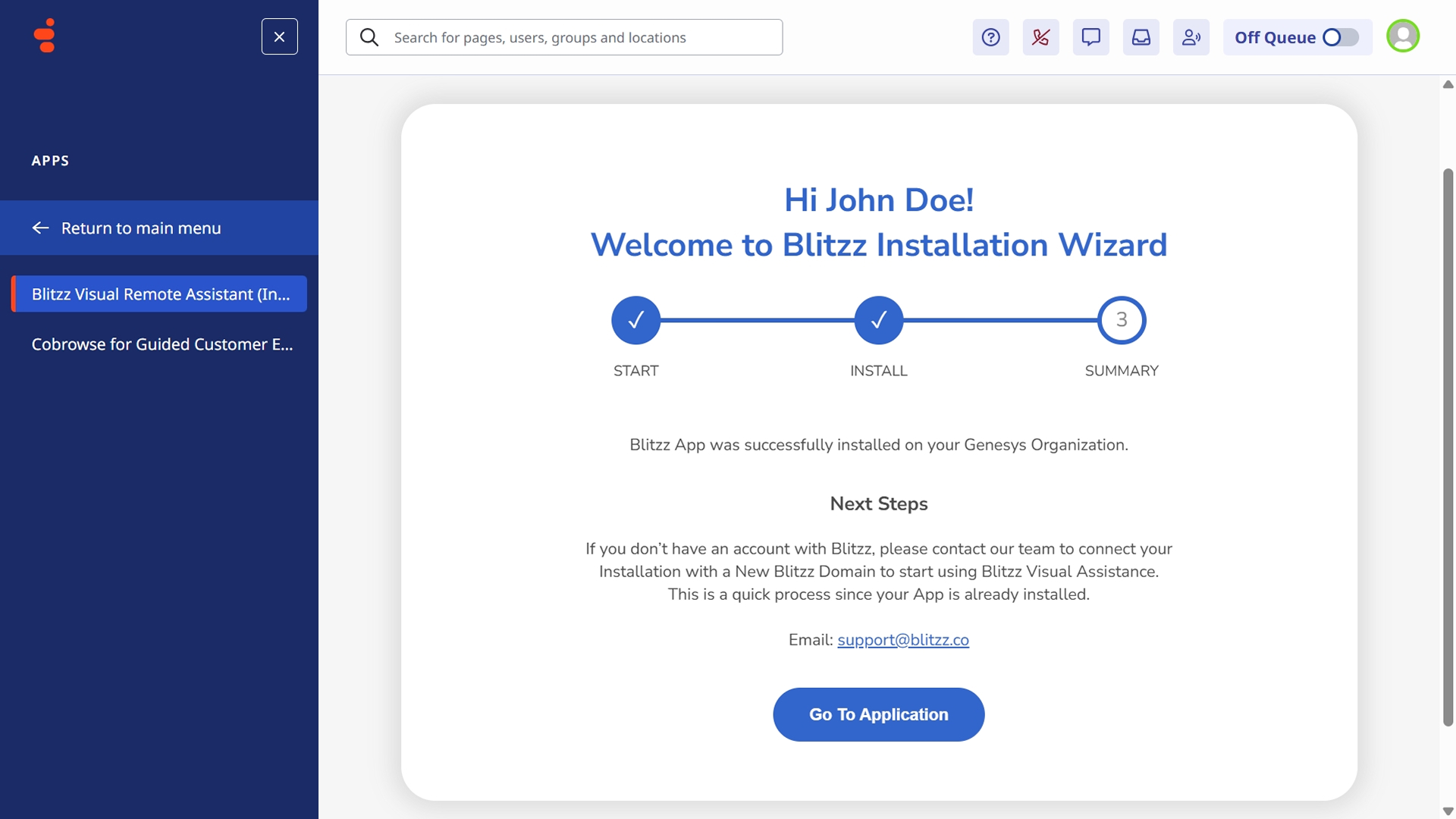
Click Install to execute the automated configuration. Wait for the success confirmation (typically 30-60 seconds).
Click Go to Application to close the installer.
Step 3: Deactivate the Installer
Once installation is complete, the installer is no longer needed and should be deactivated.
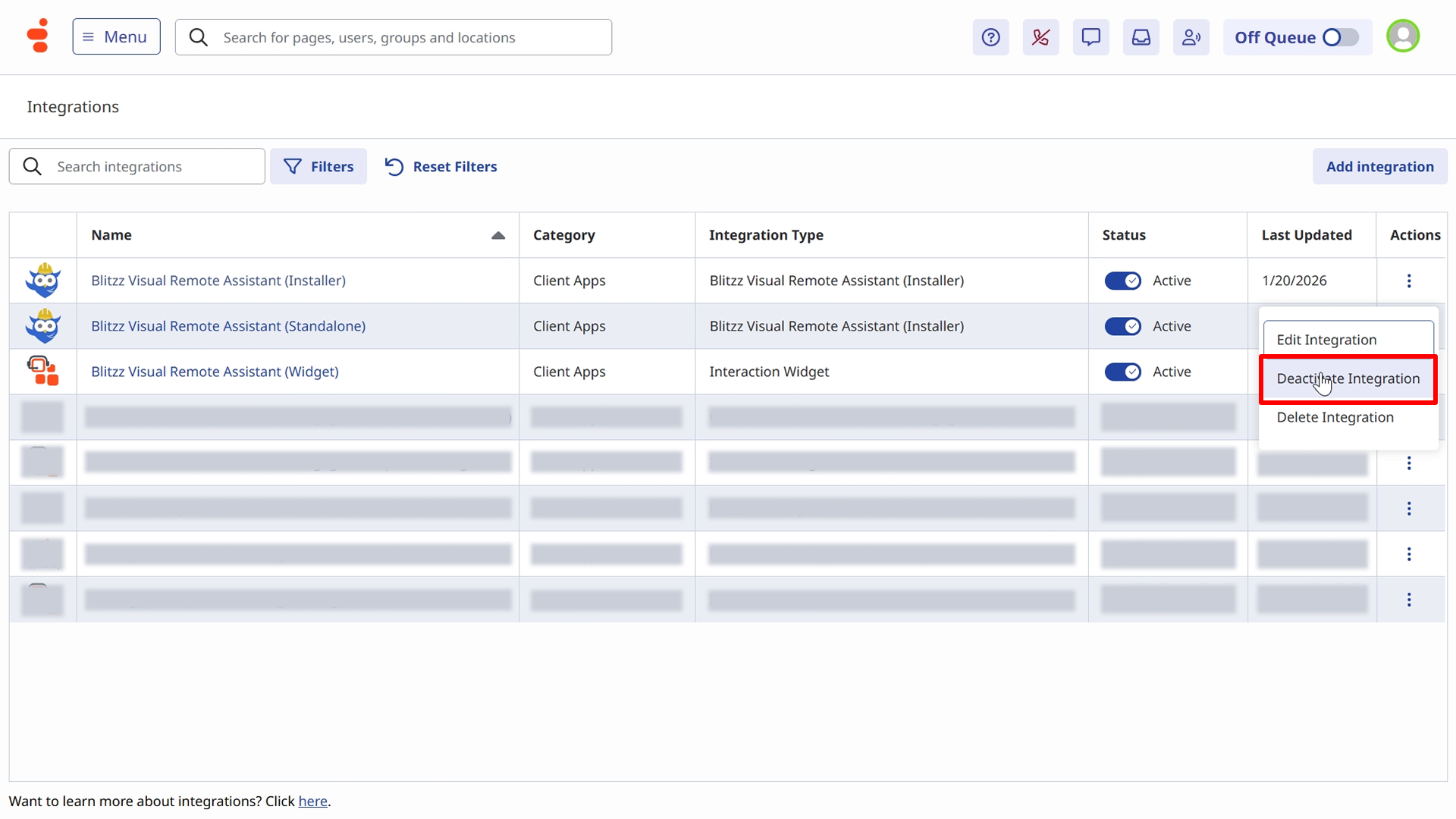
- Navigate to Admin → Integrations.
- Select Blitzz Visual Remote Assistance Installer in the list.
- Click Deactivate Integration.
Click Confirm.
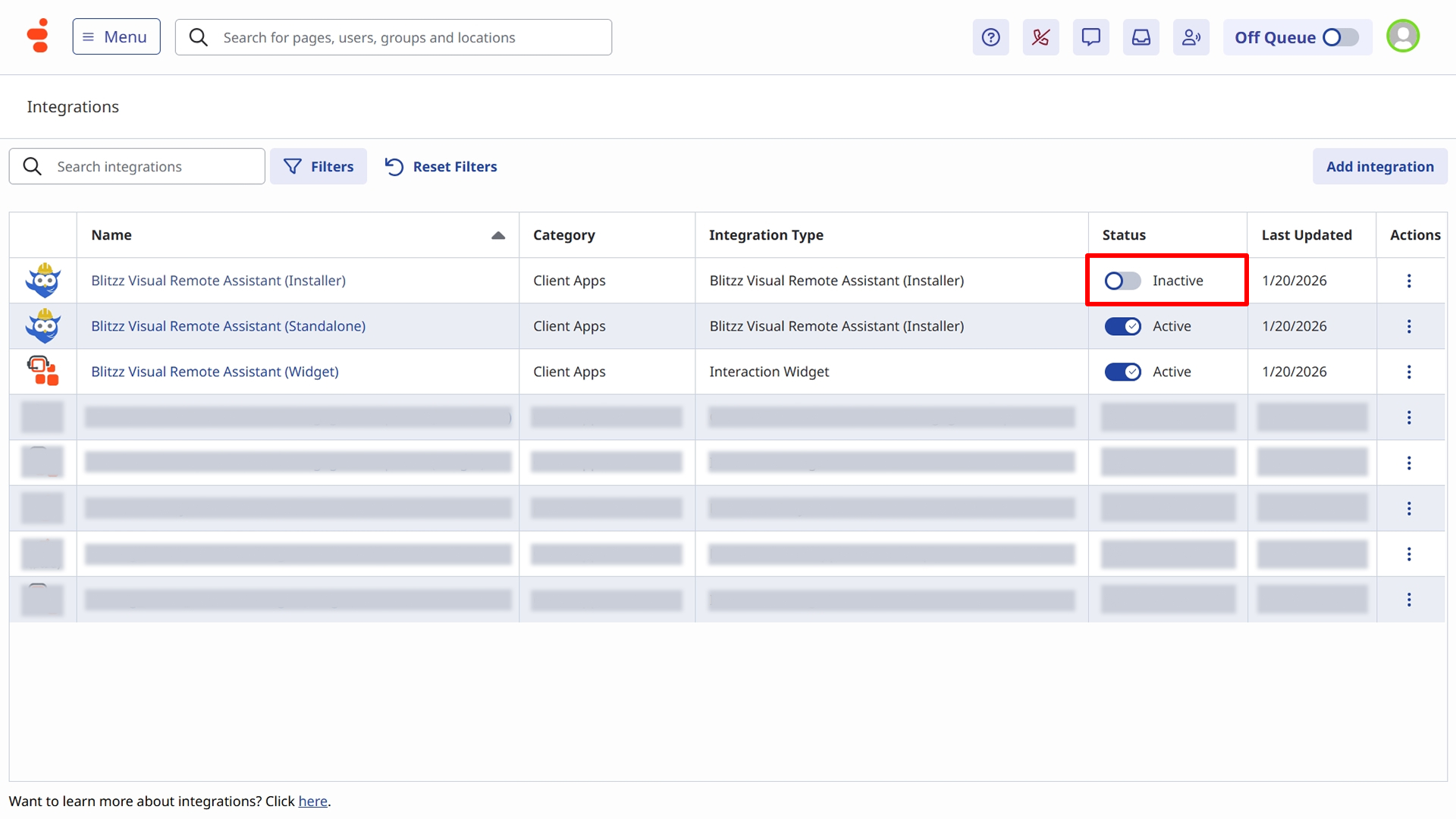
Confirm the installer shows Inactive status in the integrations list.
Step 4: Configure Genesys Integration in Blitzz
Now you'll connect your Blitzz account to your Genesys Cloud organization.
- Log in to your Blitzz Admin Portal as an administrator. From the left sidebar, click Global Settings, then select Integrations from the expanded submenu.
- Enter your Genesys Organization ID.
Click Save to store the configuration.
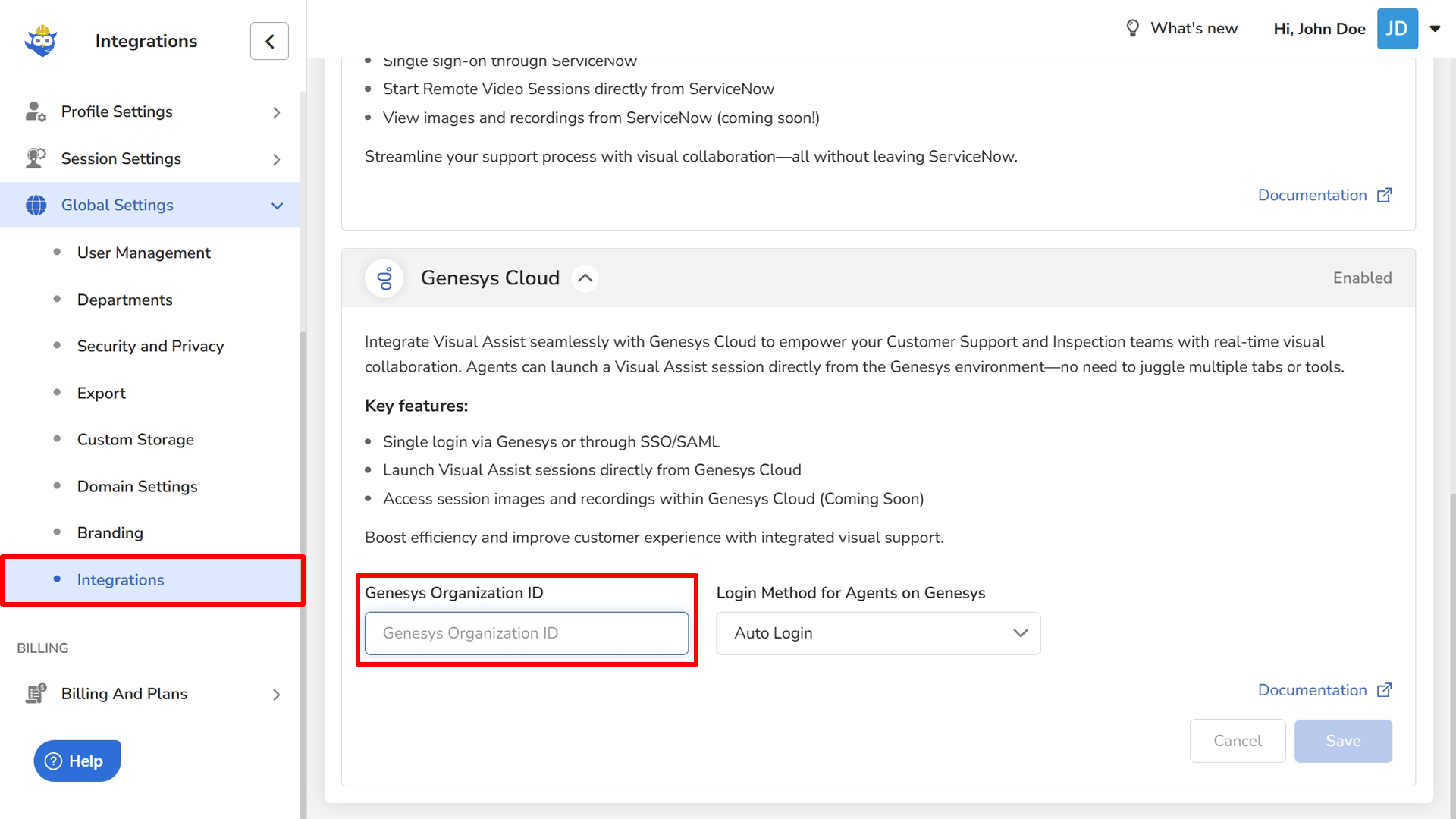
Locate Your Genesys Organization ID
- In Genesys Cloud, navigate to Admin → Organization → Settings.
- Copy your Organization ID.
Step 5: Grant User Access
By default, only the installing administrator can access Blitzz. You must grant access to agents who will use the application.
Add Users to the Blitzz Agent Group
- In Genesys Cloud, navigate to Admin → People & Permissions → Groups.
- Search for and select Blitzz Agent.
Click Edit or the Members tab.
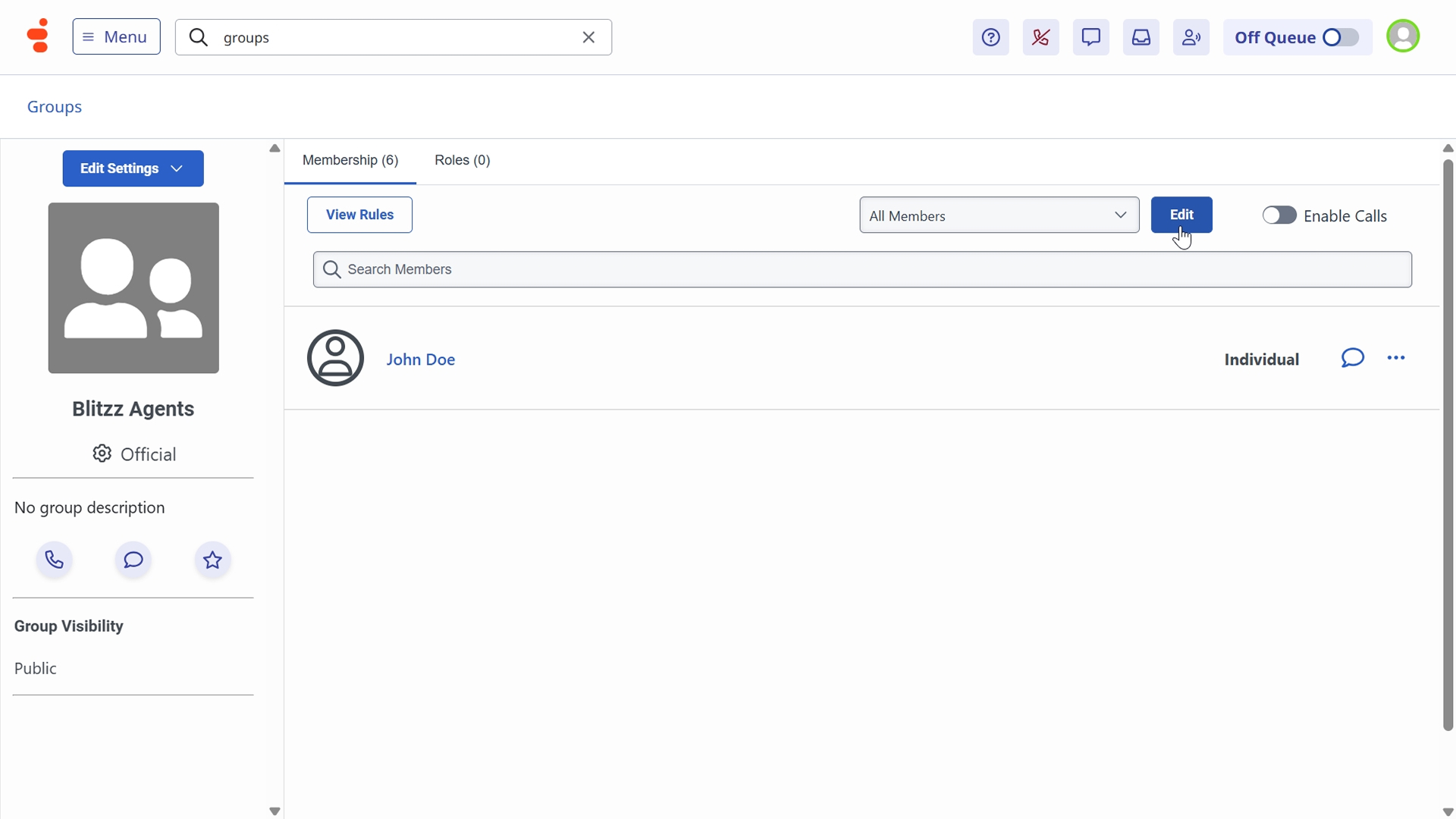
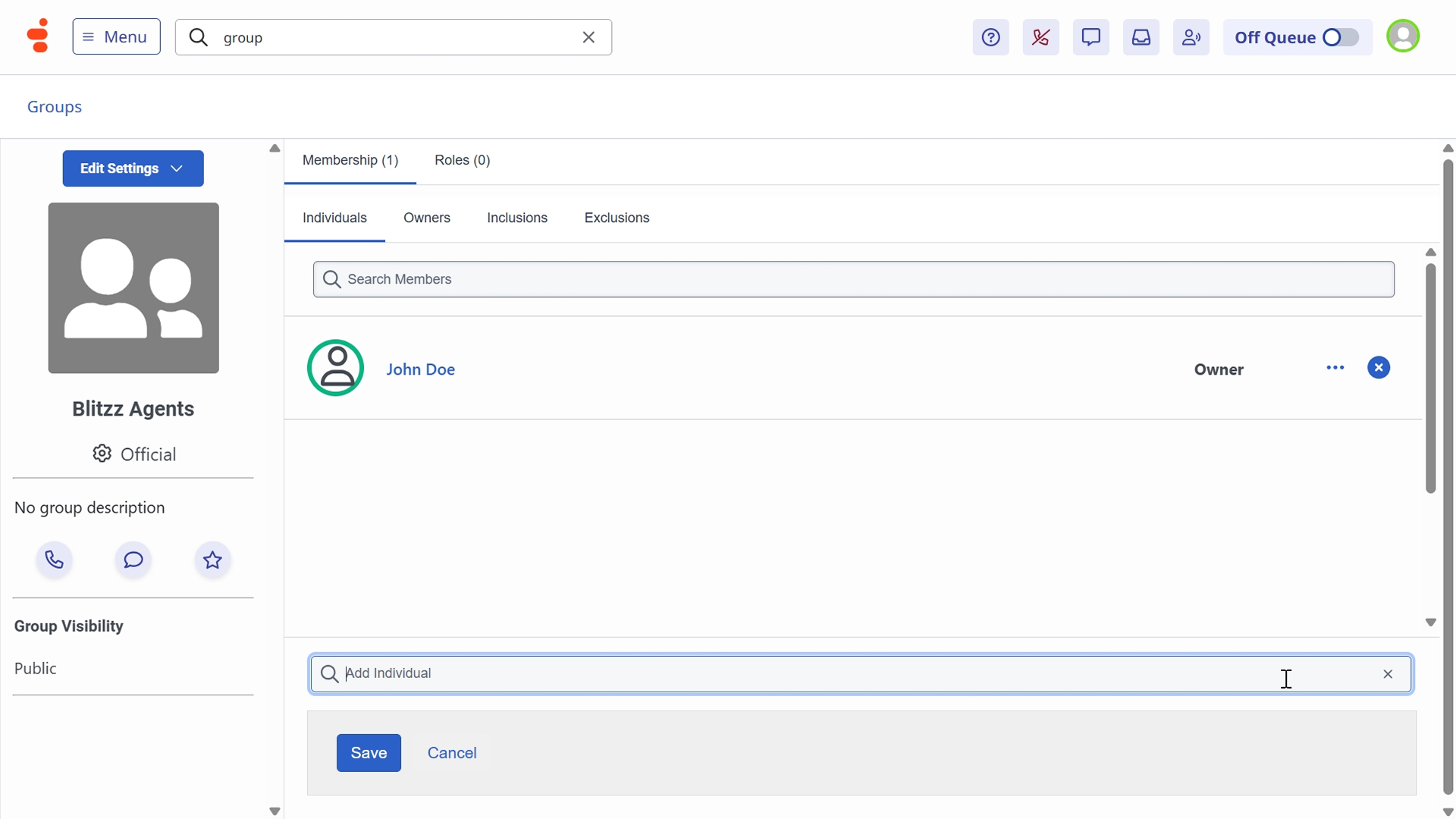
- Click Add Members.
- Search and select users who need Blitzz access.
Click Save to apply changes.
Step 6: Test the Widget Integration
The Blitzz widget appears during active interactions, allowing agents to initiate video sessions seamlessly.
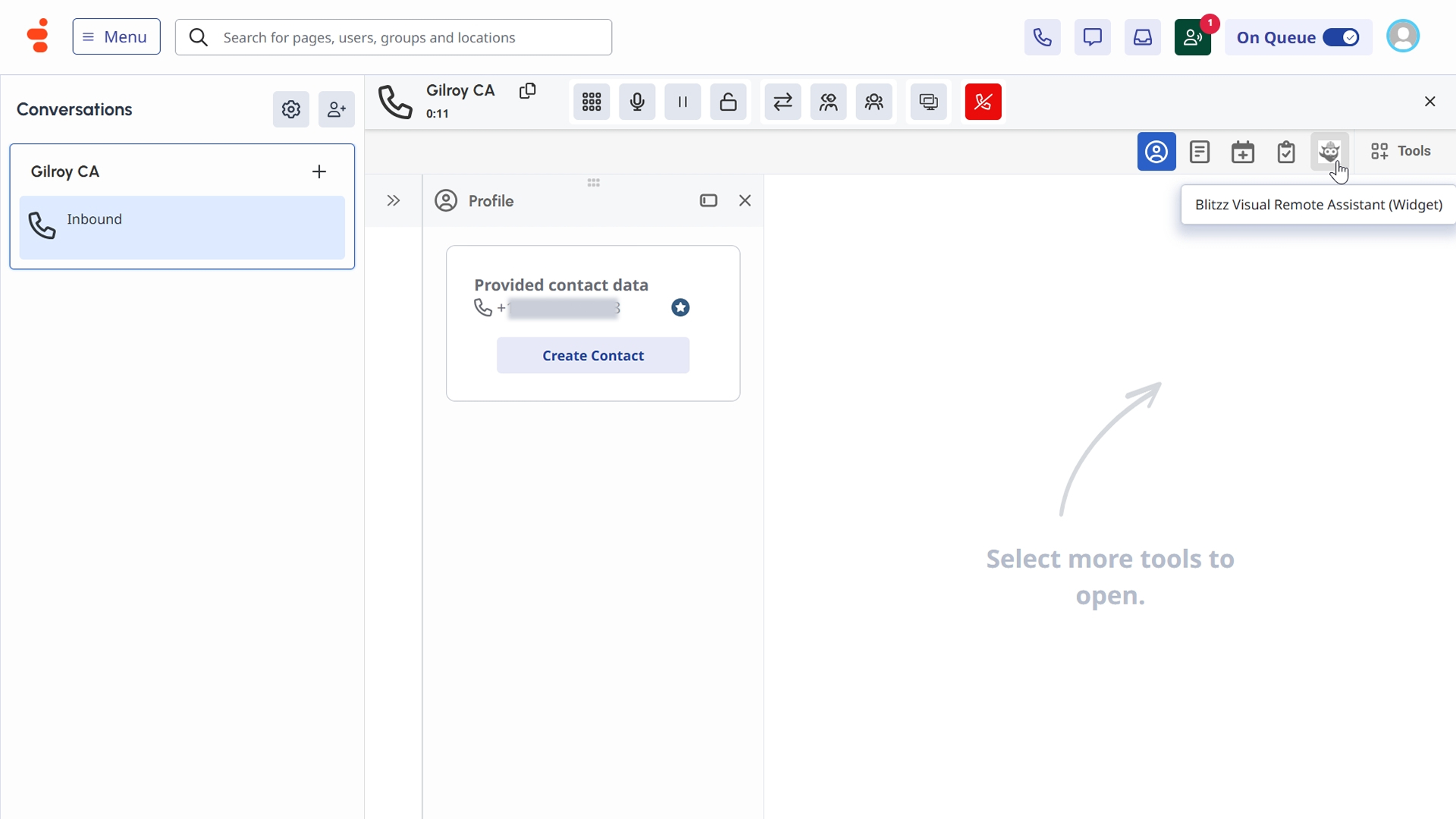
When an inbound call is received, Look for the Blitzz icon in the interaction panel on the right side. The widget displays customer information pulled from the interaction.
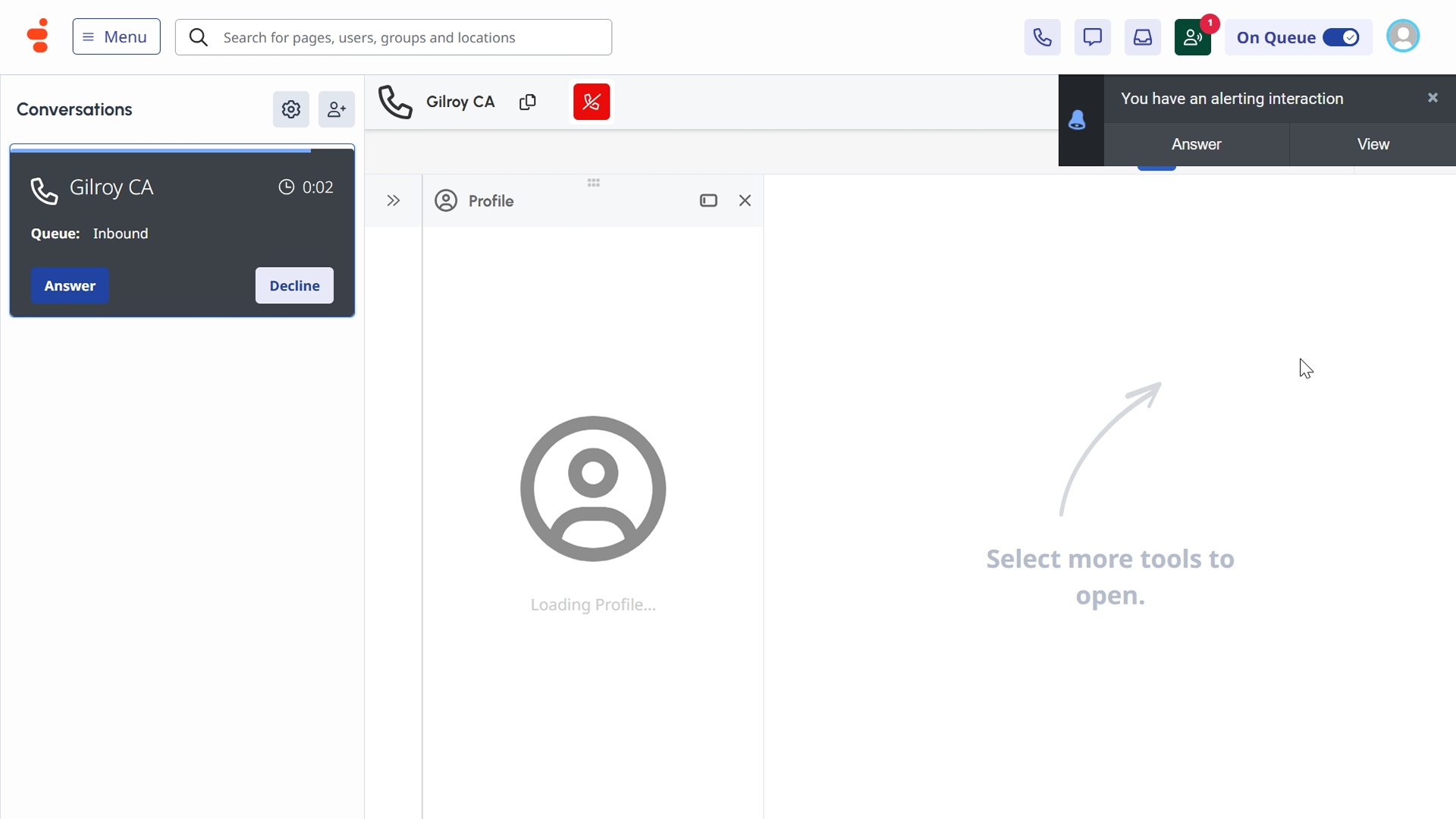
Launch a Blitzz session: Click the Blitzz widget icon. The widget expands to show session options.
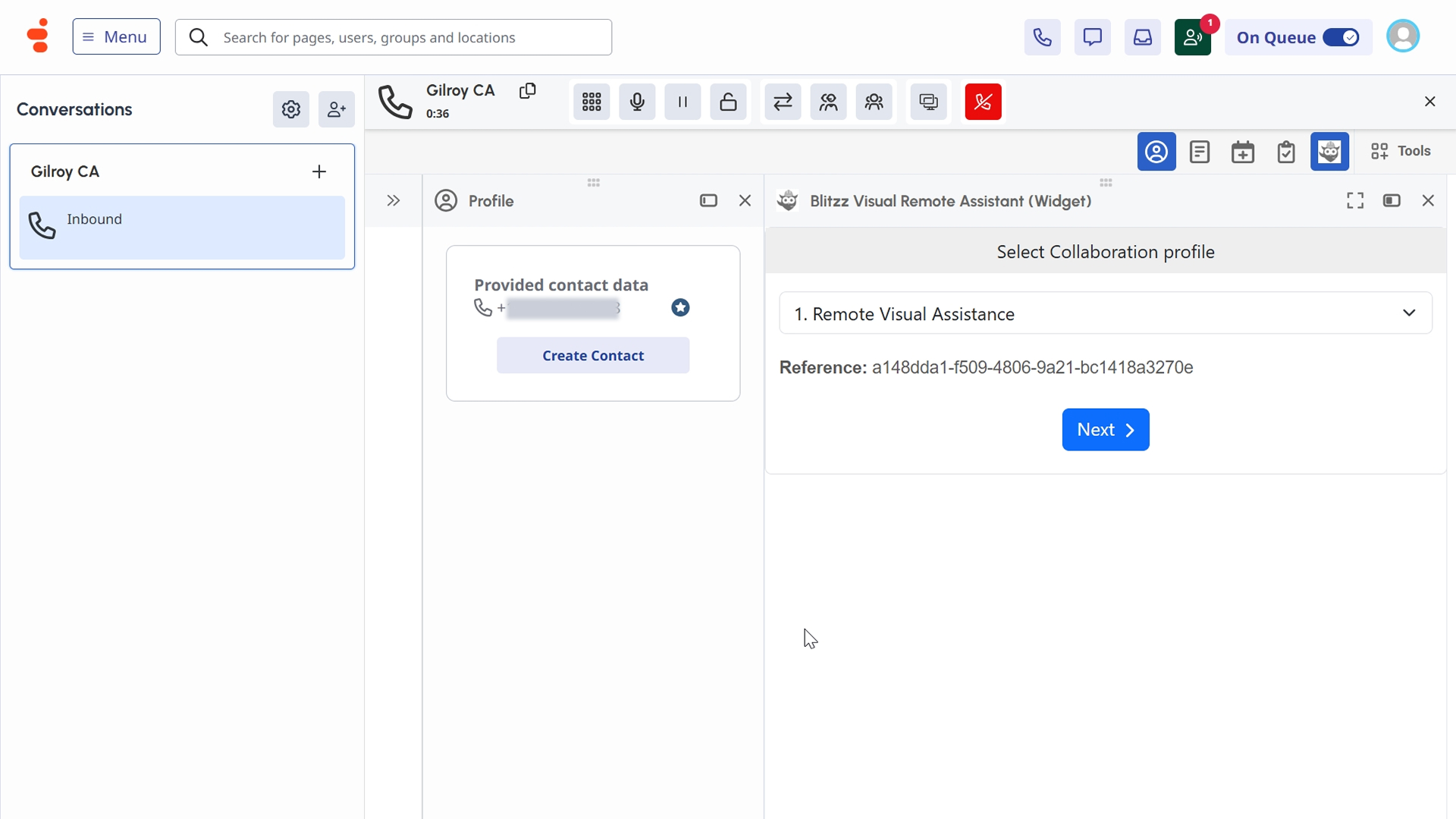
Select a Collaboration Profile. The customer's phone number is auto-populated from the Genesys interaction. Add an optional reference or case number.
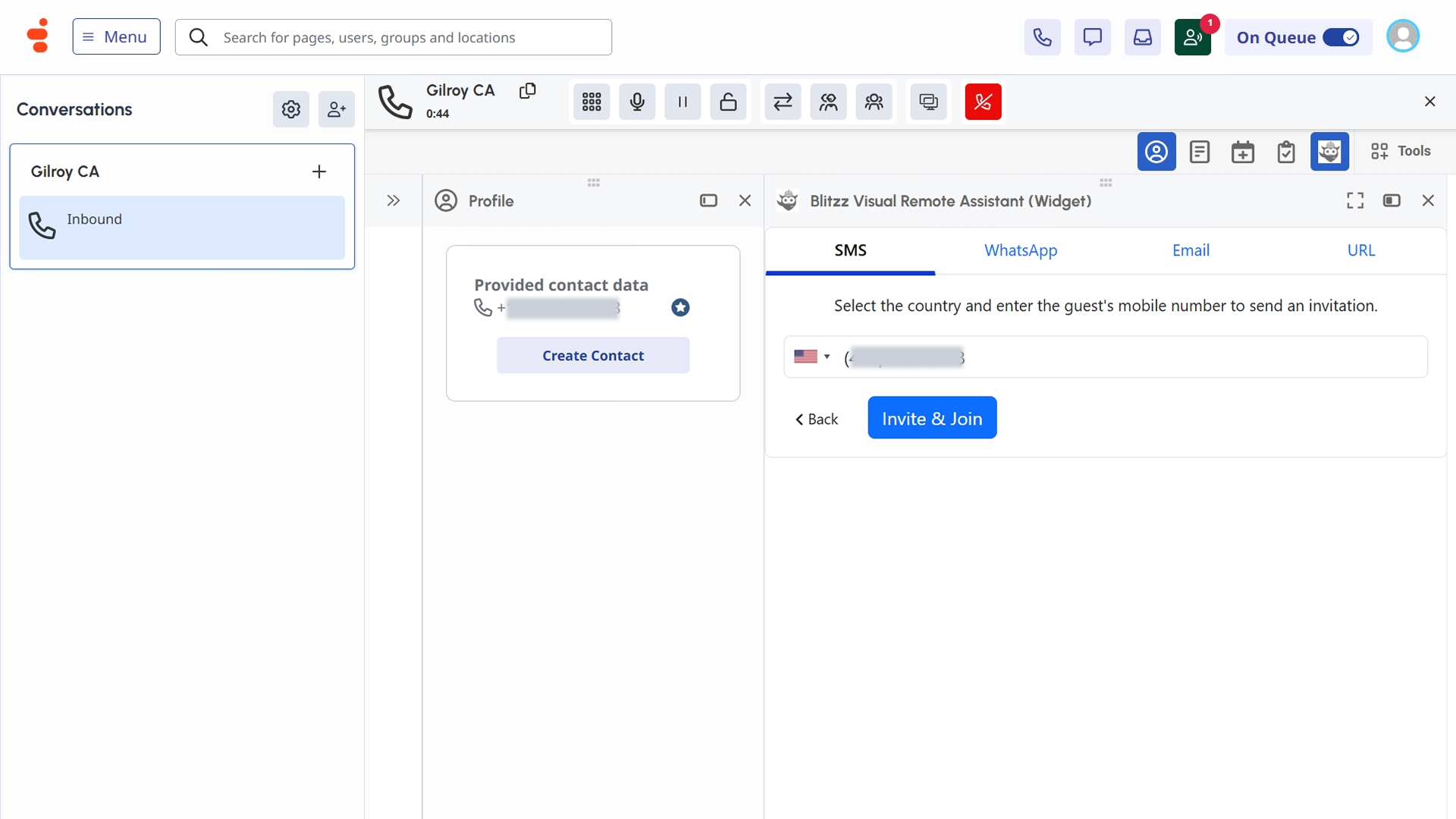
Send the invitation: Select an invite method - such as SMS, WhatsApp, or Email - enter the required details, and click Invite & Join.
Step 7: Test the Standalone App
The standalone app allows agents to initiate Blitzz sessions outside of active Genesys interactions.
Launching the Standalone App
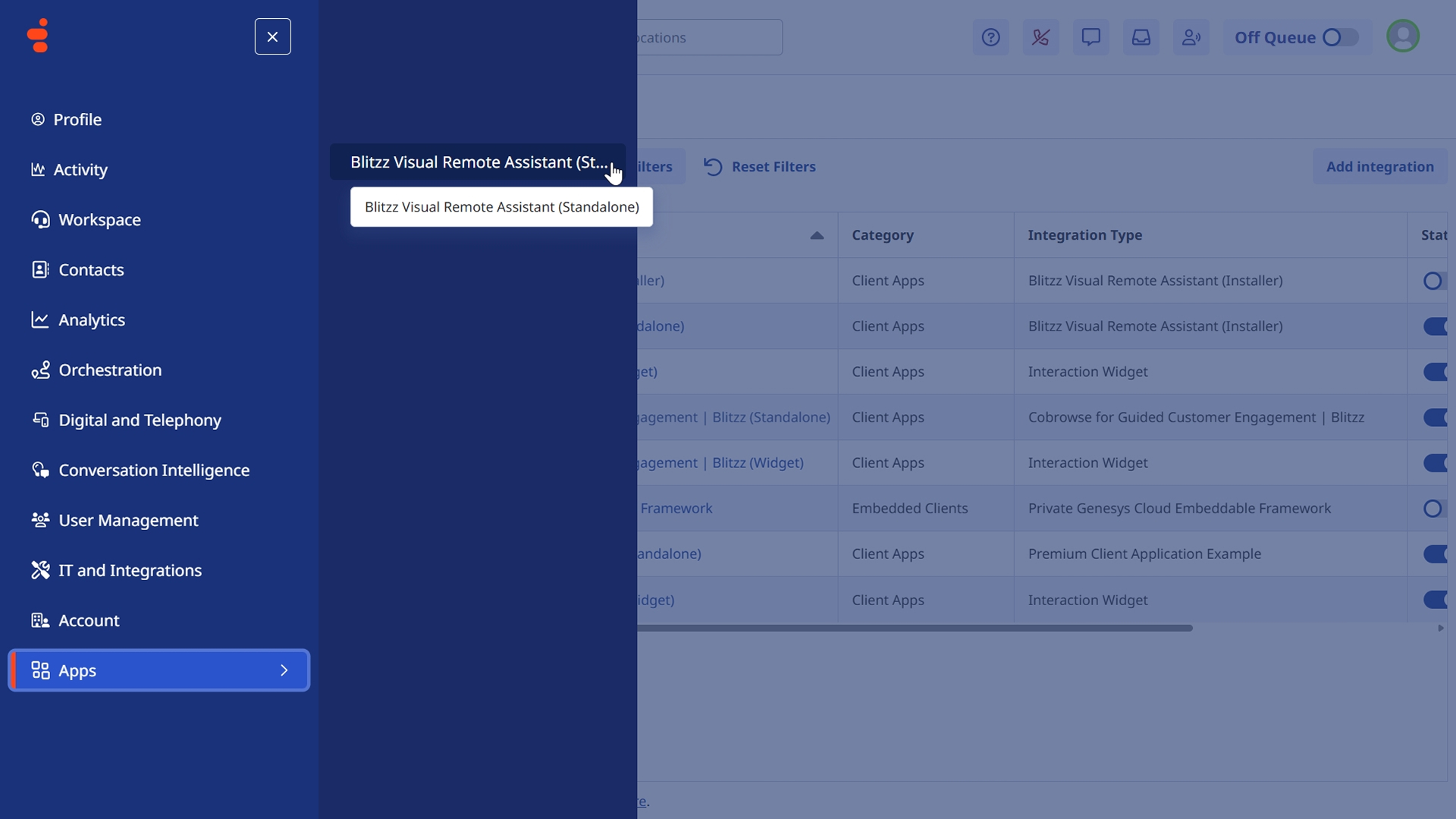
- Navigate to Apps in the Genesys Cloud top navigation.
- Click Blitzz Visual Remote Assistance (Standalone).
The app opens in a new window or panel.
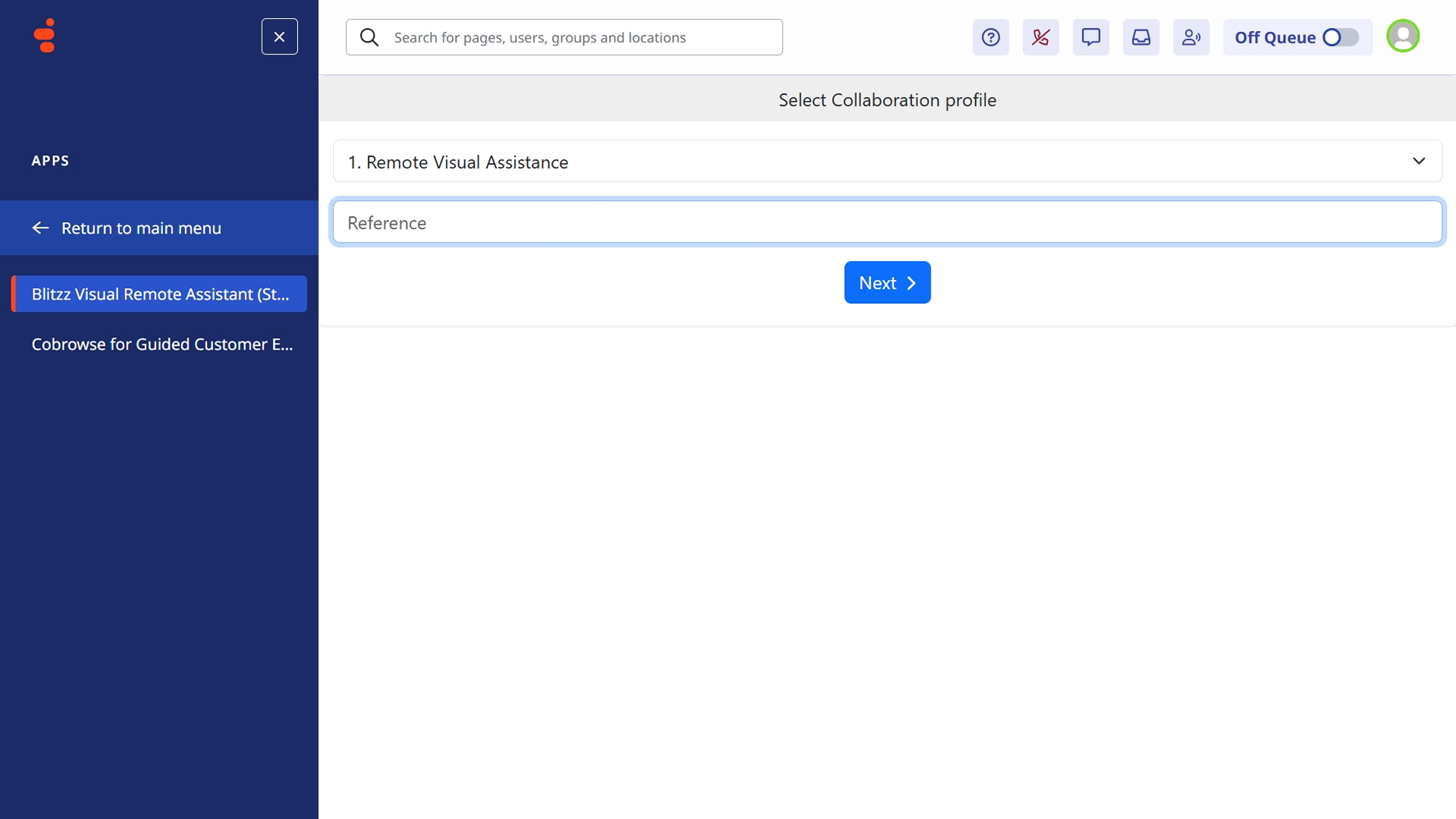
Create & configure session
- The app automatically verifies your Genesys Cloud identity and launch Blitzz.
- Select a Collaboration Profile.
- Enter an optional reference and click Next.
Select an invite method - such as SMS, WhatsApp, or Email - enter the required details, and click Invite & Join.
For integration-specific issues, contact Blitzz support with your Genesys Organization ID and a description of the problem. Include screenshots or error messages when possible.