
Cobrowse for Genesys enables agents to securely guide customers within their browser using no-download cobrowsing. Agents can highlight fields, point out buttons, and seamlessly assist users through forms, checkouts, or troubleshooting—eliminating repetitive verbal instructions.
Prerequisites:
- Active Genesys Cloud organization
- Administrator access to Genesys Cloud
- Administrator access to Blitzz Admin Portal
- Genesys Cloud Organization ID
Installation Time: Approximately 15-20 minutes
Table of Contents
- Step 1: Install Cobrowse from AppFoundry
- Step 2: Activate and Run the Cobrowse Installer
- Step 3: Deactivate the Installer
- Step 4: Configure Genesys Integration in Blitzz
- Step 5: Grant User Access
- Step 6: Genesys Configuration: Message Queue
- Step 7: Genesys Configuration: Messenger Configurations
- Step 8: Genesys Configuration: Messenger Deployments
- Step 9: Test the Widget Integration
- Step 10: Test the Standalone App
Step 1: Install Cobrowse from AppFoundry
Option A: Search in AppFoundry
- Log in to your Genesys Cloud organization.
- Navigate to the Genesys AppFoundry.
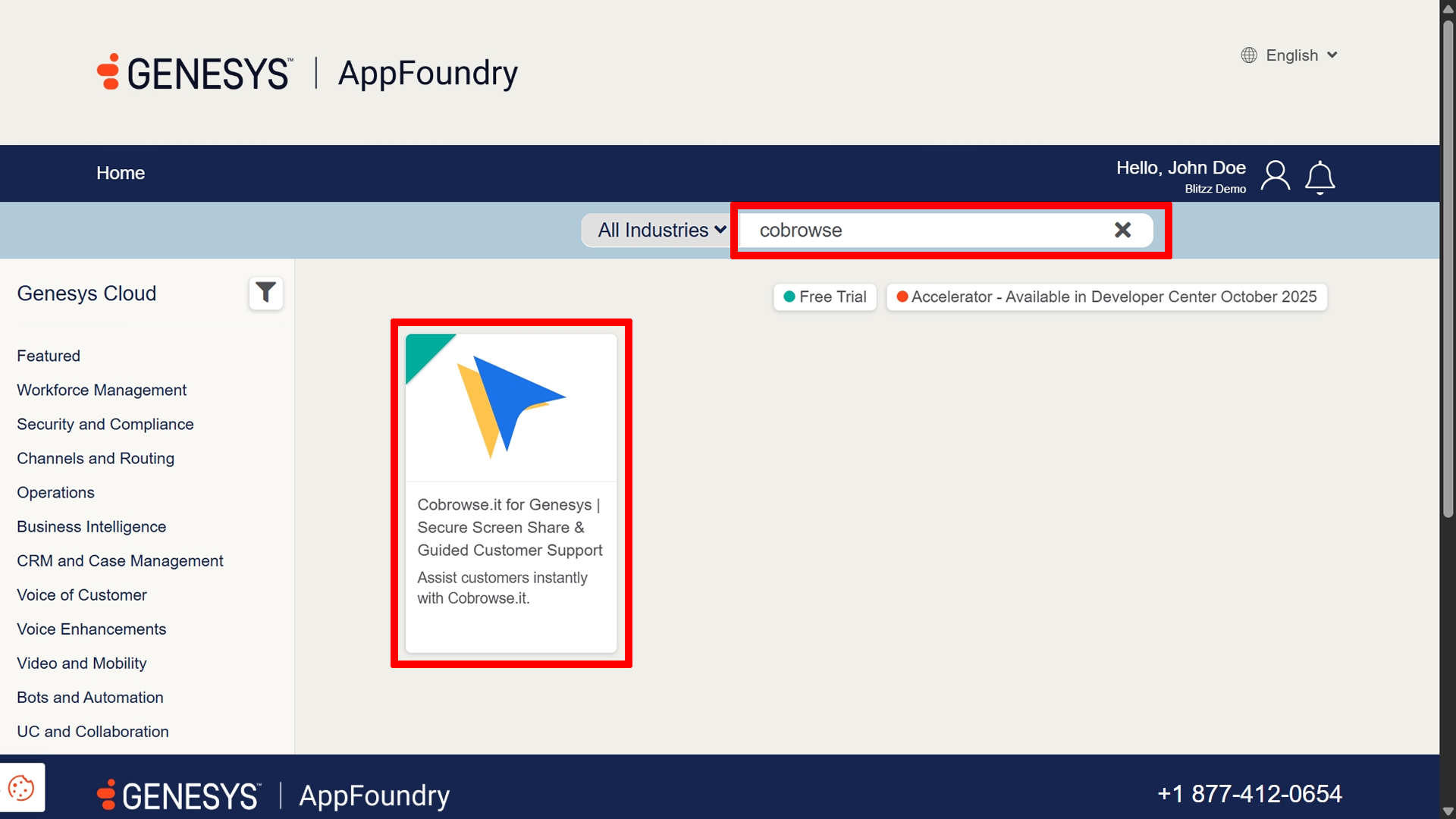
- Search for "Cobrowse".
Option B: Direct Link
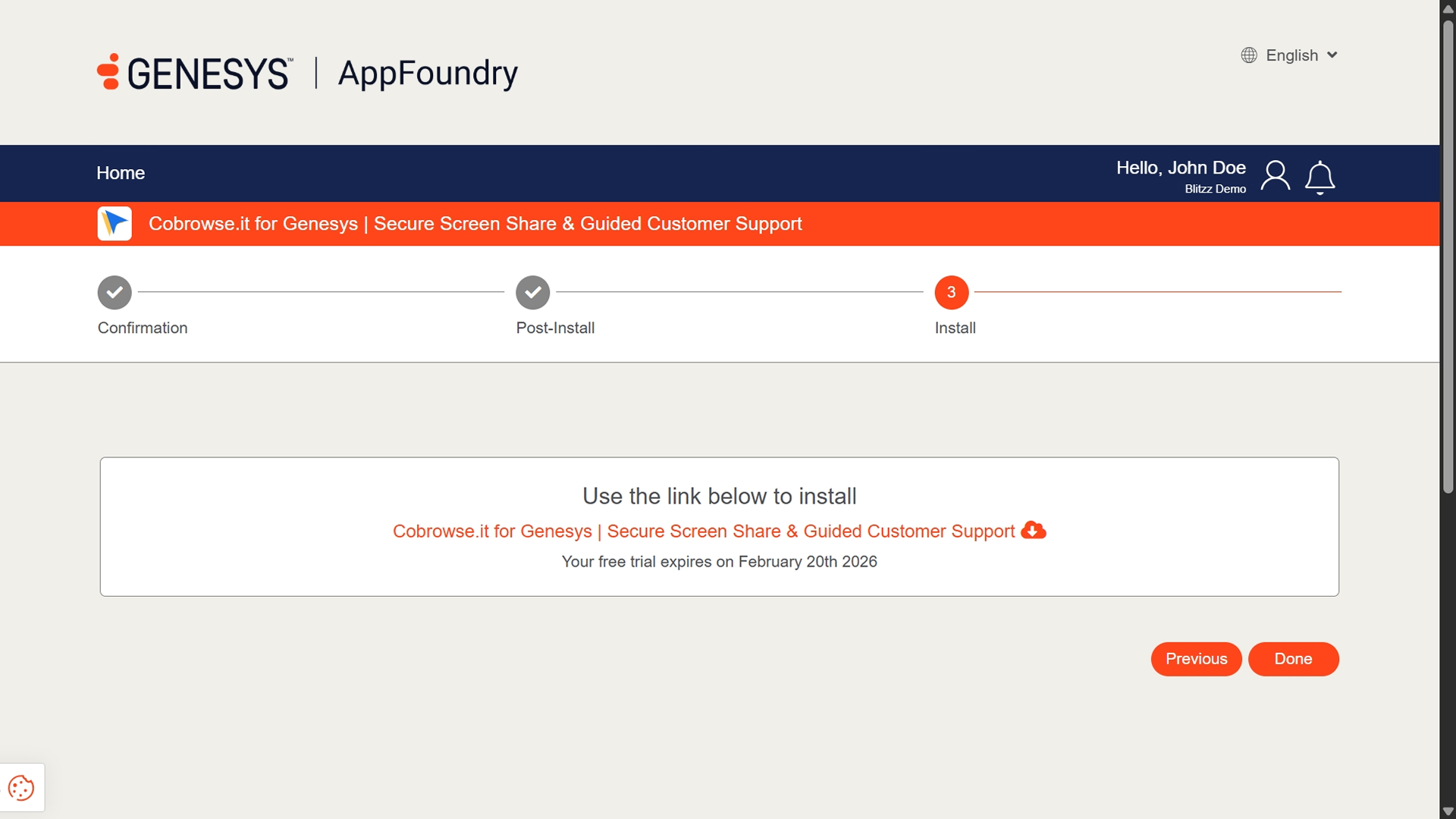
Visit: Cobrowse on Genesys AppFoundry
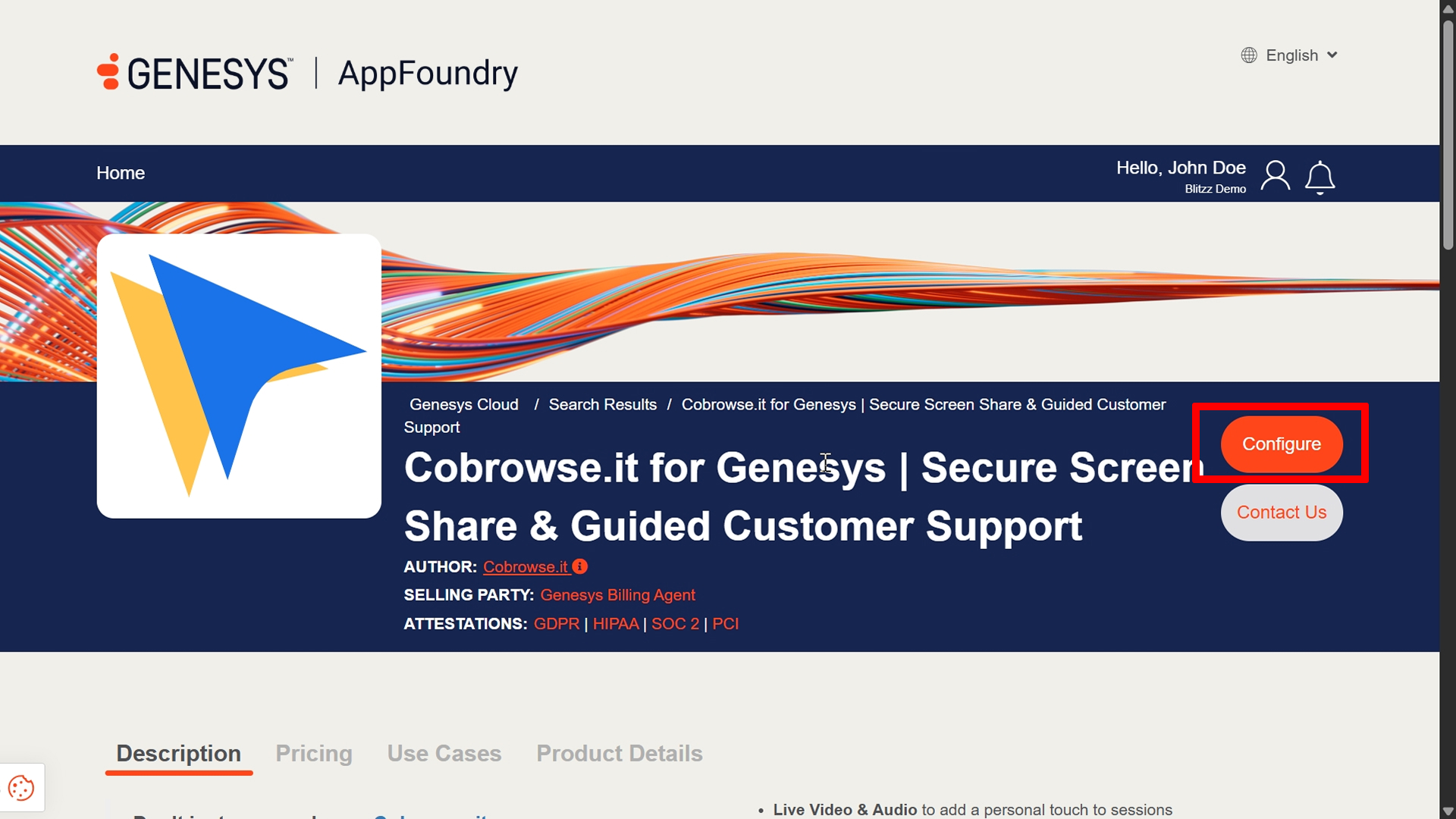
Click Configure.
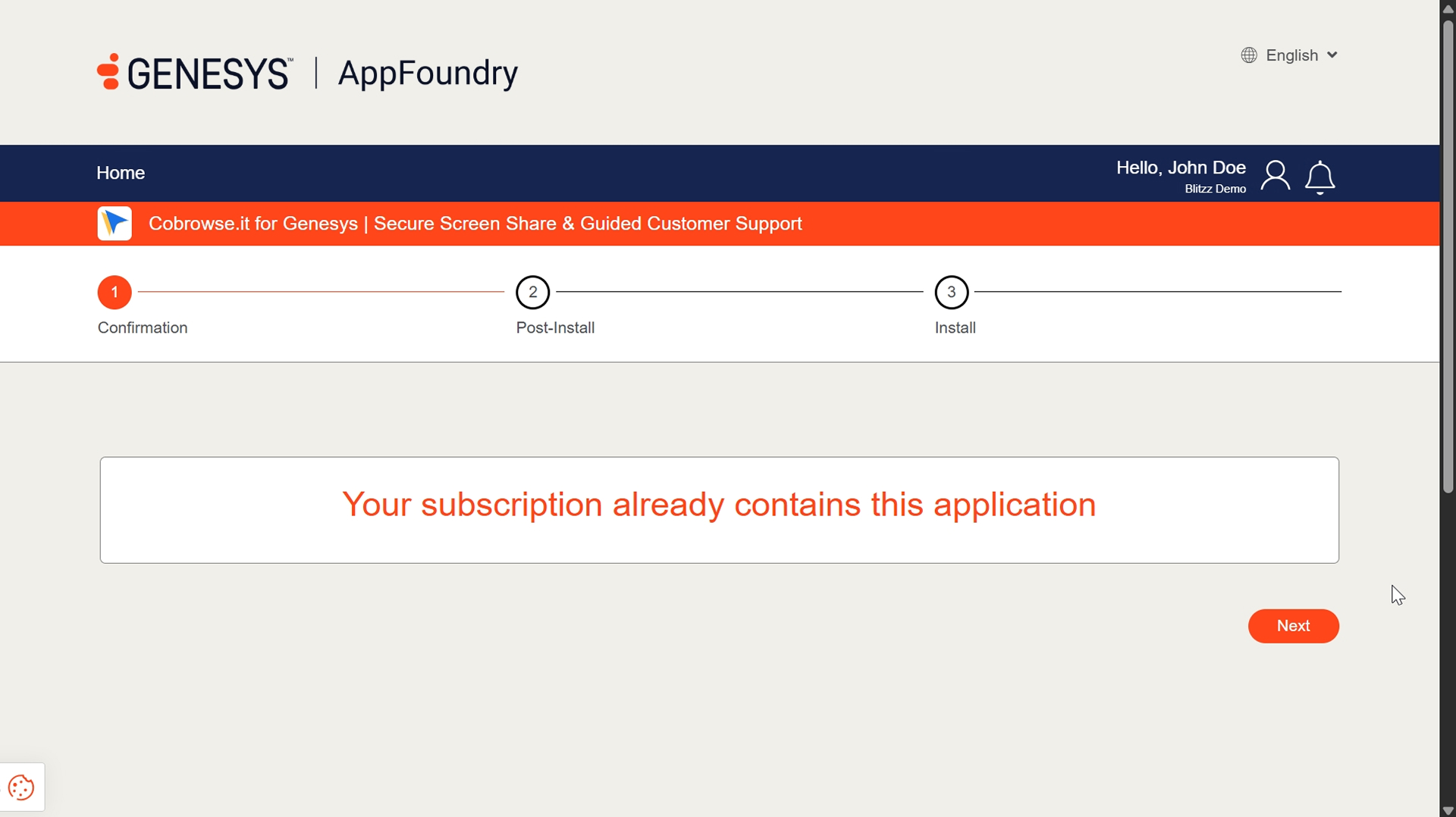
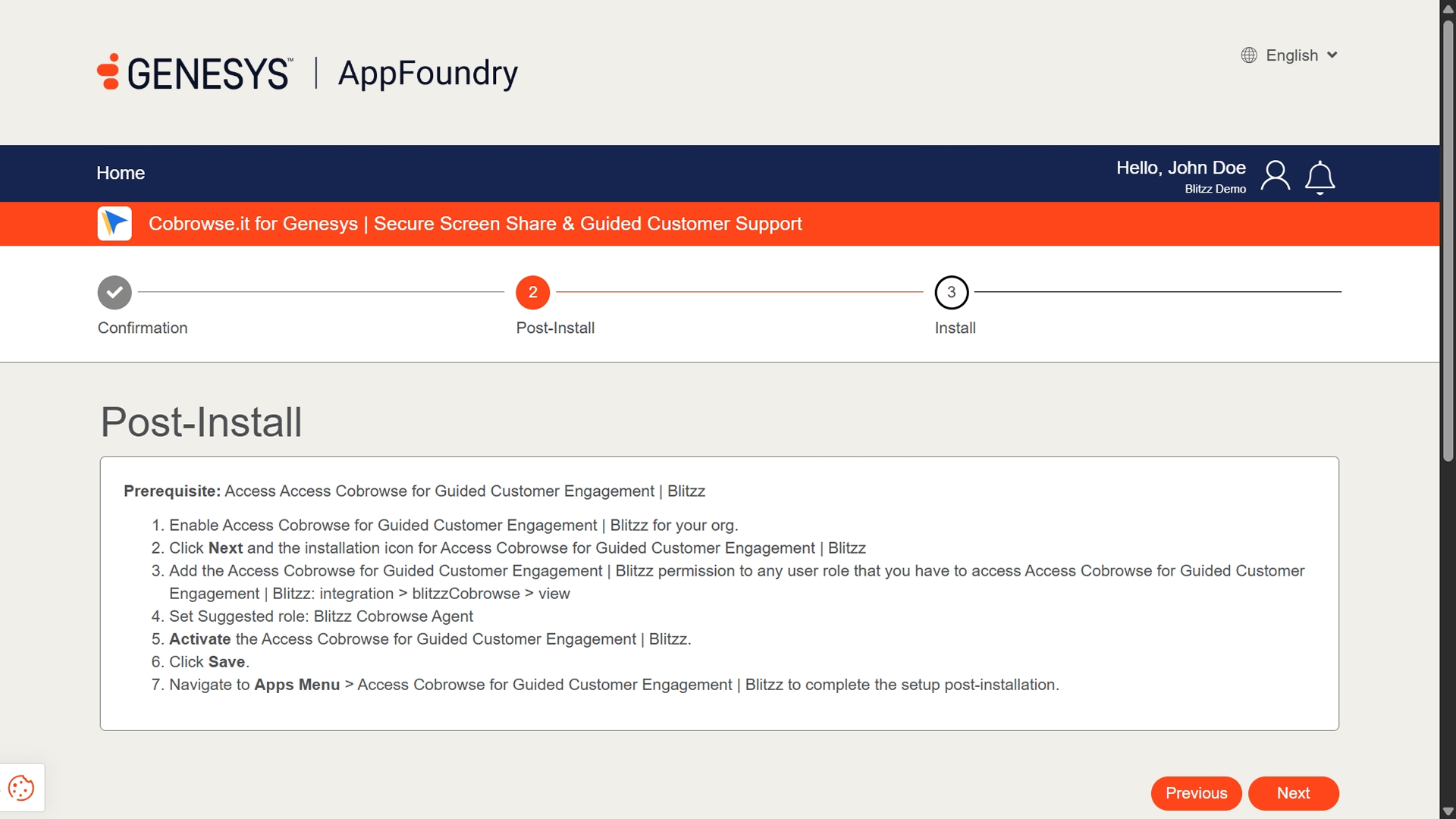
Follow the steps below to install the App.
Step 2: Activate and Run the Cobrowse Installer
The Cobrowse Installer is a one-time setup wizard that configures the integration automatically.
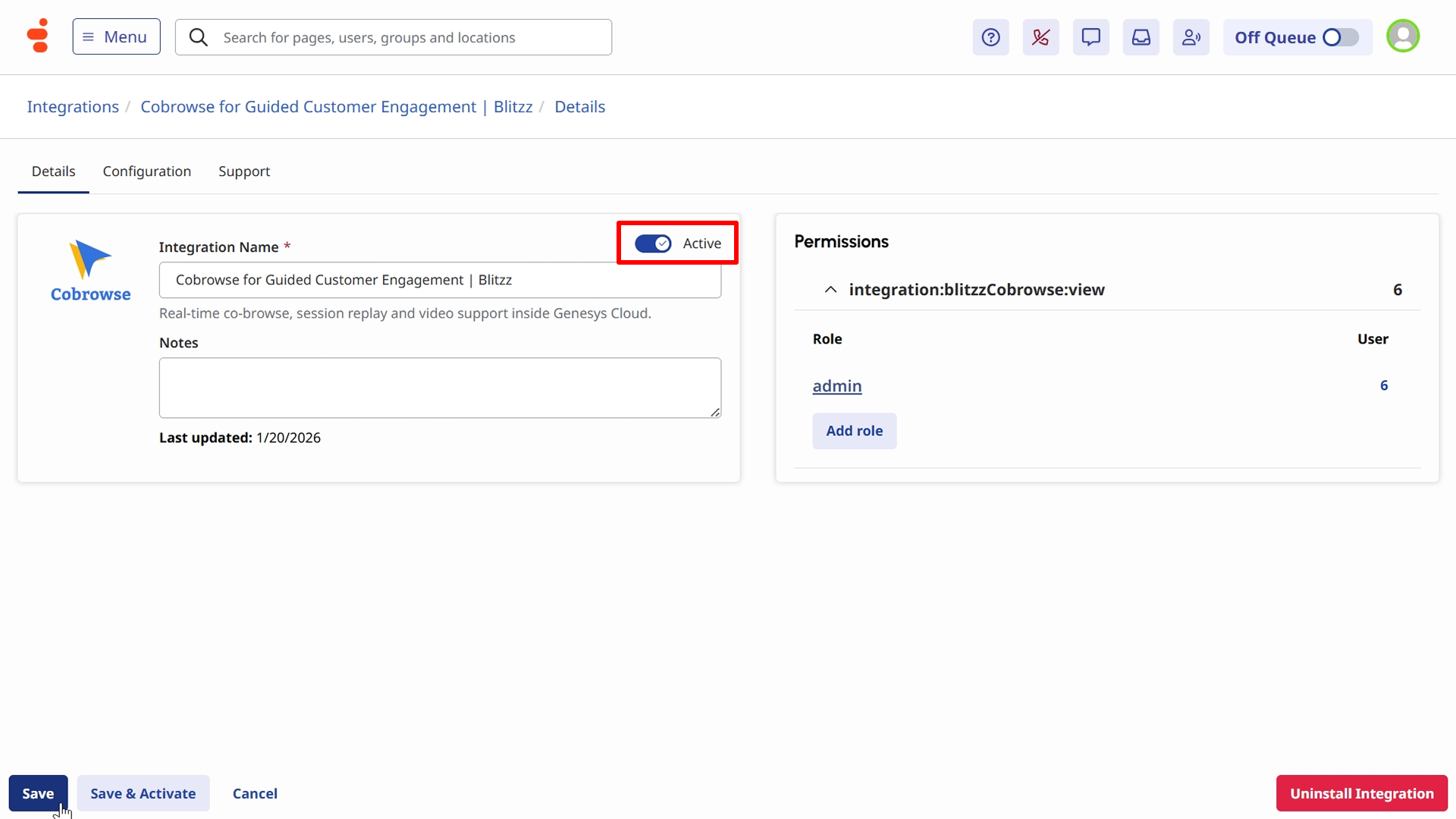
- In Genesys Cloud, navigate to Admin → Integrations.
- Select Cobrowse for Guided Customer Engagement Blitzz Installer in the list.
- Toggle the status to Active.
Click Save to activate the installer.
Navigate to Apps in the top navigation bar and Click Cobrowse for Guided Customer Engagement Blitzz Installer.
Note: If the installer doesn't appear immediately, log out and log back in to refresh your app list.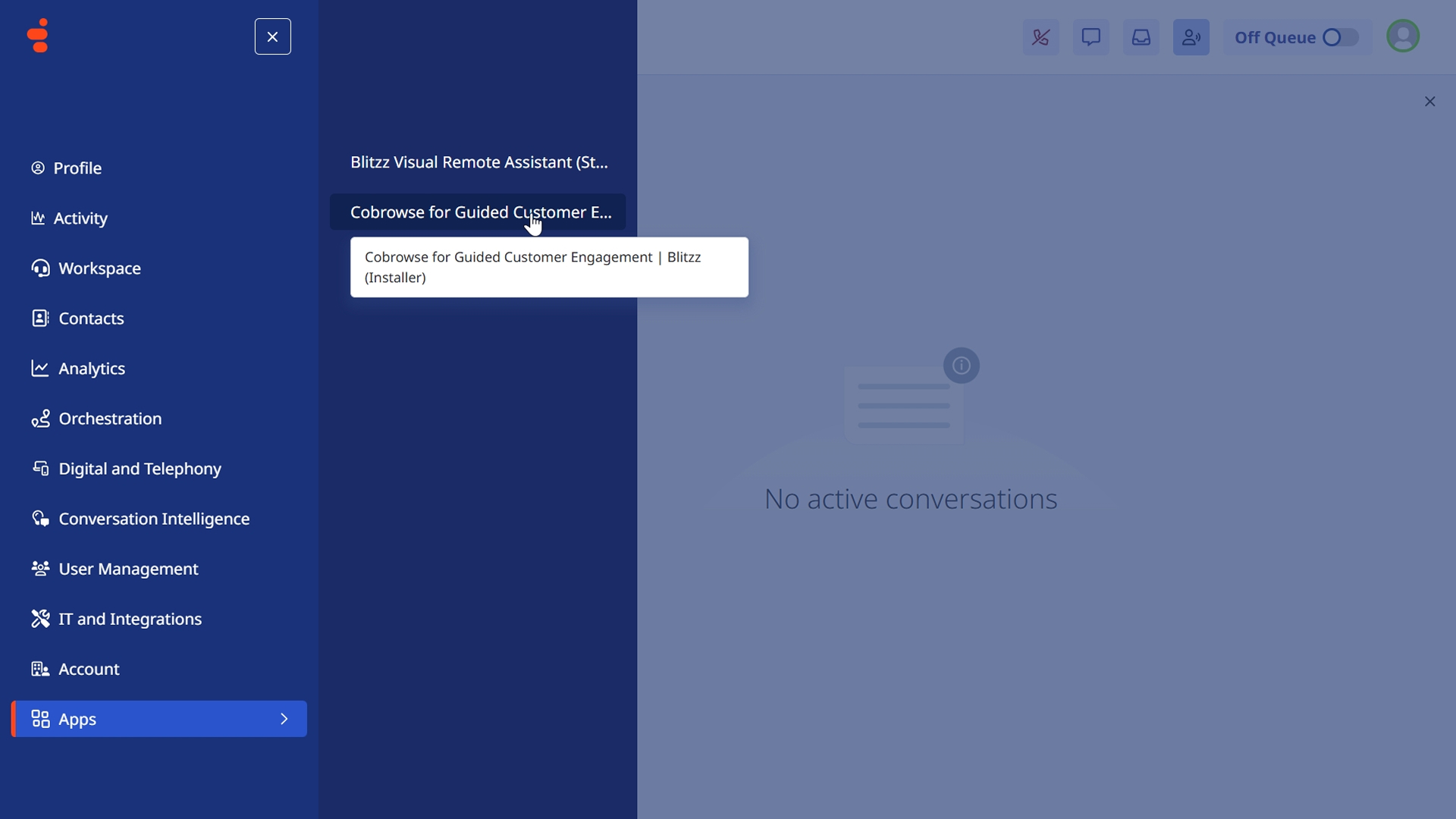
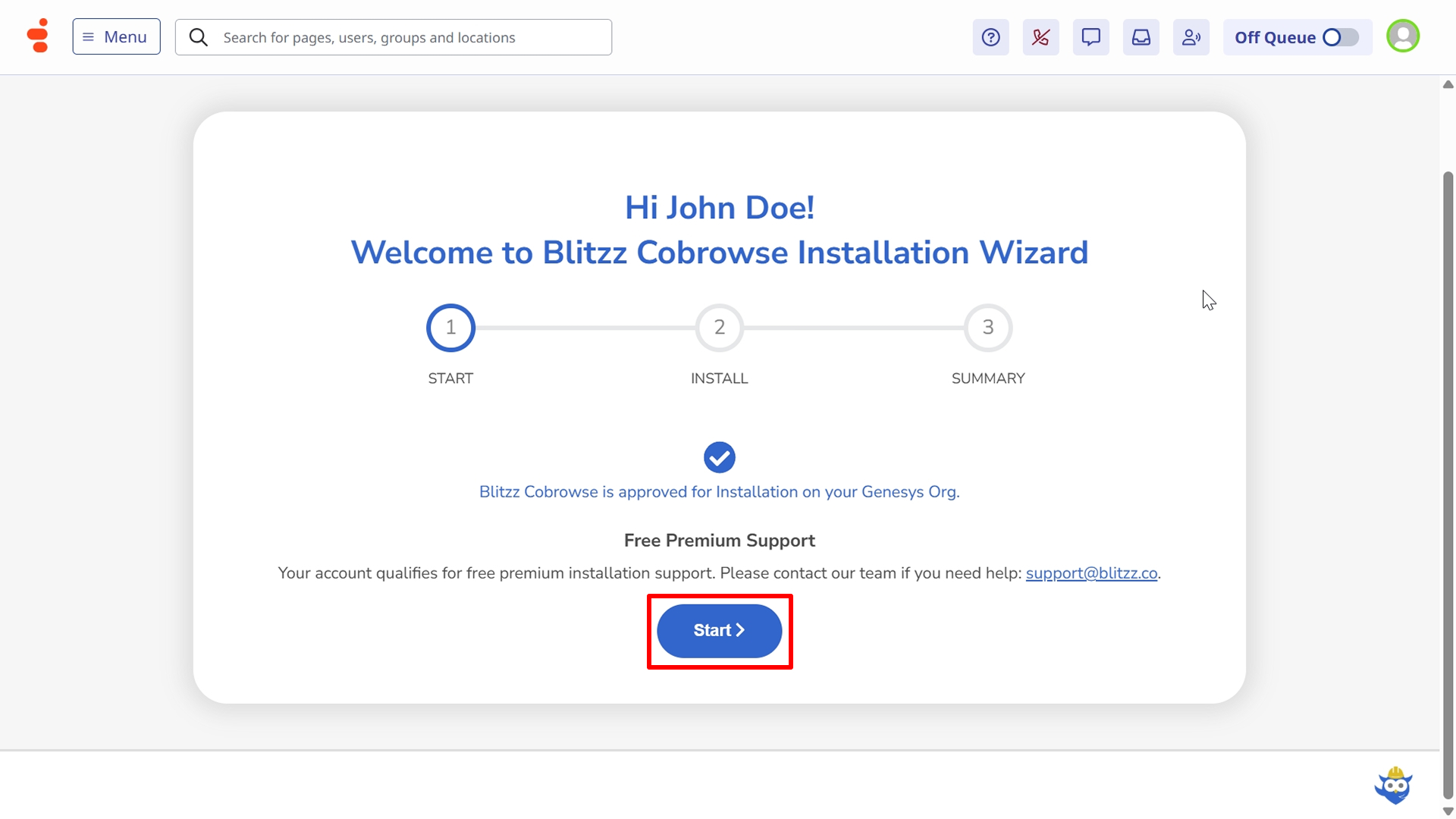
Run the Installation Wizard:
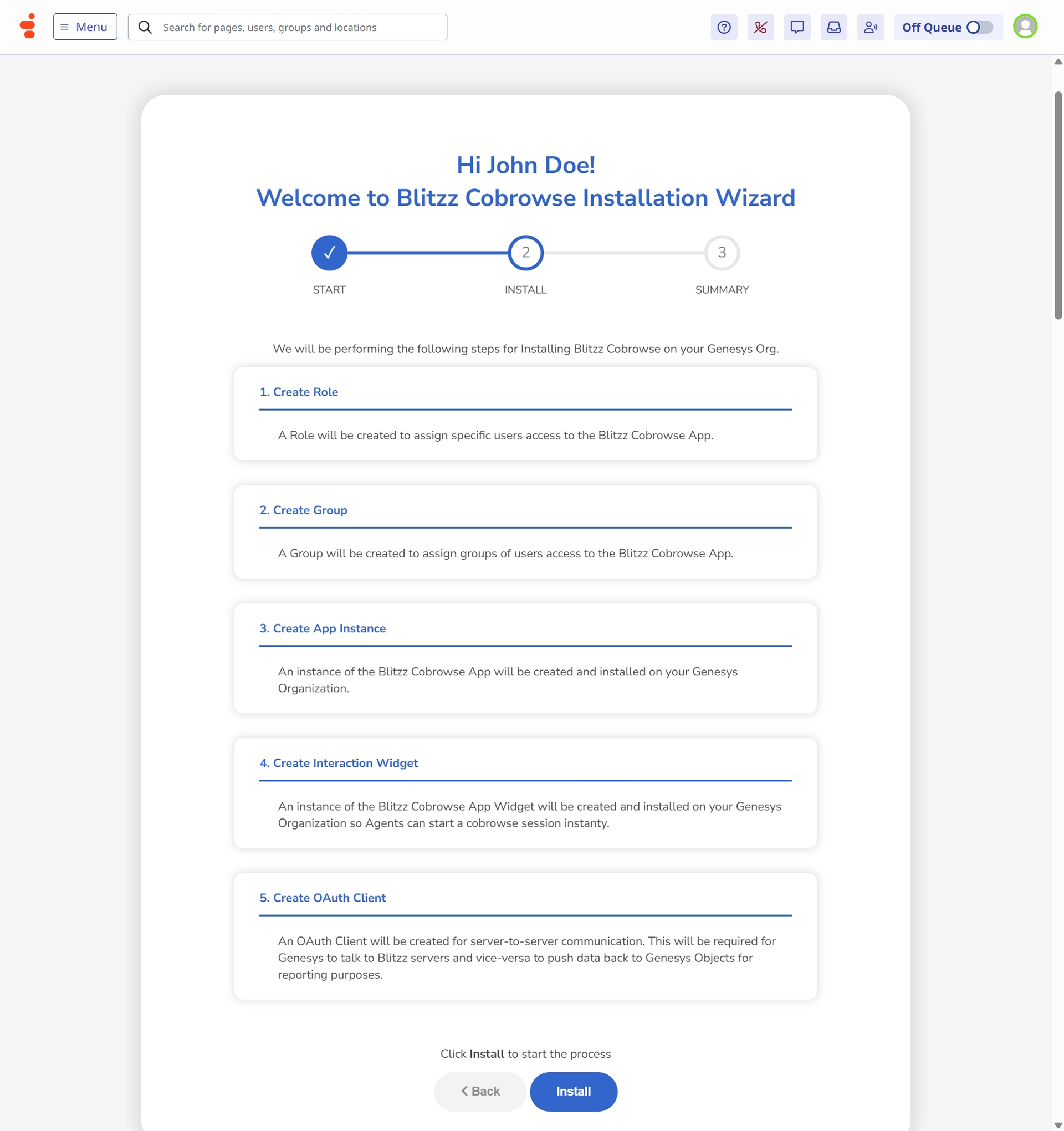
Click Start to begin the automated setup process.
- Review the configuration steps being performed:
- Creating integration credentials
- Setting up OAuth client
- Configuring webhooks
- Installing widget and standalone apps
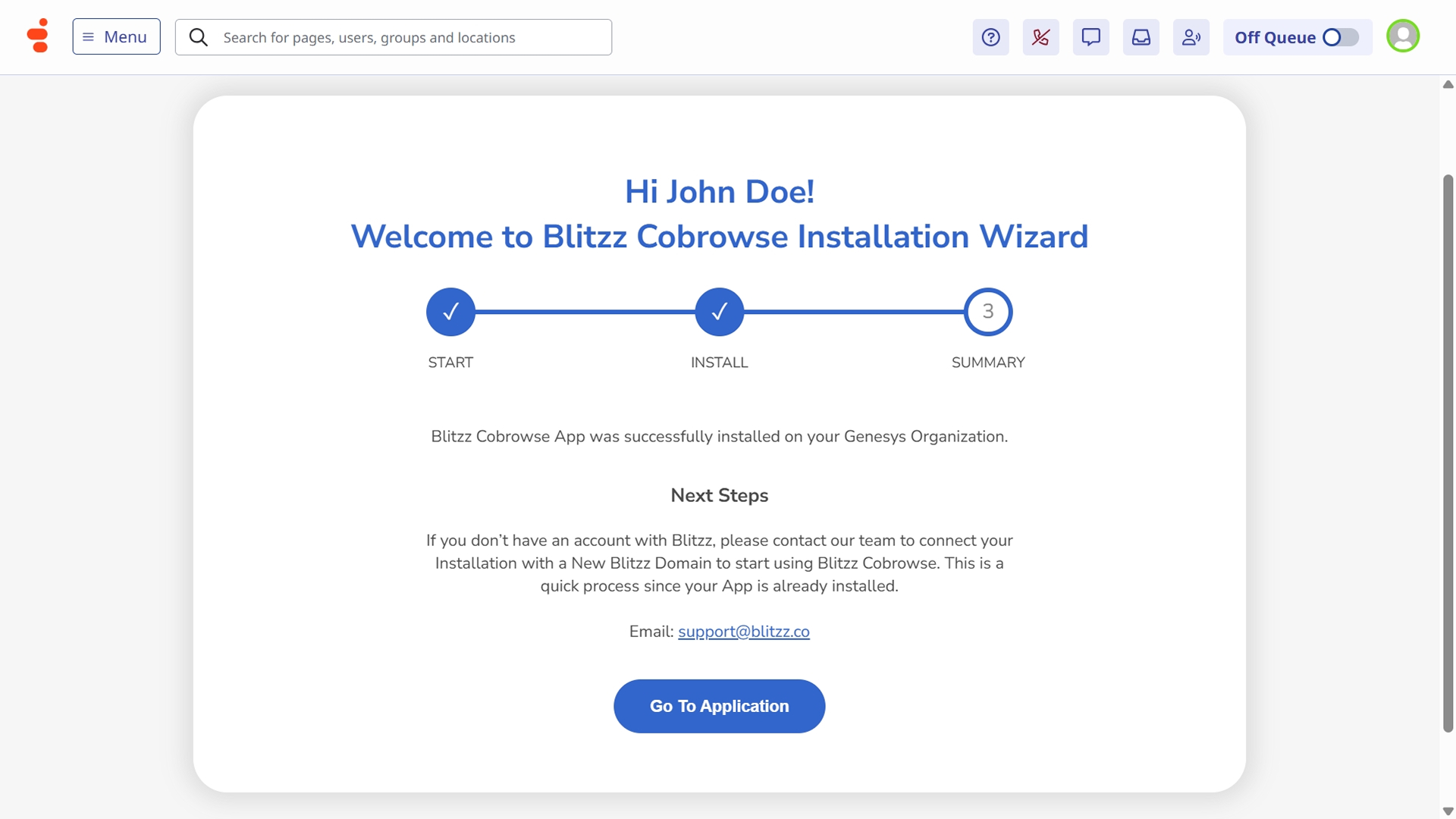
Click Install to execute the automated configuration. Wait for the success confirmation (typically 30-60 seconds).
Click Go to Application to close the installer.
Step 3: Deactivate the Installer
Once installation is complete, the installer is no longer needed and should be deactivated.
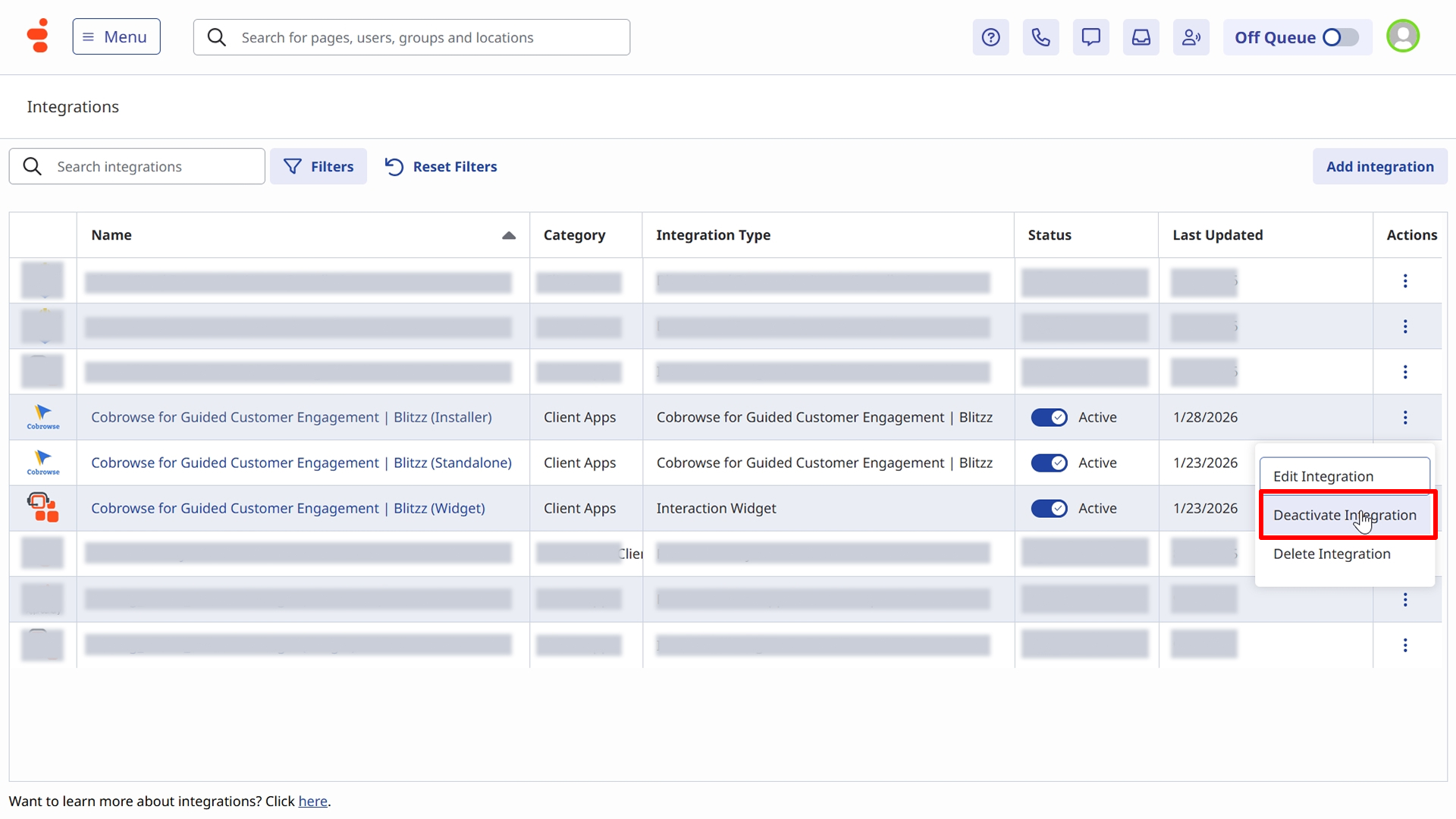
- Navigate to Admin → Integrations.
- Select Cobrowse for Guided Customer Engagement Blitzz Installer in the list.
- Click Deactivate Integration.
Click Confirm.
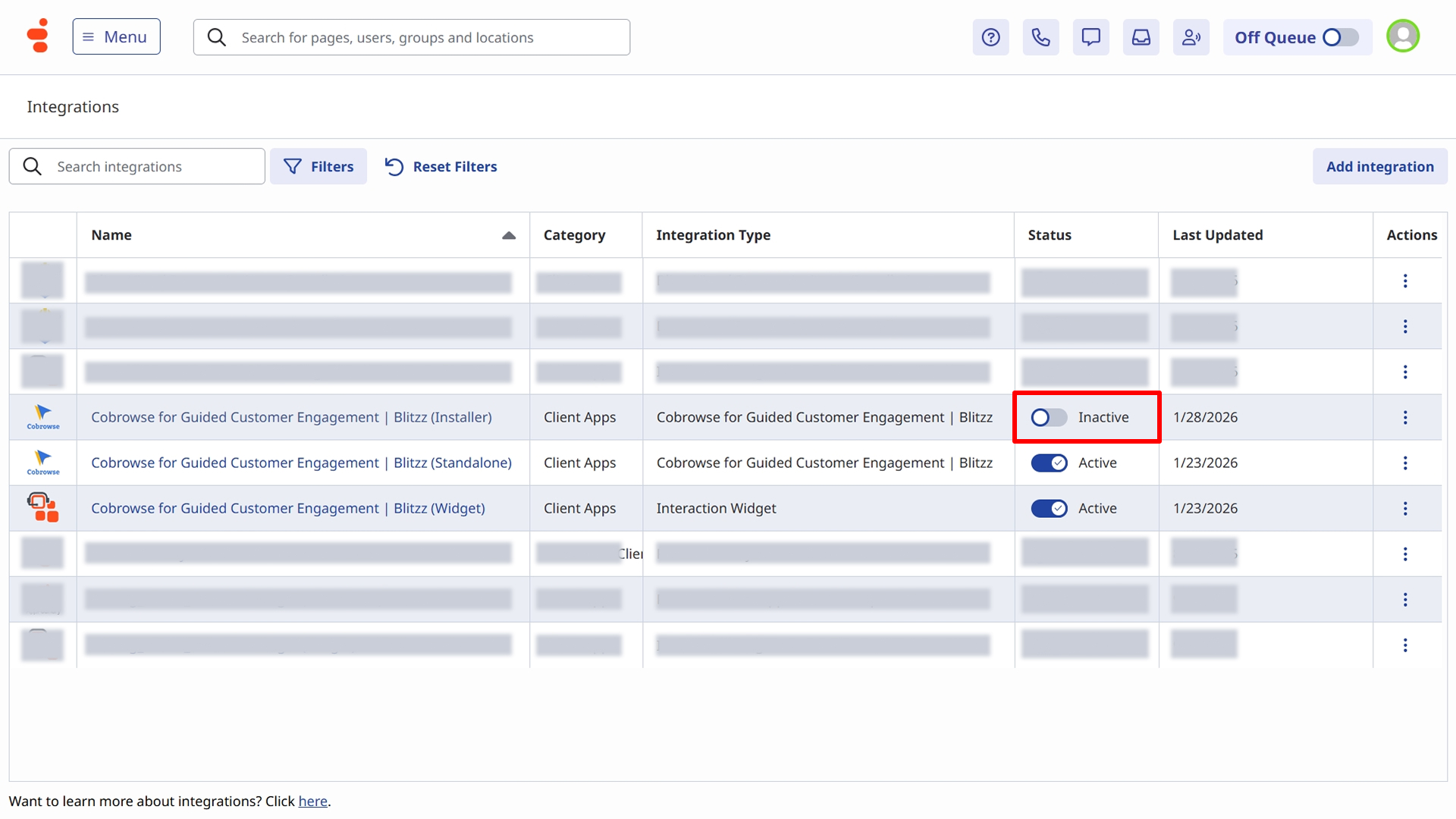
Confirm the installer shows Inactive status in the integrations list.
Step 4: Configure Genesys Integration in Blitzz
Now you'll connect your Blitzz account to your Genesys Cloud organization.
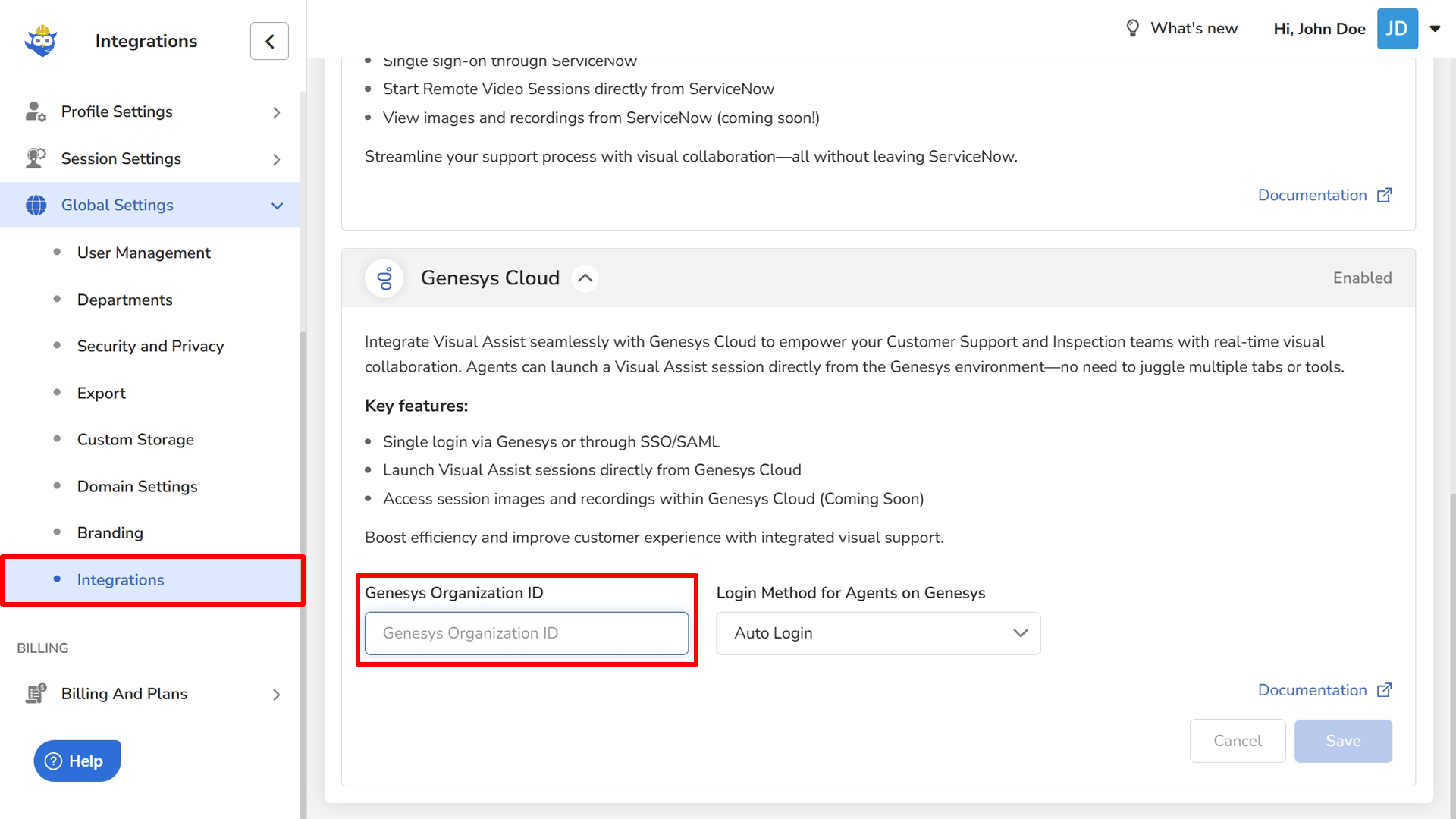
- Log in to your Blitzz Admin Portal as an administrator. From the left sidebar, click Global Settings, then select Integrations from the expanded submenu.
- Enter your Genesys Organization ID.
Click Save to store the configuration.
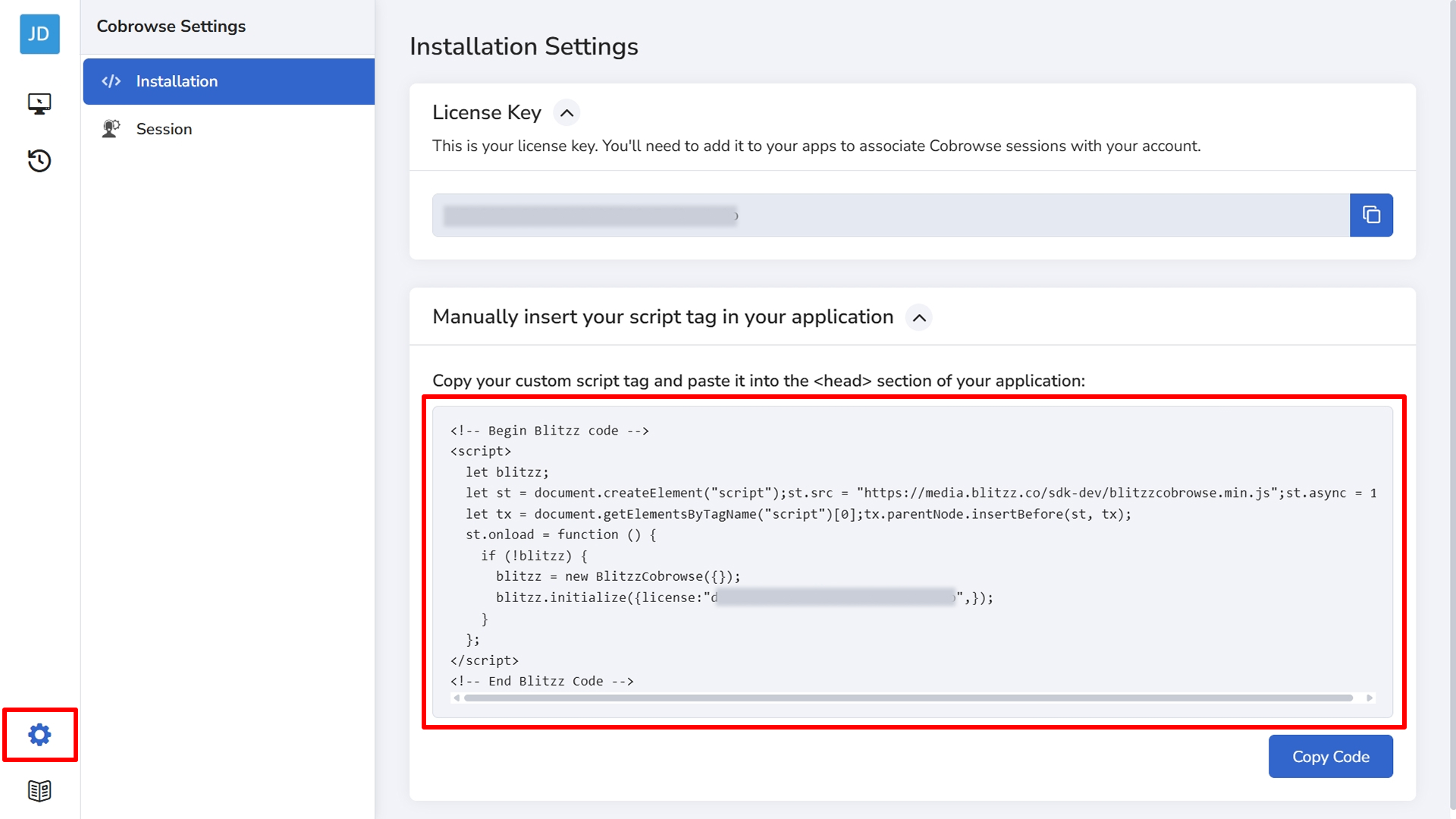
Navigate to the Blitzz Cobrowse Portal, select Settings from the left menu, open the Installation page, copy your custom script tag, and paste it into the footer of your application.
Step 5: Grant User Access
By default, only the installing administrator can access Cobrowse. You must grant access to agents who will use the application.
Add Users to the Blitzz Cobrowse Agents
- In Genesys Cloud, navigate to Admin → People & Permissions → Groups.
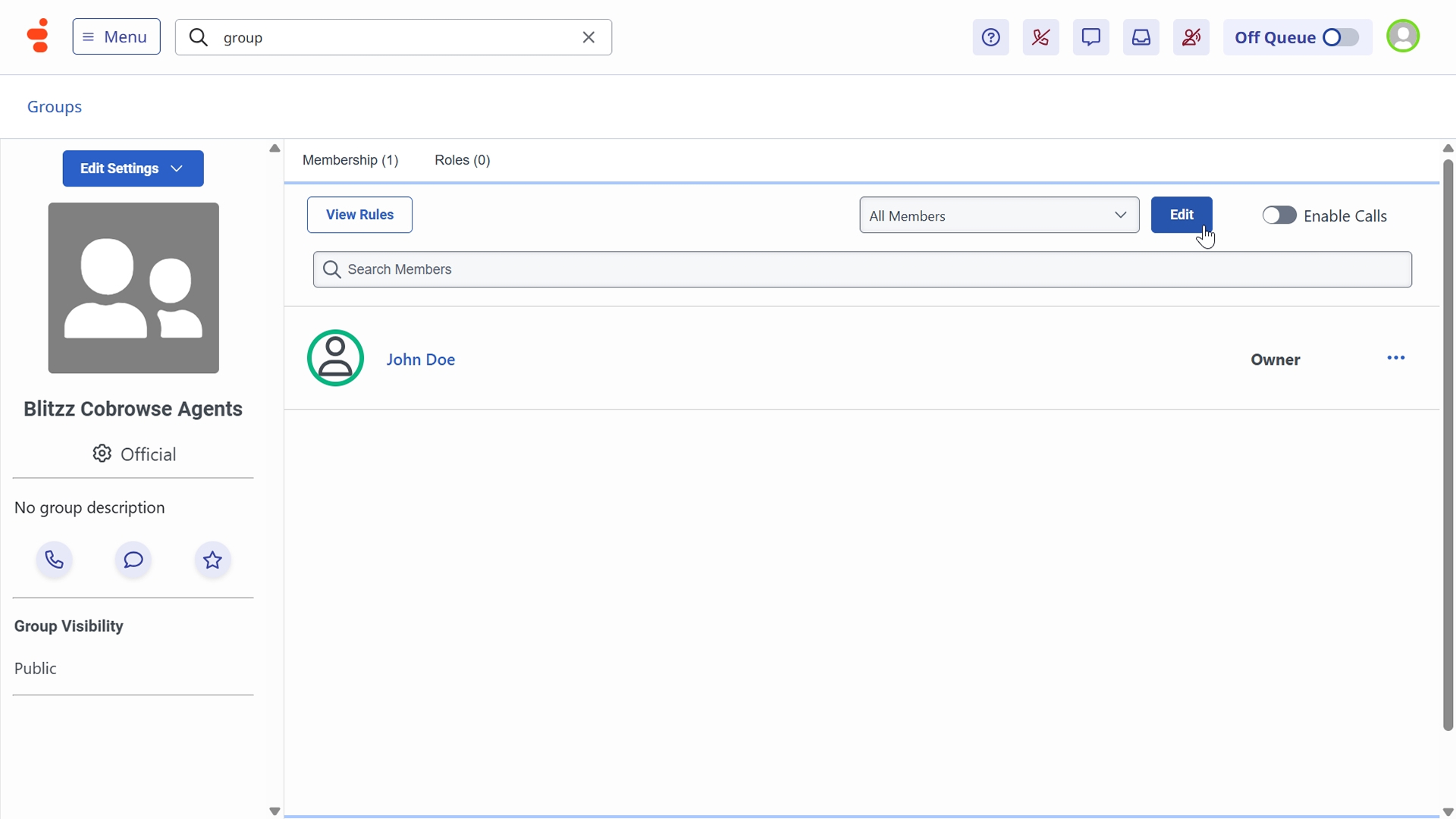
- Search for and select Blitzz Cobrowse Agents.
Click Edit or the Members tab.
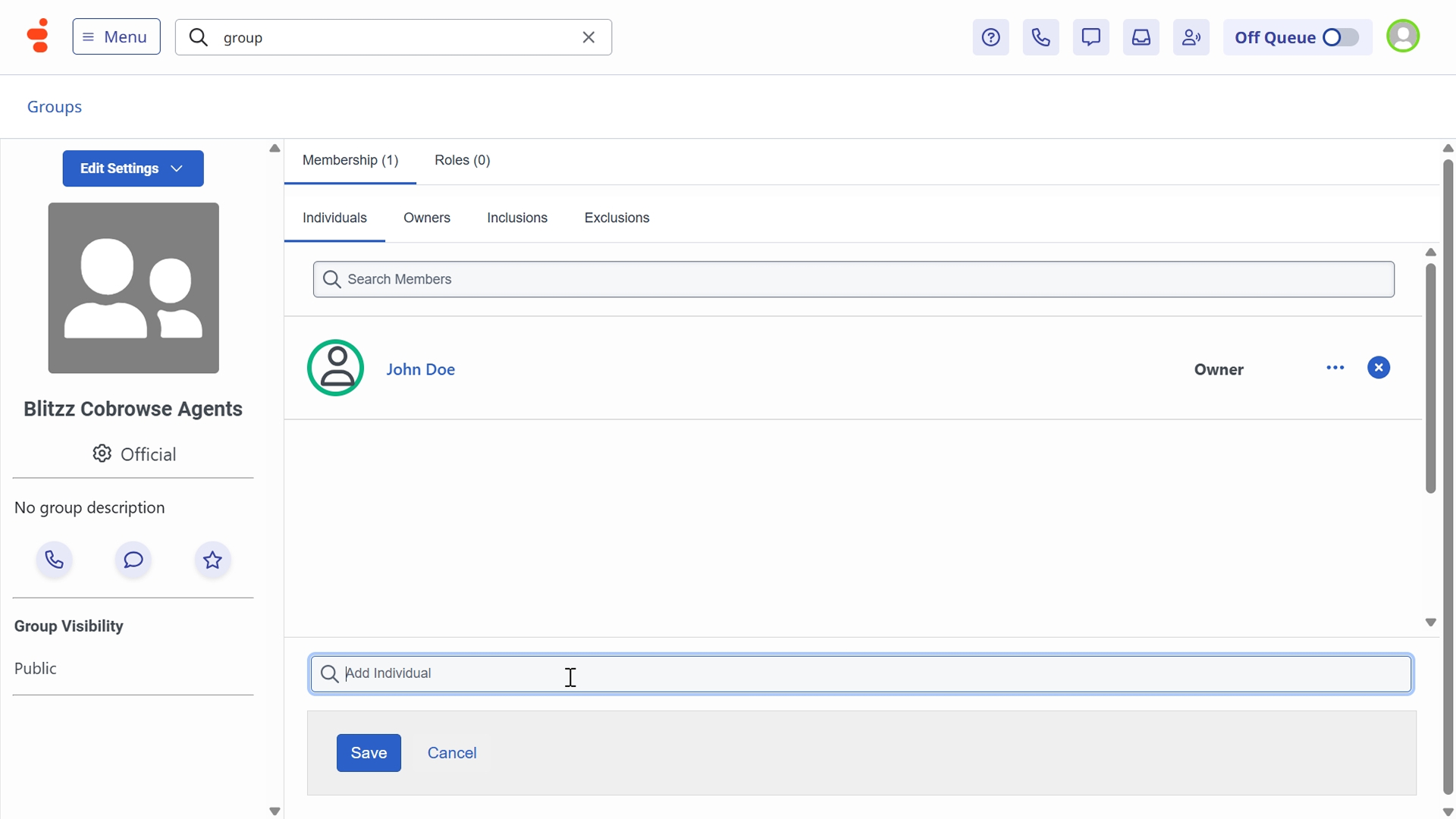
- Click Add Members.
- Search and select users who need Cobrowse access.
Click Save to apply changes.
Step 6: Genesys Configuration: Message Queue
The Message Queue configuration enables communication between Genesys Cloud and the Cobrowse integration, allowing screen sharing sessions to be initiated and managed through your Genesys environment.
- Navigate to Admin → Contact Center → Queues.
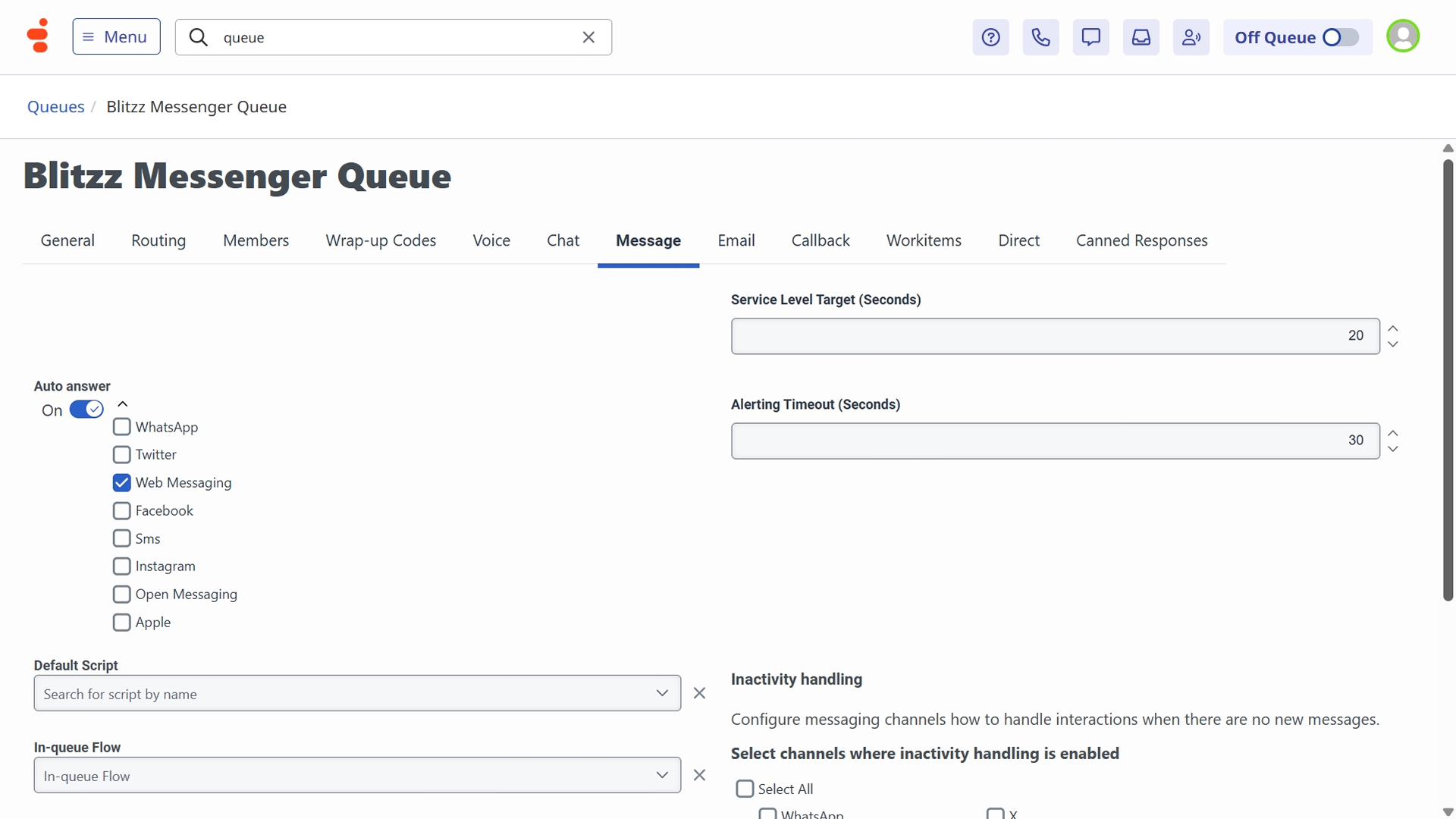
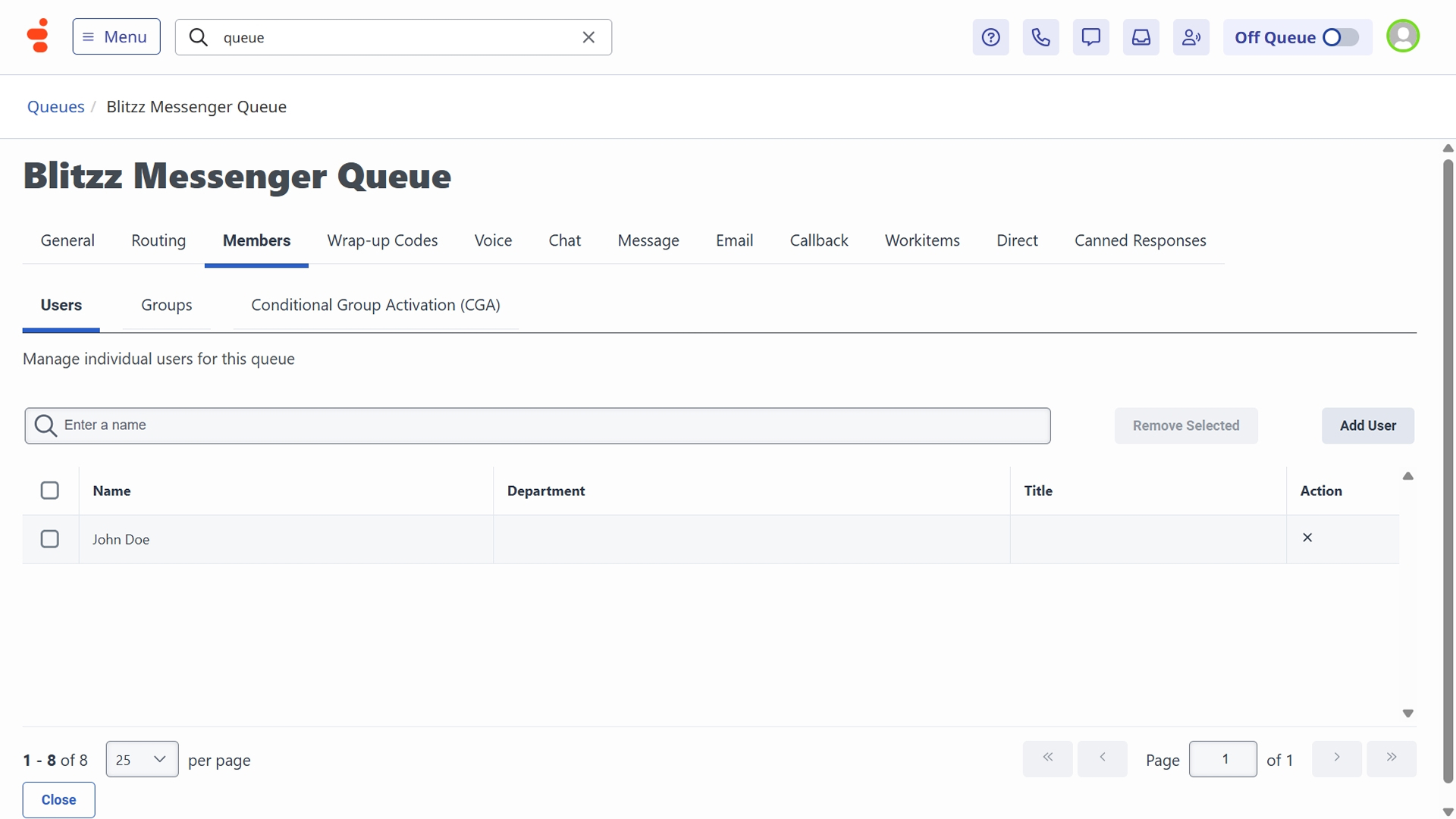
- Select Blitzz Messenger Queue.
Ensure Web Messaging is enabled in the Message tab for the queue.
Assign appropriate Users or Agents in the Members tab to the queue.
Step 7: Genesys Configuration: Messenger Configurations
Follow these steps to configure the Genesys Messenger for Cobrowse:
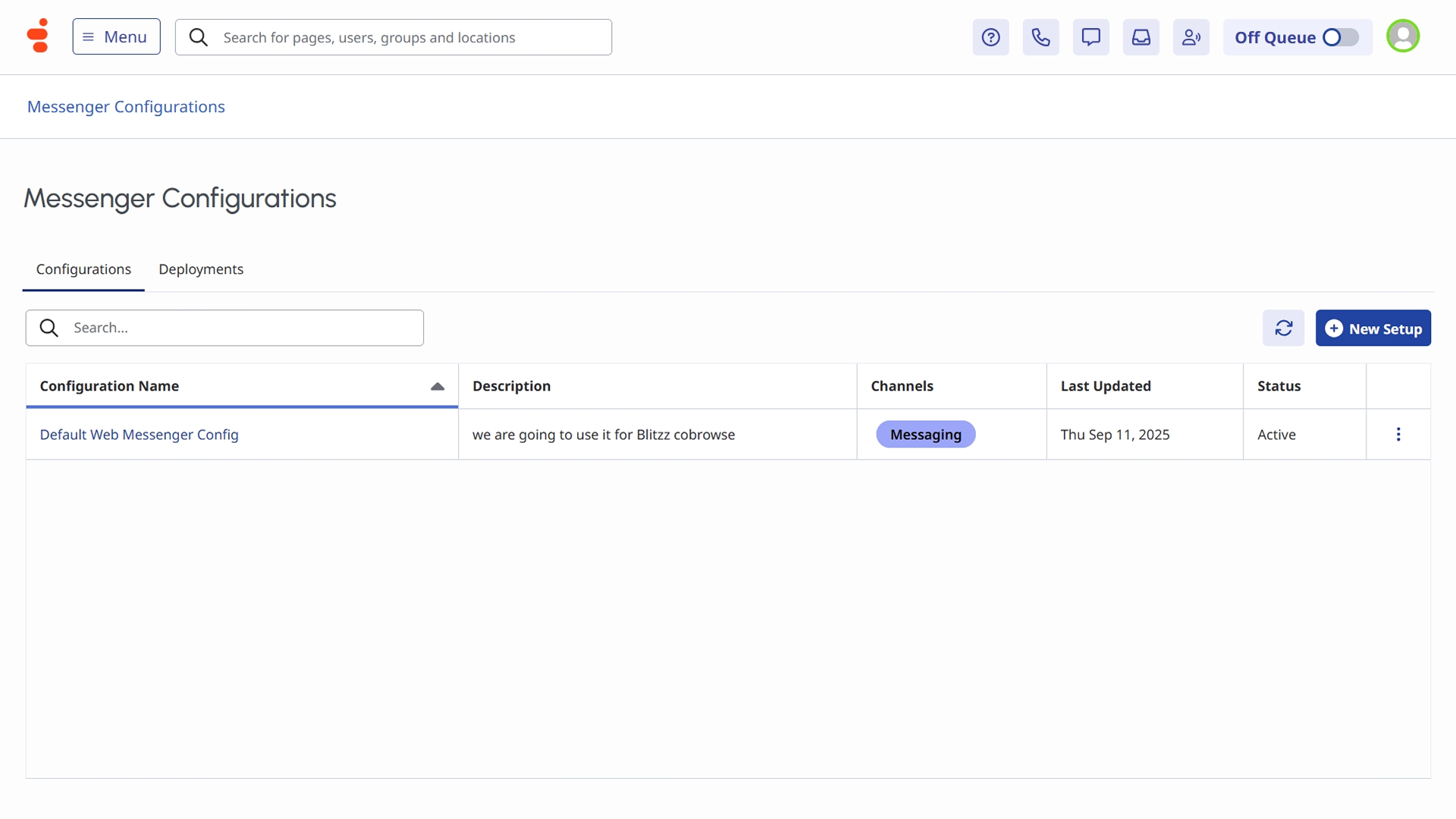
- Navigate to Admin → Message → Messenger Deployments.
- Select an existing Messenger deployment or create a new one.
Open the selected Messenger configuration.
Configure the Messenger settings as required (appearance, language, and behavior).
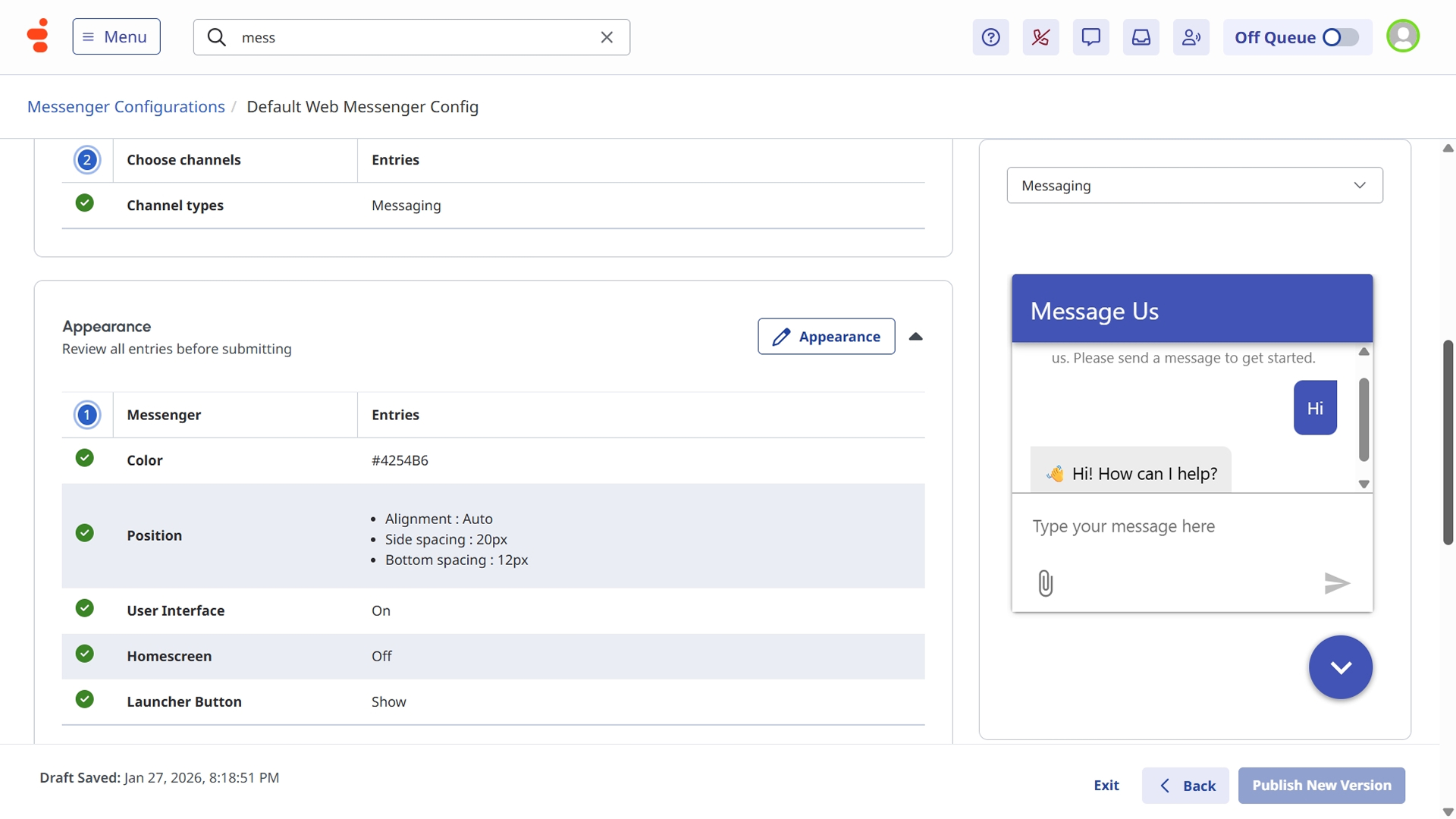
- Ensure the Messenger is linked to the appropriate message queue.
- Save the Messenger configuration.
Step 8: Genesys Configuration: Messenger Deployments
Messenger Deployments is where you generate and deploy the Genesys Web Messenger code snippet on your website.
Before moving to Messenger Deployments ensure "Inbound Message" Architect flow is created.
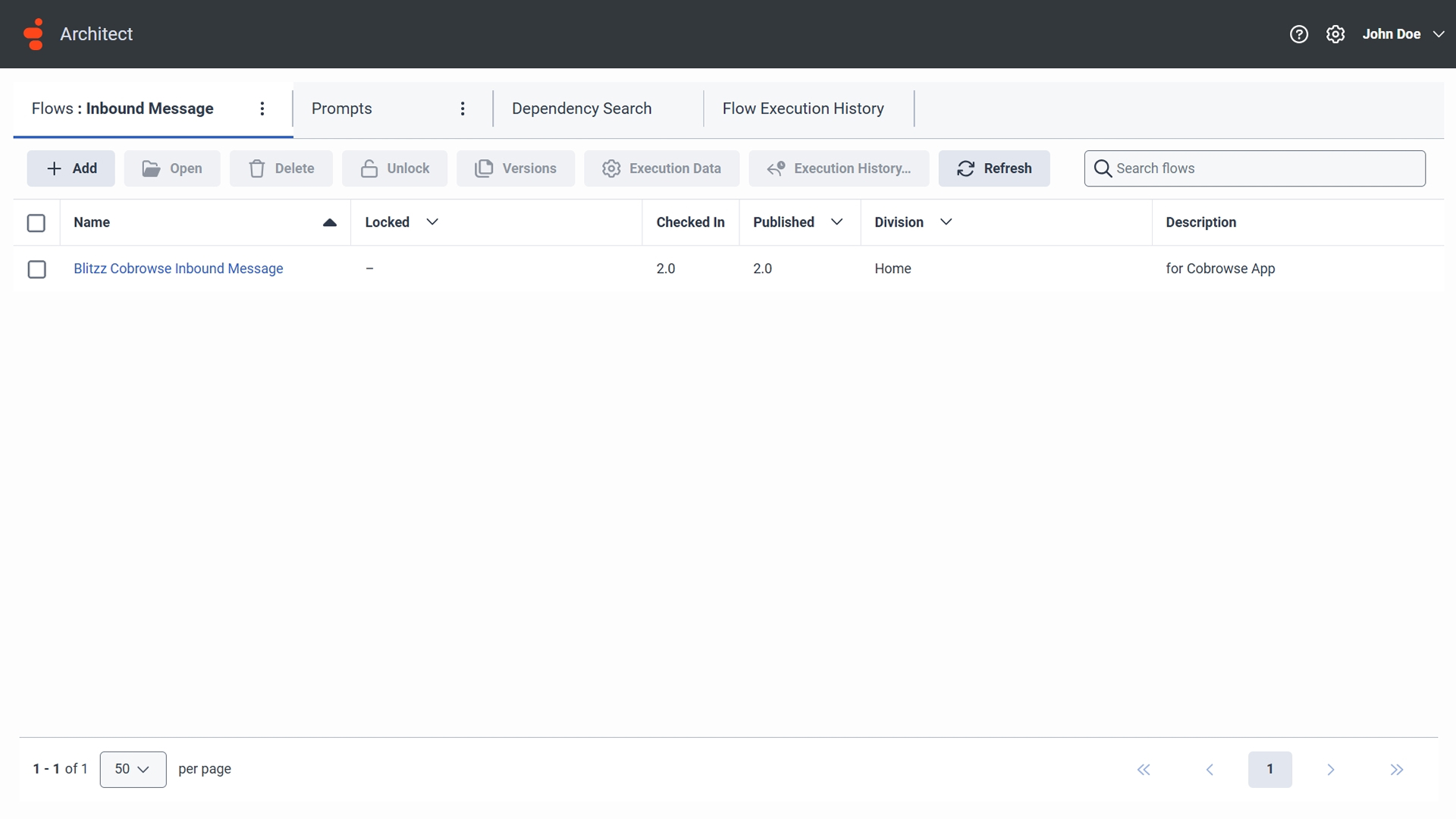
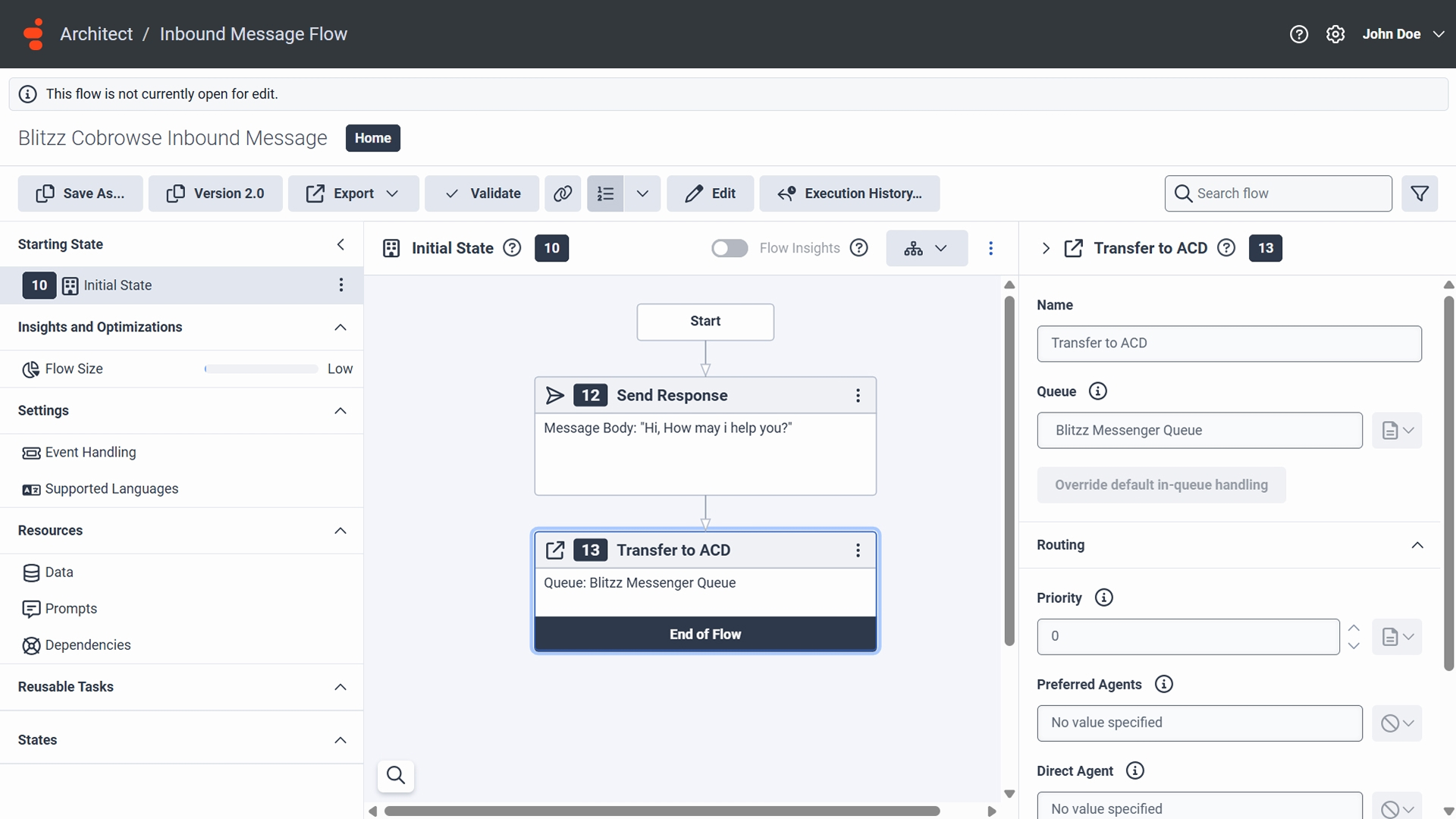
Proper Messenger Queue is configured to Architect flow.
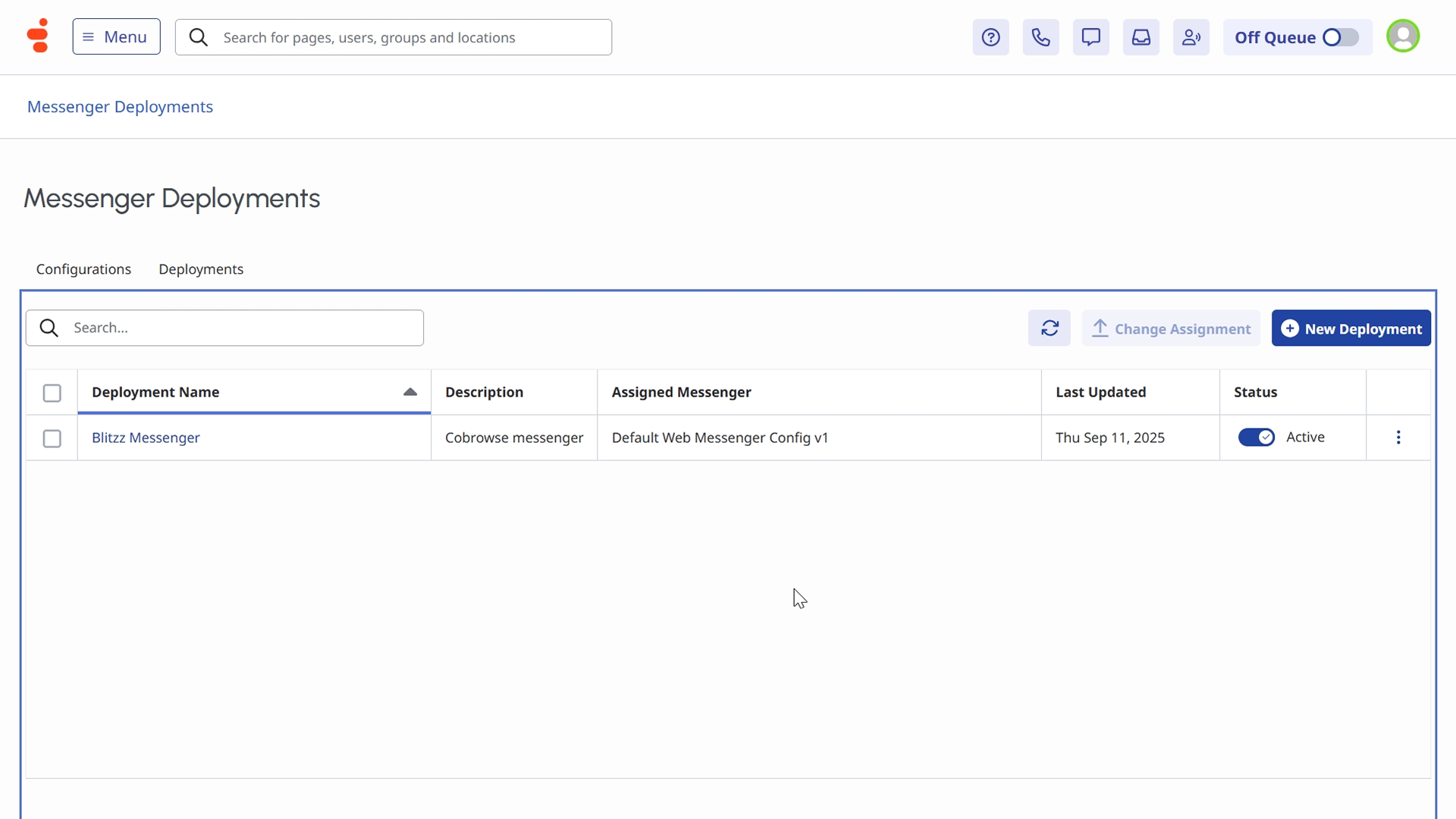
To fetch the Messenger script, navigate to Messenger Deployments and select Blitzz Messenger.
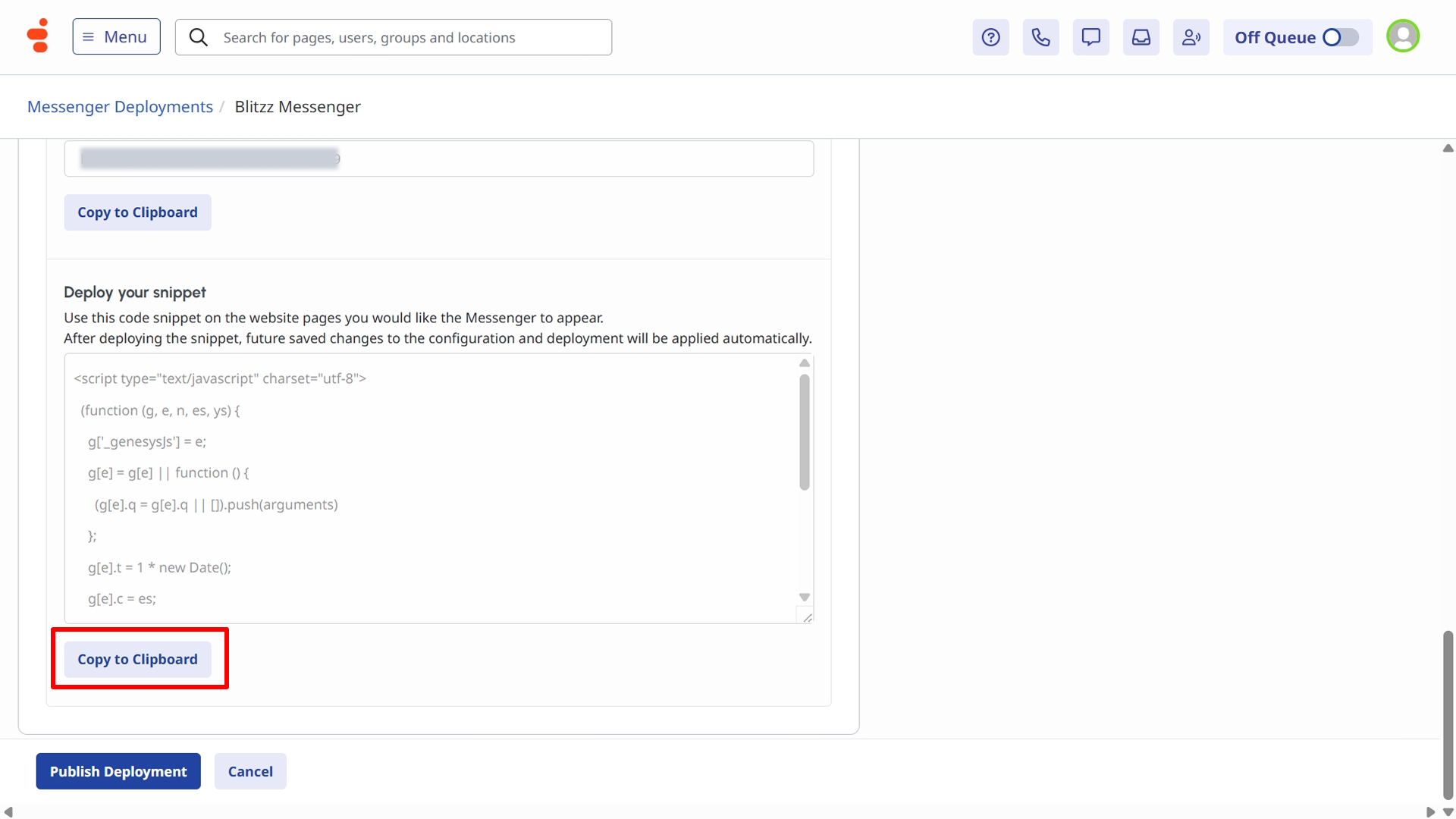
Copy the code snippet using the Copy to Clipboard button and paste it into the footer of your website where you want the Messenger to appear.
Add Script tag in your website
- Ensure the following script tags are added to your website so agents can automatically receive Cobrowse requests when users visit the site:
- Blitzz script: Copy the script from Blitzz Cobrowse Portal → Settings → Installation.
- Genesys script: Copy and deploy the snippet from Genesys → Messenger Deployments.
- Custom script: Add the custom script below to automatically show an active website visitor in Genesys using a unique device ID.
// Wait for the widget to be ready - send blitzz device id to the web messaging
Genesys("subscribe", "MessagingService.ready", function(){
  console.log("Messenger is ready");
    Genesys("command", "Database.set", {
      messaging: {
      customAttributes: {
        blitzz_deviceid: deviceId, // pass blitzz device id here
      }
    }
  });
});
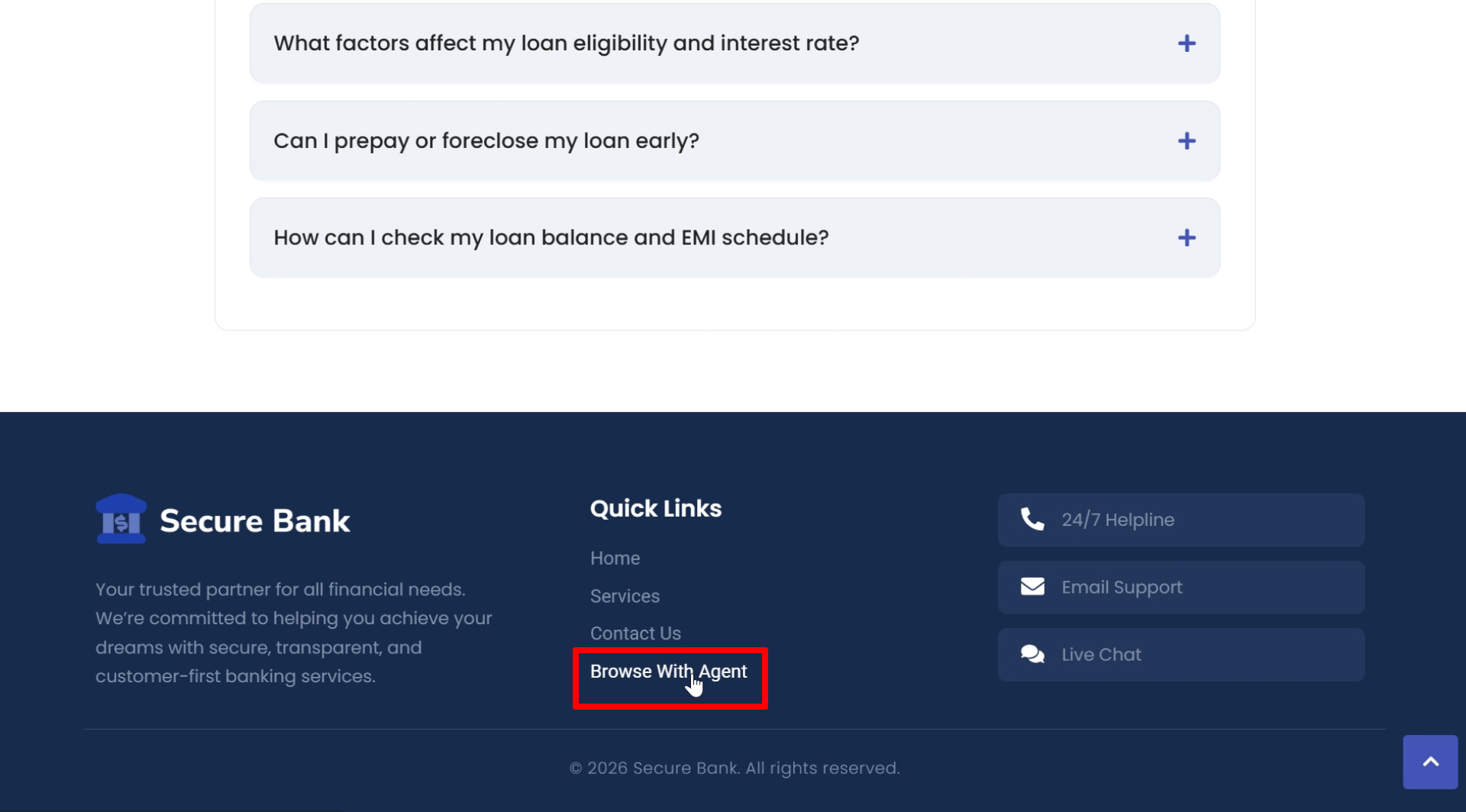
- If you want to generate a Cobrowse code manually (for example, from a “Browse with Agent” link or button in your website footer), call the function below on the click event of the link or button.
if (blitzz) {
  blitzz.getCode();
}
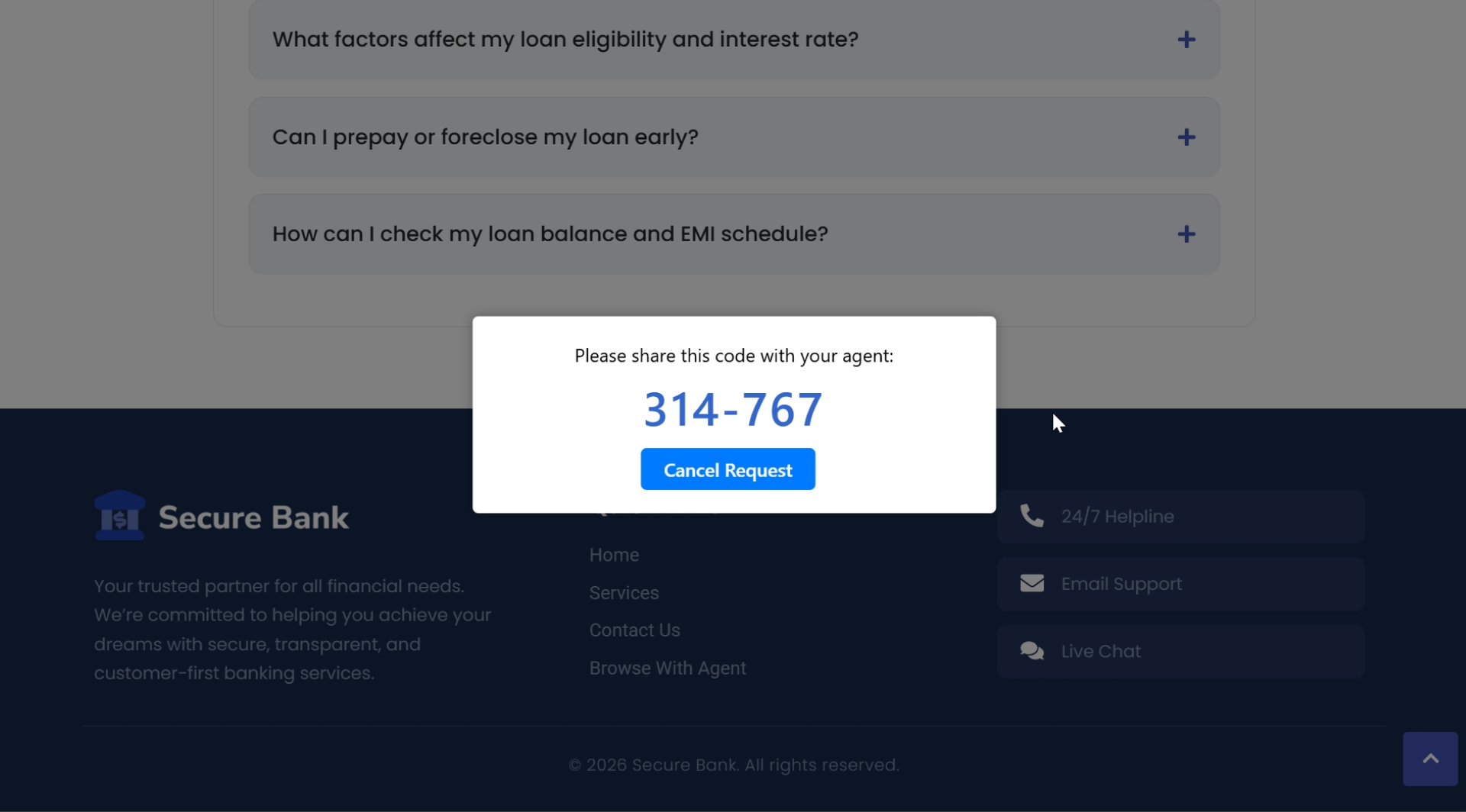
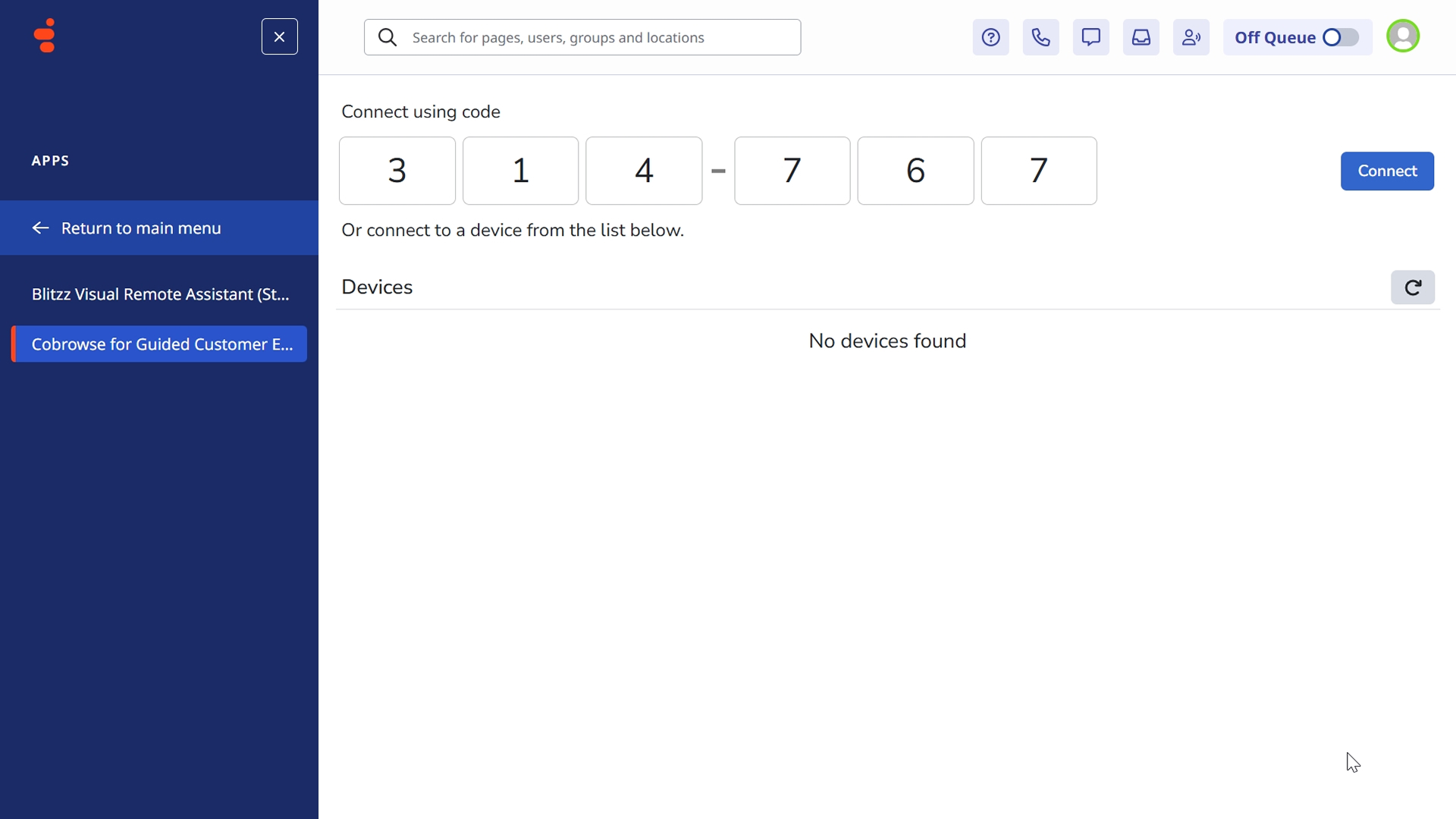
When this function is triggered, a pop-up displays a unique 6-digit code. The visitor must share this code with the agent via chat, audio, or video call. Once the agent receives the code, they can enter it into the Cobrowse code field on the Agent Dashboard to start the session.
Step 9: Test the Widget Integration
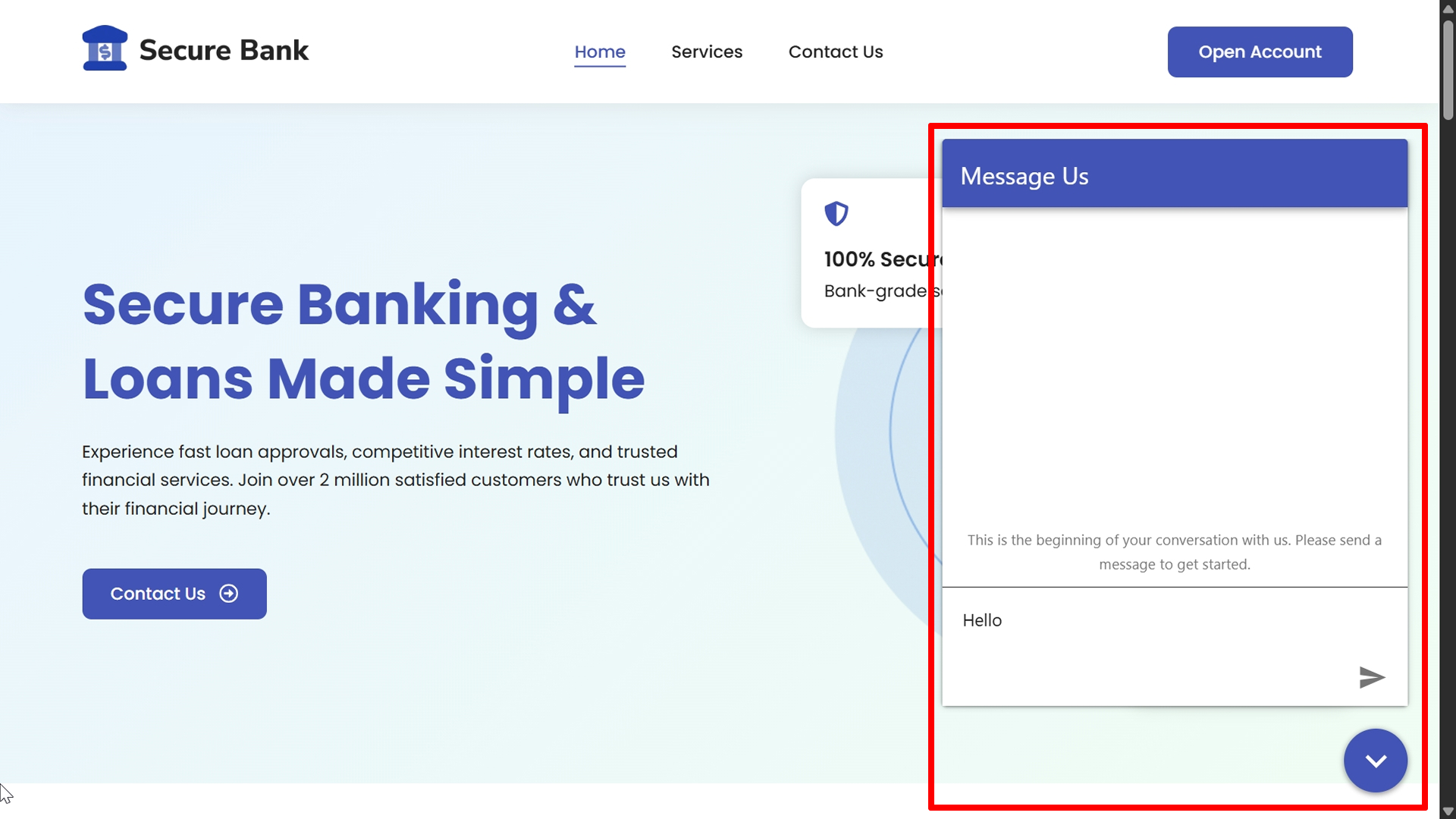
The Cobrowse widget appears during active interactions, allowing agents to securely guide customers within their browser in real time.
Displays the Genesys Messenger on your website, allowing users to connect with Agent.
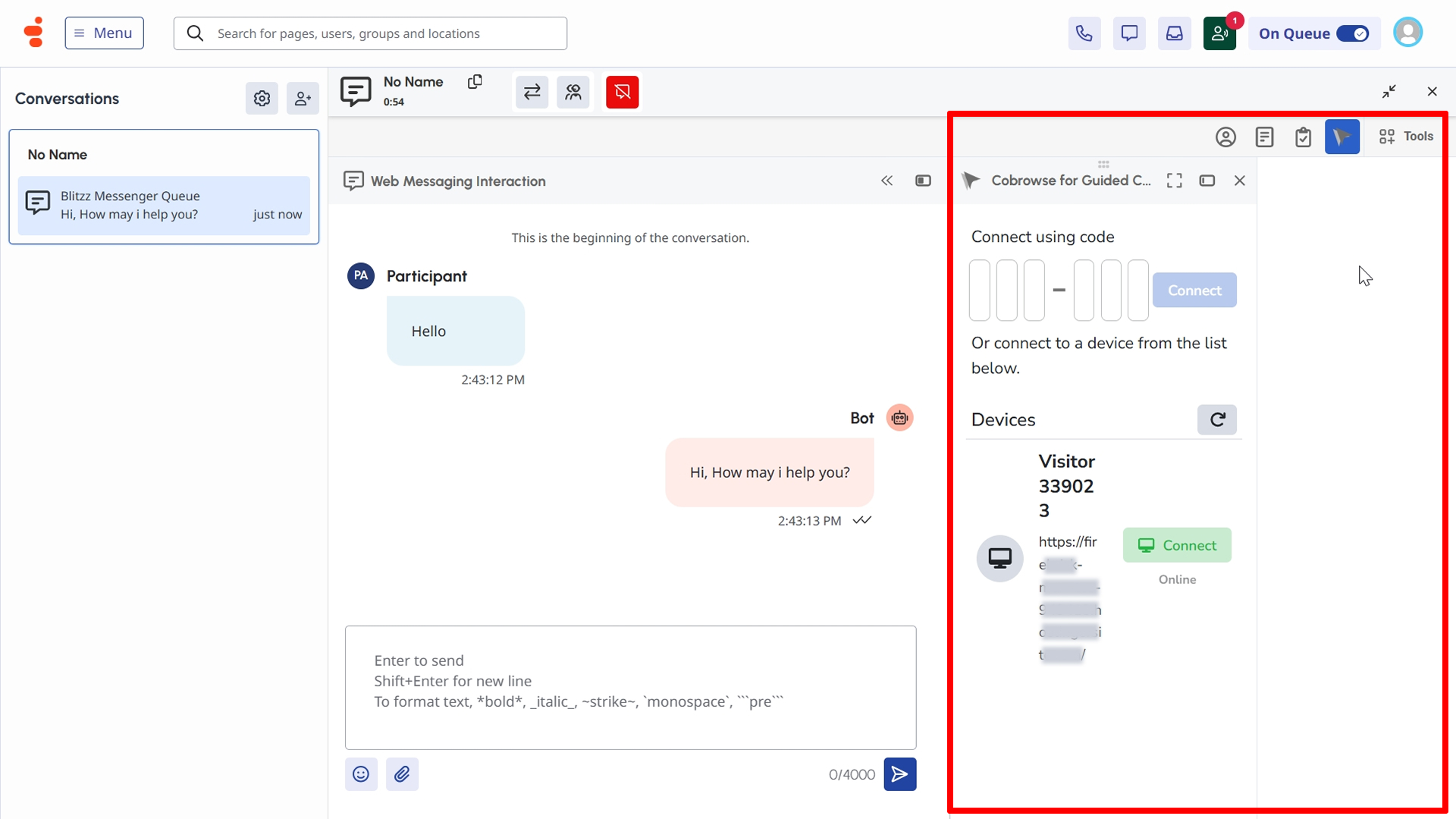
Agents automatically receive Cobrowse session requests when users visit the site.
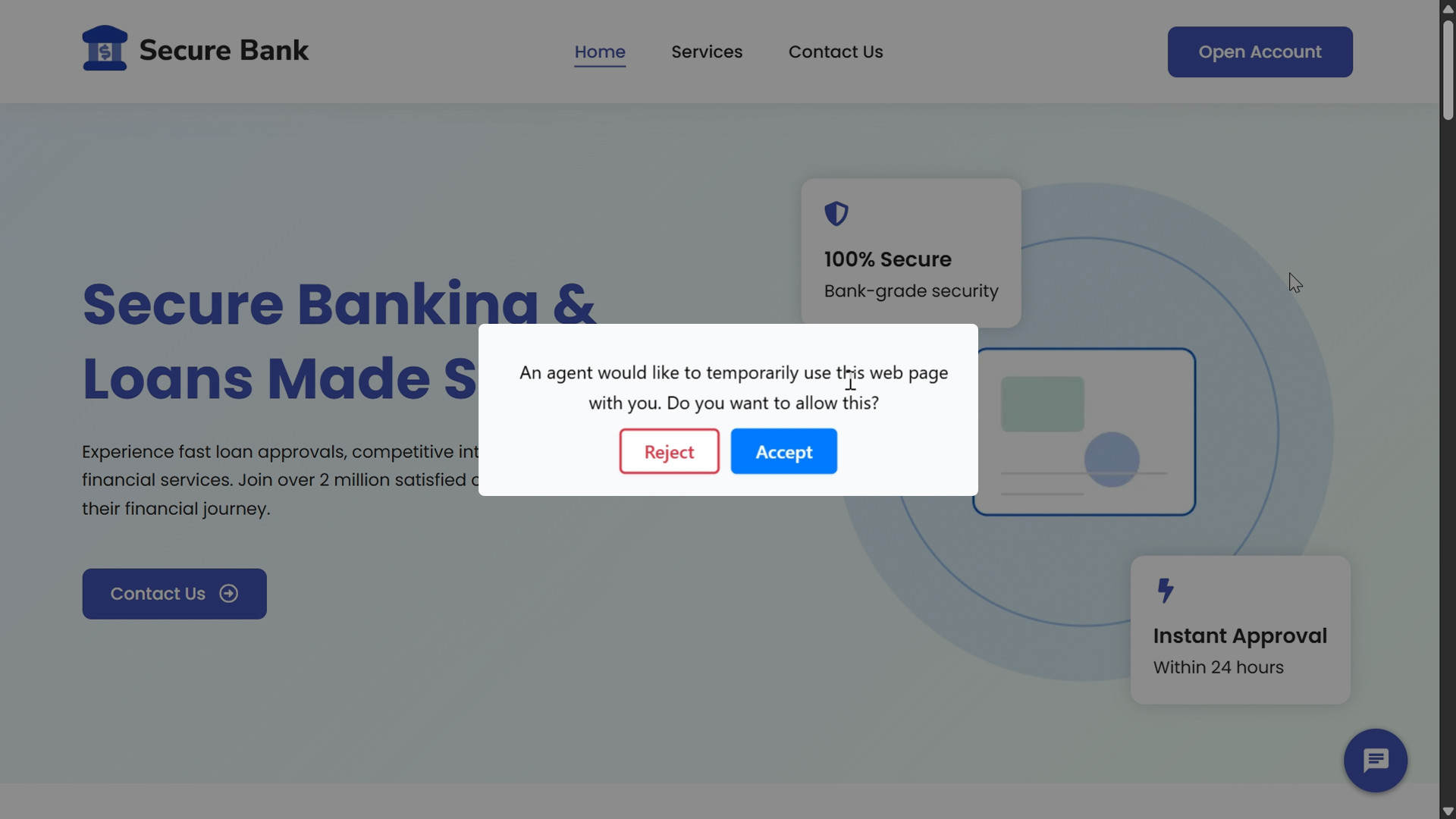
The user receives a Notification when the agent clicks the Connect button.
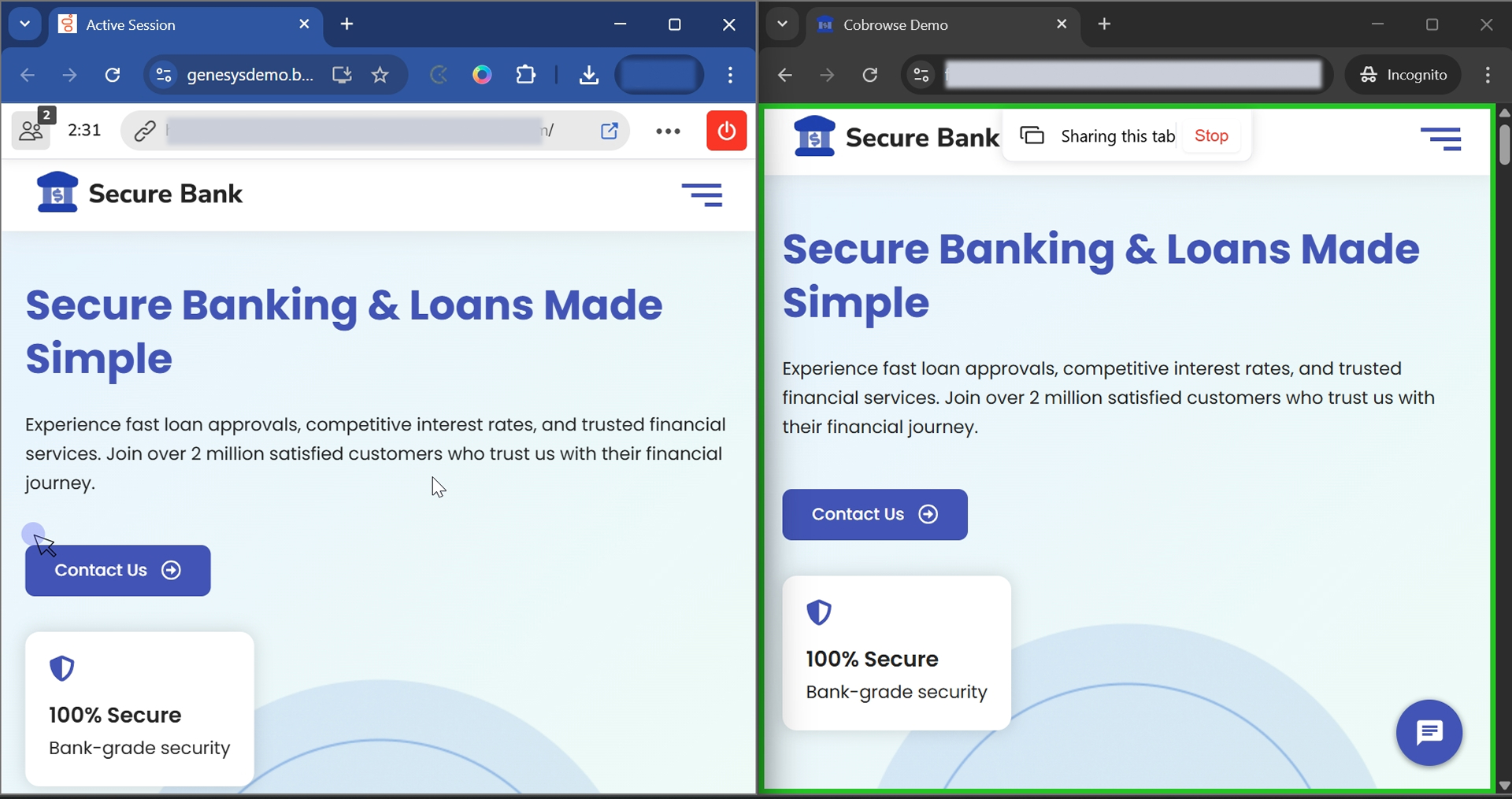
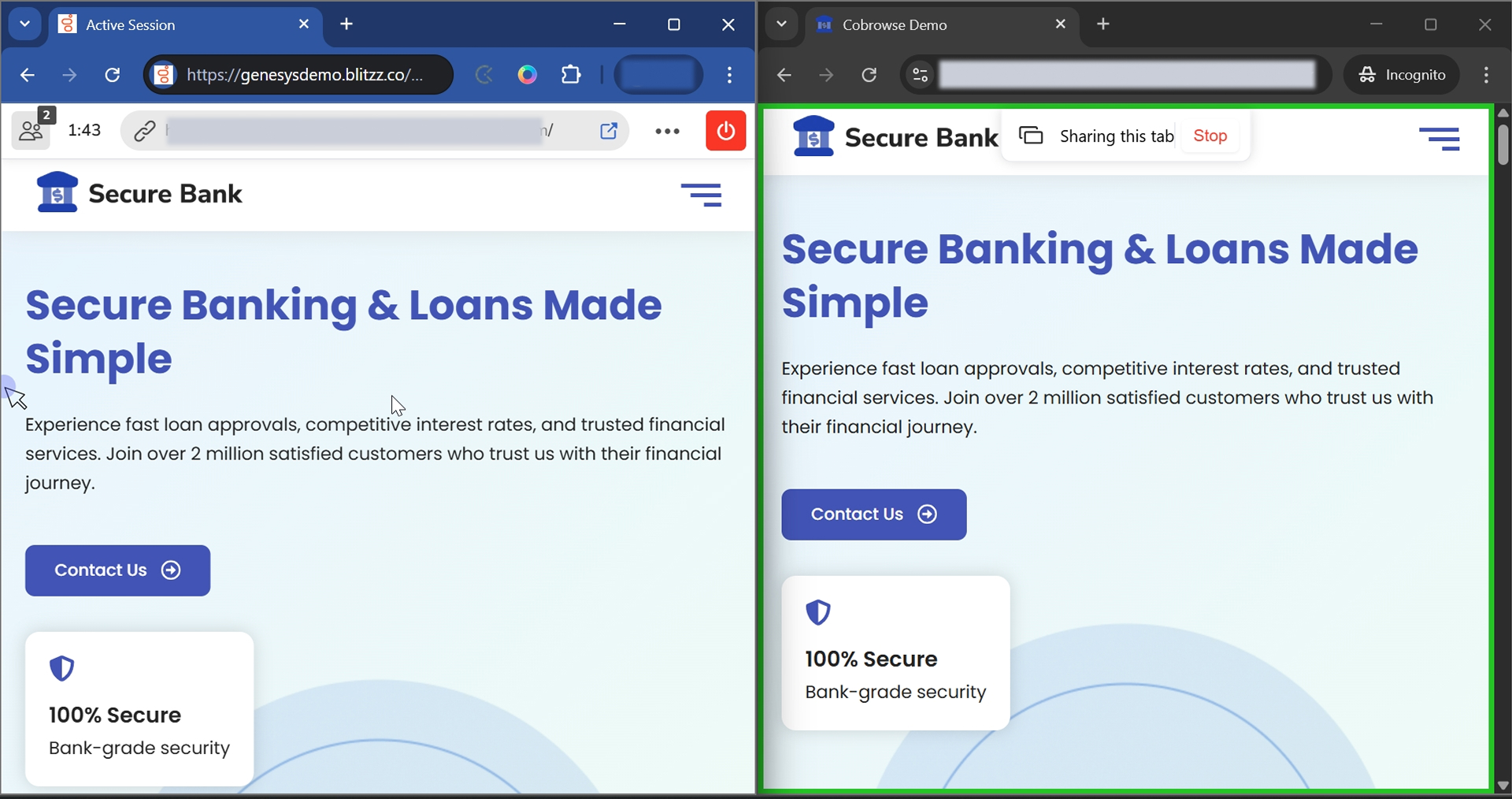
Once connected, the Cobrowse session starts and both the agent and user can view the shared site.
Step 10: Test the Standalone App
The standalone app allows agents to initiate secure cobrowsing sessions outside of active Genesys interactions.
Launching the Standalone App
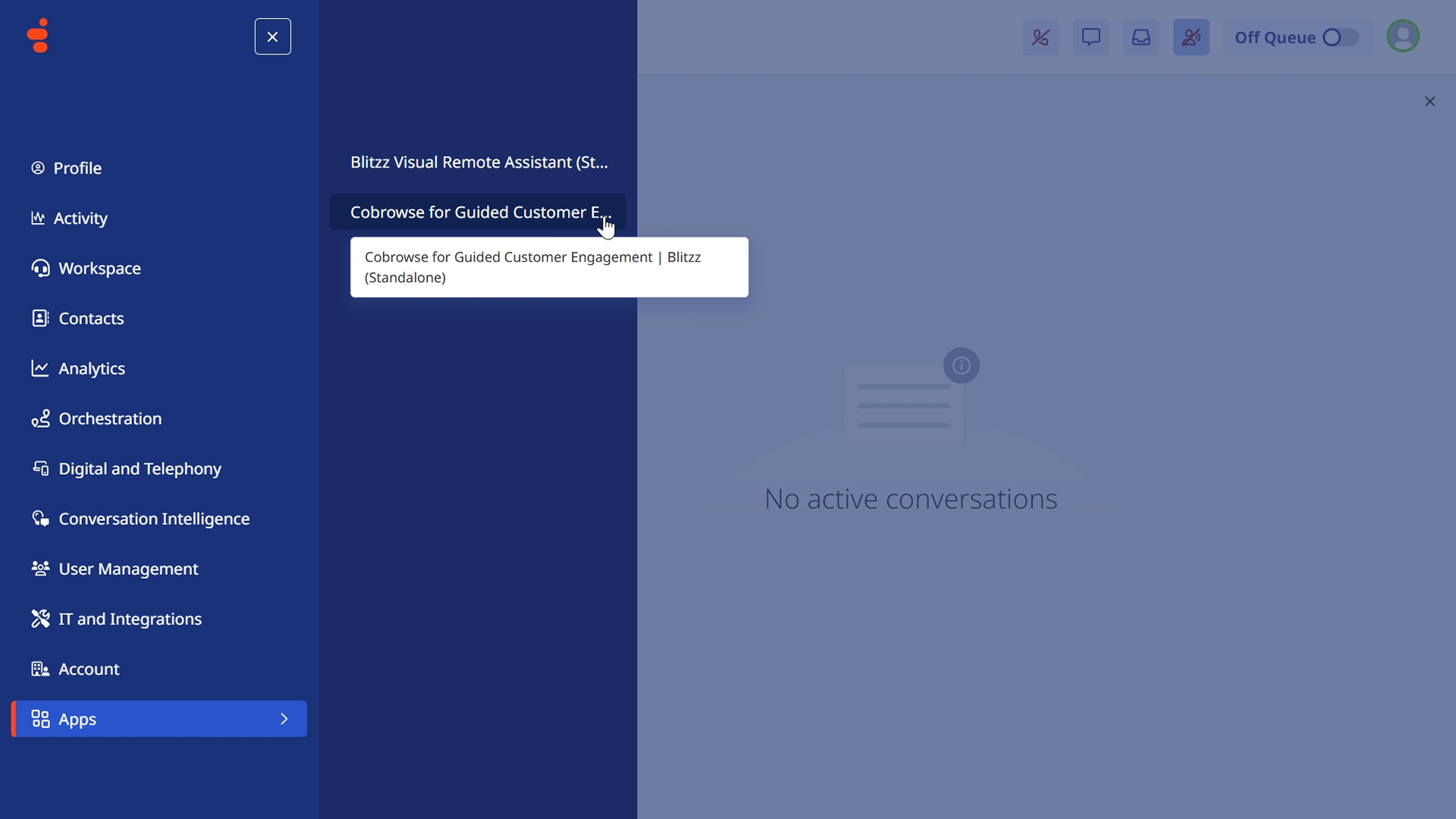
- Navigate to Apps in the Genesys Cloud top navigation.
- Click Cobrowse for Guided Customer Engagement Blitzz (Standalone)..
The app opens in a new window or panel.
Connect a session using a manual code
Configure the link or button to call the Cobrowse manual code generation function on click.
When the user clicks the link or button, a pop-up appears displaying a unique 6-digit Cobrowse code. The user shares this code with the agent via chat, voice, or video call.
The agent enter the 6-digit Cobrowse code provided by the user and click Connect.
The user receives a notification and click Accept.
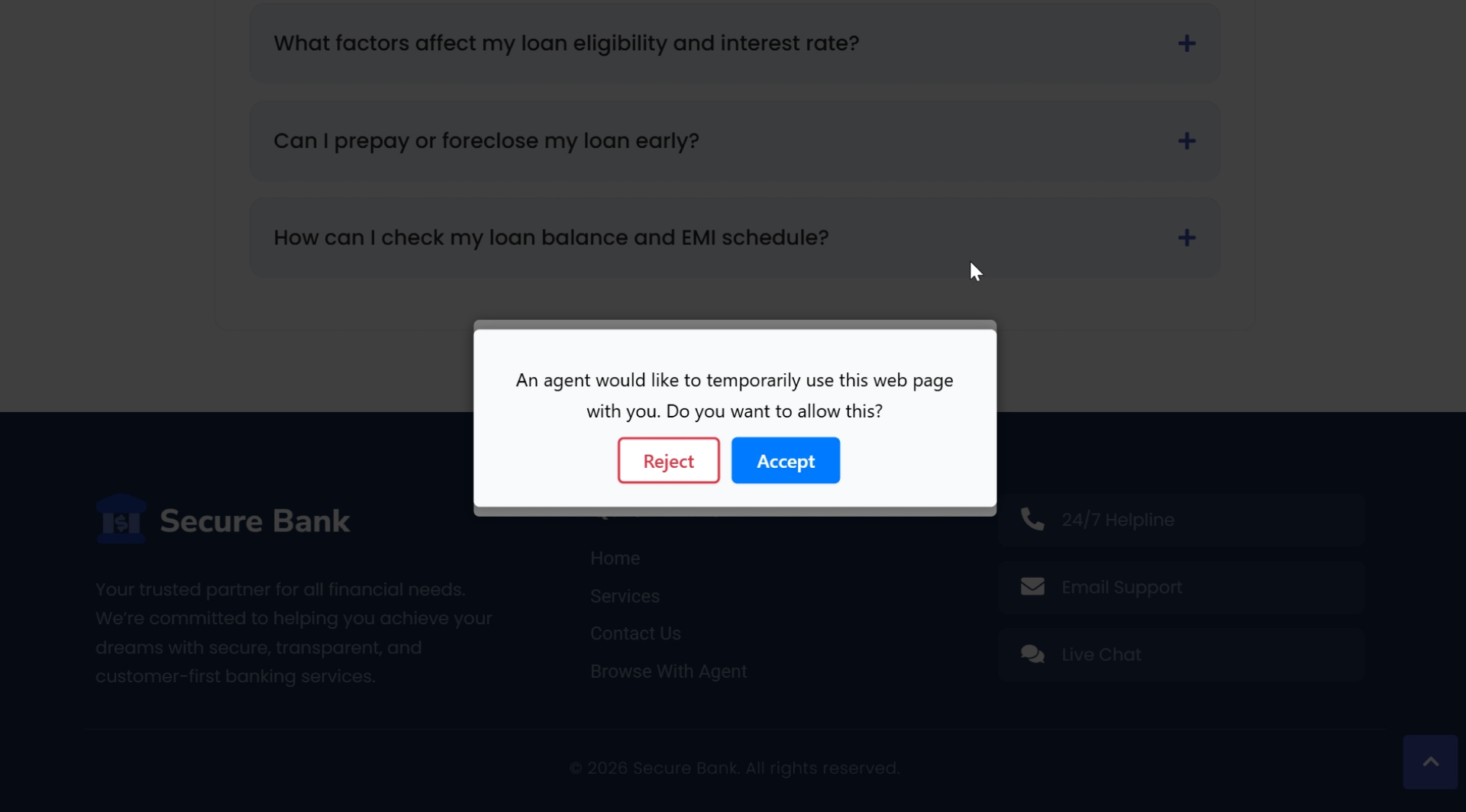
Once connected, the Cobrowse session starts and both the agent and user can view the shared site.
For integration-specific issues, contact Blitzz support with your Genesys Organization ID and a description of the problem. Include screenshots or error messages when possible.