Overview
The Blitzz Agent Portal is your central hub for managing video sessions with customers, field technicians, or remote participants. Access it through Chrome (Windows) or Safari (Mac).
With the Agent Portal, you can:
Start and manage video sessions with up to 4 participants
Invite guests via SMS, WhatsApp, email, or shareable link
Capture photos and annotate images in real-time
Share your screen and use collaborative tools
Extract text from images using OCR
Access session history, recordings, and reports
TABLE OF CONTENTS
- Overview
- Sign In
- Agent Portal Dashboard
- Inviting Guests to a Session
- In-Call Controls
- Collaboration Tools
- Session Management
- More Resources
Sign In
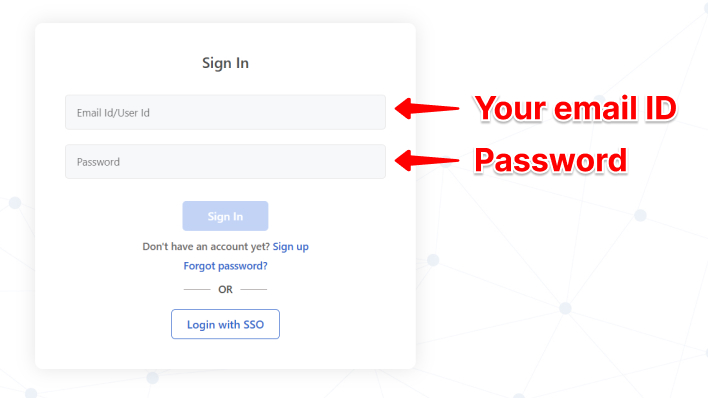
Go to https://web.blitzz.co or your custom domain URL (e.g., yourcompany.blitzz.co)
Enter your email address and password
Click Sign In
Tip: If your organization uses Single Sign-On (SSO), click the SSO option to log in with your corporate credentials.
Forgot your password? Click Forgot Password to reset it, or contact your administrator.
Agent Portal Dashboard
After signing in, you'll see the Agent Portal dashboard with three main areas:
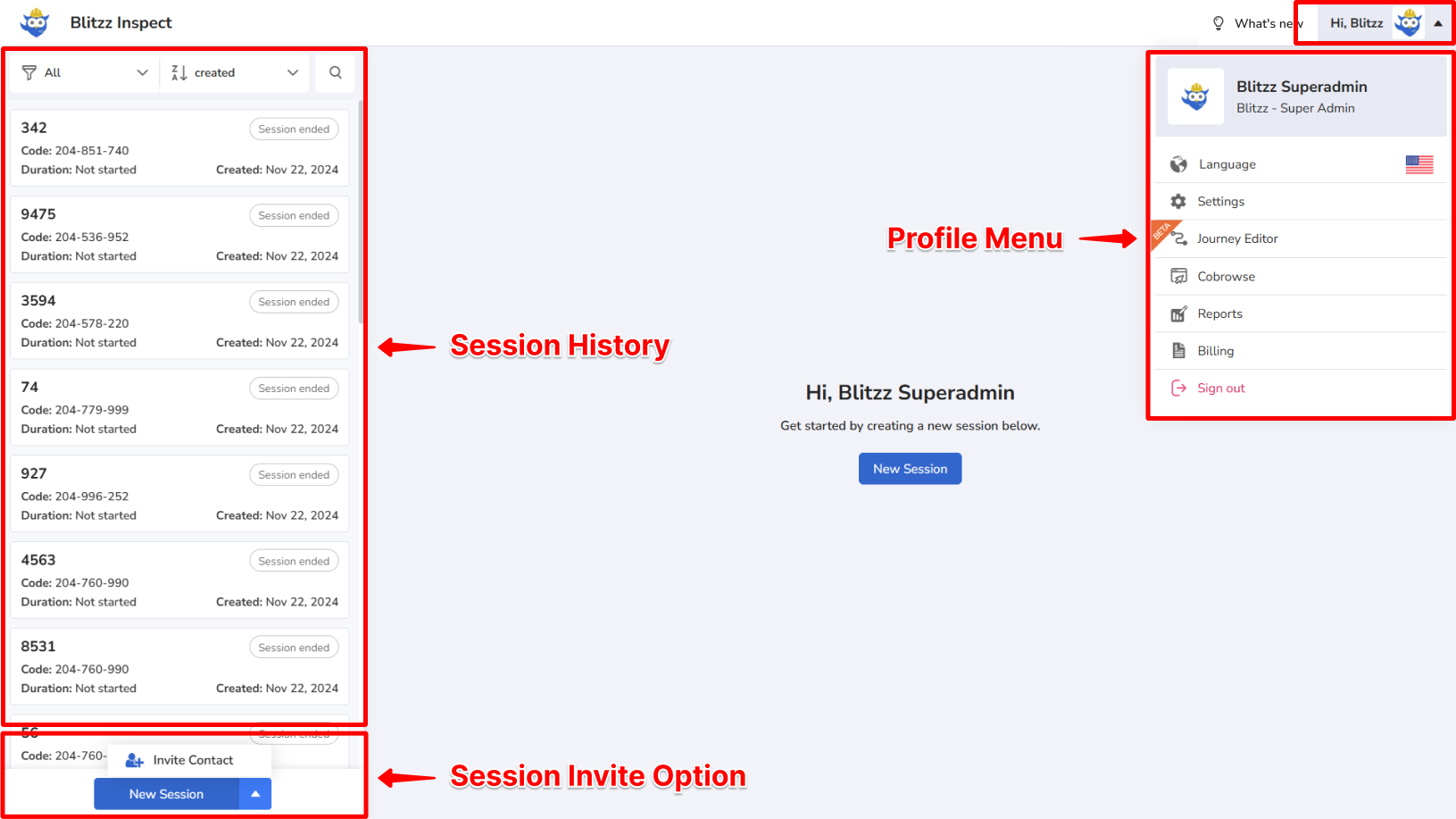
| Profile Menu (top right) | Access language settings, account settings, and reports (based on user permissions) |
| Session History (left panel) | View past sessions with details, photos, and recordings |
| Invite Buttons (bottom left) | Start new sessions by inviting guests or contacts from your organization |
Inviting Guests to a Session
Sessions support up to 4 participants, and guests don't need to download any app—everything runs in their browser.
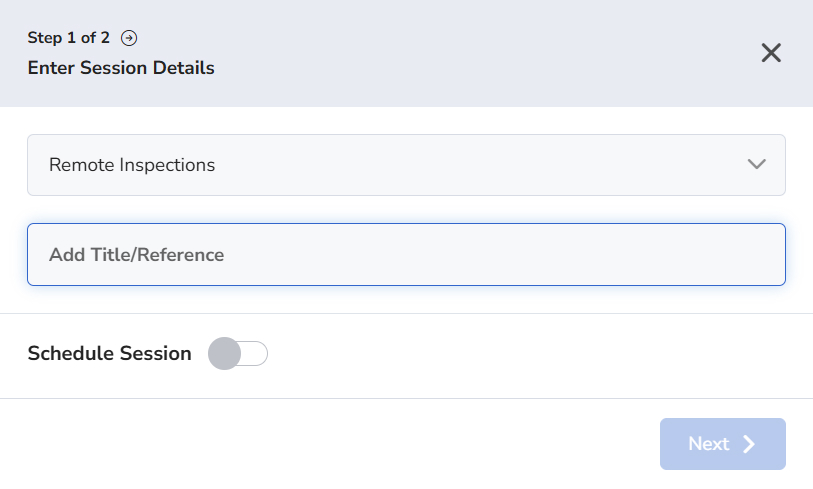
Step 1: Enter Session Details
Before inviting a guest, you'll be prompted to enter a Reference (e.g., ticket number, permit ID, address, or case number). This helps you track and organize sessions.
Step 2: Choose an Invite Method
SMS Invite (Most Common)
Enter the participant's mobile phone number
Click Invite and Join
The guest receives a text message with a link to join
Remind guests to click CONNECT and ALLOW access to their camera, microphone, and location when prompted.

Alternative Invite Methods
| Method | How to Use |
| Enter phone number and click Invite and Join (if enabled for your account) | |
| Enter the guest's email address and click Invite and Join | |
| Session Code | Copy the code and have the guest enter it at join.blitzz.co |
| Copy Link | Copy the session URL and share it via any messaging platform |
In-Call Controls
Once in a video session, you'll see a toolbar at the bottom of the screen with various controls.
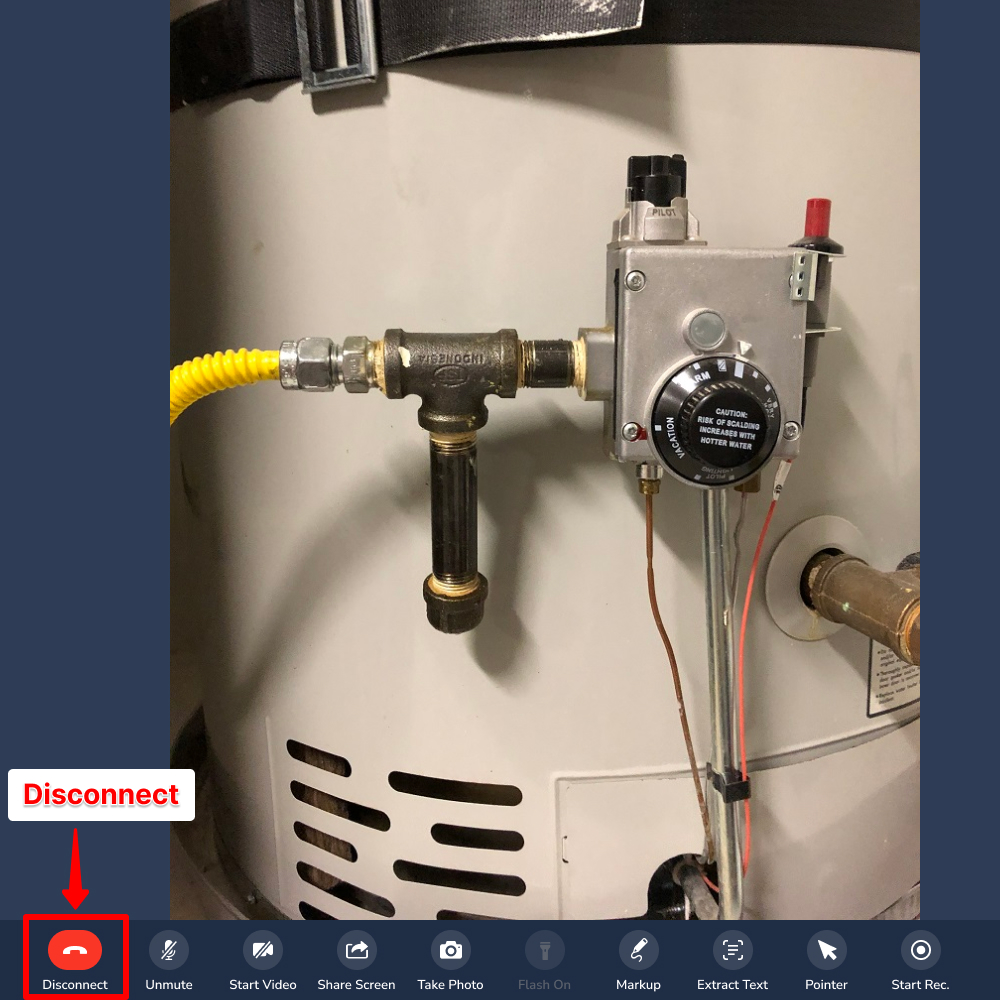
Disconnect Call
Click the Disconnect button (red phone icon) to end the call.
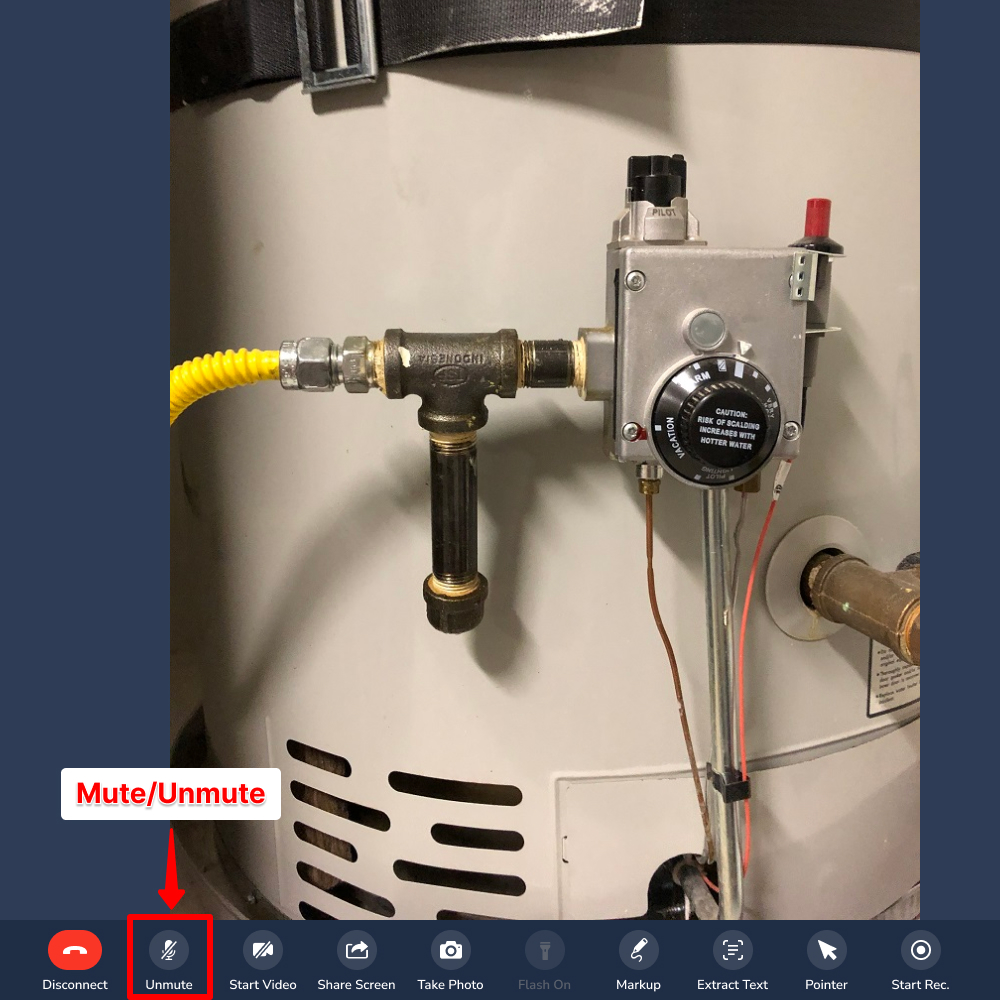
Mute / Unmute
Toggle your microphone on or off:
Click Unmute to activate your microphone
Click again to Mute
When active, the microphone icon appears green
Tip: If you're also speaking with the customer on a phone call, keep your microphone muted to avoid echo and feedback.
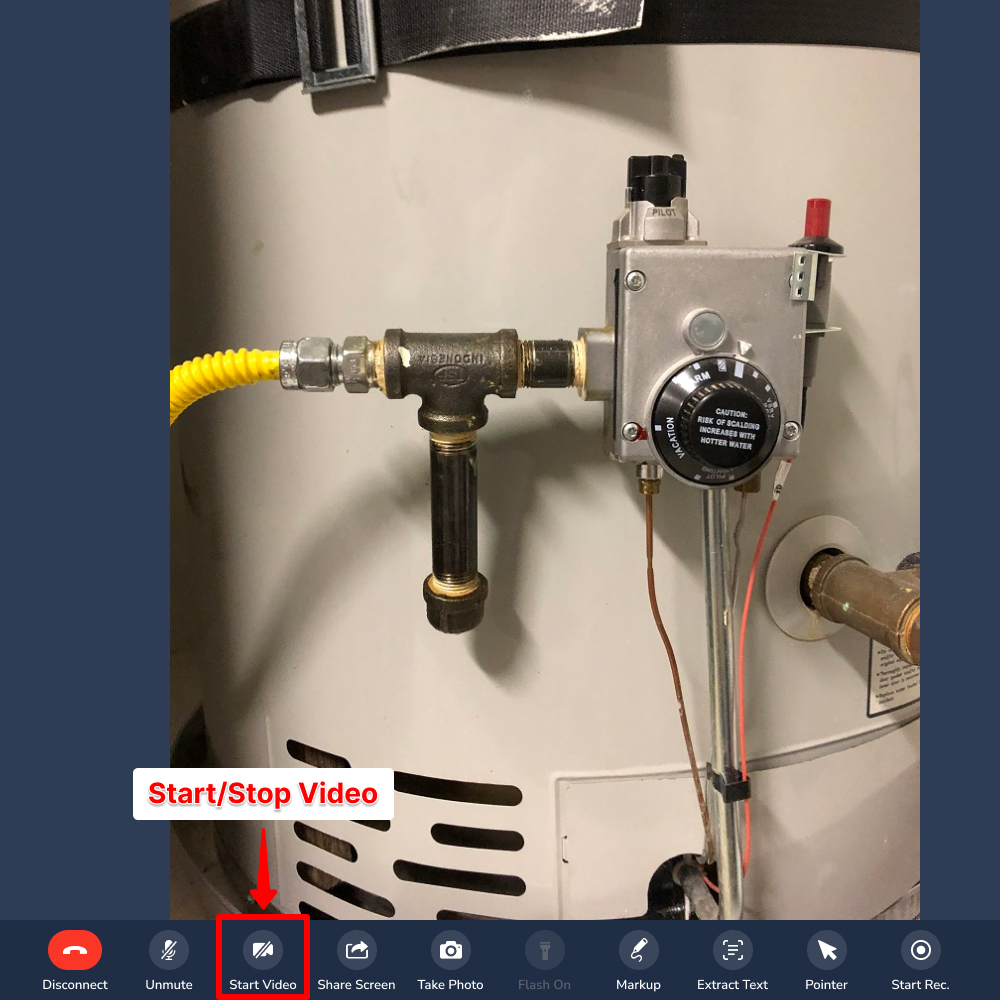
Start / Stop Video
Toggle your camera on or off:
Click Start Video to turn on your webcam (the guest will see you)
Click again to stop the video
When active, the camera icon appears green
Collaboration Tools
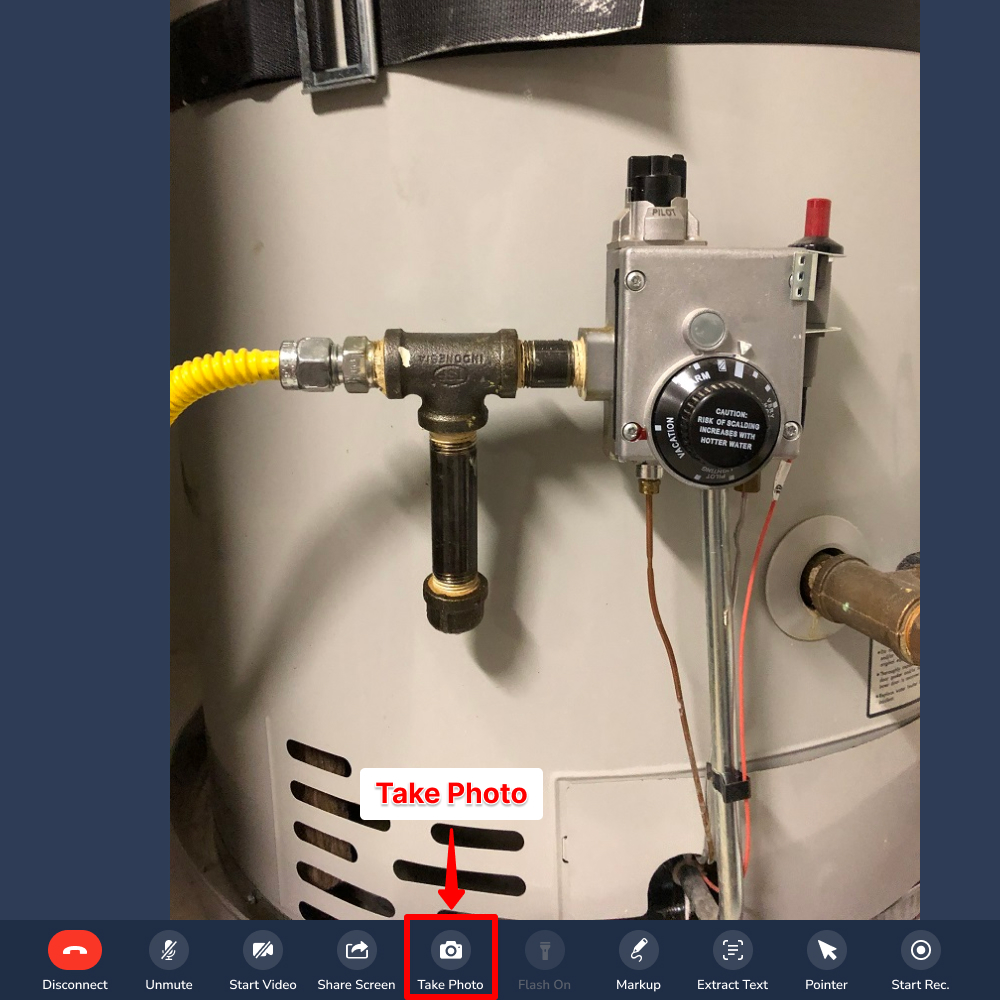
Take Photo
Capture high-quality still images from the live video stream:
Click Take Photo in the toolbar
The photo is captured instantly from the guest's camera
Photos are automatically saved to the session history
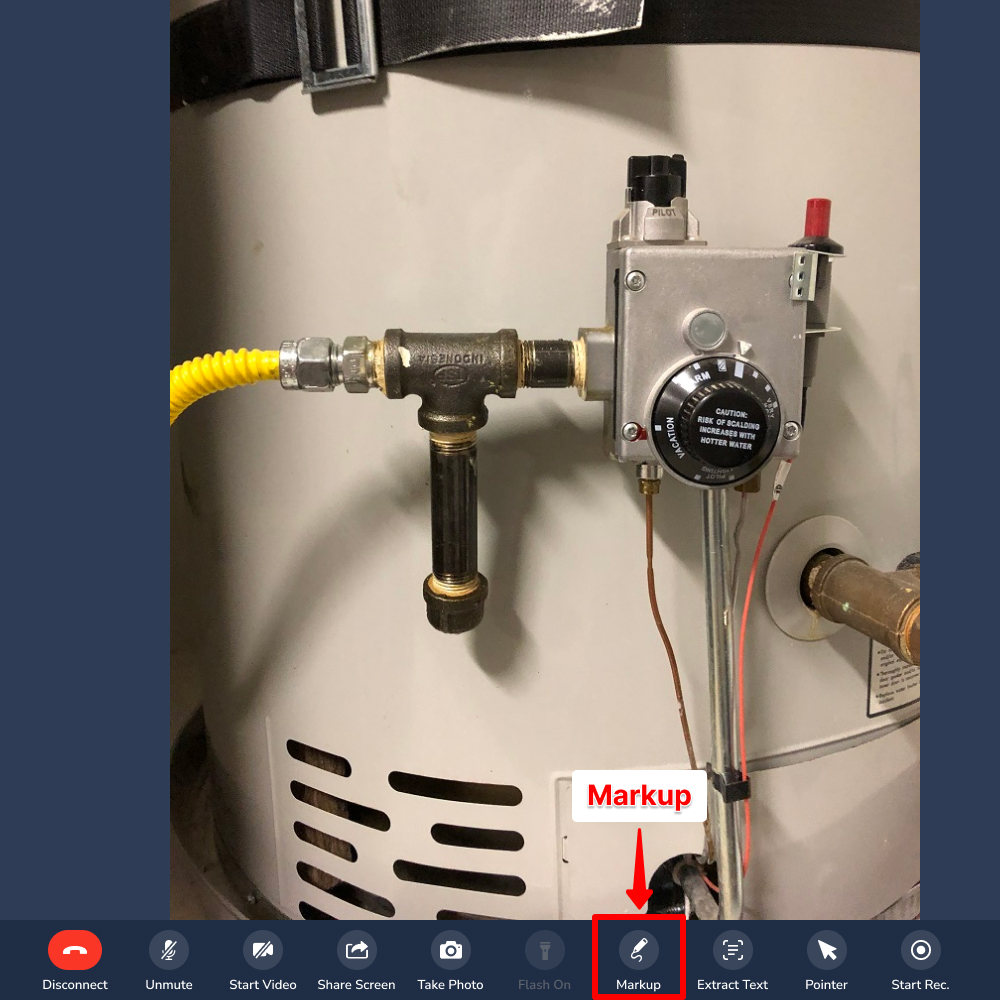
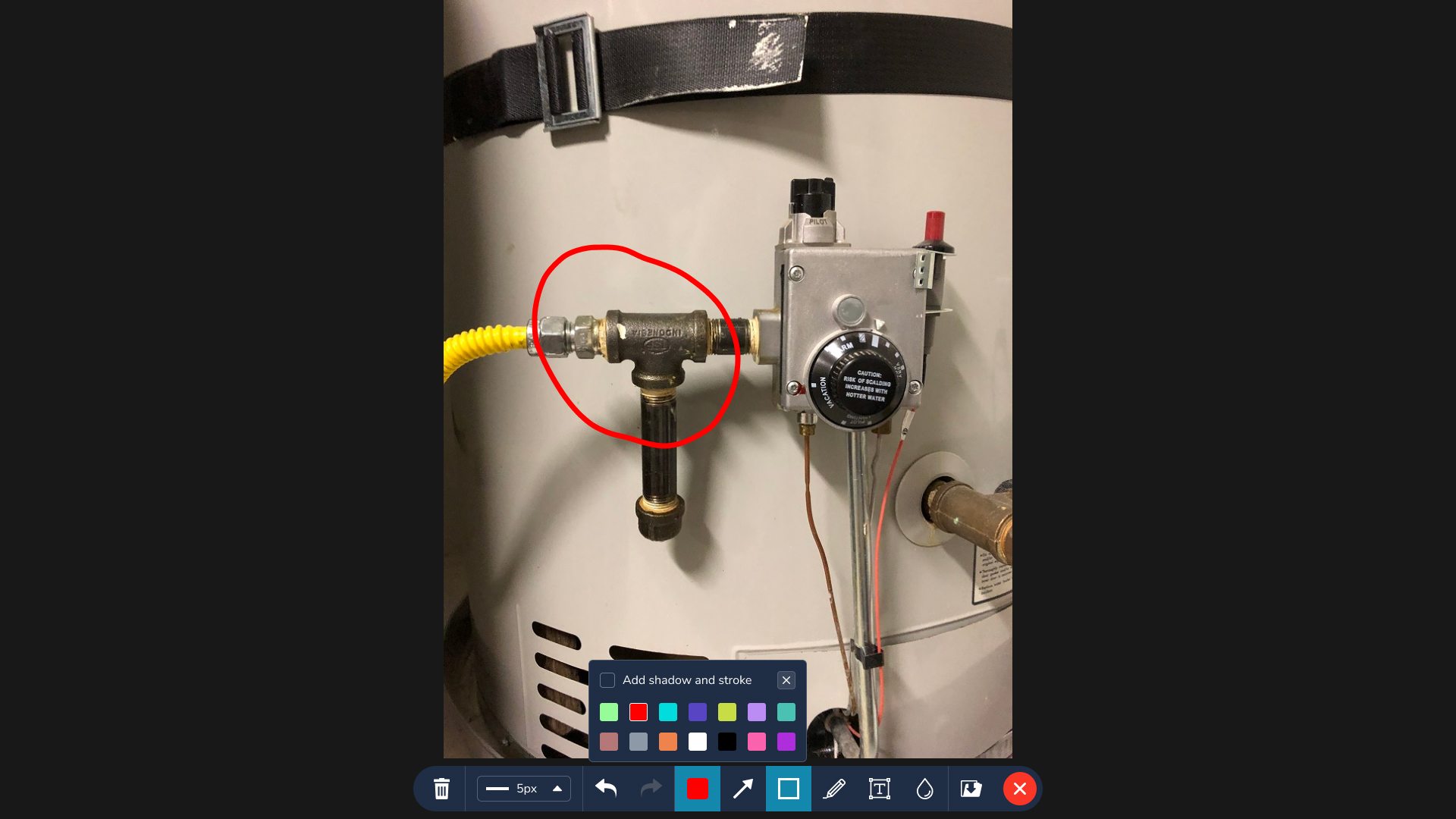
Markup
Annotate images collaboratively during a session:
Click Markup to capture the current video frame
Use the drawing tools to annotate—each participant has a different color
Available tools include:
- Draw – Freehand drawing
- Rect – Draw rectangles/boxes
- Text – Add text annotations
- Clear All – Remove all drawings
- Save – Save the annotated image
- Exit – Return to live video
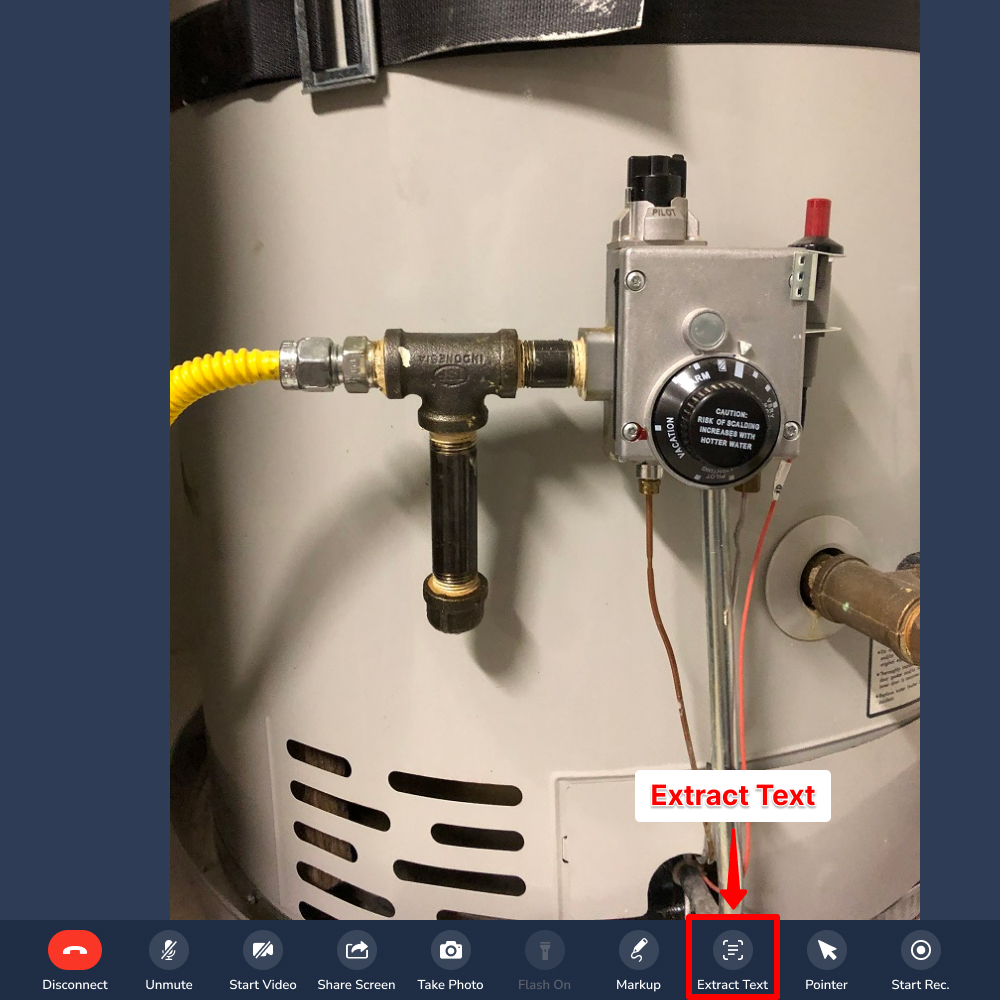
Extract Text (OCR)
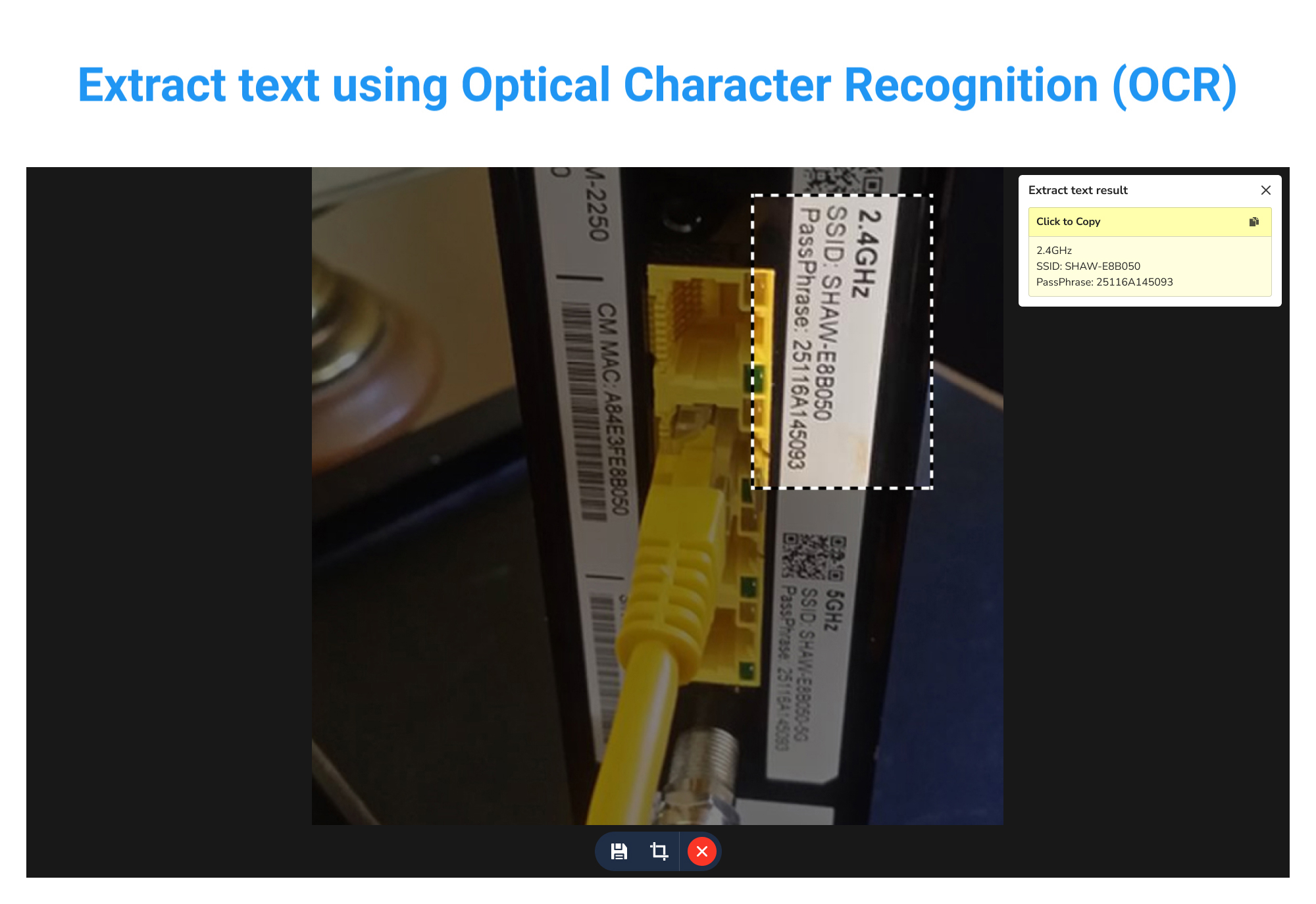
Capture and extract text from images using optical character recognition:
Click Extract Text to capture the current frame
Draw a box around the text you want to extract
The system extracts the text automatically
Save the full image or cropped selection to session history
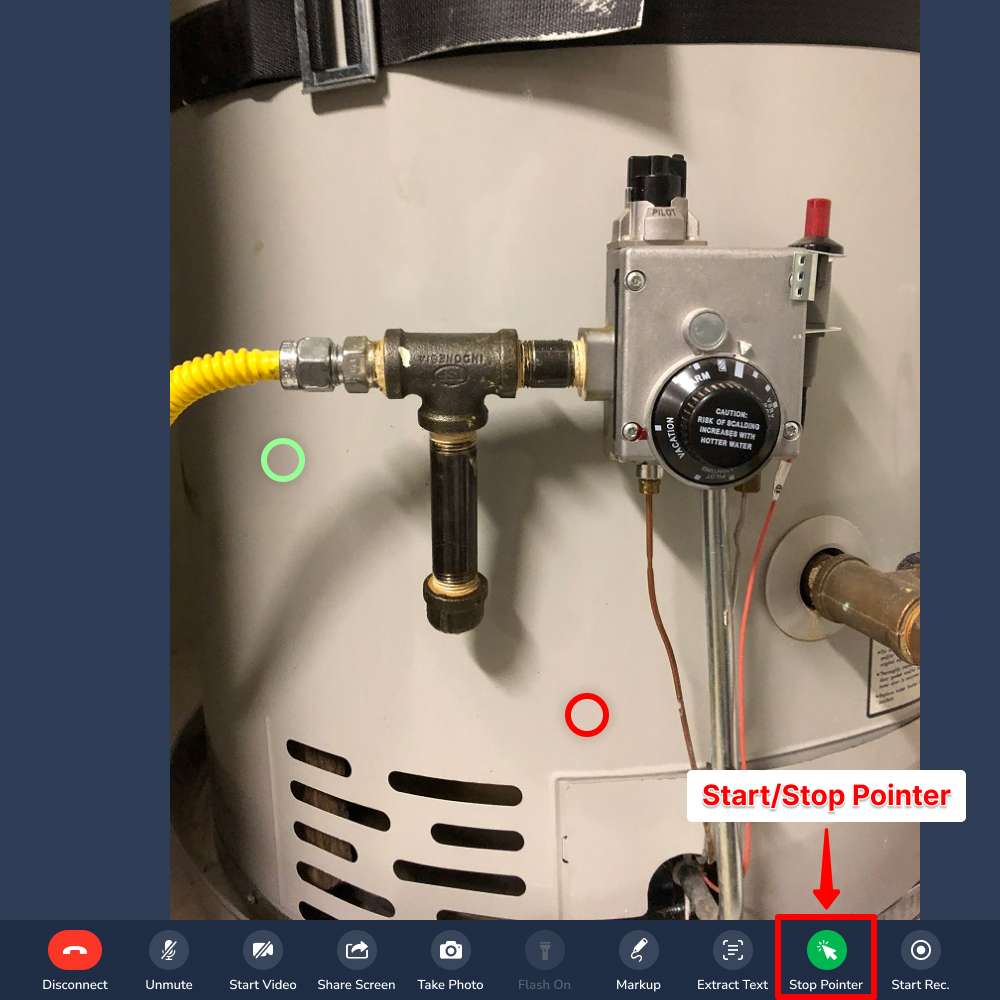
Live Pointer
Point at specific areas on the screen that all participants can see:
Click Pointer to activate
Move your mouse (or finger on mobile) to point at areas of interest
Each participant sees a colored dot—different colors for each person
Click Pointer again to deactivate
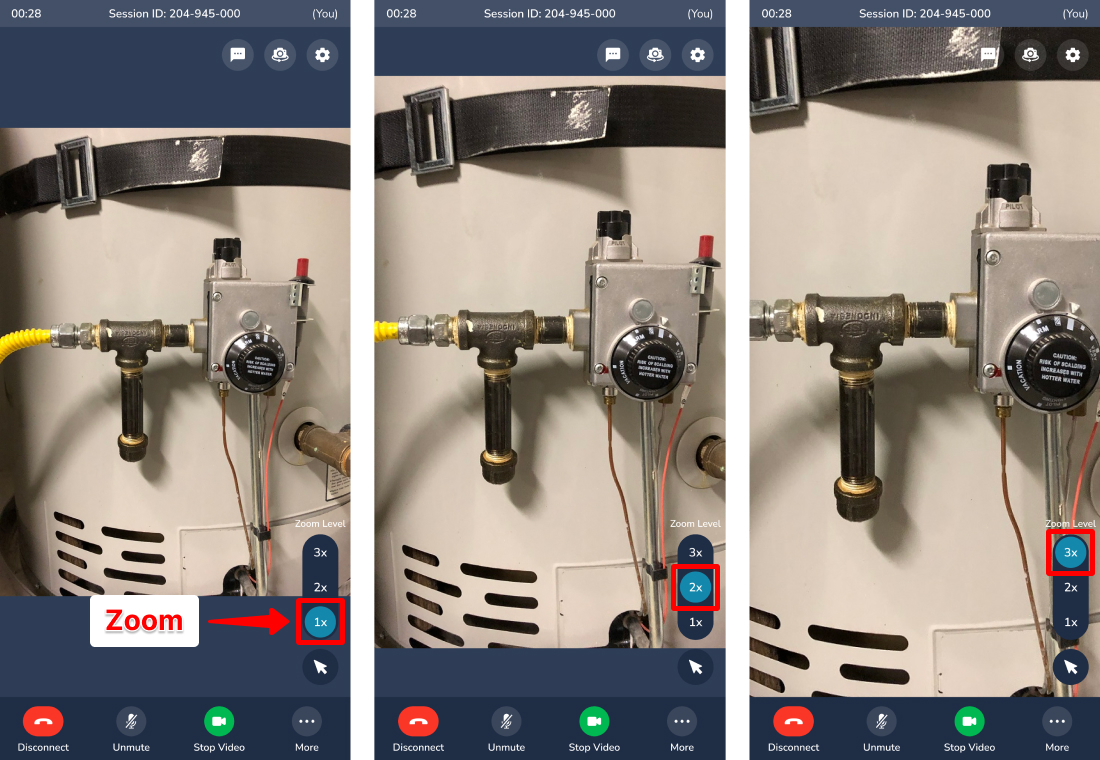
Remote Zoom
Zoom in on the remote camera feed for all participants simultaneously:
Select 2x or 3x zoom level
All participants see the zoomed view
Either the agent or guest can control the zoom
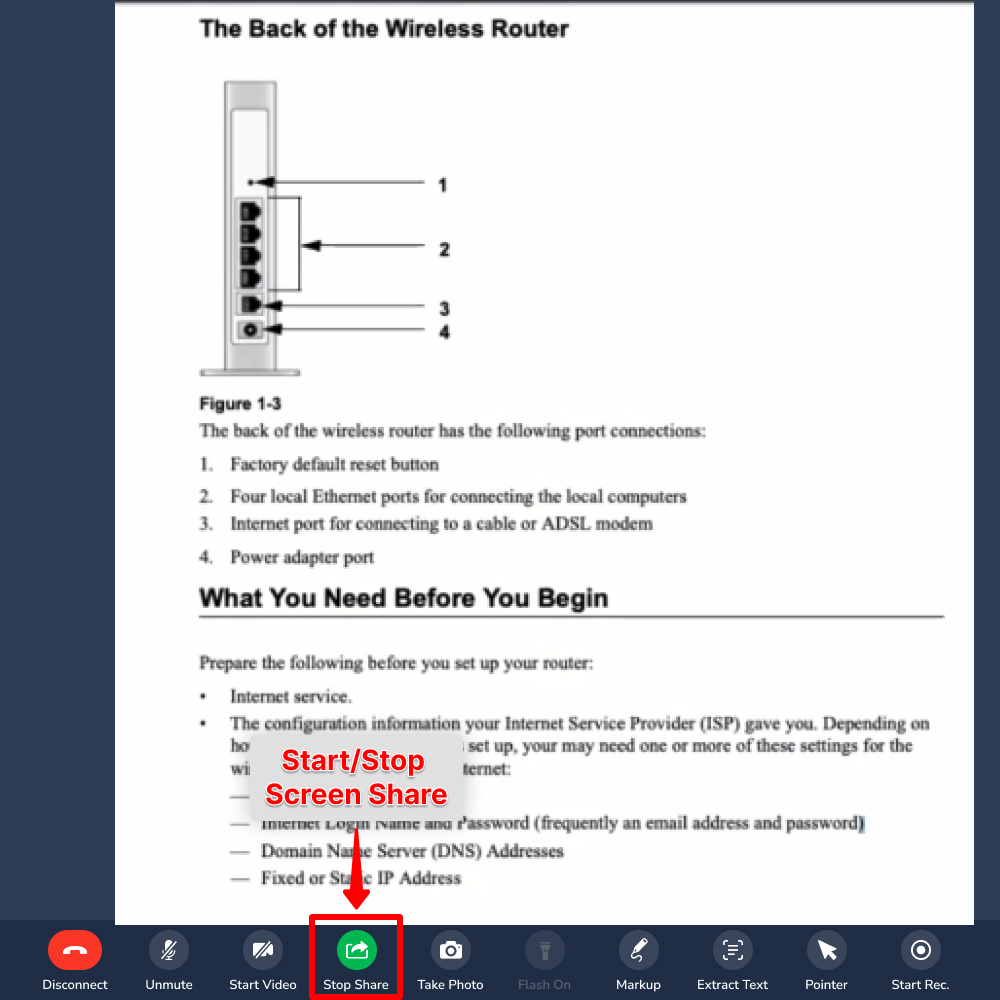
Screen Share
Share your screen with session participants:
Click Share Screen in the toolbar
Select the window or application you want to share
Click Share to begin sharing
Click Stop to end screen sharing
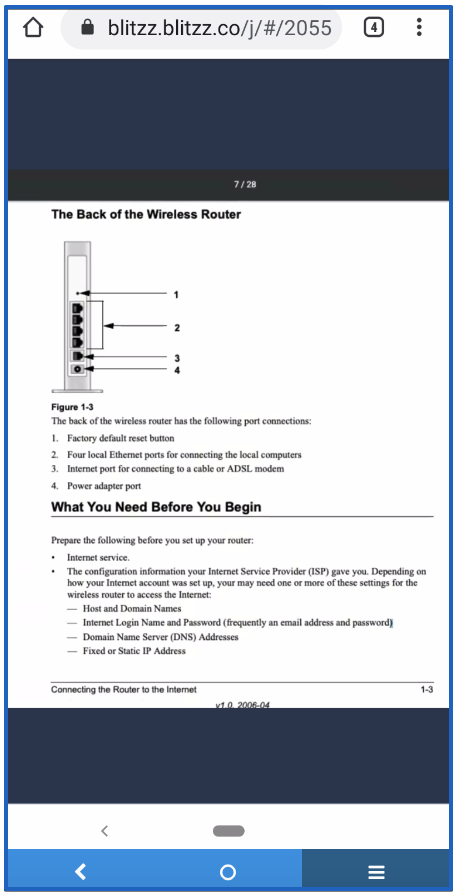
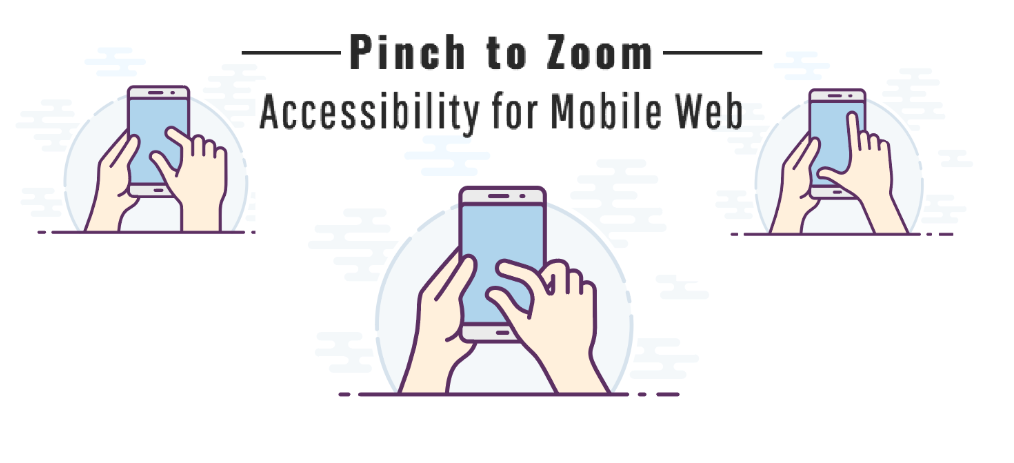
Pinch to Zoom
Mobile only: Use standard pinch gestures to zoom and pan on the video feed:
Pinch outward to zoom in
Pinch inward to zoom out
Drag to pan around the zoomed image
This is especially useful when viewing detailed content like schematics, blueprints, or documents.
Session Management
Participant Information
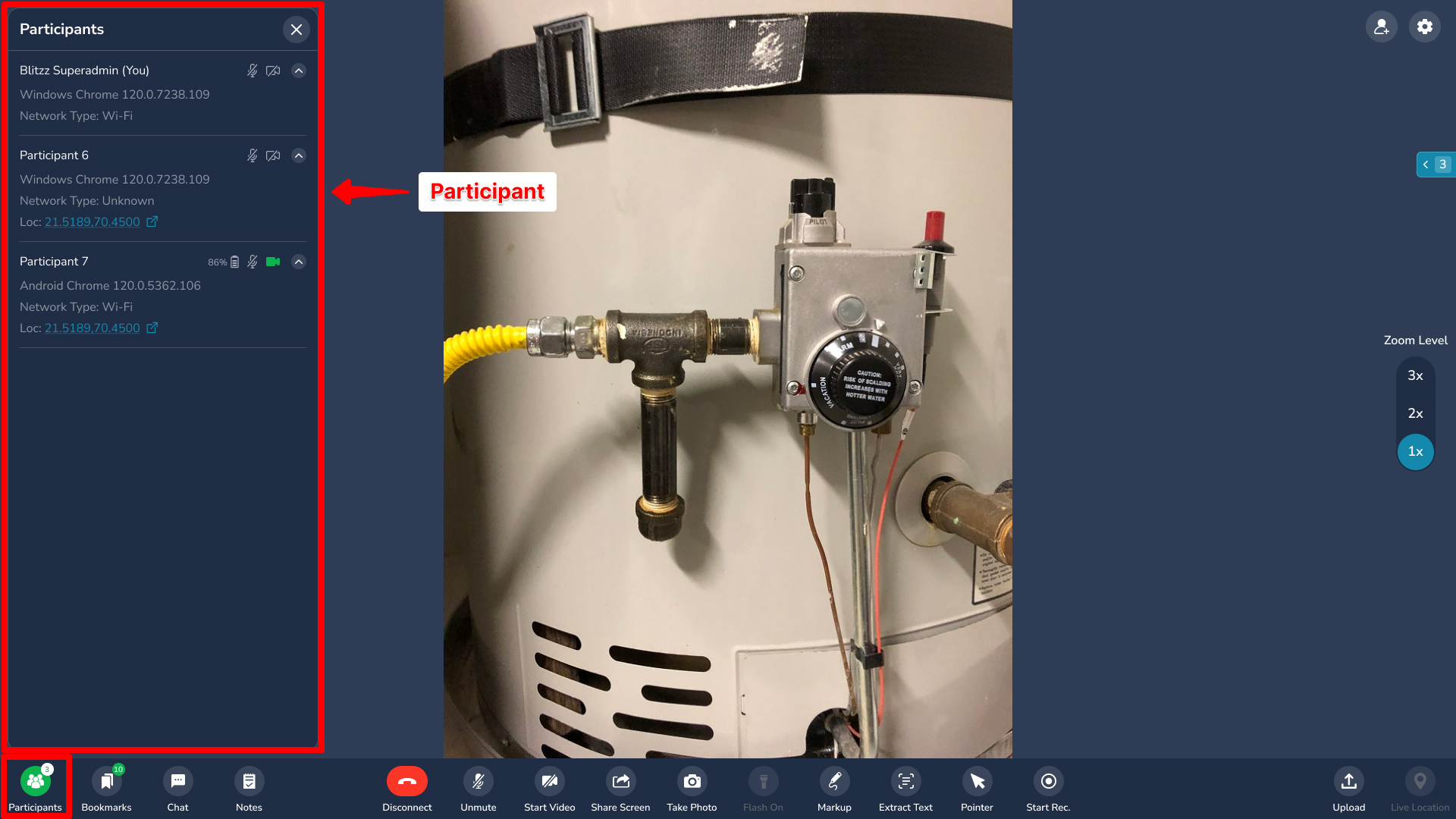
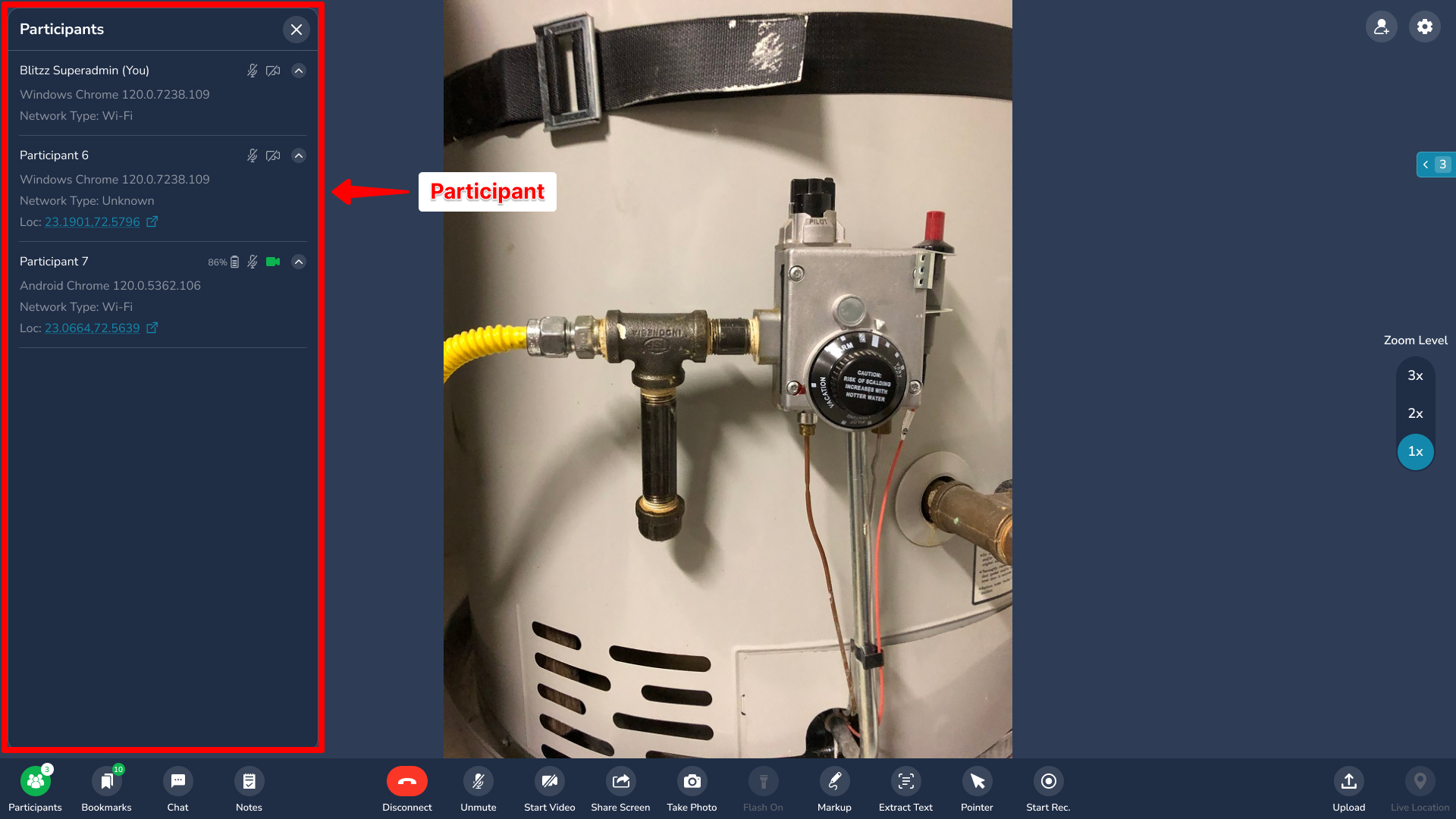
View detailed information about all session participants:
Click the Participants icon (bottom left)
View session details including:
- Session code
- Number of participants
- Call duration
- Network quality
- Device and browser information
Bookmarks
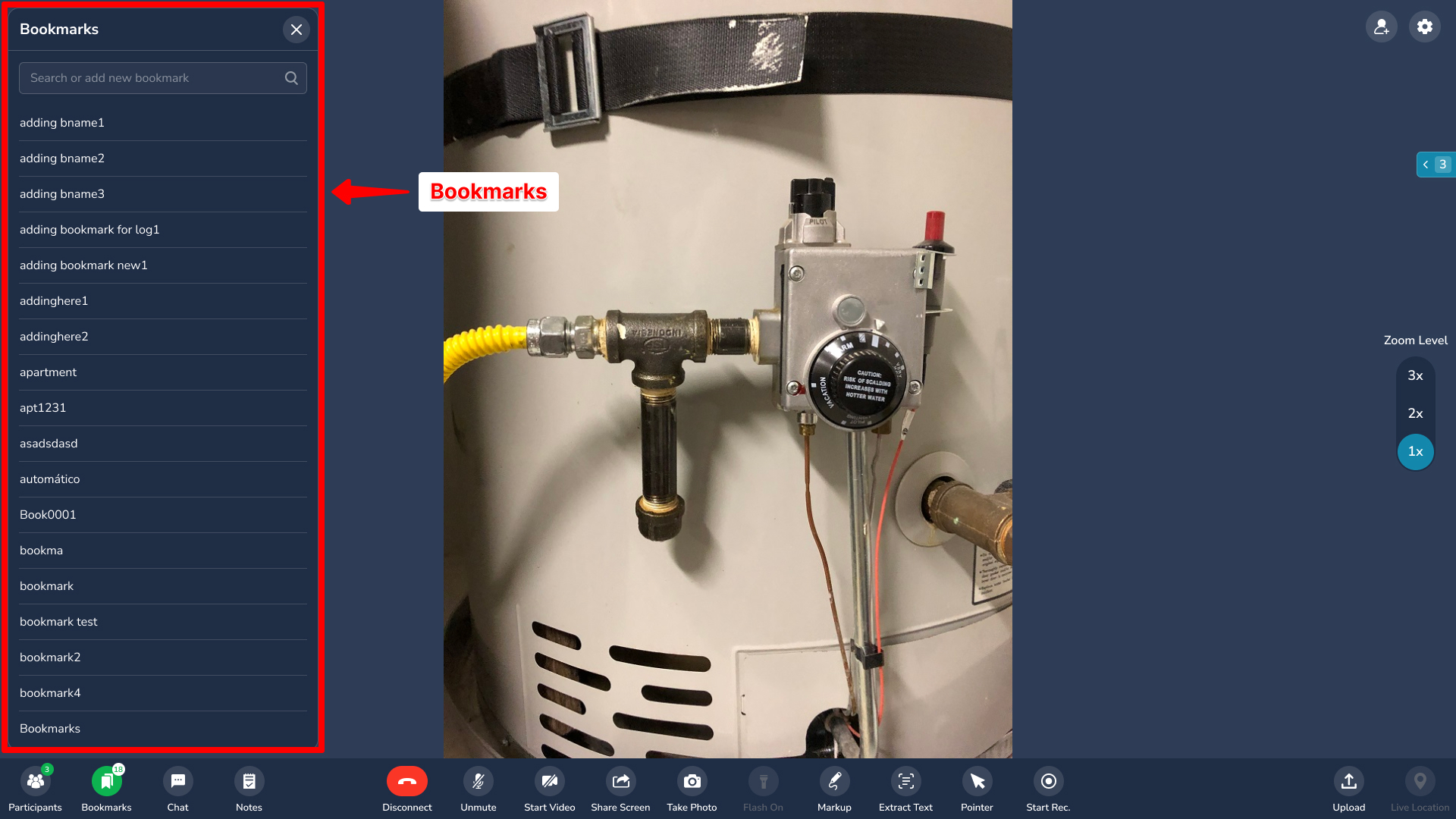
Create pre-defined labels for quick photo capture and organization:
Click the Bookmarks icon to open the bookmarks panel
Click a bookmark label to instantly capture a photo with that label
The counter shows how many photos have been taken with each label
Photos are saved with the bookmark label, location (if enabled), and timestamp
Bookmarks are ideal for standardized inspection workflows where you need to capture specific types of photos consistently.
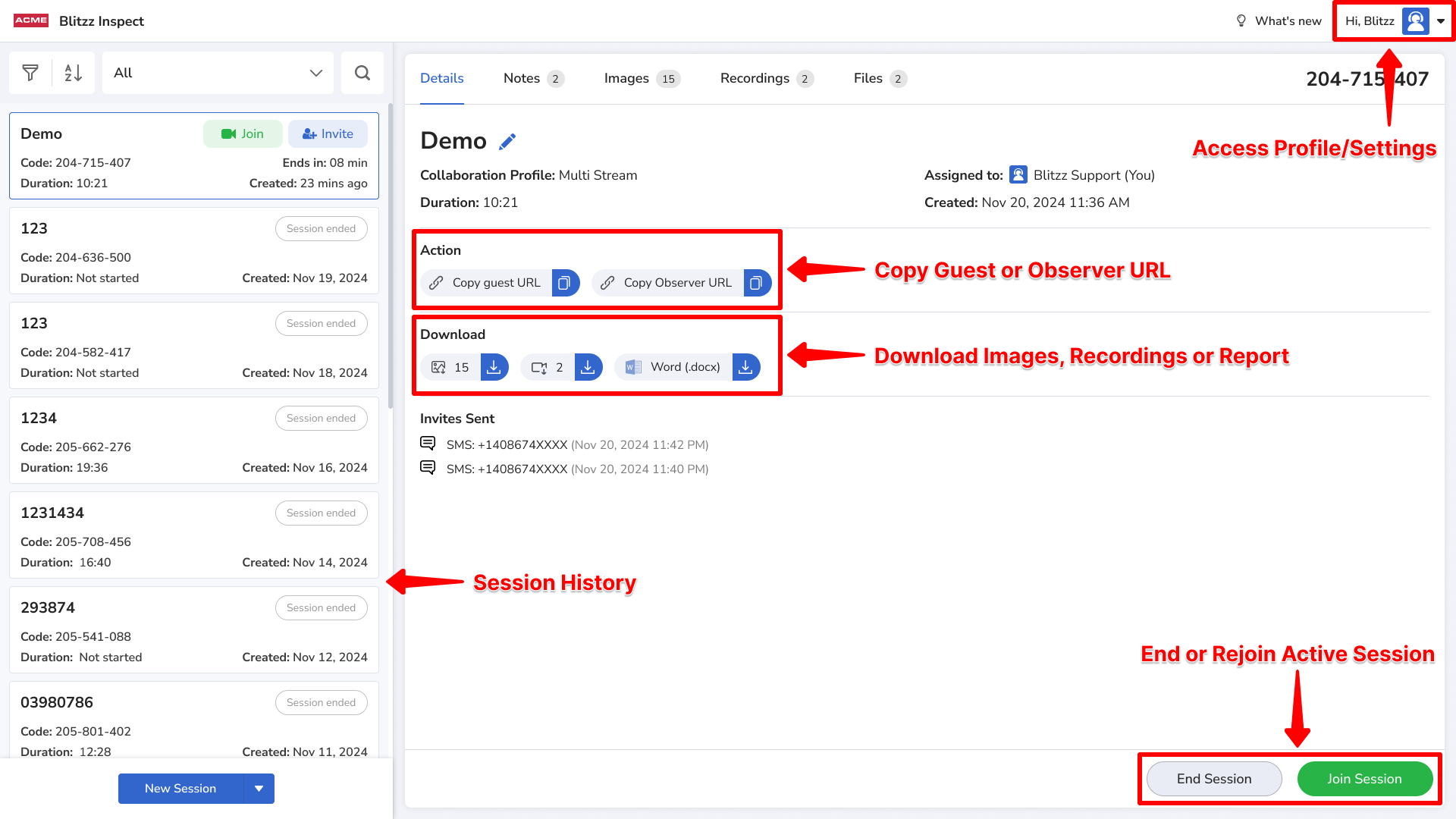
Session History
After disconnecting from a call, you return to the Session History view where you can:
Access your profile, language, and settings
Re-invite participants to continue a session
Copy the session URL for sharing
Download captured images (click the image count to download all)
Download session recordings (if recording is enabled)
End the session permanently to prevent rejoining