
How to allow access to camera & mic in Settings
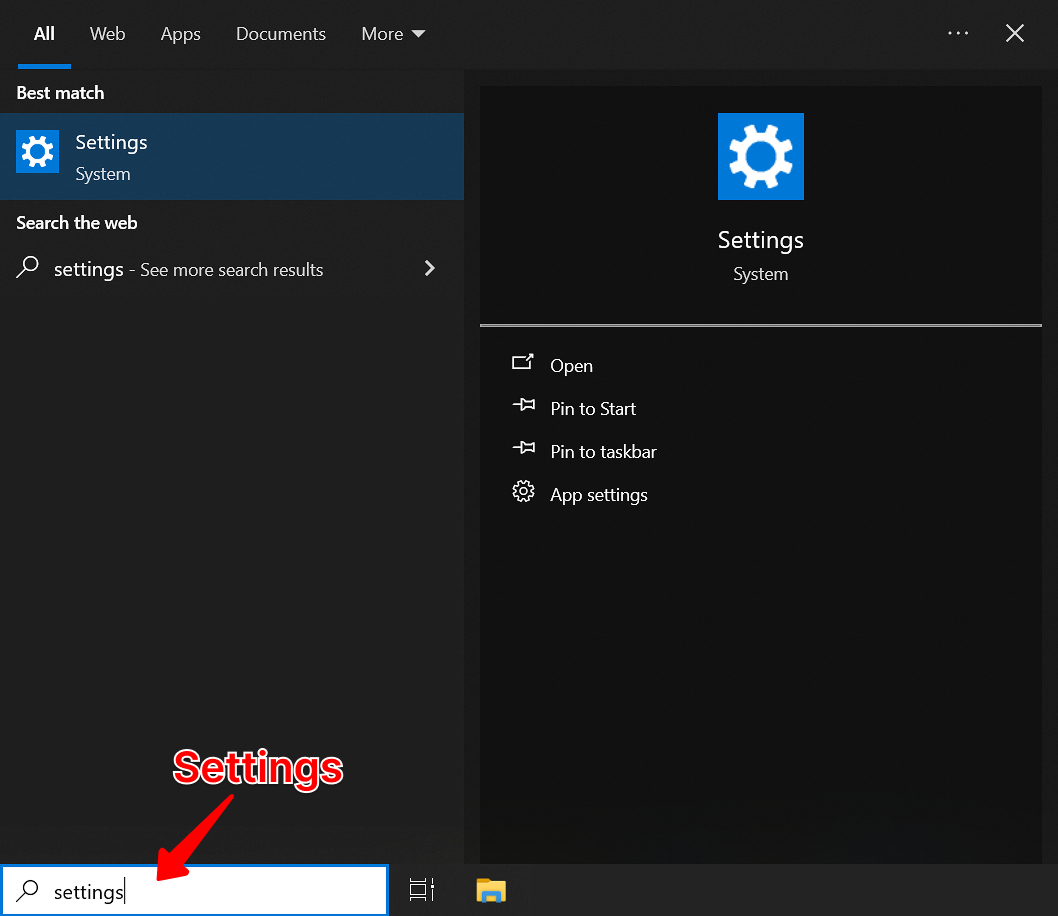
- Open the Start menu from lower-left corner of your screen and click Settings (or press Windows + I).
- Go to Privacy.
- In the left sidebar, scroll down and select Camera and Microphone.
- Ensure that “Allow access to the camera on this device” is turned on, and confirm that “Allow apps to access your camera” is also enabled.
You may need to select a different camera or mic input
Many Windows devices have multiple camera and microphone options, and Chrome may not automatically select the correct one. Follow the steps below to update your input settings in the Chrome browser:
- Open Google Chrome.
- Click the three dots (⋮) in the top-right corner.
- Select Settings.
- In the search bar at the top, type “Site settings”.
- Click Site settings, then select Camera or Microphone.
- Use the dropdown menu to choose the correct device from the list. Switch between the available options until you find the one that works.
You may have a Windows update available
- Open the Start menu from lower-left corner of your screen and click Settings (or press Windows + I).
- Go to Update & Security.
- In the left sidebar, select Windows Update.
- Click Check for updates.
- Restart your computer if prompted.
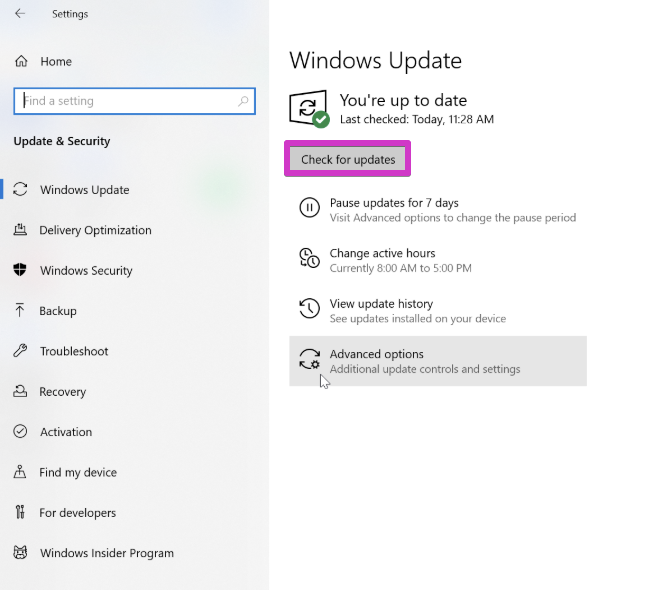
This ensures that Windows has the latest camera and microphone driver software required for proper functionality in your preferred browser.
If you're using a Lenovo device
- Open Start Menu, and search for "Lenovo Vantage".
- Go to Device → Display
- Ensure the camera and mic are on.
You can test your device in your browser here to confirm that everything is working correctly.