
Call end page options
1. Standard Survey
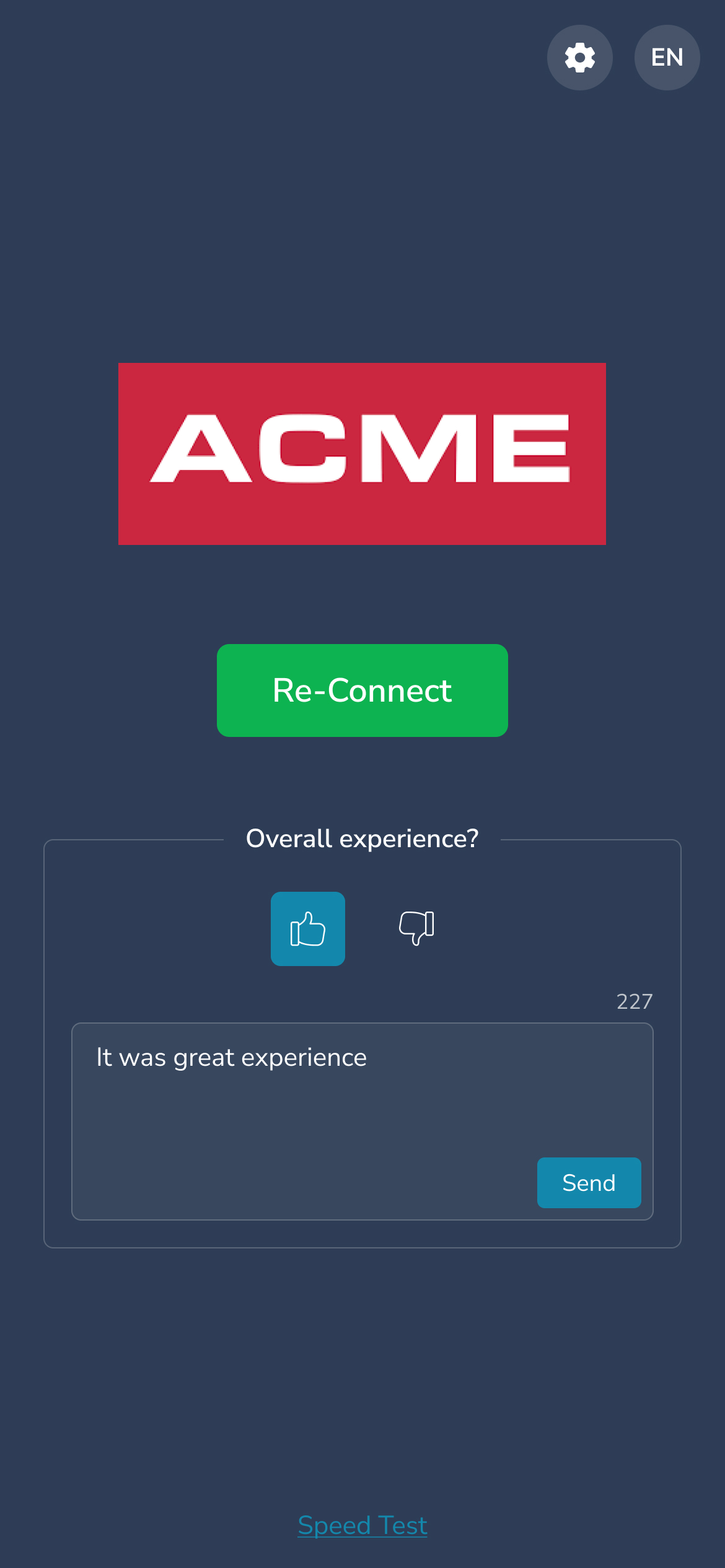
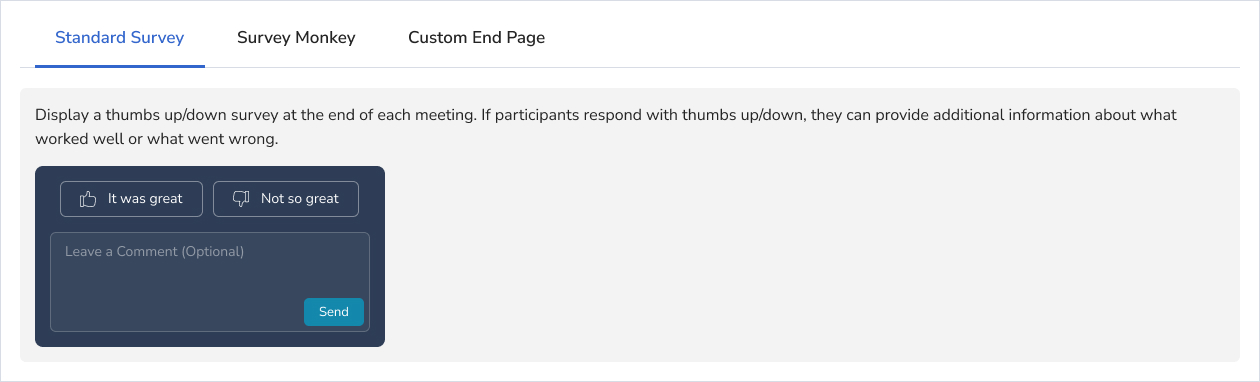
The Standard Survey type displays a Thumbs Up or Thumbs Down option, along with an optional free-text entry field. Its purpose is to let users rate their overall Blitzz experience. Below is an example of what your customer would see:
2. Survey Monkey URL
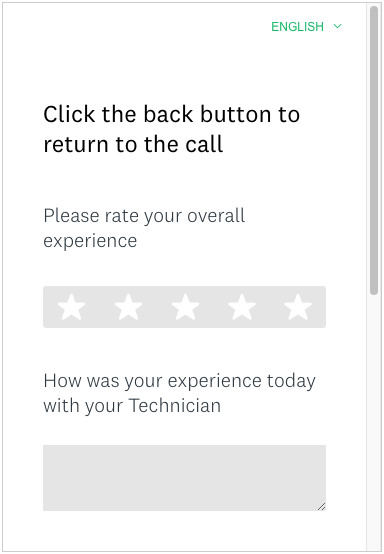
This is a customizable online survey tool that allows you to capture and analyze customer feedback. We have completed the integration for you and can help configure results to be associated with each Agent and their individual Blitzz sessions. If you do not have an account, please contact us. Below is an example of what your customer would see:
3. Custom End Page
The Custom End Page option allows you to redirect participants at the end of a Blitzz session to your preferred online survey tool or your own website. You control where they are taken when the session ends, typically by providing a URL.
Customize your Call End Page
How to Create the Call End Page Template
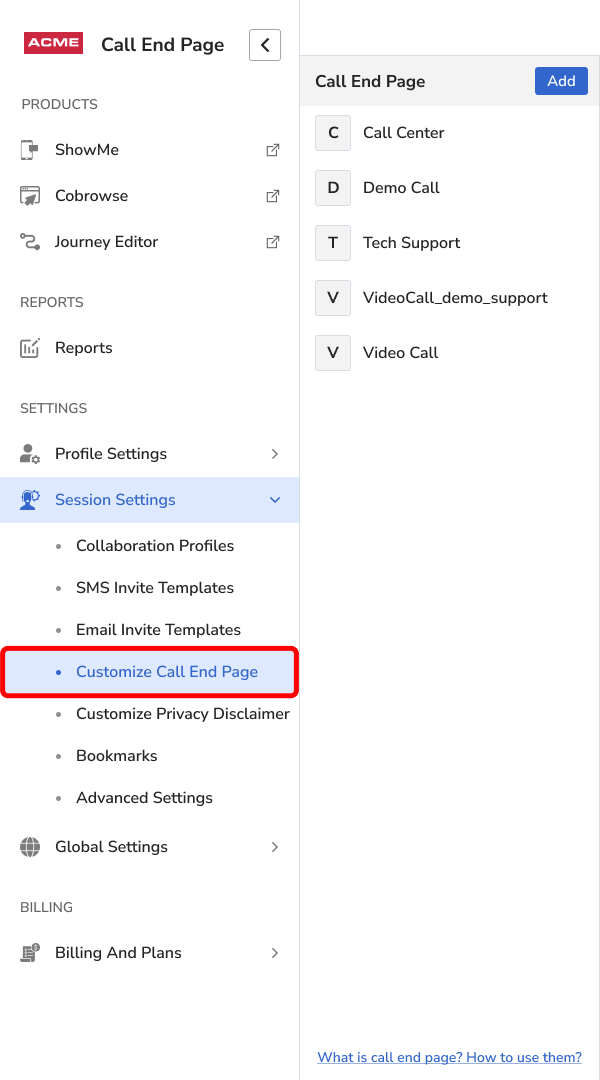
- Login as an Admin and click Session Settings in the left sidebar.
- Click Customize Call End Page from the expanded submenu, then click Add.
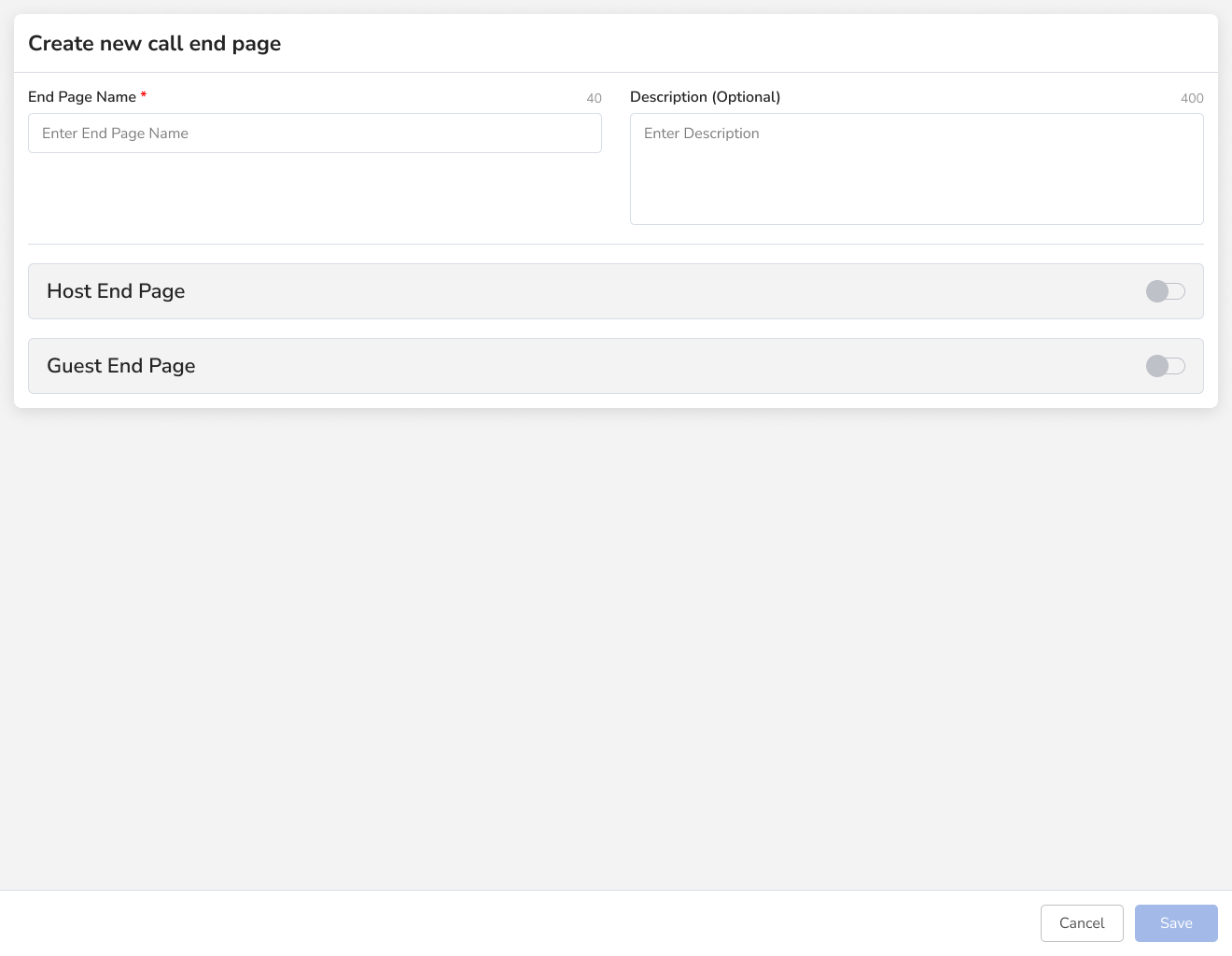
Enter the End Page Name and an optional description. Then toggle the switches for Agent and Guest to configure their Survey/Call End Page options.
End Page Option 1 - Standard Survey
Remember, this is a Blitzz survey that provides a Thumbs Up/Down option along with an optional free-form text entry field.
End Page Option 2 - Survey Monkey
Remember, this option uses your SurveyMonkey form, allowing you to collect detailed customer feedback through your fully customizable survey.

End Page Option 3 - Custom End Page
Remember, this option redirects users to a URL of your choice, enabling you to use your own survey tool or website to gather feedback.

After entering your information for the Host and Guest End Pages, make sure to click Save to create your template.
Note: If the Save button is still grayed out, remove the 'https://' from the beginning of your URL.
Collaboration Profiles - Call End Page Setting
Configure Call End Page
After creating your Call End Page template, you will need to configure the Call End Page within the Collaboration Profile settings. From the Admin panel, go to Session Settings > Collaboration Profiles, then select the Collaboration Profile you want to use for the Call End Page redirect. In the Settings tab, scroll down to Call End Page Redirection.

Scroll through the list of available Call End Page templates to find the one you want to use. After selecting the template, make sure to Save the Collaboration Profile settings.