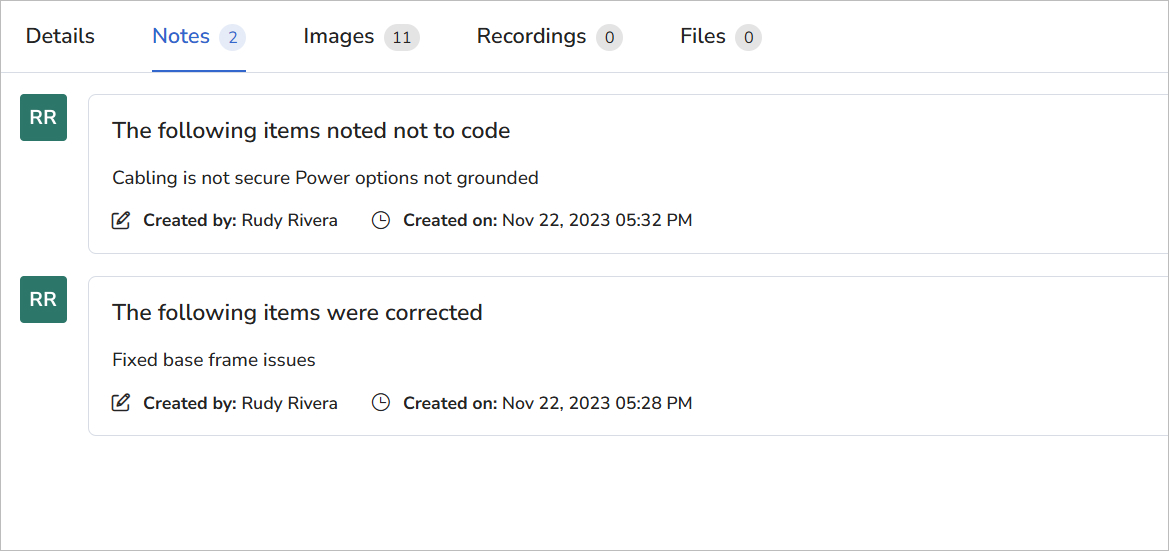
During your Blitzz session, you may want to capture notes and other information on the images you collect. This feature can be enabled through Session Settings > Collaboration Profiles. You will then be able to download the notes for use with other applications, or view them as part of the Word document generated after your session.
How to Enable Notes in Collaboration Profiles
- Login as an Admin and click Session Settings in the left sidebar.
- Click Collaboration Profiles from the expanded submenu.
- Select the Collaboration Profiles for which you would like to enable Notes. In the Settings tab, Scroll down to Notes and toggle the switch ON.
- Click Save to apply these settings to the Collaboration Profile.

Access Notes During a Blitzz session
To access Notes during a Blitzz session, click the Notes button in the bottom menu bar to open the Notes window.
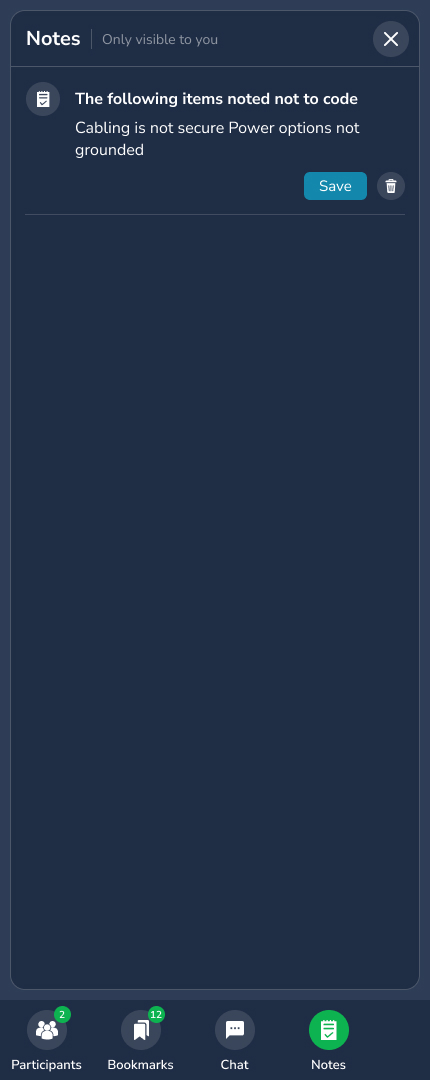
Add Notes During a Session
To add a Note, click on '+' (New Note) button. Enter a Title and then add your notes in the designated area. Providing a title is recommended to help identify your notation.
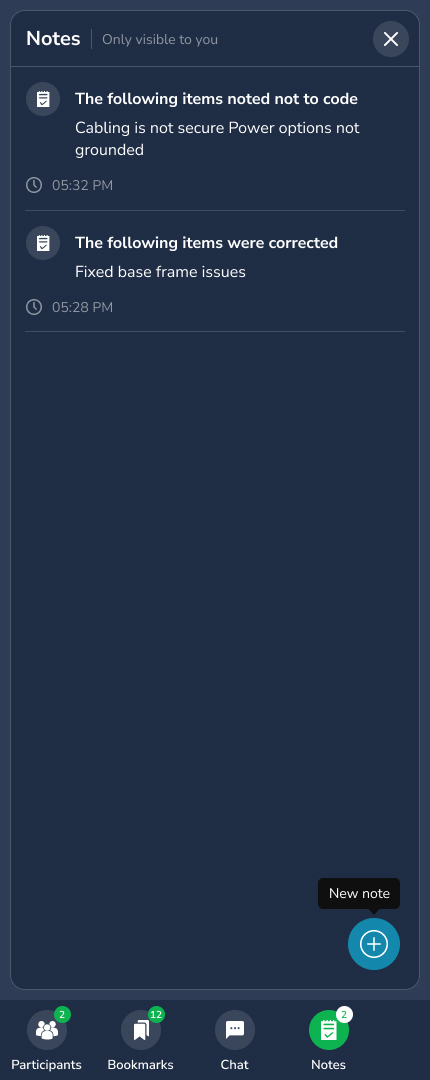
Edit and Delete Notes
To delete a note, hover over it to display the Trash and Edit buttons, then click the Trash button to remove the note. To make changes, click the Edit button to modify the note.
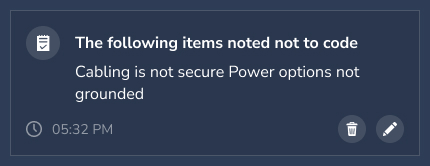
Viewing Notes After the Session
After the session ends, you can access the Notes from the Session Details page under the Notes tab.