Who can view this feature?
Available for Users on the Enterprise Inspect Plans!
As part of planning your Blitzz inspections, you may want to schedule a session for later in the day or week. You will still have the option to send a connection request to start a session immediately, but scheduling is a convenient alternative. To schedule a session, go to New Session or Invite Guest, as you normally would to initiate a call, and make sure to toggle 'ON' next to 'Schedule Session'.
How to Schedule a Blitzz Session
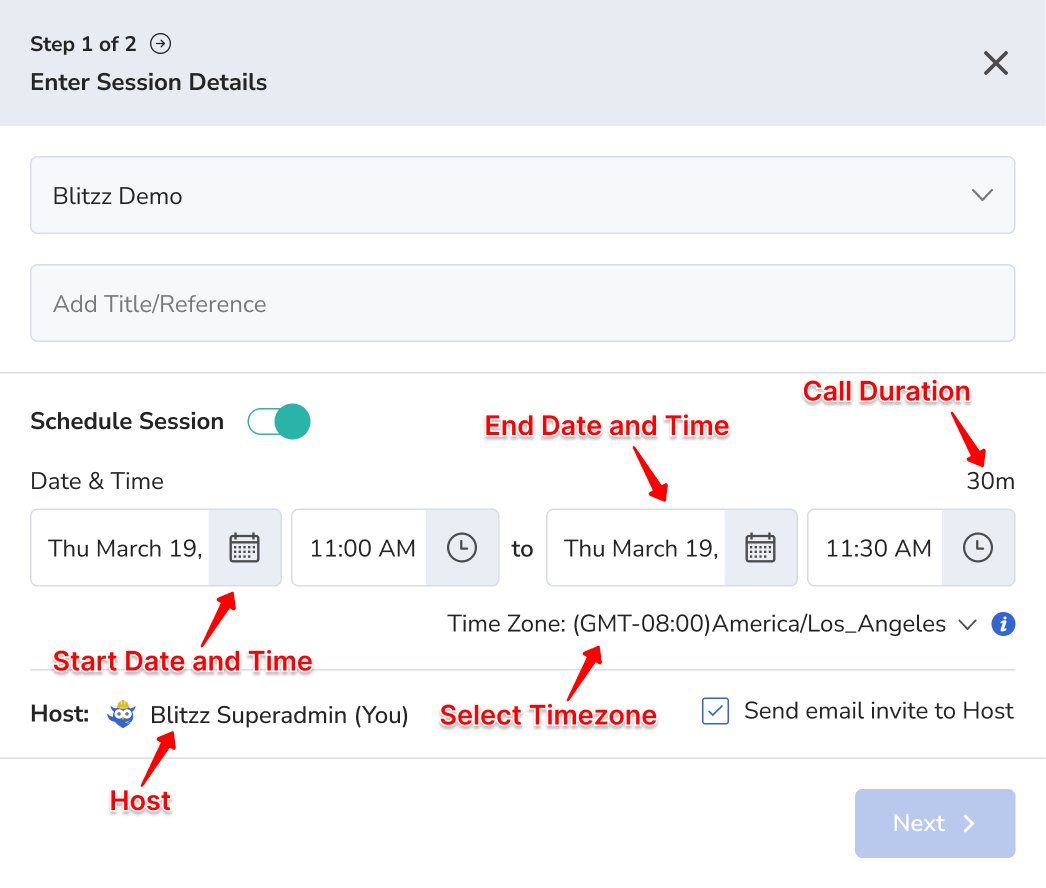
This section displays the Date & Time options for your call, allowing you to set a scheduling window for the connection. You will need to select both a Start Date & Time and an End Date & Time. This window can be as long as needed, up to a maximum duration of 365 days. When you click on the date, a calendar will appear to help you easily select a day. When you click on the time, an hour, minute, and AM/PM selector will be displayed. The Call Duration will automatically update based on the timeframe you enter. You can also specify the Time Zone if you support multiple time zones.
Additionally, you can select a host for the scheduled session, and an email invite will be sent to the selected host when the “Send email invite to Host” checkbox is selected.
After making your entries press Next to complete the connection option selection: SMS, Email, WhatsApp, or Copy link (depending on what has been activated for the Collaboration Profiles you selected).
When a Guest Tries to Join the Session Early
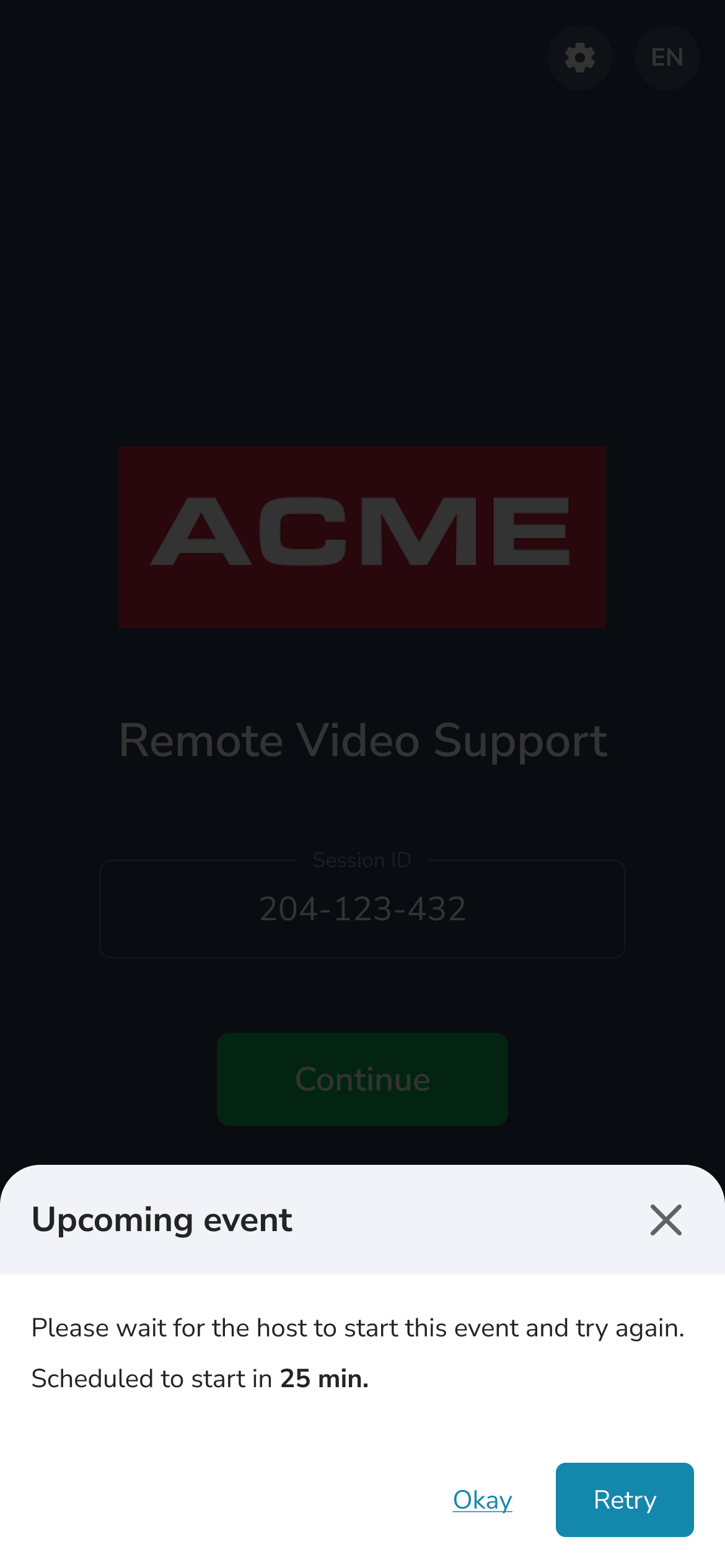
Your Guest will receive a notification. Keep in mind that the Agent can start the session early if needed. If the Guest attempts to connect before the scheduled session time, they will see a message on their mobile device informing them when the session begins: