
The Contacts Management feature provides a shared company address book that lets your team store, organize, and quickly invite contacts to Blitzz sessions — eliminating the need to re-enter phone numbers for repeat customers.
In this article
- Enabling the Feature
- Contacts Page Overview
- Adding Contacts
- Using Contacts During Session Creation
- Managing Favorites
- Bulk Actions
- Import & Export
- Editing & Deleting Contacts
- Role-Based Access
- FAQs
Enabling the Feature
An admin can enable or disable Contacts Management from Features > Advanced Settings.
- Go to Features in the left sidebar.
- Under Session Settings > Advanced Settings, find Contacts Management.
- Toggle the switch ON to enable or OFF to disable.
When disabled, the Contacts tab and the "Select from Contacts" option in the session invite flow are hidden for all users. Existing contact data is preserved and restored when re-enabled.
Contacts Page Overview
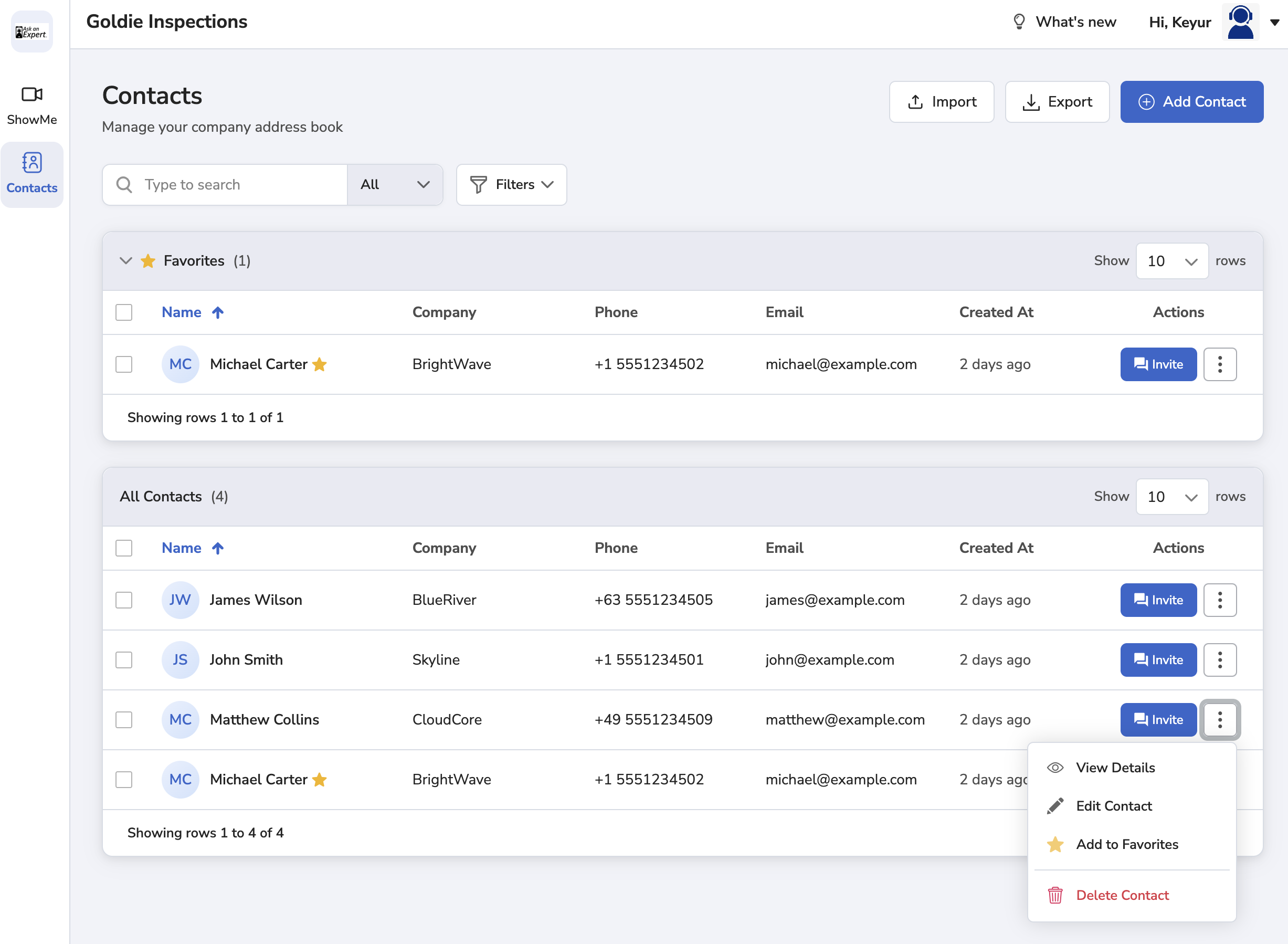
Once enabled, a Contacts tab appears in the main navigation. The contacts page includes:
- Favorites — A collapsible section at the top showing starred contacts for quick access.
- All Contacts — A paginated list of all contacts. You can choose to display 10, 20, 50, or 100 contacts per page.
- Search — Search by name, phone number, company, or email.
- Filters & Sort — Filter by status or sort by name, company, or recent activity.
Each contact row displays the contact name, phone number, company, email, last activity date, session count, and action buttons.
Adding Contacts
From the Contacts Page
Click the + Add Contact button in the top-right corner of the Contacts page. Fill in:
- Name (required)
- Company
- Phone (required)
- Notes
Check "Mark as Favorite" to add the contact to your Favorites section. Check "Add another contact after saving" to keep the form open for batch entry.
From the Session Invite Flow
When creating a session and manually entering a phone number, a "Save as new contact" checkbox appears below the phone field. Check it to expand first name, last name, and company fields. The contact is saved automatically when you send the invite.
If the number you enter already exists in your contacts, the system will match it automatically and display the contact name — no duplicate will be created.
Using Contacts During Session Creation
On the Share Invite screen (Step 2 of session creation), you can:
- Click "Select from Contacts" to open the contacts panel with search and filtering.
- Pick a contact — the phone number auto-fills and the channel (SMS/WhatsApp) switches to match the contact's preference.
- Or manually type a number and optionally save it as a new contact.
The Agent Portal and downloaded session reports will display the Contact Name alongside the phone number or email that was used to send the invite.
Managing Favorites
Click the star icon (☆) next to any contact to add them to Favorites. Starred contacts appear in the collapsible Favorites section at the top of the contacts page and in the contacts panel during session invite.
Click the star again to remove from Favorites.
Bulk Actions
Use the checkboxes next to each contact row to select one or more contacts. A bulk action bar appears with the following options:
- Add/Remove from Favorites — Star or unstar selected contacts.
- Delete Selected — Permanently delete selected contacts (a confirmation popup will appear).
- Export Selected — Download selected contacts as a CSV file.
Use the Select All checkbox in the header row to select all contacts on the current page.
Import & Export
Importing Contacts
Click the Import button on the Contacts page to upload a CSV file. Requirements:
- Maximum file size: 5 MB (approximately 10,000 contacts).
- Required columns: Name, Phone.
- Optional columns: Company, Email, Notes.
- Duplicate phone numbers will be skipped — existing contacts will not be overwritten.
Exporting Contacts
Click the Export button to download all contacts as a CSV file, or use bulk selection to export specific contacts.
Editing & Deleting Contacts
Click the view icon (?) or the contact name to open contact details for editing. Click the three-dot menu (⋮) on any contact row for options including Edit and Delete.
Deletion is permanent — a confirmation popup will appear before any contact is removed.
Role-Based Access
| Role | Permissions |
|---|---|
| Super Admin, Administrator, User Manager | Full access — Add, Edit, Delete contacts, Import/Export, and manage Favorites. |
| User (Internal) | View all contacts, Add new contacts, Edit existing contacts, and send session invites. Cannot delete, import, or export. |
| Developer, Billing, Data Analyst | View all contacts only. Cannot add, edit, delete, import, or export. |
FAQs
Q: What happens if I enter a phone number that already exists in contacts?
The system automatically matches the existing contact and displays the name. No duplicate entry is created.
Q: Can I recover a deleted contact?
No. Deletion is permanent. Please export your contacts before deleting if you need a backup.
Q: What happens if the admin disables the Contacts feature?
The Contacts tab and "Select from Contacts" option are hidden for all users. All contact data is preserved and will reappear when the feature is re-enabled.
Q: Is there a limit on how many contacts I can import?
Yes. The CSV file must be under 5 MB, which supports approximately 10,000 contacts per import.
Q: Will the contact name show up in session reports?
Yes. The Agent Portal and downloaded session reports display the contact name alongside the phone number or email used to send the invite.