
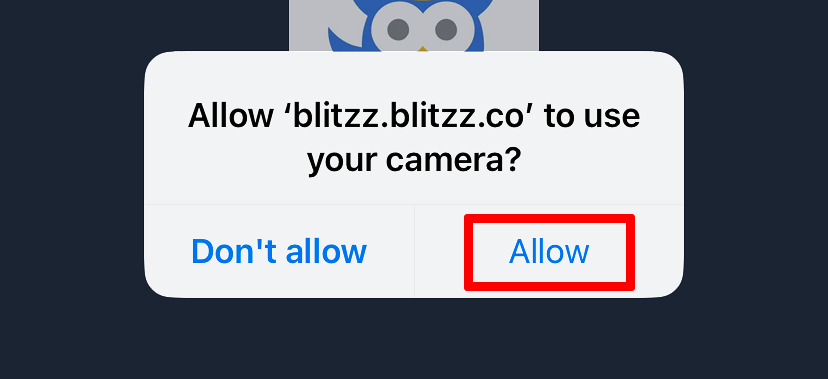
When you join a Blitzz Session on an iPhone or iPad using Chrome, your browser must have permission to access your camera and microphone. When prompted, please select Allow.
If you accidentally declined camera permissions, you will need to go through a few steps to re-enable a blocked camera or mic.
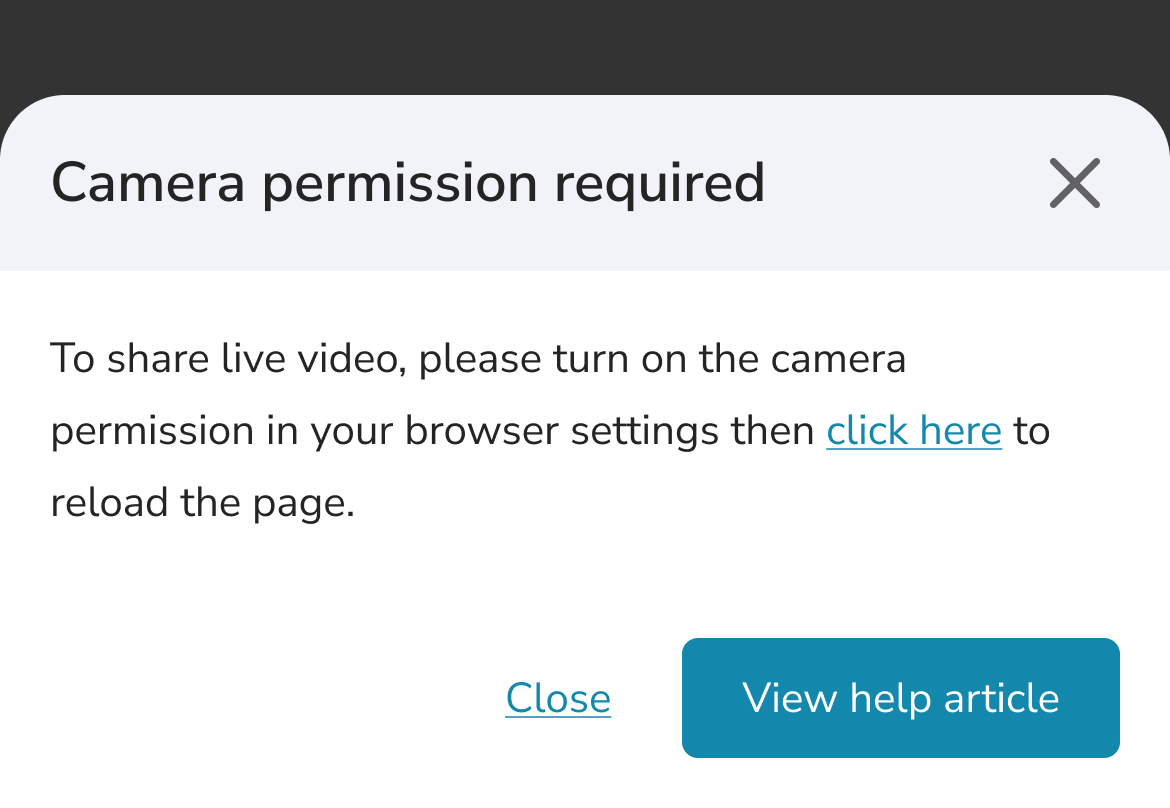
How to re-enable a blocked Camera or Mic
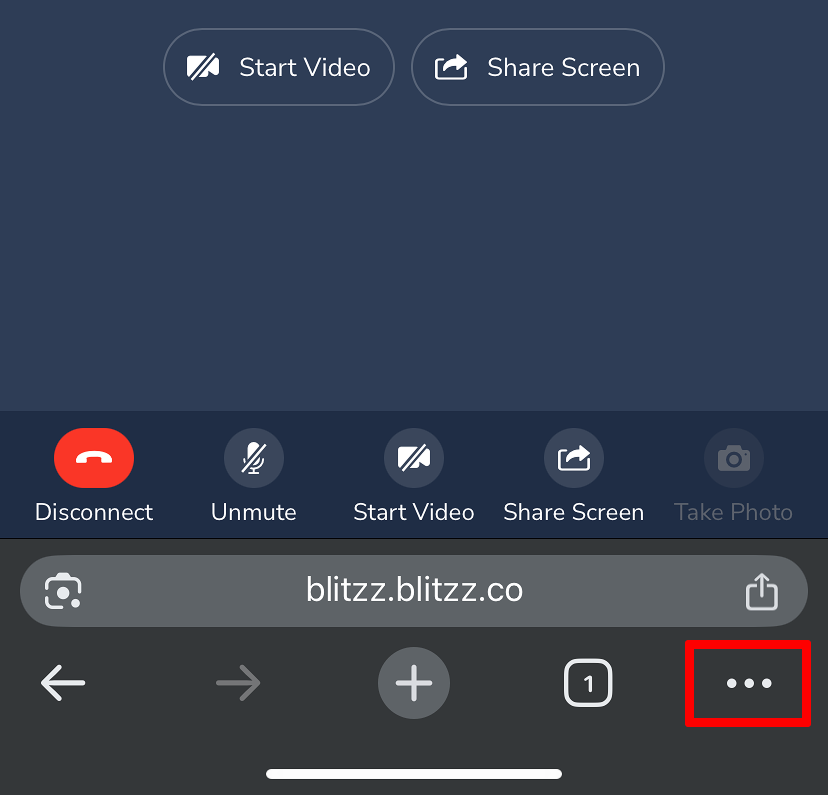
Step 1: Tap the More (…) icon in the bottom right corner
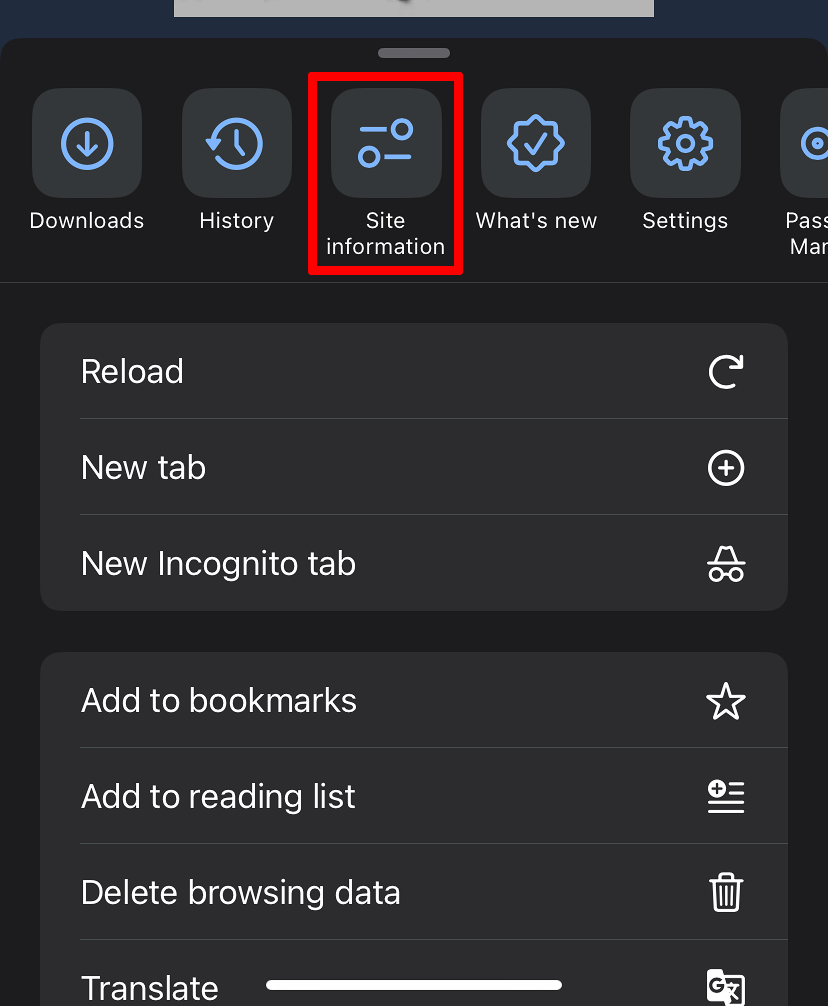
Step 2: Select Site information
Step 3: Make sure your camera and microphone permissions are toggled ON.
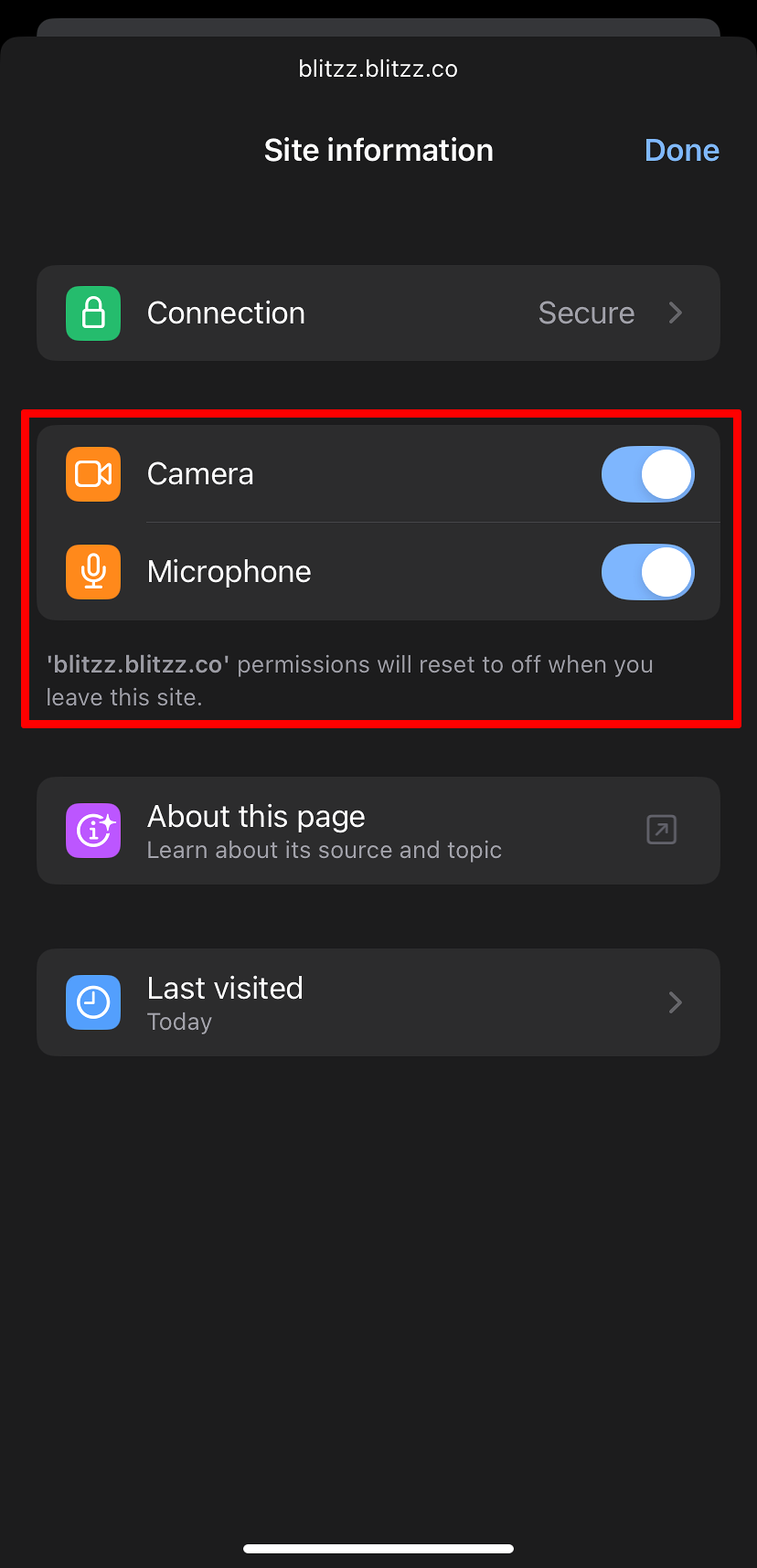
Step 4: Select Done, and refresh the tab before trying to enable the camera again.
If you are still running into camera issue, you may need to check your application settings:
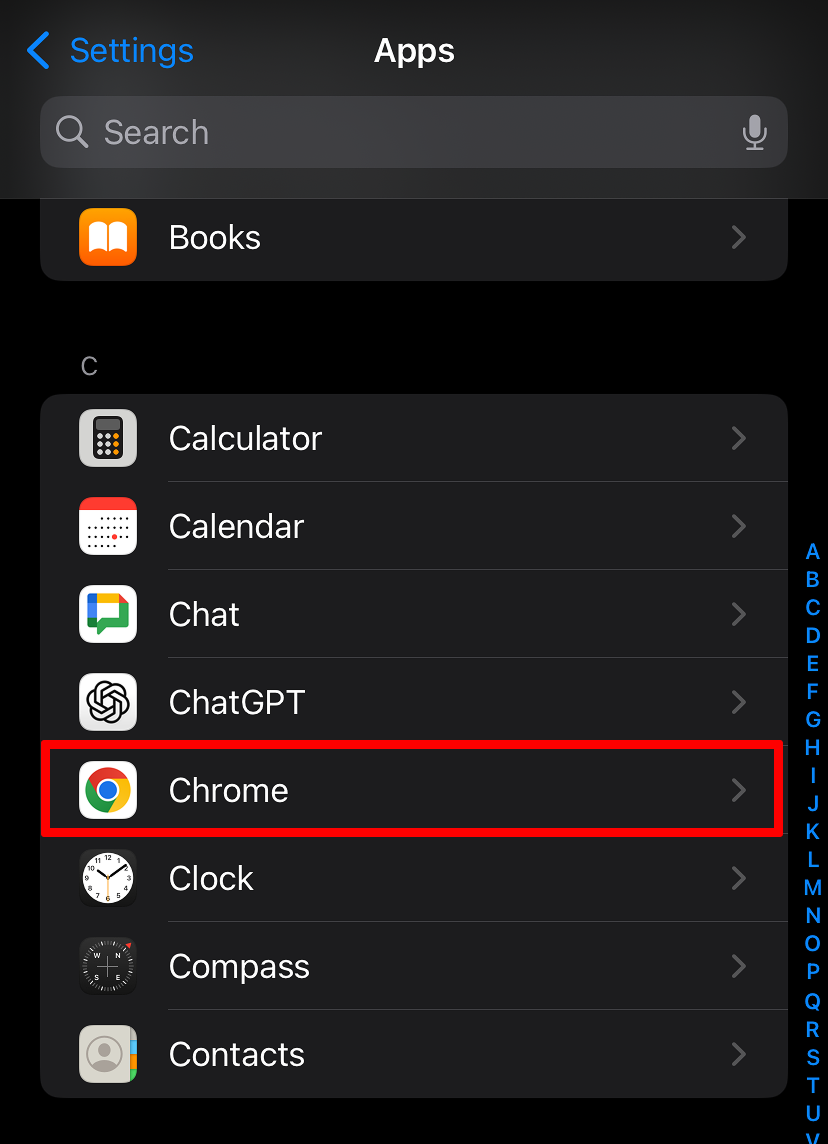
Step 1: Open Settings App, Scroll down and tap “Chrome”.
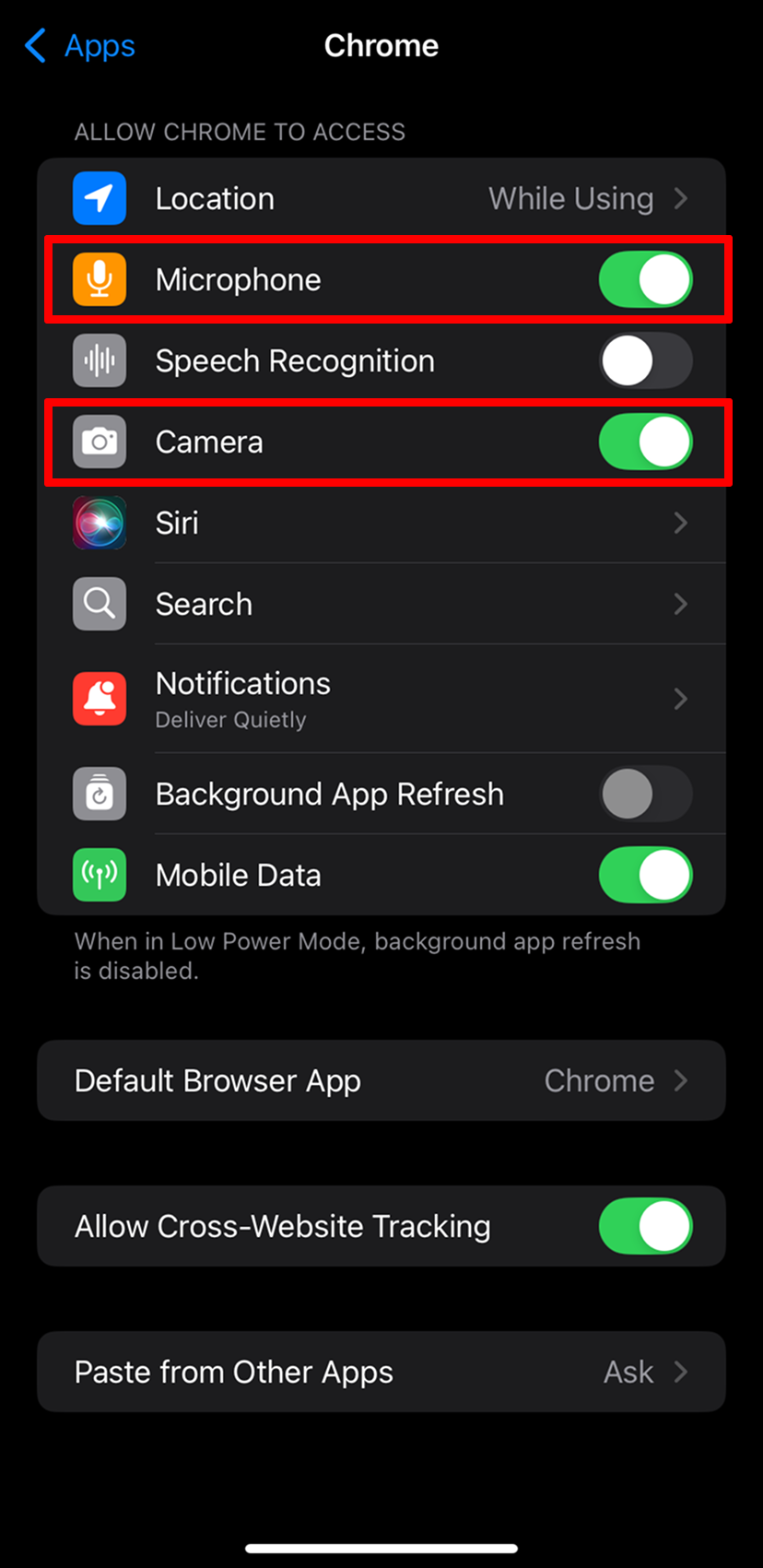
Step 2: Make sure your camera and microphone permissions are toggled ON.
Step 3: Open Google Chrome and navigate to the invite link.
Step 4: When prompted, tap Allow to grant camera access.