
Available on: All Plans | Applies to: Blitzz Concierge, Blitzz Inspect
Chat Translation lets agents and customers communicate in their own languages in real time. The agent types in their language, and the customer receives the message in theirs — and vice versa. No extra apps or interpreters needed.
Setting Up Chat Translation
- Open the Chat panel — Tap the Chat icon at the bottom of the screen during an active session.
- Set your language — Confirm your language using the Your language dropdown in the header.
- Select the guest's language — Tap the globe icon at the bottom left of the chat and choose the customer's language from the list.
- Start chatting — Type normally. Blitzz translates all messages automatically in both directions.
Note: Each outgoing message shows a SENT AS label so you can see exactly how it was delivered to the customer. To turn off translation, tap the globe icon and select Turn off translation.
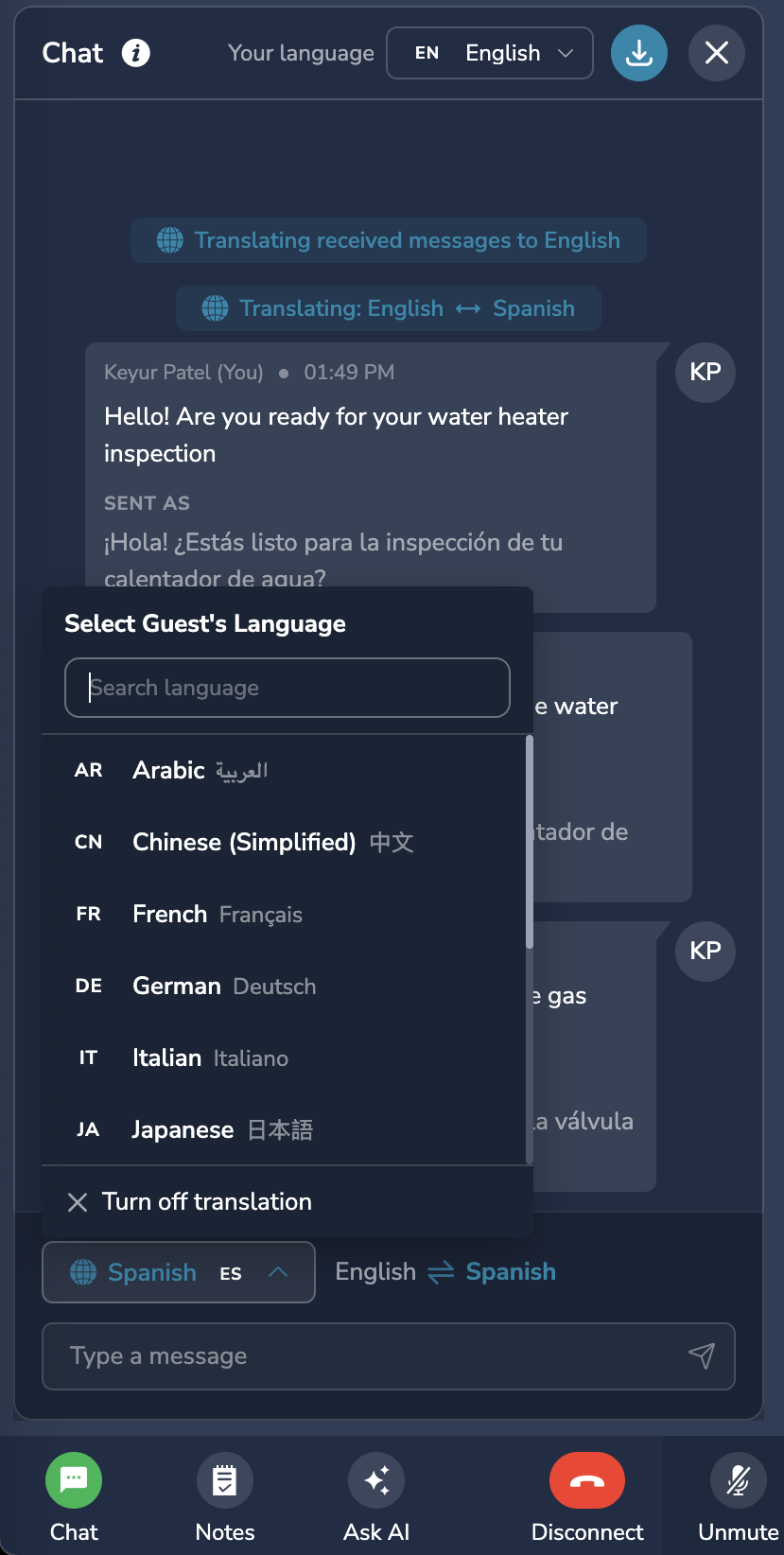
Agent view
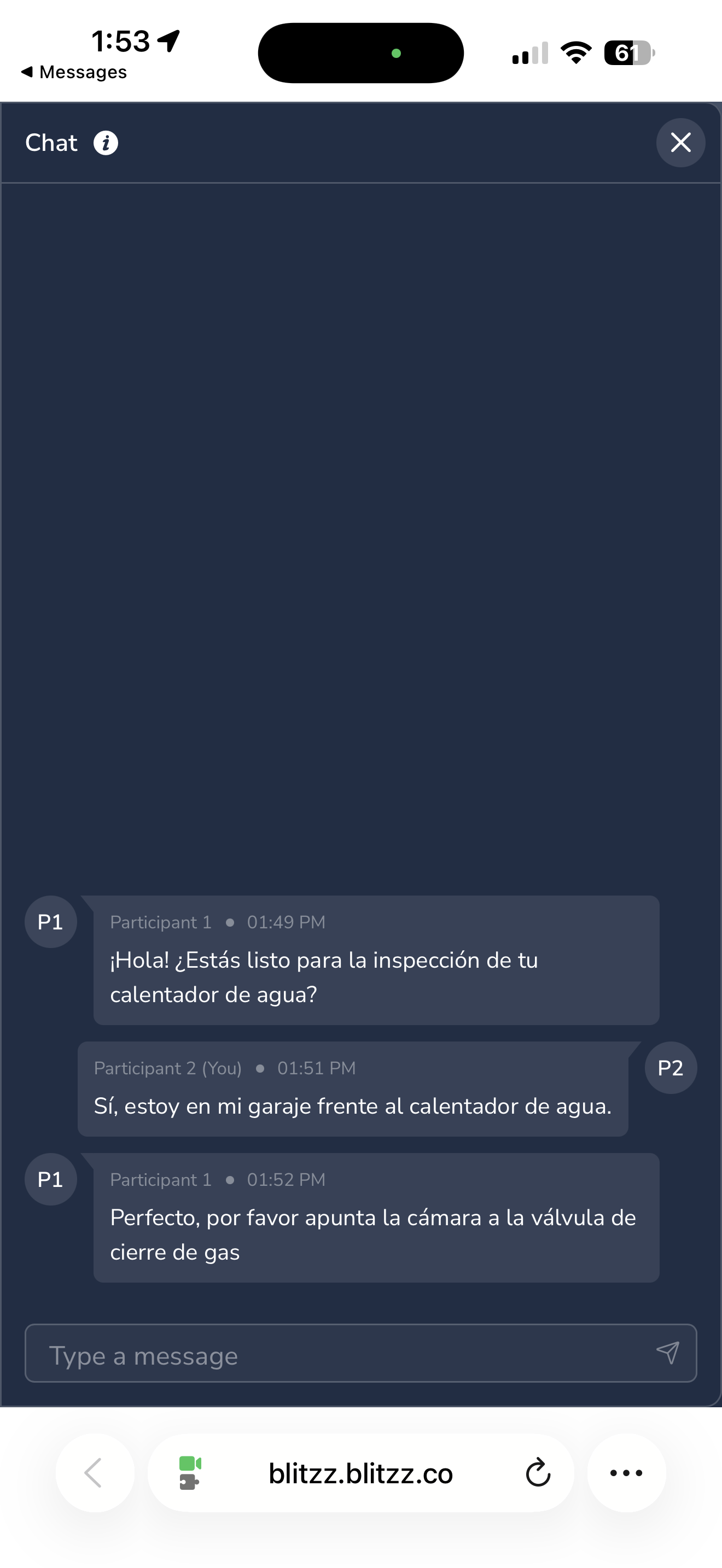
Guest / Customer view
Supported Languages
- Arabic (AR)
- Chinese, Simplified (CN)
- French (FR)
- German (DE)
- Italian (IT)
- Japanese (JA)
- Korean (KO)
- Polish (PL)
- Portuguese (PT)
- Russian (RU)
- Spanish (ES)
- Vietnamese (VI)
Don't see your language? Reach out to us at support@blitzz.co and we can add it to your account.
Frequently Asked Questions
Does the customer need to do anything?
No. Customers just type in their own language as usual. The translation is completely invisible to them.
Can I change the guest's language mid-session?
Yes. Tap the globe icon at any time to switch languages or turn off translation.
Is there a record of translated messages?
Yes. Session transcripts include both the original and translated versions of each message.
What if my language is not listed?
Reach out to us at support@blitzz.co and we can add it to your account.